Improve your membership program and retain more members by discovering why members are leaving. Having access to this data helps your team develop a plan to retain members from preventable cancellations.
After asking members why they're leaving, discover the reasons in the report: the Membership Cancellation report.
Set up cancellation reasons
Switch on and configure a list of reasons for cancellations. The drop down list shows when a member cancels online, or when a staff member actions a cancellation through in Venue Manager. Here's how:
In Venue Manager, go to Settings and Memberships.
Select the check box Ask members for a cancellation reason.
Select Add reason and select from one of the predefined reasons from the drop down. The table below shows the 10 reasons to select from (eg EXP - Pricing Concerns).
Enter the reason text. This is the text the guest sees when they select their cancelation reason. While the reason code is predefined, the reason text is custom (eg Membership is too expensive).
You can also allow members to enter their own reason. To do this, select the checkbox Allow guests to enter their own custom reason (up to 250 characters).
Select Save.
Now, when a membership is cancelled either in an online account or in Venue Manager a list of reasons will appear to prompt the guest or staff member to select the appropriate reason.
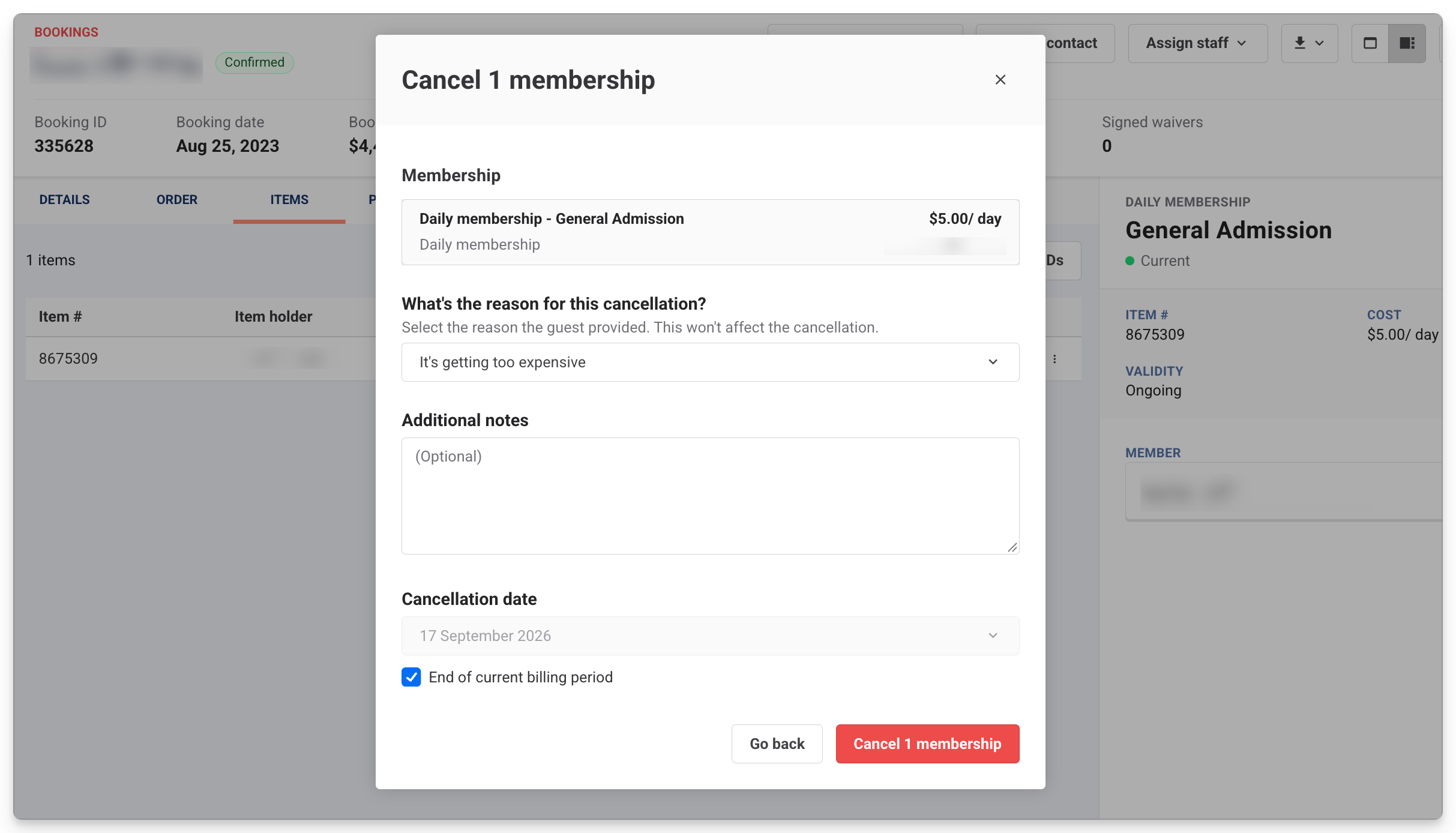
Pre-defined cancellation reasons
You have the option to add some or all of the below pre-defined reasons to show to members. While the reason codes are pre-defined, you're able to enter your own reason text which is what a guest sees when they select from the list.
Reason code | Reason |
|---|---|
EXP | Pricing concerns |
USE | Not using enough |
SAT | Unsatisfied |
INJ | Injury / health |
FIT | No longer suitable |
AGE | Grown out of it |
LOC | Location issue |
GFT | It was a gift |
SEA | Seasonal / temporary |
ALT | Found better option |
BSY | Too crowded |
HRS | Logistics |
To do this task, you require the Can access membership settings permission. This permission is enabled for Administrator roles and can be added to custom roles.
Report on membership cancellations to discover trends
The Membership Cancellations report shows all of the voluntary membership cancellations that have occurred over a set period.
It shows purchase dates, cancellation dates, redemption counts, tenure and cancellation reasons. Here's how:
Go to Reports and All reports.
Select the Membership Cancellations report.
Use the date selector to select which period to view, and select Apply.
To learn more about what this report shows, see the guide Membership Cancellations report.