Every cancellation tells you something about your membership program. The Membership Cancellations report shows you who’s leaving, how long they stayed, how much they used their membership and why they left, so you can spot patterns and fix them before more members follow.
What this report can do
Use this report to answer questions like:
Are members leaving early? Check tenure to see whether members cancel soon after their minimum term ends or stay for the long haul.
Are members getting value from their membership? Low redemption days can mean members aren’t visiting enough to justify the cost. This is a signal to review your pricing, benefits or how you encourage members to visit.
Which memberships lose the most members? Compare cancellations by product to see which tiers or offers need work.
Why are members leaving? If you capture cancellation reasons, see the most common reasons and where members cancel (online or through Venue Manager).
How much revenue did each member bring in? See the total billed across each member’s tenure to understand the value of a typical member.
Gain clarity by asking members why they’re leaving when they cancel their membership. Learn how to set this up in the guide Find out why members cancel and provide offers to stay.
Report on membership cancellations to discover trends
The Membership Cancellations report shows voluntary cancellations only, where a member or staff member canceled the membership. This report shows to all venues that have members.
Use this report to see purchase dates, cancellation dates, redemption counts, tenure and cancellation reasons. Here’s how:
From Venue Manager, go to Reports > All reports.
Use the search bar to search for the report using the title of the report: Membership Cancellations. Or, scroll to the Guests section and select the report from there.
Use the date selector to select which period to view, and select Apply.
If you want to review membership cancellations from a certain period (eg the past 6 months) use the date selector drop down and select Within the last and then select the time period you want to review. The cancellation date is what determines whether a membership cancellation will show up in the report filter, not when the membership was purchased.
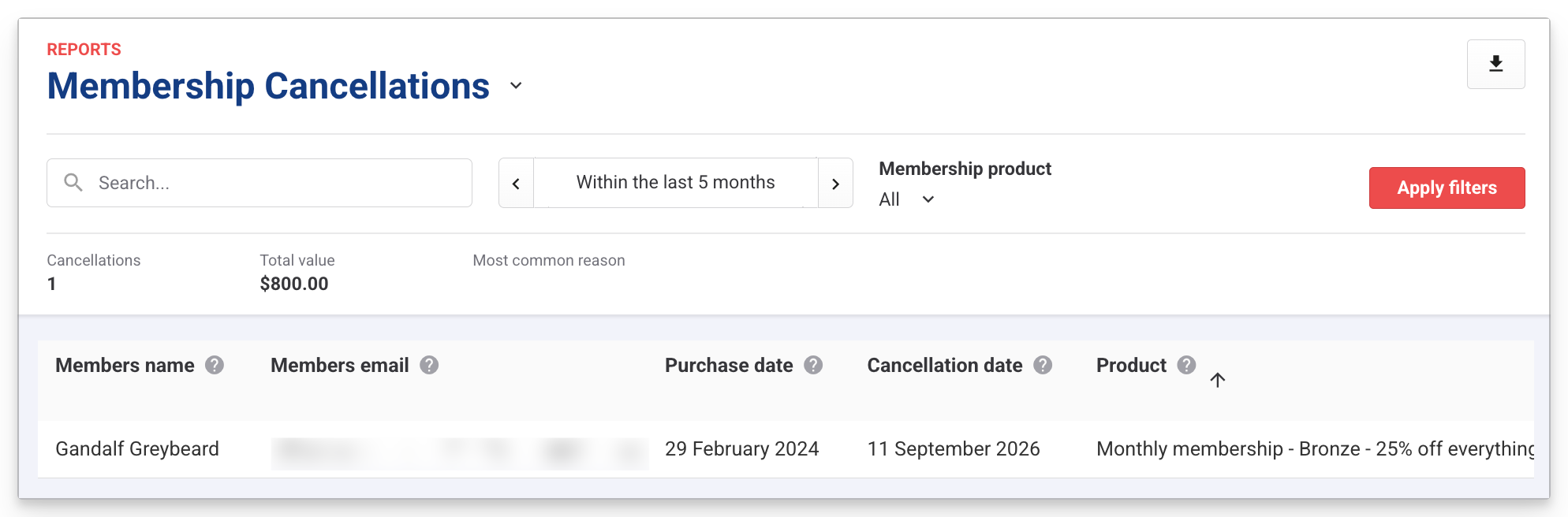
To track memberships lost to failed payments, see the Membership retention insights dashboard.
What the fields show
Here's what the fields show in the Membership Cancellations report.
Field | What it shows |
|---|---|
Members name | The name of the member. |
Members email | The email address of the member. |
Purchase date | Date the membership was purchased. |
Cancellation date | Date the membership was moved to a cancelled status. |
Product | The membership product that was cancelled. |
Redemption days | Total unique days where the membership was redeemed in the venue. This indicates how much the membership was actually used. |
Booking ID | The original booking ID of the membership purchase. |
Ticket ID | The unique identifier of the membership. This differentiates memberships that were purchased under the same booking ID. |
Tenure (days) | Number of days (count) between when the membership was purchased and when it moved to cancelled status. |
Value (currency) | The total amount billed for this membership product across the tenure of the membership. |
Sales channel | Where the membership was cancelled from, either Venue Manager or in the member's online account (if enabled). |
Status | The cancelled status the membership ended in. |
Reason code | If enabled, the cancellation reason selected from the drop down list by the guest or staff member actioning the cancellation. Learn more in the guide Find out why members cancel and provide offers to stay. |
Reason given by guest | If enabled, the guest can enter their own reason in a free text field. This field shows that reason if entered. Learn more in the guide Find out why members cancel and provide offers to stay. |
Export the Membership Cancellations report
You can export the report to either .csv or .xlxs by selecting the Export button at the top of the report.
