Improve your venue’s recurring membership retention. This dashboard shows key renewal trends, helping you understand renewal performance, track failed renewals and monitor involuntary churn.
All plans except Lite and Pro Legacy plans
To unlock this dashboard, contact your customer success manager or our support team for help.
Top insights
Use this dashboard to track how your membership renewal process is performing:
See how many renewals are completed on the first attempt.
Track your involuntary churn rate month by month.
Measure how many failed renewals are successfully recovered.
Use the selected billing date filter to define the time period for all dashboard metrics. The dashboard does not show all-time values unless your selected filter covers that full period.
Access the dashboard
The permission Can access Analytics is required to view dashboards and reports. Administrator and manager system roles have this permission enabled by default.
From Venue Manager, go to Analytics > Dashboards.
Select Membership retention insights.
Data with billing dates in the last six months is shown by default.
Dashboard metrics and calculations
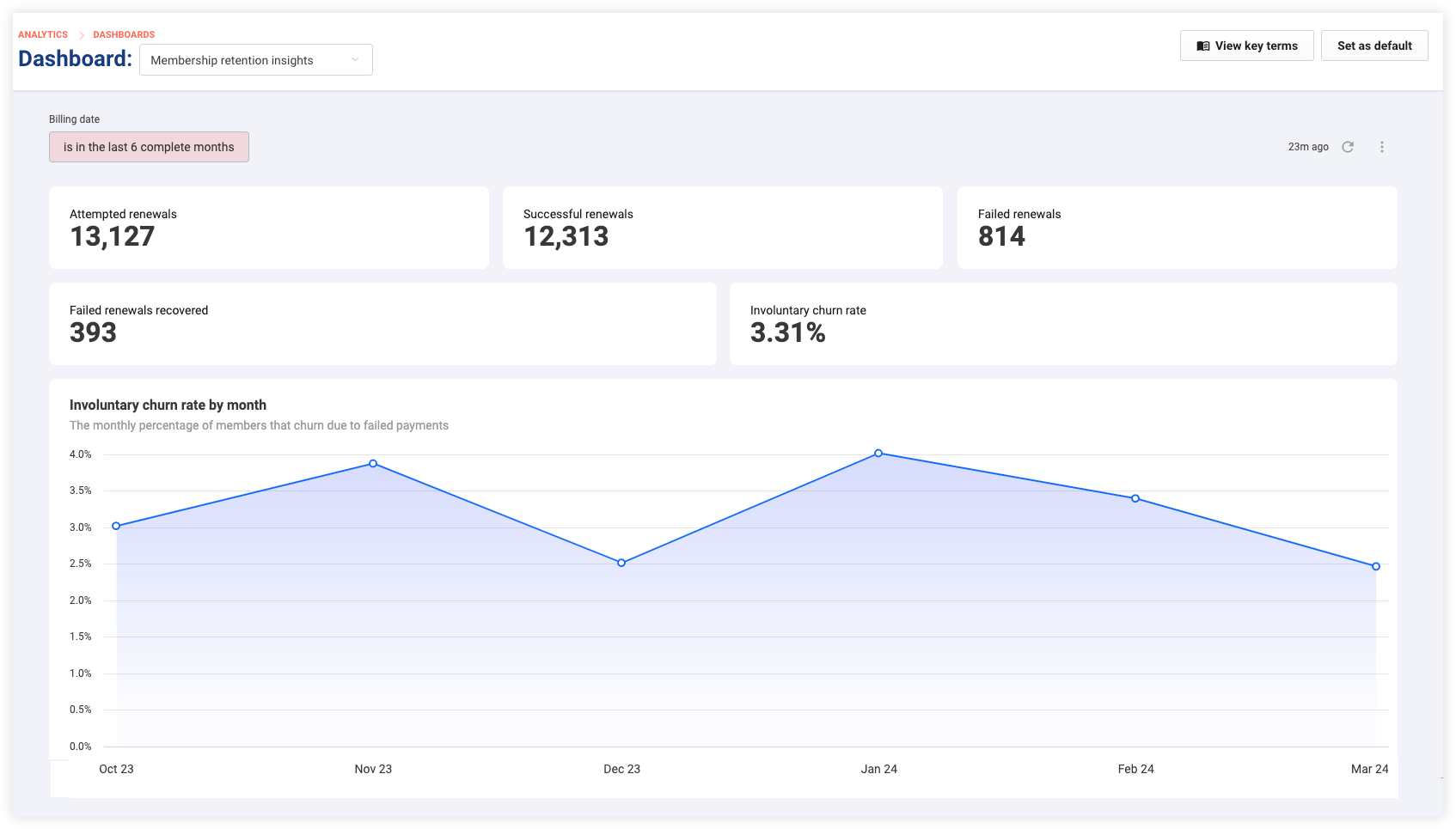
Review the metrics displayed in the dashboard, then refer to the definitions and table below to understand how each metric is defined for the selected billing date period.
Interpret churn metrics
Use these definitions to understand the membership retention metrics shown in this dashboard.
Voluntary churn – Memberships canceled by the member. Voluntary churn is reflected by membership cancellations, not failed renewals.
Involuntary churn – Failed renewals that were not recovered.
Attempted renewals – All renewal attempts in the selected billing date period, including successful and unsuccessful renewals.
Successful renewals – Renewals in the selected billing date period that were completed successfully on the first attempt.
Failed renewals – Renewal attempts in the selected billing date period that were unsuccessful.
Failed renewals recovered – Failed renewals in the selected billing date period that were later recovered, for example through a retry or at POS. This can include recovered failed renewals from any renewal attempt in the selected billing date period, not only first-month renewals.
Involuntary churn rate – The percentage of failed renewals in the selected billing date period that were not recovered.
Membership cancellations are not the same as failed renewals. Membership cancellations indicate voluntary churn, while involuntary churn is based on failed renewals that were not recovered.
Involuntary churn is based only on renewal attempts in the selected billing date period and does not include membership cancellations.
To learn more, see the guide Membership status.
Metric | Description/calculation |
|---|---|
Attempted renewals | Total number of renewal attempts in the selected billing date period, including successful and unsuccessful renewals. |
Successful renewals | Count of renewals in the selected billing date period that were completed successfully on the first attempt. |
Failed renewals | The number of memberships that failed the renewal process in the selected billing date period. |
Failed renewals recovered | Number of failed renewals in the selected billing date period that were later recovered, for example through a retry or at POS. This can include recovered failed renewals from any renewal attempt in the selected billing date period, not only first-month renewals. |
Involuntary churn rate | Percentage of failed renewals in the selected billing date period that were not recovered. This metric is based only on renewal attempts in the selected billing date period and does not include membership cancellations. |
Involuntary churn rate by month | Shows the month-by-month trend of involuntary churn rate for the selected billing date period. |
Filter for specific time periods
The dashboard shows data from the past six months by default, but you can temporarily choose different timeframes or specific dates to view different data. Changing the billing date filter changes the metrics shown for your current view.
Select the drop-down menu labeled Billing date at the top left of the dashboard.
Use the filters to choose the timeframe, day, date or date range.
Select the highlighted Update icon at the top right to refresh the data.
Review the updated results.
Modifying these filters will only temporarily affect your current view and will not affect the filter settings of other users.
The next time you load the dashboard, the default filters will return.
Or, you can select the options menu (3 dots) in the top right to choose the Refresh filters option.
Learn how to filter, interact with and download the data in a dashboard.