Automatically collect a service charge for the extra service your team provides whenever a party package, a group ticket or another product you choose is in a booking. You don't need to build the charge into your prices or add a required add-on, and guests see it as its own line in the cart before they pay.
Service charges are available on request for venues in the US, Canada and Australia. To turn this on, contact your customer success manager or the support team.
How service charges work
A service charge only applies to the products you choose.
Products that trigger it: You choose specific products or reporting categories. When one of them is in a booking, ROLLER adds the service charge.
Amount: A percentage, charged on each booking item that triggers the service charge.
Tax: You choose the tax rate for the service charge from your existing tax rates. Any tax on the service charge shows in the booking's tax line.
Before or after tax: Choose Before taxes to work out the service charge on the pre-tax amount, then apply tax. Choose After taxes to work it out on the total including tax, so the amount is higher.
Before or after discounts: Choose Before discounts to work out the service charge on the list price, so discount codes don’t reduce it. Choose After discounts to work it out on what the guest pays after discount codes.
Associated products: You can also charge the service charge on other items in the same booking (eg food and drinks added to a party). They're only charged when a product that triggers the service charge is in the booking.
Before you begin
Add the tax rate you want to charge on the service charge. See the guide Adjust tax and fees.
If you want to choose products by reporting category or tag, set those up on your products first.
Check the rules surrounding service charges in your state, province or country. You're responsible for setting up the service charge in line with them.
Create a service charge
Set up one service charge for each charge you want to collect (eg one for party packages and one for large groups).
Follow the walkthrough to create a service charge, then use the steps below as a reference.
From Venue Manager, go to Settings > Account > Tax & fees.
Select the Service charge tab.
Select Create service charge.
Enter a Name, a Description and the Amount as a percentage. Guests see the name and percentage in the cart and on the product page (eg Large groups service charge (20%)), so use a name they'll recognize.
In Tax on service charge drop-down, select the tax rate to charge on the service charge.
Under Tax calculations, select Before taxes or After taxes.
Under Discount calculations, select Before discounts or After discounts.
Under Applied products, select Specific products or Reporting categories, then select the products or categories that trigger the service charge.
(Optional) To charge the service charge on other items in the same booking, select Apply this service charge to associated products in the same booking. Then under Associated products, select Specific products, Reporting categories or Specific tags, and make your selection.
Select Save.
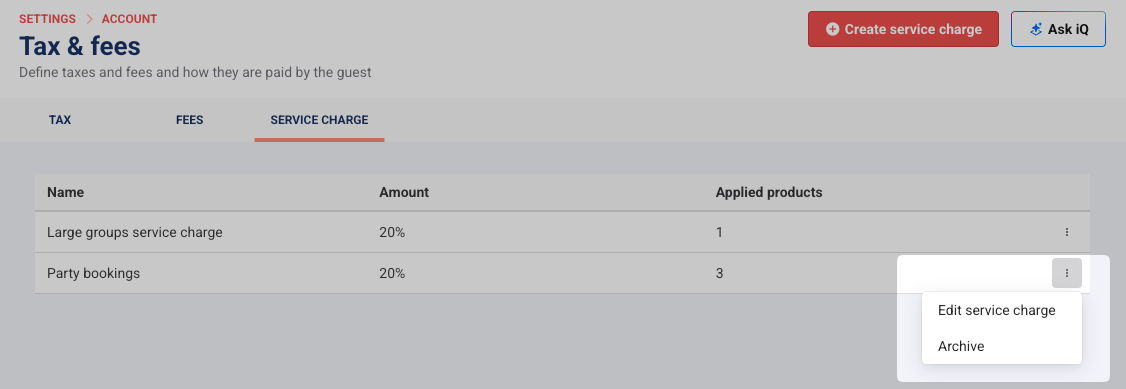
The service charge appears as a row on the Service charge tab, with its name, amount and the number of applied products. From there, ROLLER automatically adds it to bookings that include a product that triggers it.
How associated products are charged
The service charge can cover the extras in a booking too, not only the product that triggers it (eg food and drinks with a party package, or equipment hire with a group ticket).
Extras you choose as associated products are only charged when a product that triggers the service charge is in the same booking, including extras added later. For example, if a party package triggers the service charge and pizza and coffee are associated products:
A booking with the party package, pizza and coffee is charged on all three.
A booking with only pizza and coffee isn’t charged.
Change or archive a service charge
Keep your service charges up to date by editing a rule when the percentage or products change, and archiving ones you no longer use.
From Venue Manager, go to Settings > Account > Tax & fees.
Select the Service charge tab.
Select the options menu (3 dots) for the service charge, then select Edit service charge or Archive.
You can also archive a service charge while you're editing it: select Archive at the top of the Edit service charge panel.
What guests and staff see
Guests see the service charge before they pay, and staff see it on every booking it applies to.
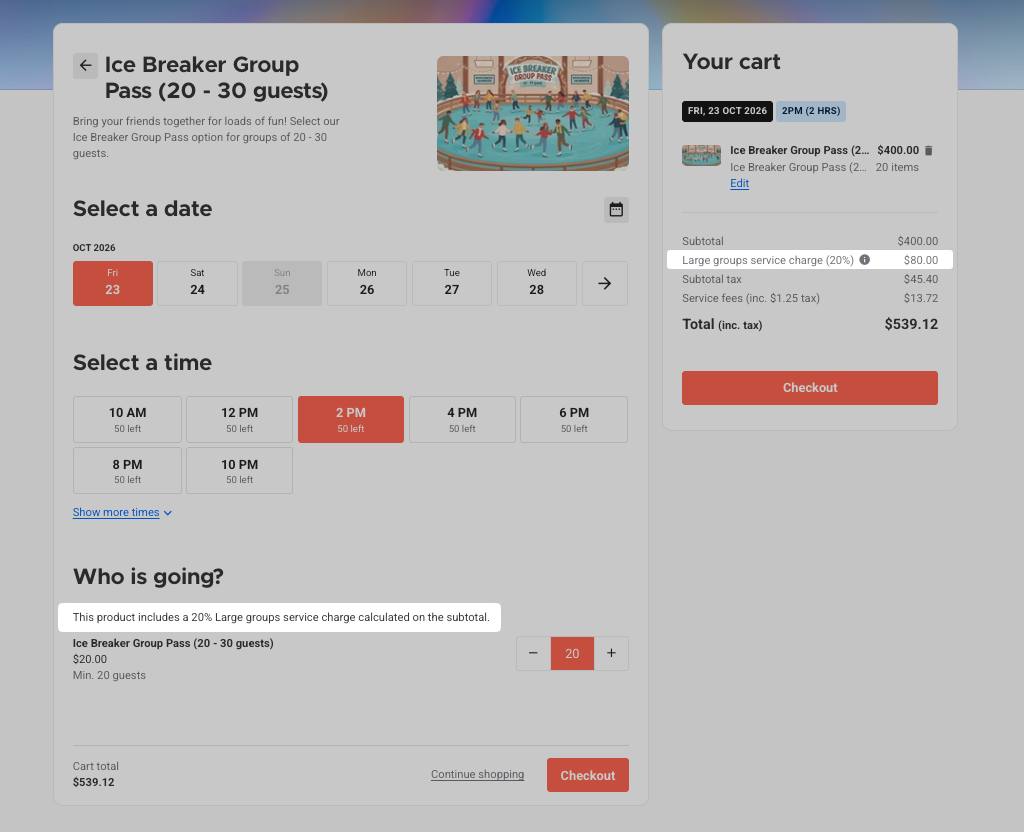
Online checkout: The product page shows the service charge and what it's calculated on (eg This product includes a 20% Large groups service charge calculated on the subtotal). In the cart, it shows as its own line with its name, percentage and amount. Guests can select the info icon to see what the charge is and that any tax on it is included in the tax line.
POS: The service charge shows as its own line in the cart totals, under the subtotal.
Venue Manager: The service charge shows as its own line on the booking's Order tab once you hold or reserve the booking.
Any tax on the service charge is included in the tax line.
FAQs
Can I charge a service charge on party bookings only?
Yes. Under Applied products, select only your party packages (or the reporting category they're in). The service charge won’t apply to other bookings.
When should I use a service charge instead of a booking fee?
Use a service charge to charge for the extra service your team provides on bookings like parties and large groups (eg hosting, setup and clean-up). Guests see the service charge in the cart, as a percentage of what they’re booking.
Use a booking fee for other costs you pass on to guests, like a fee on online bookings. To set booking fees, see the guide Adjust tax and fees.
Is tax charged on the service charge?
Tax is charged at the rate you select under Tax on service charge, and it shows in the booking's tax line.