Offset rising business expenses without increasing product prices by adding fees to guest purchases. ROLLER allows you to configure fees, as well as adjust the tax rate, for all guest purchases made through online checkouts and at POS.
This guide shows you where to find tax and fee settings, how to update tax rates, and how to configure fees.
Start here
From Venue Manager, go to Settings > Account > Tax & fees.
The permission Can access account details is required to access the tax and fees page. It is enabled by default for the administrator system role, and any custom roles based on it.
Add and adjust tax rates
The permission Can edit tax settings lets staff add or edit tax rates (not fees) and override the tax rate on individual products — without unlocking the full product setup. It is enabled by default for the administrator and manager system roles, and in any custom roles based on those.
To adjust tax rates:
From Venue Manager, go to Settings > Account > Tax & fees.
Select Add tax
Enter the tax Amount (%).
You can add as many tax rates as required, but one rate must be selected as the default. Most products use the venue's default tax rate unless a specific rate is assigned.
Gift cards, cashless cards and wallets automatically default to 0% tax so long as a 0% tax rate is available in the Tax table. Otherwise, they will apply the default tax rate.
To change the default tax rate for specific products, set the different tax rates here, then apply them to individual products in the product setup.
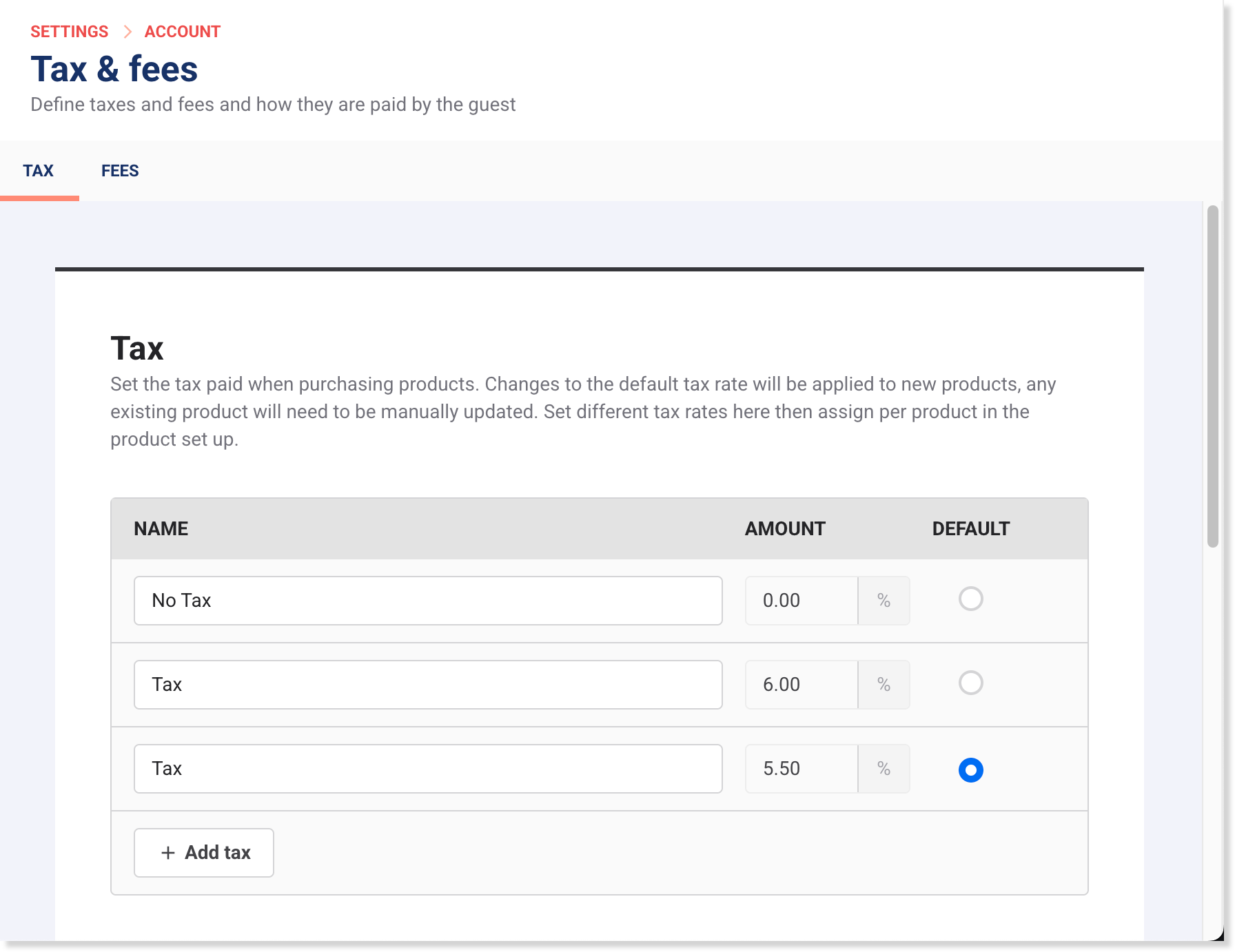
Select Save.
Updates to tax rates are applied to new products only. Any existing products need tax rates to be manually updated.
Tax labels on receipts and invoices
The default is to show tax line items on receipts and invoices. To hide them, select the Hide tax labels on receipts and invoices option.
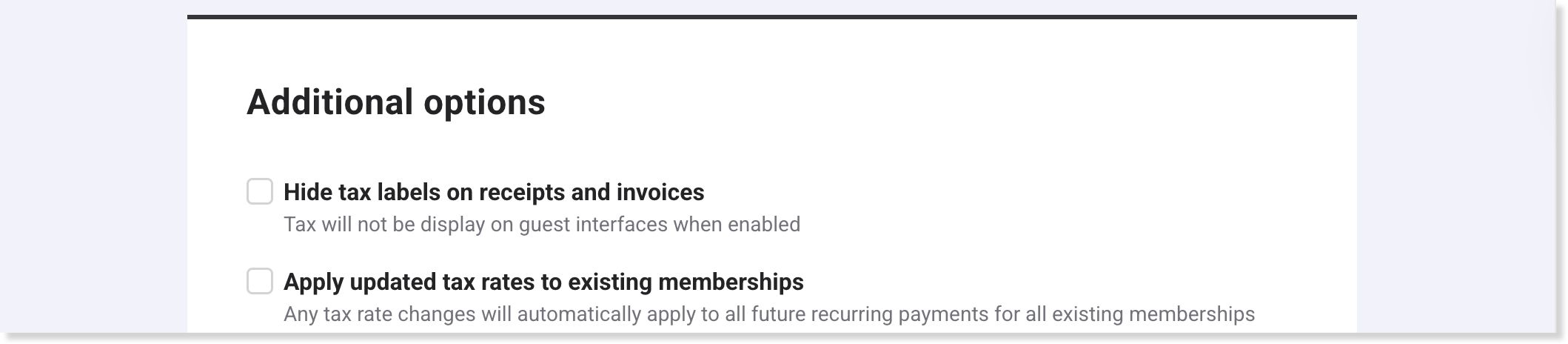
If your jurisdiction requires a detailed tax breakdown on receipts and invoices, this can be enabled on request. Contact your customer success manager or the support team to enable it.
Tax calculation
Product prices can be tax-inclusive or tax-exclusive. (Fees are always tax-inclusive.)
In regions that require one method, ROLLER applies it automatically. But, you do have the ability to override this at the product level.
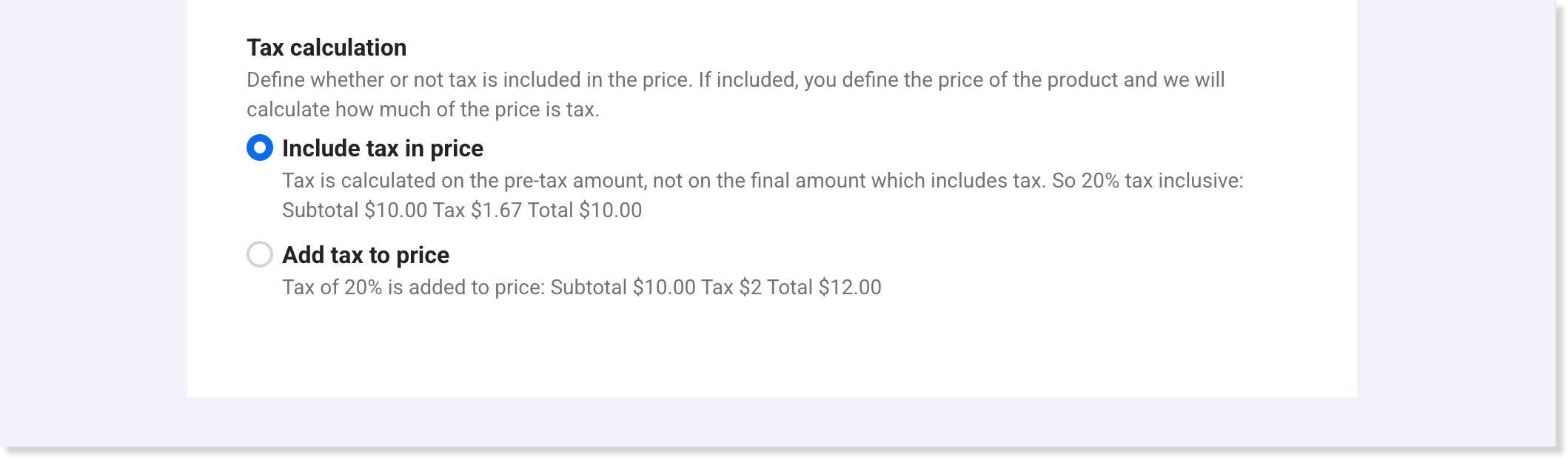
In regions where either method is allowed, choose an account-level default:
Include tax in price | You set the price of your products and then ROLLER will calculate how much of the price is tax. |
Add tax to price | You set the price of your products and then ROLLER will calculate tax on top of this set price. The tax amount is then added to the total cost. |
By selecting one of these options, you’re choosing a default that is applied to all products. You also have the ability to override this at the product level.
Adjust fees
The permission Can edit fee settings lets staff add or edit fee settings. It is enabled for the administrator and manager system roles, and in any custom roles based on those.
ROLLER provides flexible options for setting fees with the option to apply:
Booking fees: fee applied once, on the booking subtotal at the time of booking.
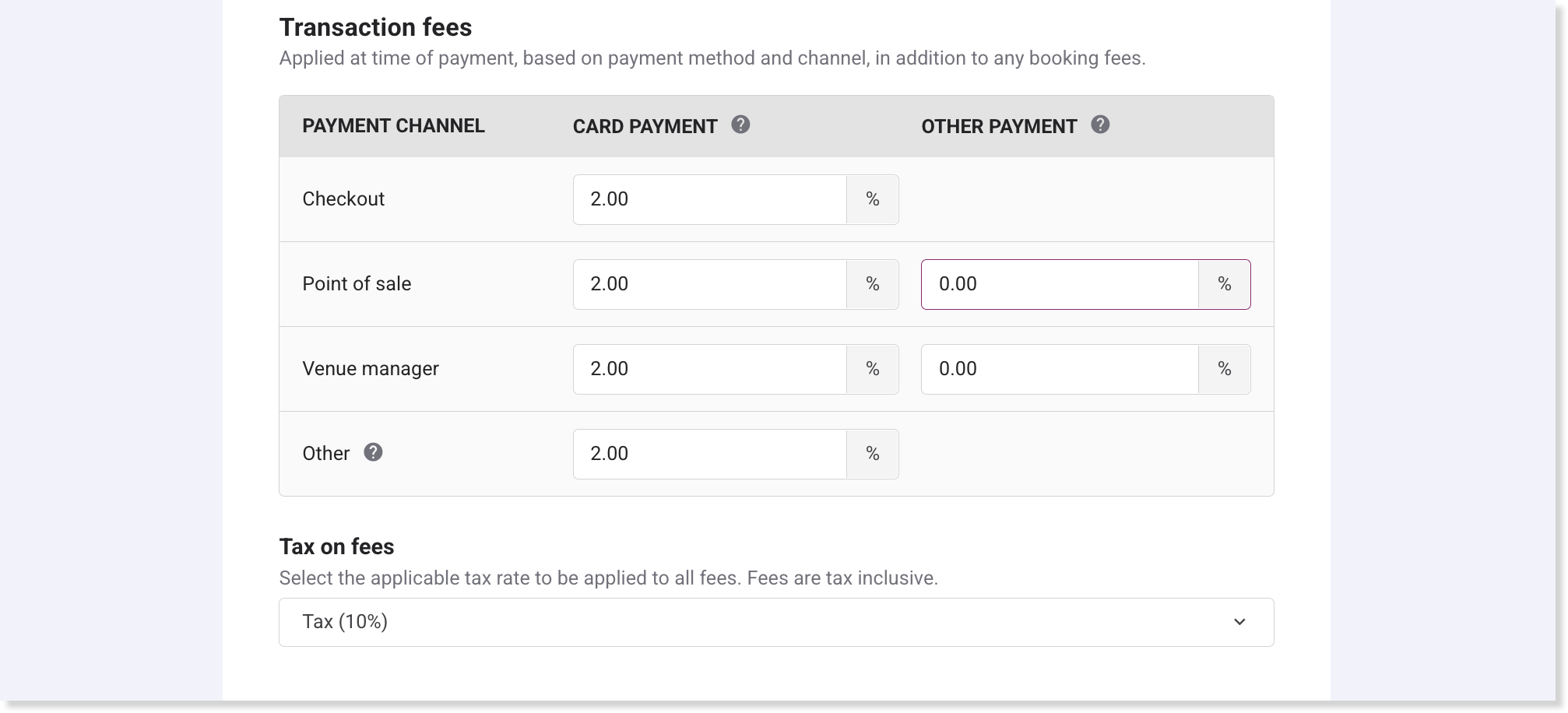
Transaction fees: fee applied at the time of payment, based on payment method and channel, in addition to any booking fees.
By configuring fees, you acknowledge that you have read and agree to ROLLER's Service Charge Policy. Before adding your fees in Venue Manager, make sure you’re in compliance with any regional laws applicable to taxes and fees relevant to product purchases.To adjust fees:
From Venue Manager go to Settings > Account > Tax & fees.
Select the Fees tab at the top of the page.
Select Enable fees.
Enter your booking and/or transaction fees. See below for more details.
Select Save.
Choose when fees are recognized
If your venue uses accrual accounting, you can choose when booking and transaction fees are recognized in your financial reports. This lets you align fee revenue with either the time of payment or when the experience is delivered.
Fee recognition applies to new bookings only. Changing it doesn't update fees already recognized on existing bookings. Gift card fees are excluded.
To set fee recognition:
From Venue Manager, go to Settings > Account > Tax & fees.
Select the Fees tab.
Scroll to Fee recognition and choose an option:
Recognize at payment: recognizes the full fee when the guest pays, even if the booking is redeemed later. Use this if you recognize fees at the time of sale.
Recognize at redemption: recognizes fees as bookings are redeemed. For multi-experience bookings, the fee is split evenly and recognized as each experience is redeemed. Use this if you recognize fees when the experience is delivered.
Select Save.
The staff permission Can edit fee recognition is required to change this setting.
When you choose Recognize at redemption, fee revenue from new bookings is held as deferred fee revenue until each booking is redeemed or expires. Track it in the Deferred fee revenue column of the Revenue Recognition report and the deferred fee revenue row of the Trial Balance report.
Update booking fees
Set a fee to be applied at the time a guest makes a booking:
Checkout | Enter a fixed-price fee per booking (eg $2 added to each booking) or a percentage fee per booking (eg 5% added to each booking, calculated after discounts and tax) for bookings made online. |
POS | Enter a fixed-price fee per booking (eg $2 added to each booking) or a percentage fee per booking (eg 5% added to each transaction, calculated after discounts and tax) for purchases made at POS. |
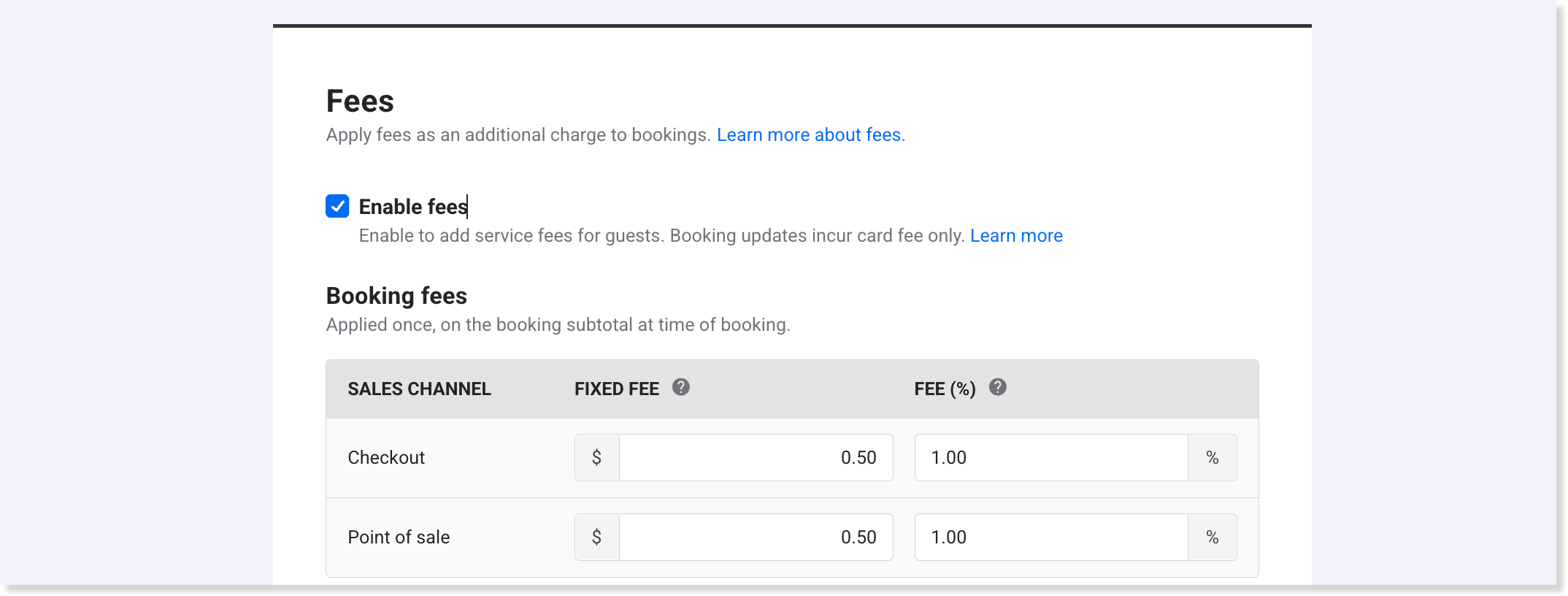
For bookings paid by deposit, the percentage fee is still calculated on the full booking total (after discounts and tax, before fees) even if only the deposit amount is collected at the time of booking.
Update transaction fees
Set a fee to be applied at the time a guest makes a payment.
The field for other payment fees refers to bank transfer, cash, cheque and eftpos transactions.
Checkout | Enter a card transaction fee percentage to apply to transactions in the online checkout (eg 2% of the transaction total). |
POS | Enter a card transaction fee and/or other payment fee to apply to transactions at POS (eg 2% of the transaction total). |
Venue Manager | Enter a card transaction fee and/or other payment fee to apply to transactions from Venue manager (eg 2% of the transaction total). |
Other | Enter a card transaction fee to apply to transactions from invoices, payment links and recurring membership payments (eg 2% on the transaction total). |
Although booking fees are applied only once per booking, card fees are applied each time a card is charged.
For example, when a guest purchases a recurring monthly membership, the original membership purchase can incur a booking fee and transaction fee, but afterwards the monthly recurring payments will only incur a transaction fee. You can specify different fees for online checkouts and POS.
Card surcharges
Before adding any surcharges, you should always check if any local laws or card scheme rules prohibit you from adding card payment fees (surcharging) to card payments.
Some regions restrict or prohibit you from adding a card payment fee (surcharging) under card scheme merchant rules. For example, from 1 October 2026, this applies to Australian venues: you can no longer add a card payment fee to card payments.
If any rules, regulations or laws apply to your venue, then follow the steps above to set your card payment fee to 0% for every sales channel (ie checkout, POS, venue manager and other).
Add tax on fees
Tax cannot be calculated on fees if your venue is using legacy checkouts.
Fees that have been configured in Venue Manager and are added to purchase totals are also subject to tax.
Fees are always tax inclusive (ie ROLLER will calculate how much of the fee total is tax).
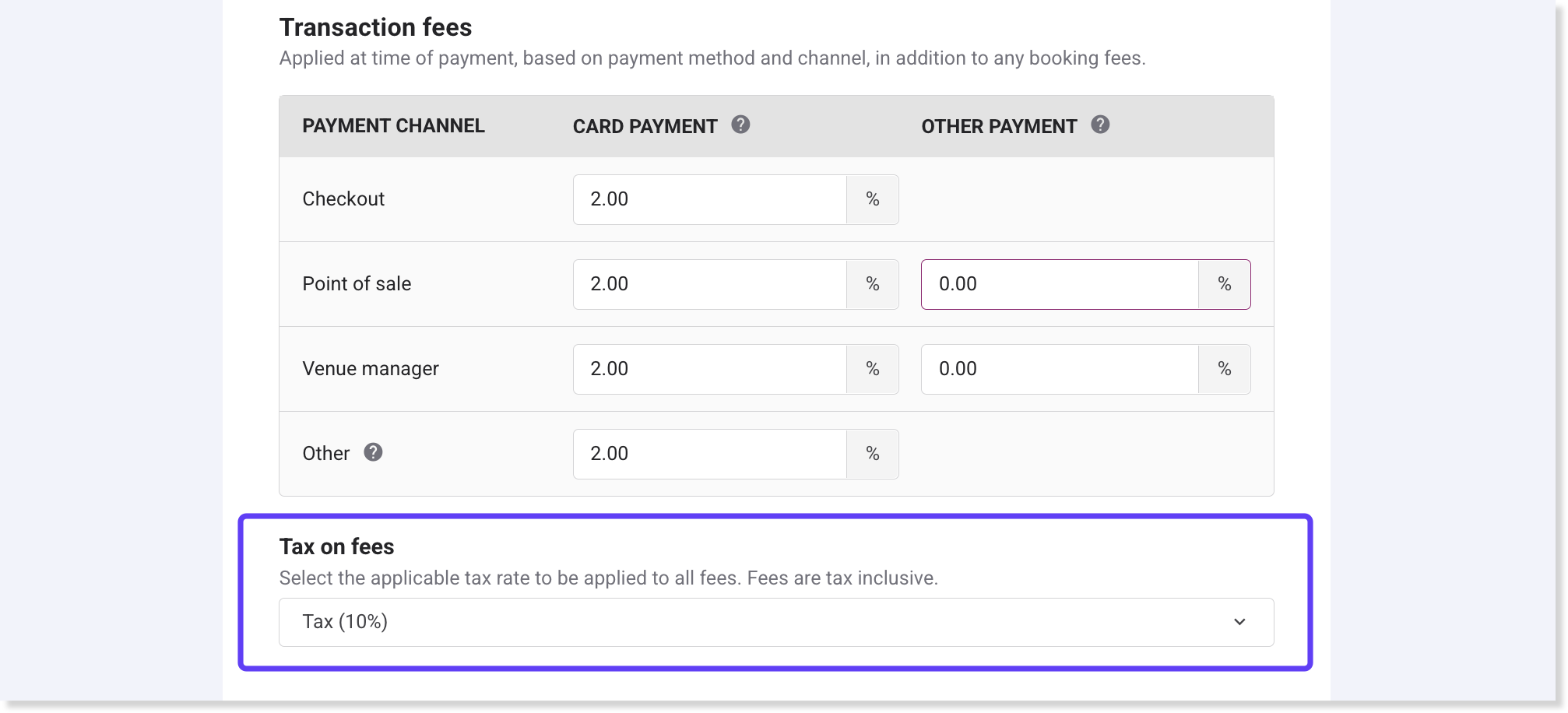
You will need to choose an appropriate tax rate for your fees. To do so, select the drop-down from the Tax on fees section and select the appropriate tax rate. This tax rate should already be configured in the Tax section above.
FAQs
What is a fixed-price booking fee?
Fixed-price booking fees apply a specific cost to guest purchases, regardless of the cost of items purchased. For example, if a guest is purchasing $5 jump socks and you’ve applied a $2 fixed fee, the item and fee subtotal will amount to $7. Alternatively, if a guest is purchasing a $50 entry ticket, the item and fee subtotal will amount to $52.
What is a percentage fee?
Percentage fees apply a dynamically calculated fee based on a percentage of the booking item subtotal. For example, if a guest is purchasing $5 jump socks and you’ve applied a 2% fee, the item and fee subtotal will amount to $5.10. Alternatively, if a guest is purchasing a $50 entry ticket, the item and fee subtotal will amount to $51.
How do fees work and how are they calculated?
First, if the purchase is via online checkouts or POS, your % fee is applied. For example, if you've configured a 5% fee and the order total (after discounts and tax) is $50, then once the 5% fee is applied, the subtotal is now $52.50.
Next, if the purchase is via online checkouts or POS, your fixed booking fee is applied. For example, if you’ve configured a fixed fee of $2 and the current cart subtotal is $52.50, then once the fixed fee is applied the cart subtotal is now $54.50.
Then, your transaction card fees are applied in addition to booking fees. For example, if your card fee is 2% and it’s applied to the total in the step above, the final subtotal will be $55.59.
How will fees display on receipts?
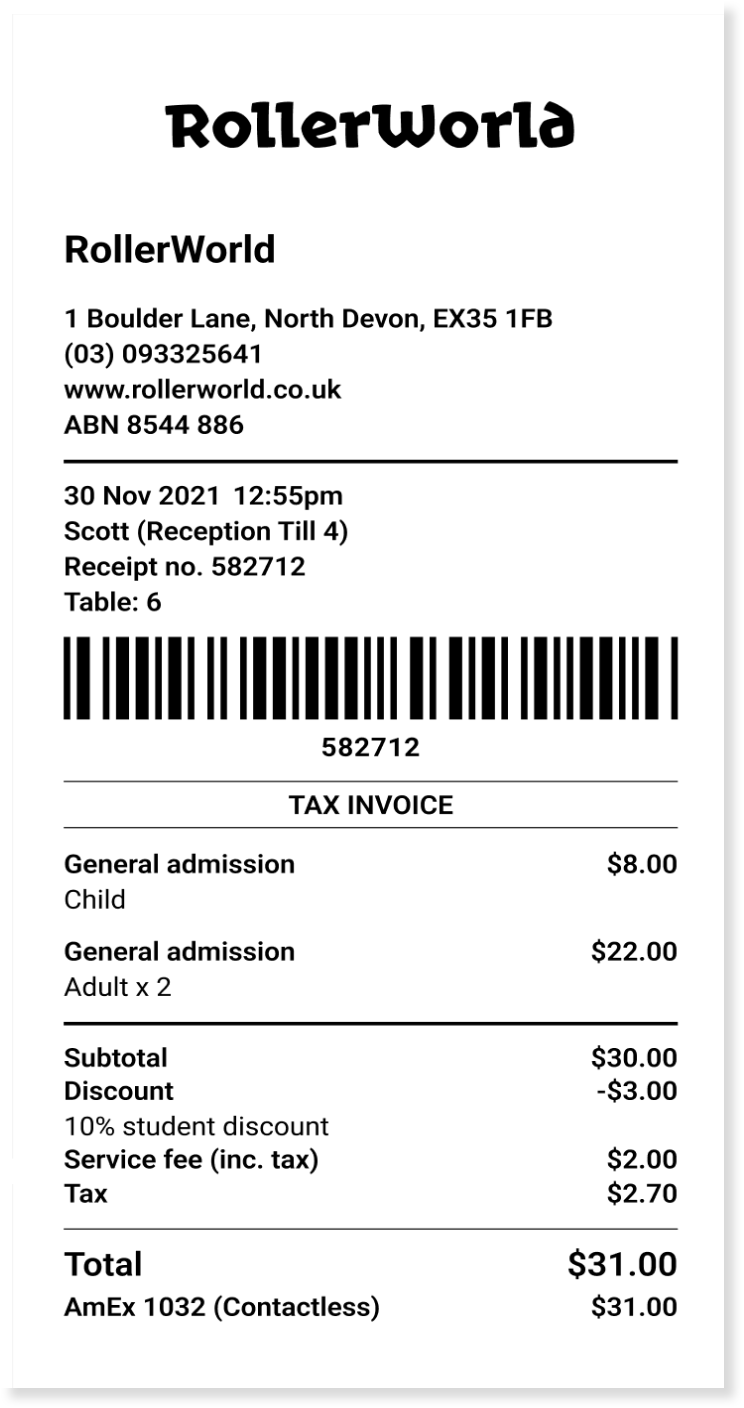
Receipts will include the total fee amount. If the receipt is reprinted, it will show the fee amount paid by the guest (regardless of whether the fee configurations have changed since the purchase).
How can I communicate fees to guests?
If you want to clearly present your fees to guests, you can create a small fee explainer that you can display at your venue.
At POS, your staff will also be able to see the fees added to guest purchases and communicate them to guests before they pay.