This guide explains how to override the default tax rates for specific products when needed, with changes taking place immediately, such as to comply with tax regulations, accommodate tax-exempt scenarios or align with regional pricing strategies.
Default tax rates
Most products follow the venue's default tax rate set in Venue Manager (Settings > Account > Tax & fees) unless a tax override is applied in a product's settings.
However, when a 0% tax rate is available in the Tax table, gift card, cashless card and wallet product types automatically default to this 0% tax.
This prevents double taxation since tax applies when guests redeem these product types for taxable items. If needed, you can also override the 0% default tax rate for these product types.
How to override the default tax rate
Create a new tax rate in Settings > Account > Tax & fees.
Apply the tax rate in the product setup using the Tax override option.
Create a new tax rate in Venue Manager
To customize tax rates at a product level, you must first add all the tax rates you wish to use. To do so, follow the steps below.
From Venue Manager, go to Settings > Account > Tax & fees.
Select Unlock to make changes in the top right-hand corner of the page.
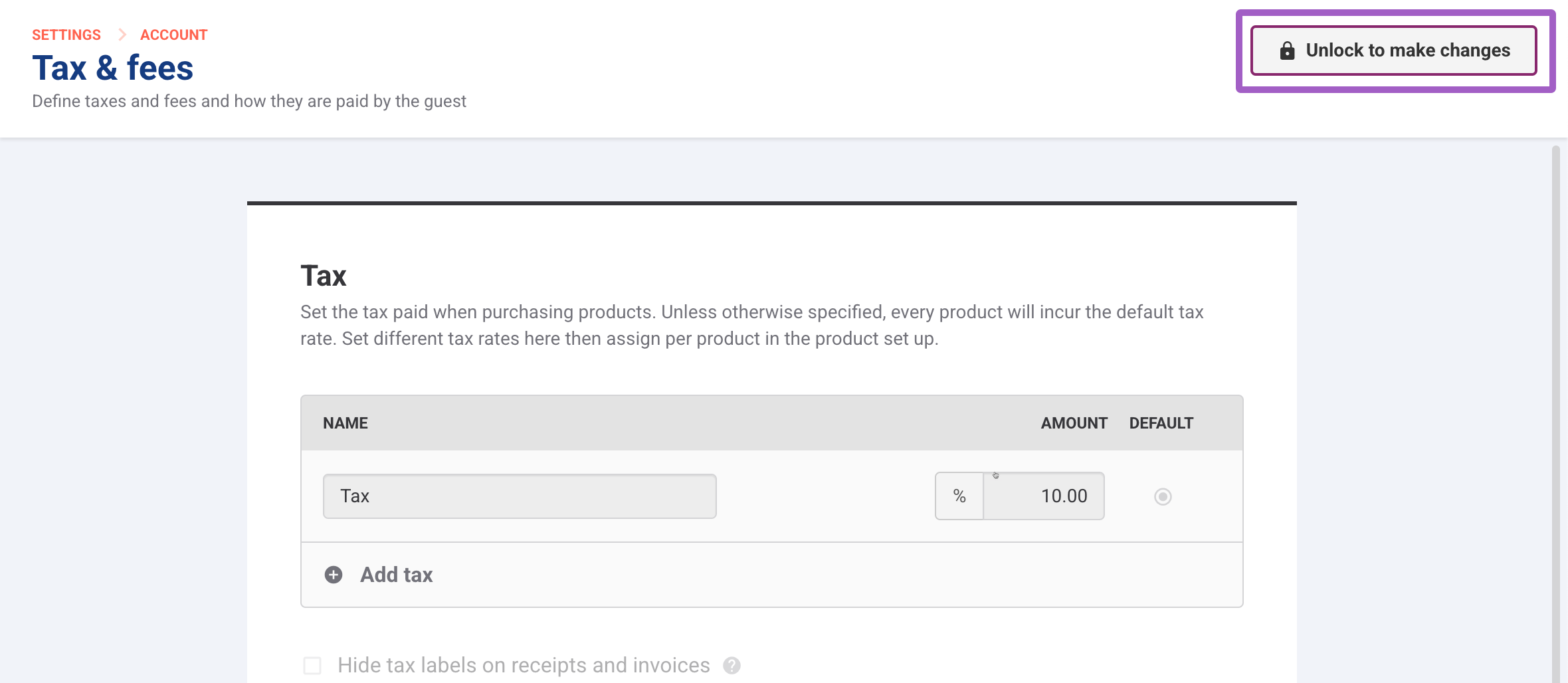
Select Add tax to add a new tax rate.
One rate must be selected as the default. The default rate is applied to all new products (excluding gift cards, cashless cards and wallets).You can also choose to hide the tax line item on receipts and invoices by selecting the Hide tax labels on receipts and invoice option.
Select Save.
You can apply a unique tax rate for each ticket variation you have, but you cannot add multiple tax rates to the same ticket variation.
Apply the new tax rate in the product setup
After you've added the tax rates you want to use, you can now override the default tax rate at the product level by assigning a specific tax rate.
For more on creating and customizing products, refer to the guide Create your products.