This guide shows you how to configure settings used by all SSK devices in your venue.
To create SSK device profiles and templates in ROLLER, see Create your self-serve kiosk device.
From Venue Manger, go to Apps > Self Serve Kiosk > Settings
Configure global settings
From the global settings tab, you can allow guests to purchase tickets with incomplete waivers.
Set welcome page settings
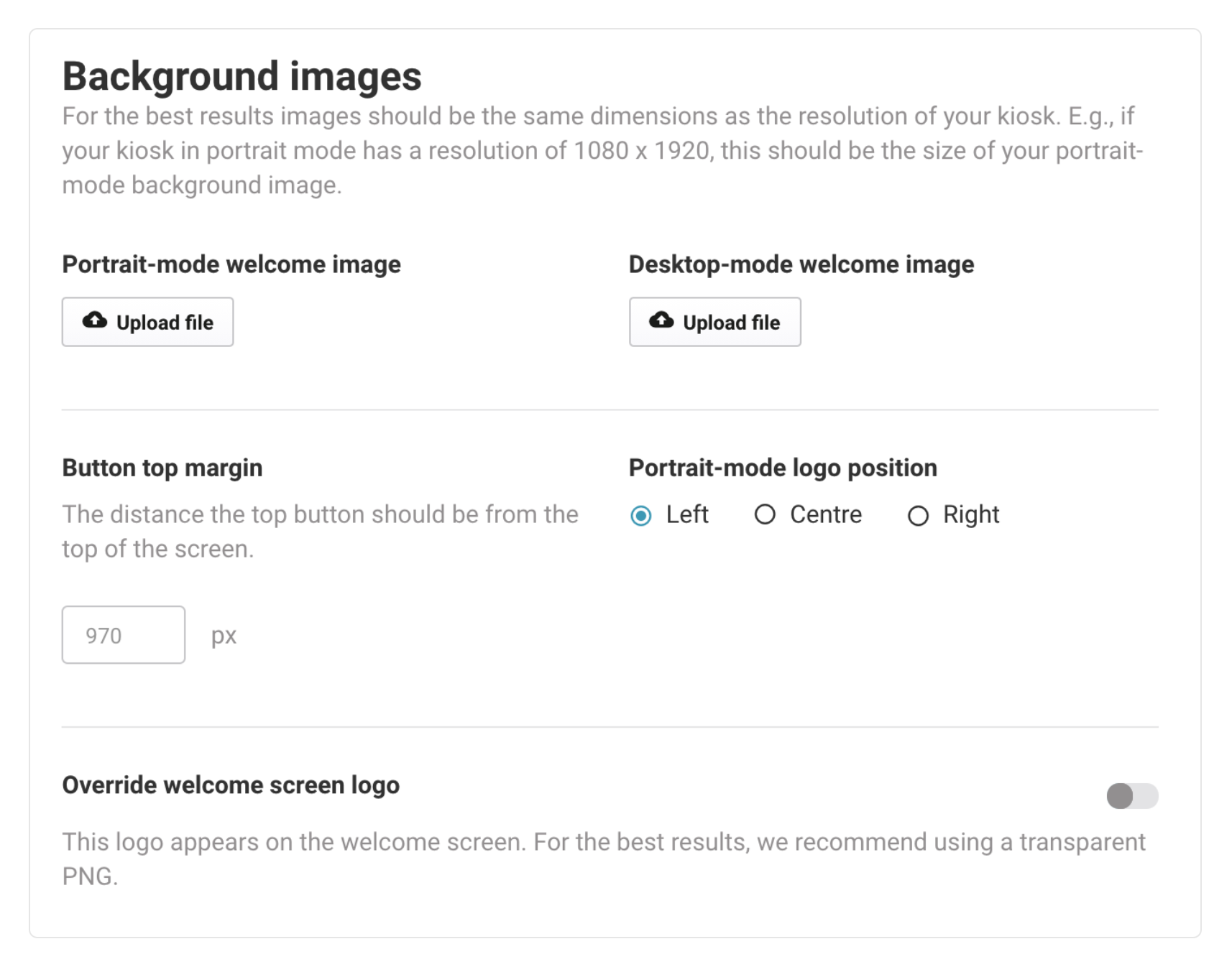
From the welcome page tab, configure the following settings:
Portrait-mode & desktop-mode welcome images | Upload the background image for portrait or desktop mode. For best results images should be the same dimensions as the resolution of the computer which will run the SSK device. |
Button top margin | Adjust the distance the top button should be from the top of the screen. |
Portrait-mode logo position | If SSK operates in portrait mode, your venue's logo position can be adjusted from left, centre or right. |
Override welcome screen logo | Override the default logo that appears on the welcome screen. For the best results, we recommend using a transparent PNG. |
Set standard pages settings
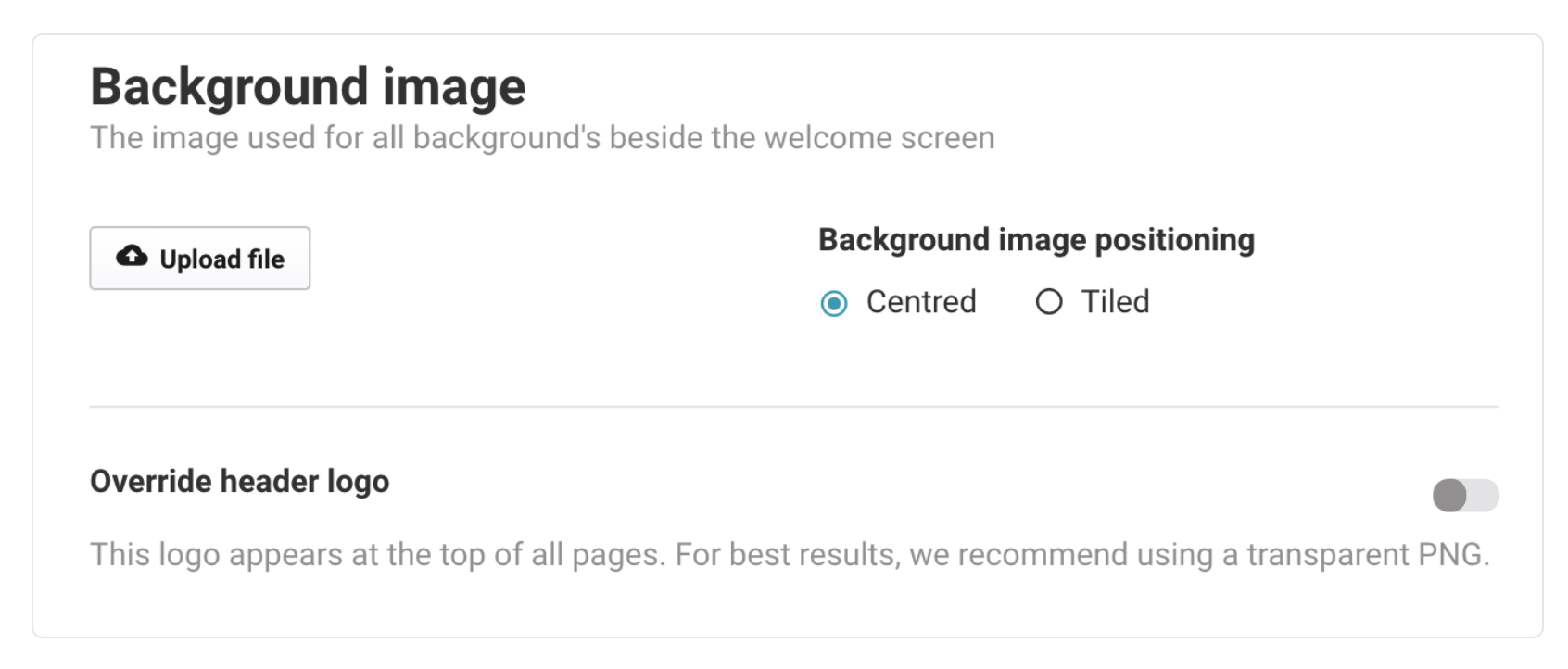
From the standard page tab, configure the following settings:
Background image - Upload file | Upload an optional background image for portrait or desktop mode. For best results images should be the same dimensions as the resolution of the computer which will run the SSK device. |
Background image positioning | Specify the initial position where the background image will be placed. If tiled, the background image will be repeated across the SSK device. |
Override header logo | Override the header logo that appears at the top of all pages. For the best results, we recommend using a transparent PNG. |
Set product image settings
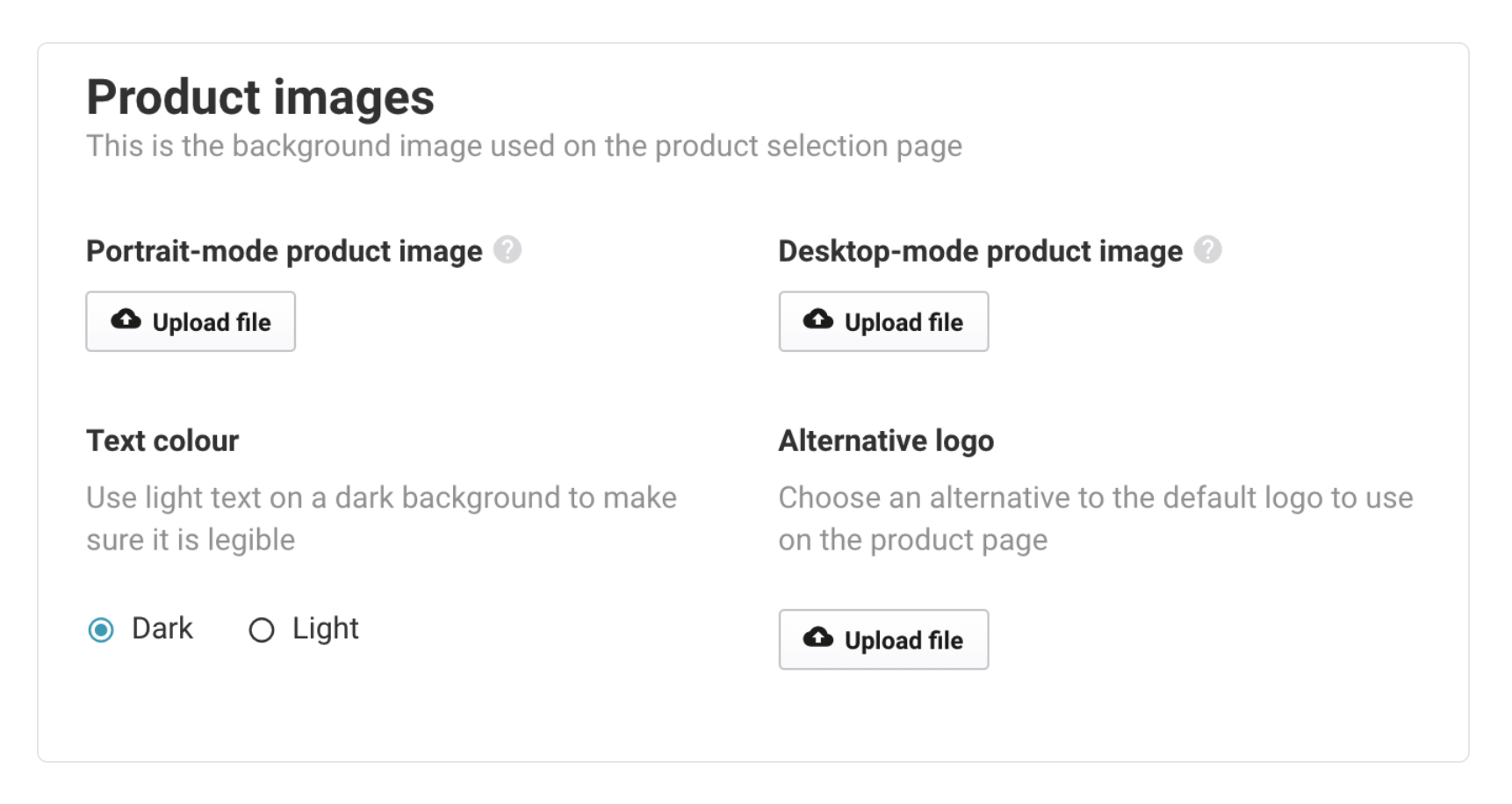
From the products tab, configure the settings for the product selection page guests see when using SSK.
Portrait-mode & desktop-mode product image | The product image image is used for the product selection page of the self-serve kiosks. For best results, images should be the same dimensions as the resolution of the computer which will run the SSK device. Alternatively, we recommend cropping your image to 1080 x 1920 for portrait mode and 1920 x 1080 for desktop mode. |
Text colour | Select either Dark or Light text. For example, use light text on a dark background to make sure it is legible. |
Alternative logo | Choose an alternative to the default logo to use on the product page. NOTE: This is a different image to the Override welcome screen logo. |