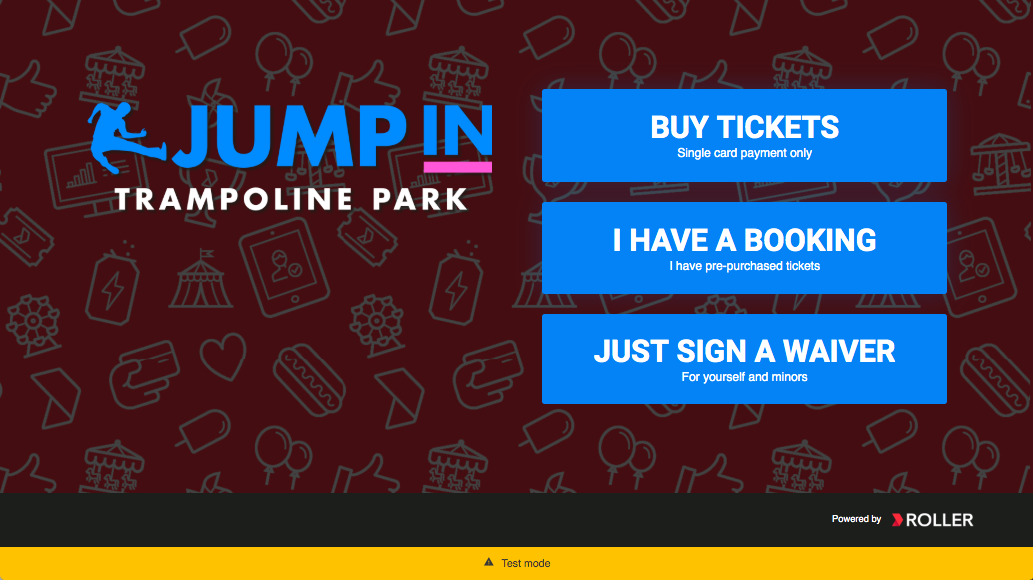
To sign in to a self-serve kiosk (SSK):
From Venue Manager, go to Apps > Self Serve Kiosk > Launch SSK. Alternatively, type selfserve.roller.app into the address bar of Chrome on the SSK device.
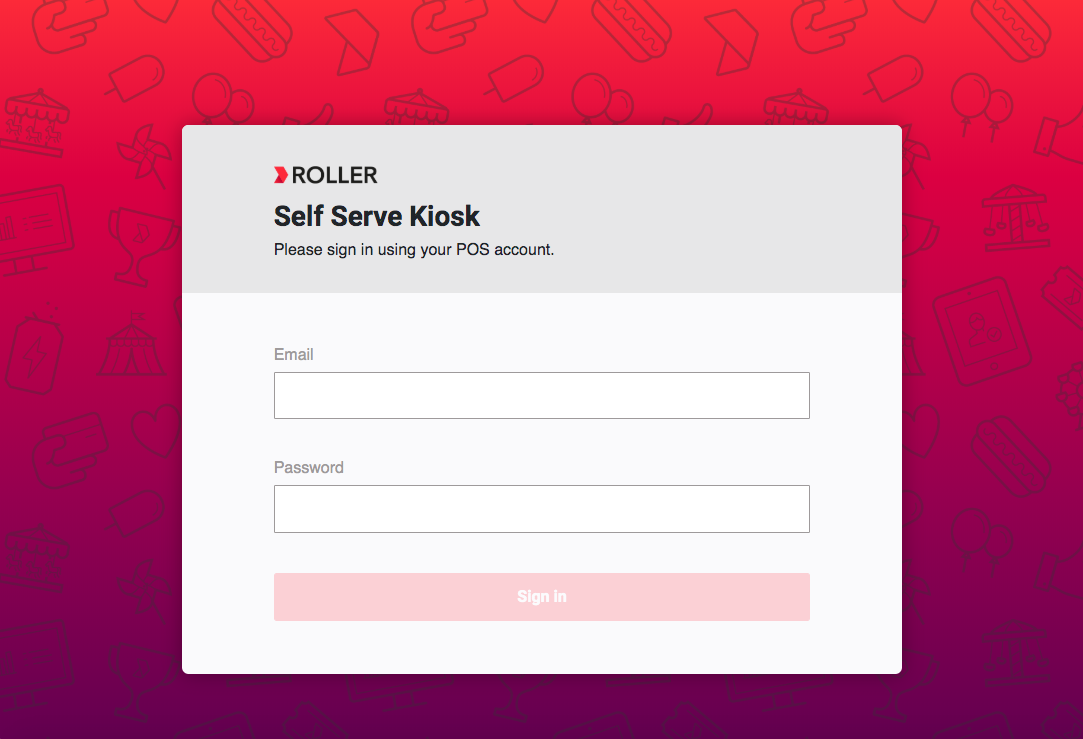
Sign in using your ROLLER account email and password.
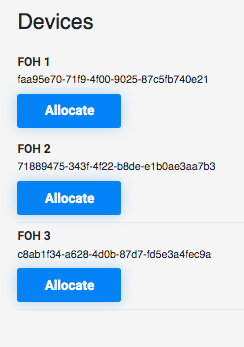
Select the device to allocate.
This will redirect to the SSK welcome screen.
If the self-serve kiosk is in test mode, it cannot take payments. Adjust the Device settings in Venue Manager to switch off test mode. Learn more