From time to time, you may want to adjust the expiry of a standard pass that has been purchased by a guest due to certain circumstances.
Steps
From Venue Manager:
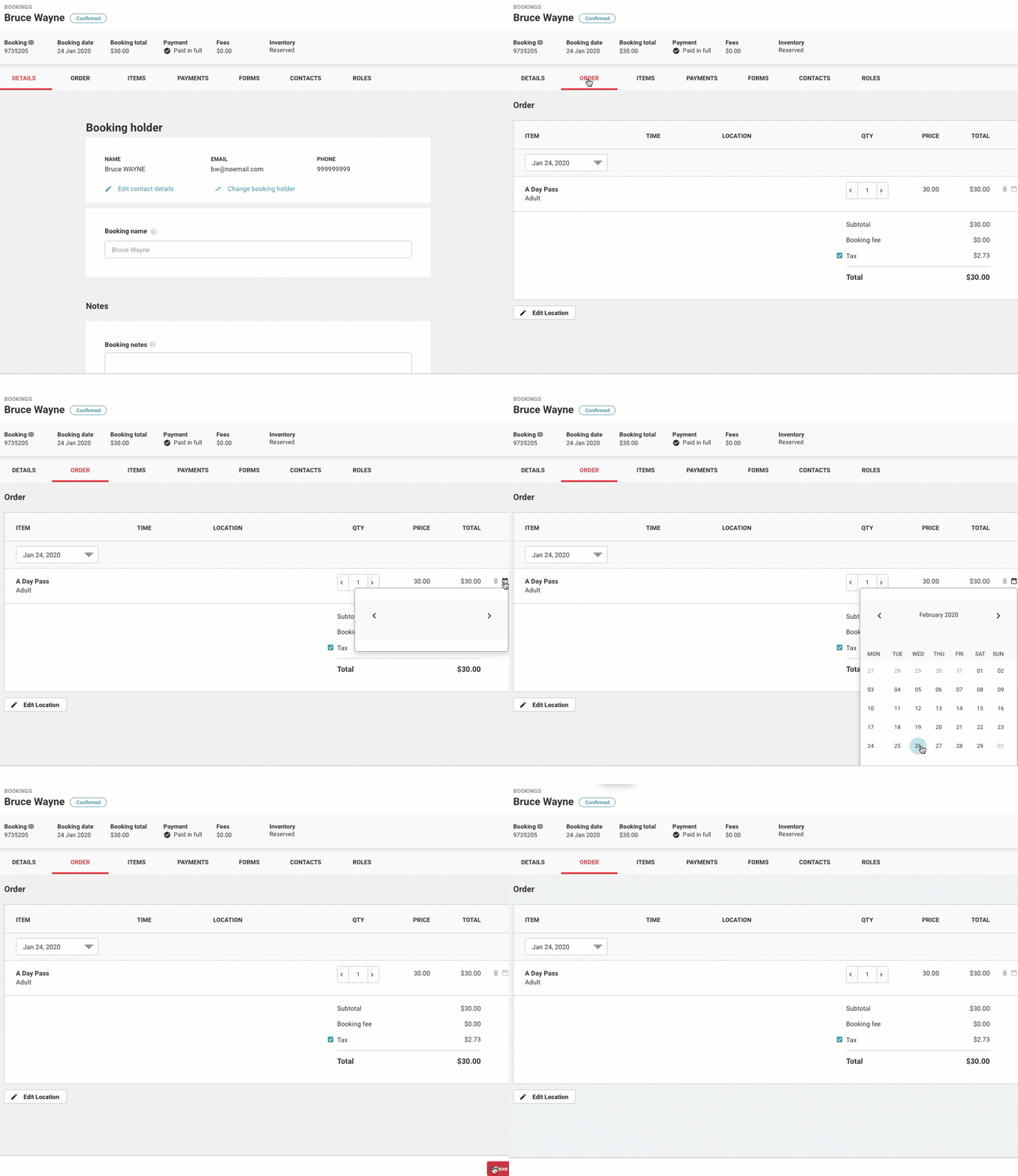
Search for the booking with a standard pass that you would like to extend the validity.
On the booking details page, select the Order tab. Here you will be able to see all of the items that have been added to the booking.
To adjust the expiry of the standard pass, select the calendar icon next to the ticket details.
A calendar will drop down and you can choose the new expiry date.
Toggle between the months. You can set the expiry date to a date in the past if needed.
Adjusting the expiry date is different from rescheduling a booking. Editing the expiry only changes when the pass expires — it does not trigger any price rule recalculations if changing validity to a different period where pricing changes, which you can do when guests redeem invalid tickets at POS on entry.