This guide explains how to efficiently search for bookings, guest profiles, or membership records from anywhere in Venue Manager using the search records panel.
Start a search
The search records panel is your starting point for finding bookings, guests, or memberships. You can access it in three ways:
1. Use the main menu
Select the search box at the top of the main menu.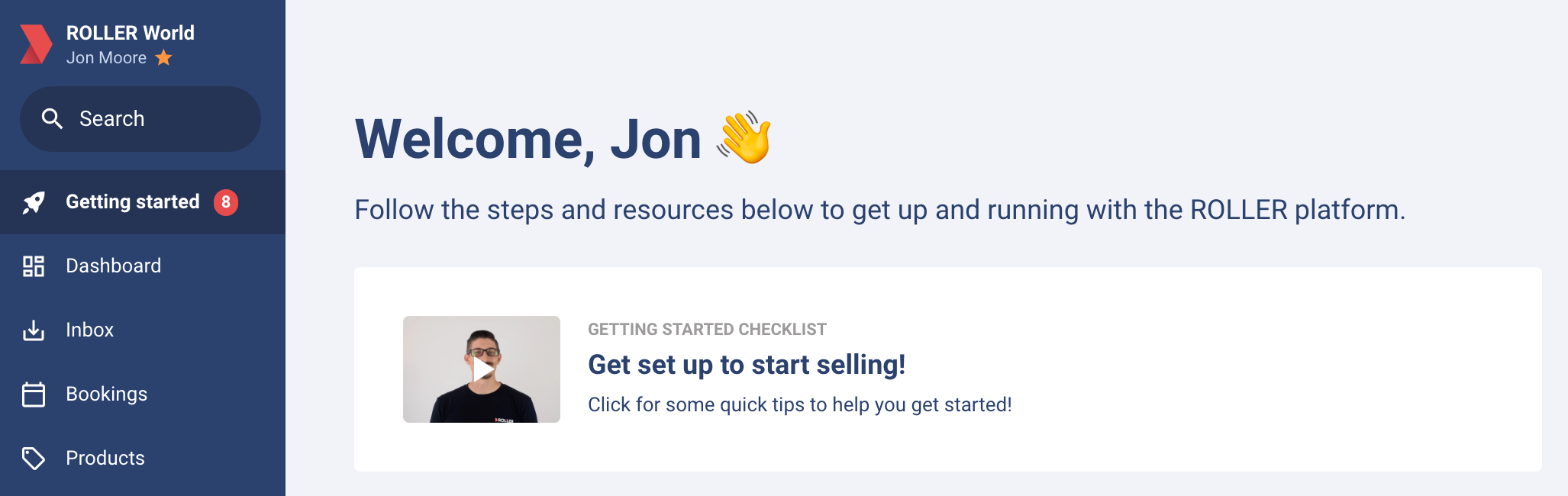
2. Use keyboard shortcuts
Windows: alt + s
Mac: option + s
3. Use the Search icon
Use the search icon at the bottom of the main menu.
Use the search records panel
Once the search records panel opens, follow these steps to find the information you need:
Select your record type:
Bookings: Search by booking ID, booking holder name, booking name, ticket holder name, phone number, email or member ID.
Guests: Search by guest name, phone number or email.
Members: Search by member name, phone number or email.
Enter your search terms. Results will appear as you type, helping you locate the right record quickly.
Booking status
When searching, use the status indicator to help you identify the correct record.
Status | Booking search | Member search | |
| Active | Fully paid booking | |
| Pending | Partially paid booking, pending booking | |
| Canceled | Canceled booking | |


When a membership is pending activation, the booking is set to active and appears in booking searches. Once the membership is activated, it appears in the member search with the appropriate status.
Multi-venue search
Staff with access to multiple venues can search across all linked venues for bookings, guests and member records.
When you select to search all venues from the search panel, ROLLER looks for records in all venues you can access. This is particularly useful for staff who manage bookings, guests or members across a number of venues.
Search results are based on the venues you are permitted to access, so you will only see records you can view.
Start a multi-venue search
From Venue Manager, use one of the following ways to start your search:
Select the search at the top of the left-side menu.
Use the keyboard shortcut for search (Windows: alt + s, Mac: option + s).
Select the search icon at the bottom of the left-side menu.
The search panel opens:
Select your record type: booking, guests or members.
Select the venue selection dropdown menu to view a list of venues you can access.
You can select All venues to search for records across all available venues. Alternatively, you can select a specific venue to see the results for that venue.
Select the search parameters dropdown menu on the right-hand side of the search box, then select the parameter you want.
Type your search term and select Search.
Search results display with statuses and venue names.
For HQ staff, search results are limited to the venues that the staff member has access to. For more information about HQ staff accounts, see Create your staff with HQ staff management.
Search using the bookings grid view
You can also use the bookings grid to find relevant bookings within a venue. To find out more, refer to the guide Manage bookings using the bookings grid