ROLLER sends automated lifecycle emails that keep guests informed and engaged throughout their loyalty journey.
Use this guide to understand when each email sends, what it contains and how to customize the templates to match your venue's voice, language and brand.
ROLLER Loyalty is an add-on product, charged in addition to your monthly plan. Learn more.
When each loyalty email sends
Once you activate your program rules in Venue Manager, ROLLER sends loyalty emails automatically at key moments in the guest lifecycle.
You cannot currently turn individual emails off, but you can customize each template from Settings > Design > Email templates.
When it sends | Who receives it | |
|---|---|---|
Loyalty invitation email | After an online purchase, POS transaction, or staff-created booking in Venue Manager. If a guest joins after purchasing online or signing the waiver online via a Join loyalty button, the invitation email is skipped — they receive the enrollment email instead. | Booking holder with a valid email address who is subscribed to the mailing list. |
Loyalty enrollment email | Once enrolled — regardless of how they joined — the guest receives a welcome email. | Newly enrolled loyalty member. |
Loyalty milestone progress email | When the guest reaches 30%, 50% and 75% of a milestone — up to three times per milestone. | Enrolled loyalty member. |
Loyalty reward reminder email | At 5 PM venue time on the day a guest earns a reward. ROLLER batches that day's rewards into one email, as long as the guest earned at least one reward. If the guest hasn't redeemed, a reminder follows two weeks later, then every two weeks after that, for up to three reminders. | Enrolled loyalty member with an active reward. |
Loyalty reward expiry notification email | Sent 14 days before rewards are set to expire. If an expiry notification email clashes with a rewards reminder email, the expiry email will take precedence and send over the reminder email. | Enrolled loyalty member. |
Loyalty invitation panel in order confirmation email | After an online checkout purchase, if the loyalty invitation panel is enabled in the order confirmation email template. The panel is enabled by default. | Booking holder, when the panel is enabled. |
Loyalty promotion launch email | Sent to loyalty members when a promotion becomes active. Notifies guests of the promotion details and how their rewards are boosted during the period. | Enrolled loyalty member. |
Loyalty promotion reminder email | Sent to loyalty members while a promotion is still running. Only triggered for promotions lasting 7 days or more. Each reminder is sent roughly every 7 days, with a maximum of 5 reminders sent. The last reminder email is always sent 3 days before a promotion ends. | Enrolled loyalty member. |
What's included in each loyalty email
Each email has a default layout built around dynamic fields. ROLLER automatically populates the guest's name, milestone progress, reward details and other program data at send time.
The templates are ready to send out of the box, but you can customize the copy, panels, language, branding and CTAs from Settings > Design > Email templates. Select an email below to see what's included by default.
Loyalty invitation email
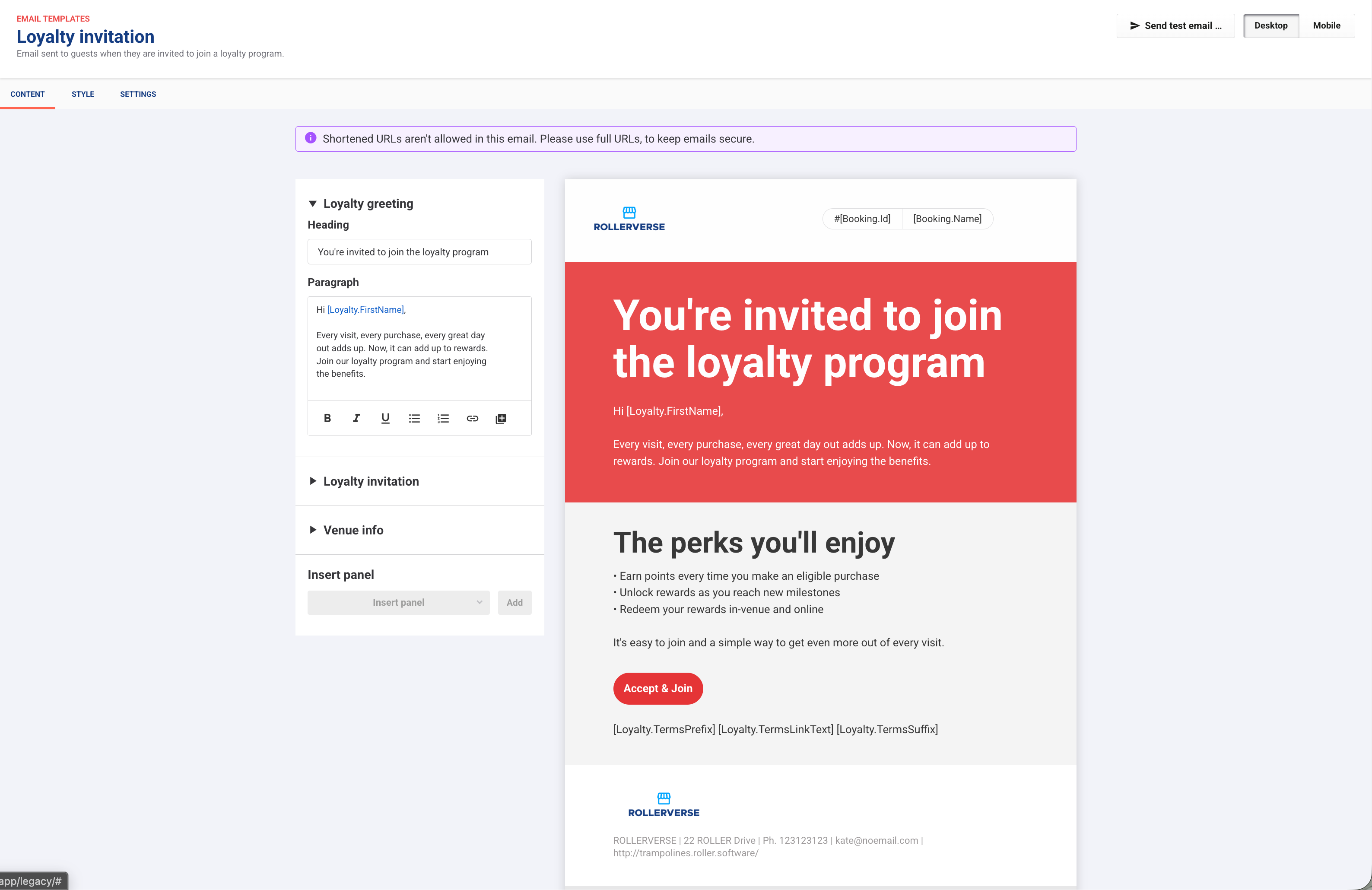
Invites the guest to join your program. Sent automatically after a purchase once your program rules are active.
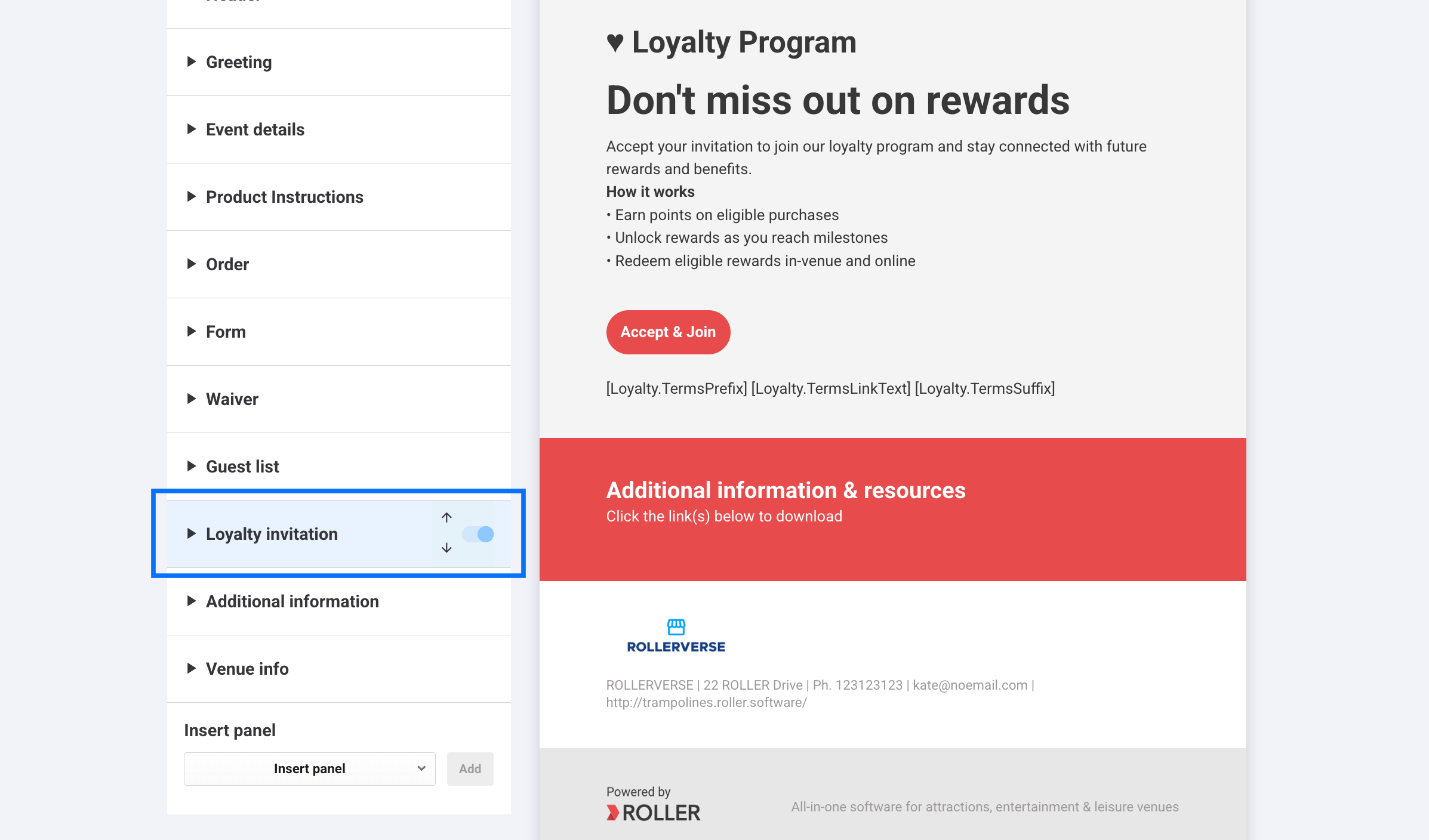
The default template includes a personalized greeting, a short program pitch, a perks summary — earn points, unlock rewards, redeem in-venue and online — and an Accept & Join button with a terms link. Guests select this button and automatically accept terms and join the program.
Loyalty enrollment email
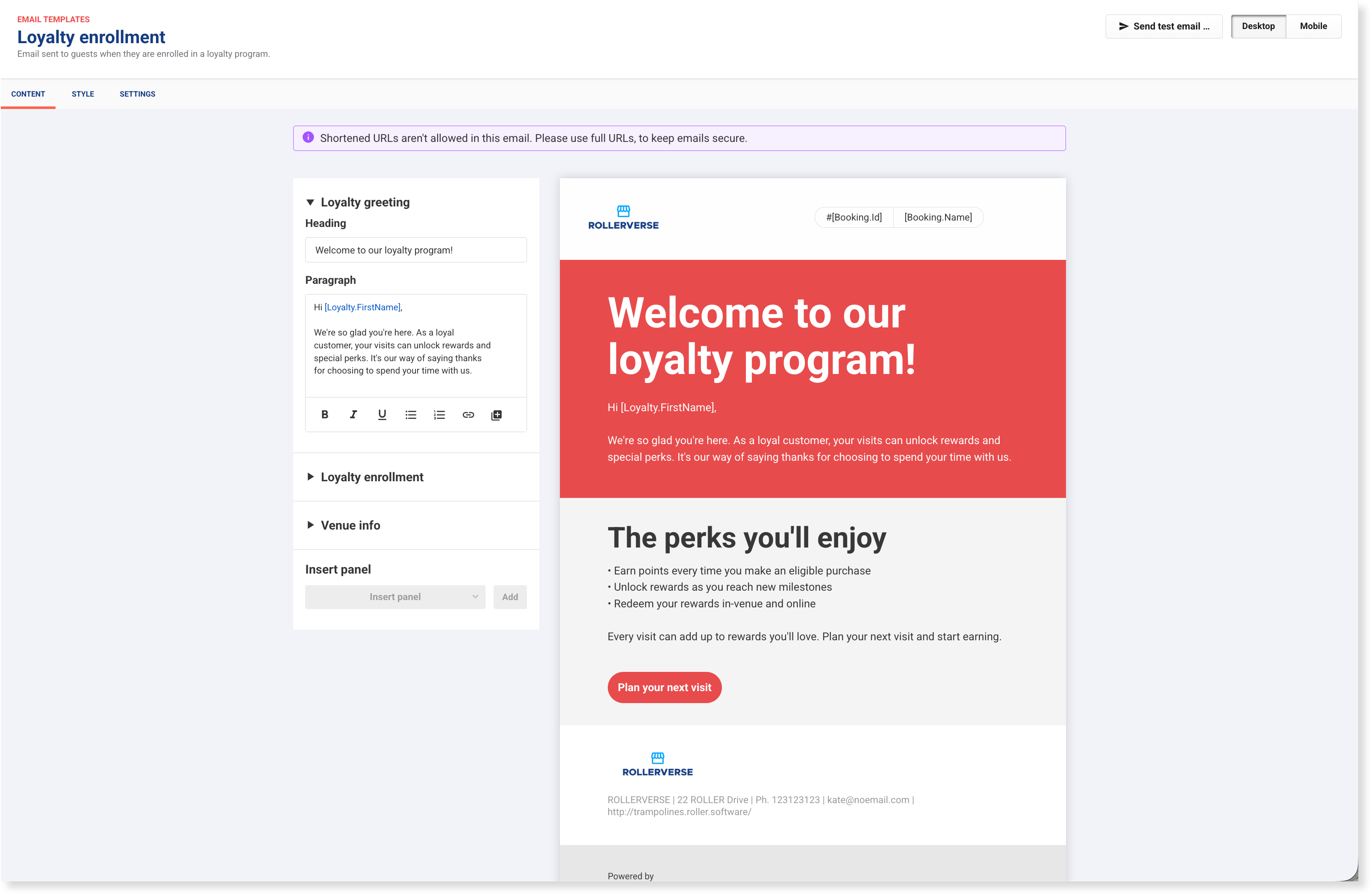
Sent as soon as a guest enrolls, regardless of how they joined.
Confirms enrollment, outlines program benefits, and includes a Plan your next visit button linking to the online checkout.
Loyalty milestone progress email
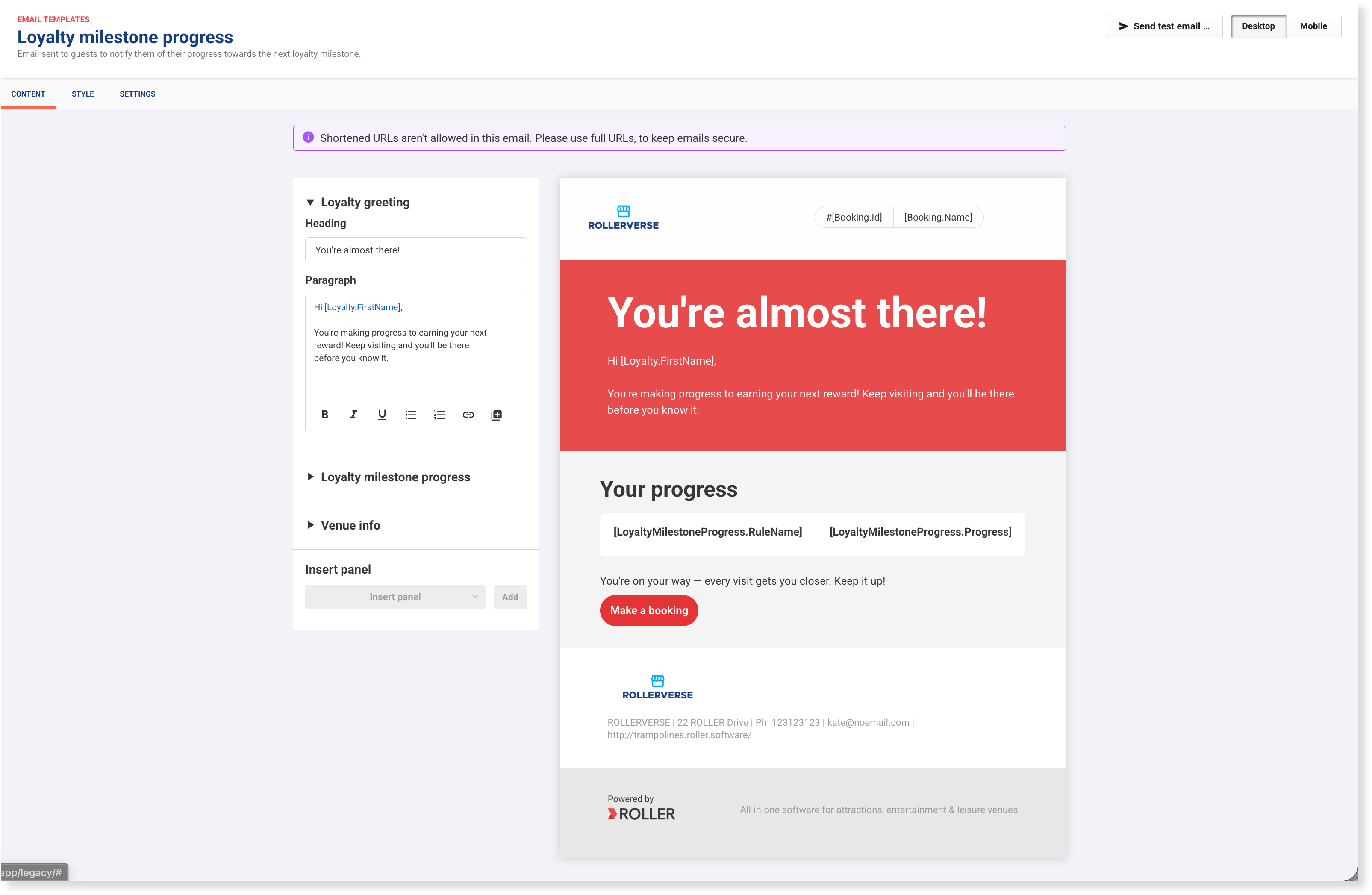
Encourages the guest to keep visiting by showing how close they are to their next reward. Displays the milestone name and current progress dynamically, with a Make a booking button linking to the online checkout.
Loyalty reward reminder email
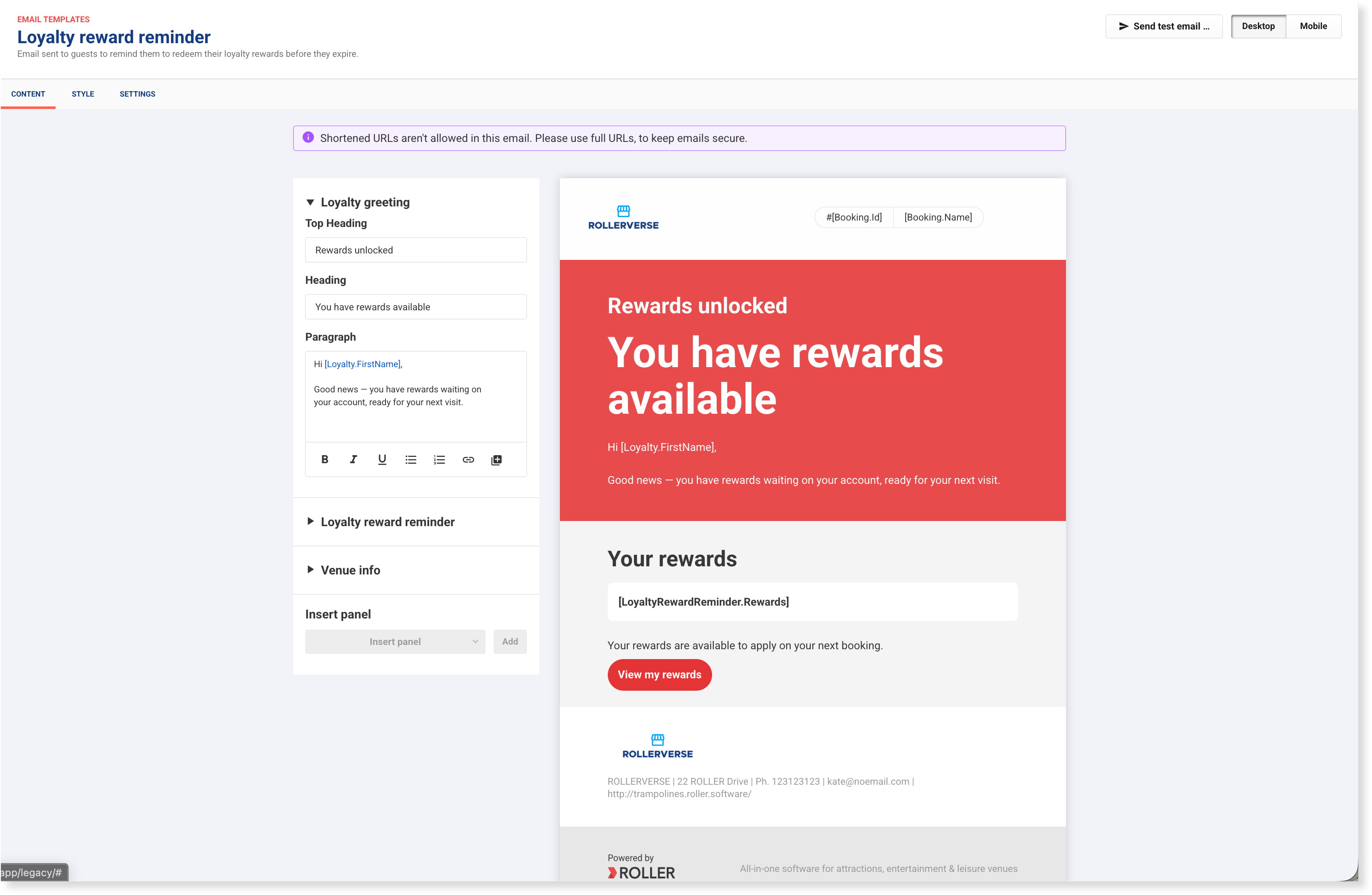
Lets the guest know they have a reward ready and prompts them to redeem it before it expires.
Surfaces the guest's available rewards and their expiry date dynamically, and includes a View my rewards button that links to the guest's online account.
ROLLER sends this email at 5 PM venue time on the day the reward is earned, then follows up every two weeks, for up to three reminders, until the reward is redeemed.
Loyalty reward expiry notification
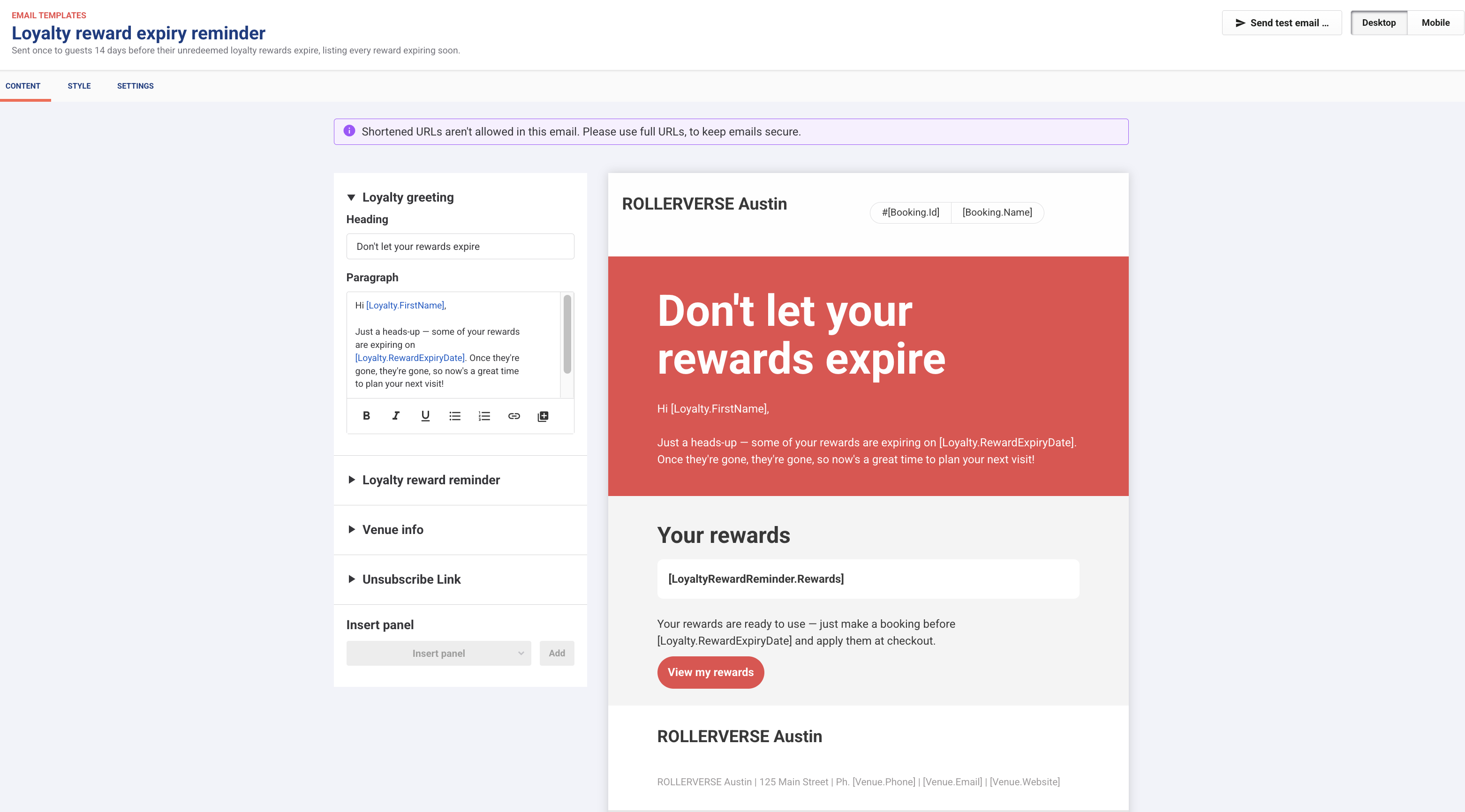
Guests with unredeemed loyalty rewards now get a reminder email 14 days before the reward is set to expire. This gives guests one more reason to stay engaged, return and use their rewards, so fewer rewards go unused and expire without being redeemed.
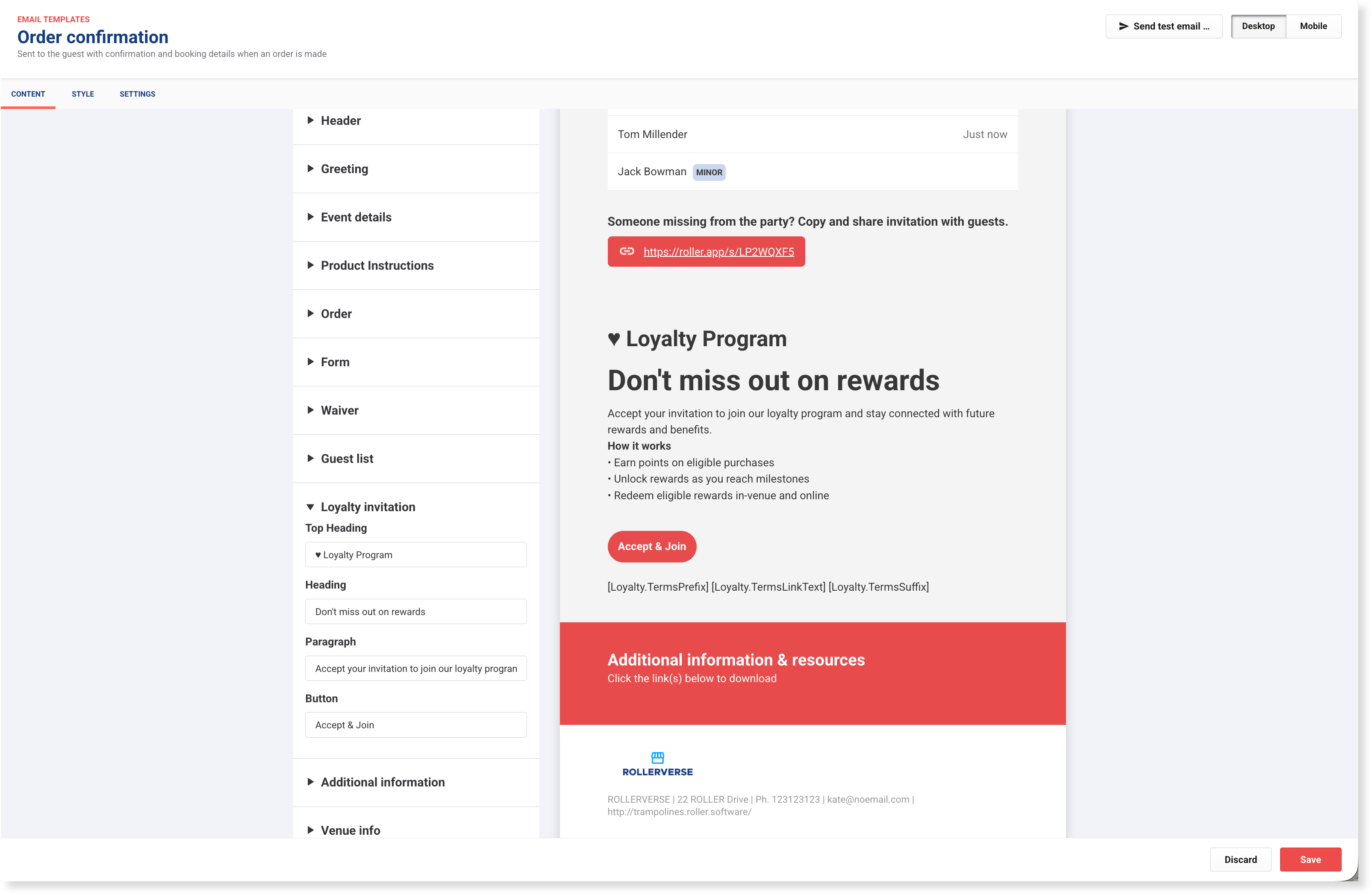
Loyalty invitation panel in order confirmation email
Appears inside the order confirmation email after an online purchase, giving guests a direct path to join loyalty straight after checkout.
The default panel includes a program headline, a how-it-works summary and an Accept & Join button.
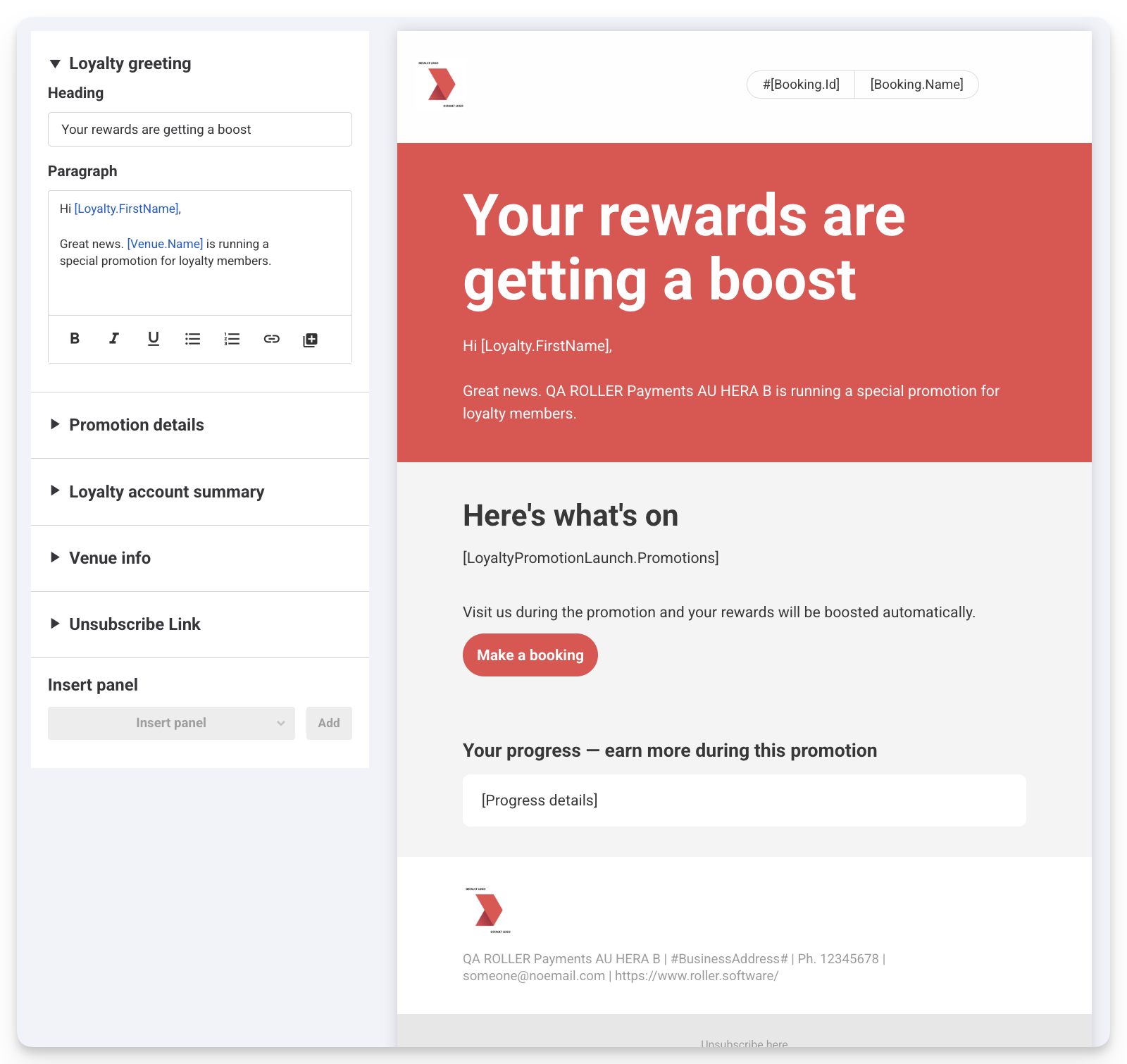
Loyalty promotion launch
Let guests know when a new promotion has launched. The email includes details of the promotion and how rewards are boosted during the promotion period.
A guest's reward status and progress is also included in the email.
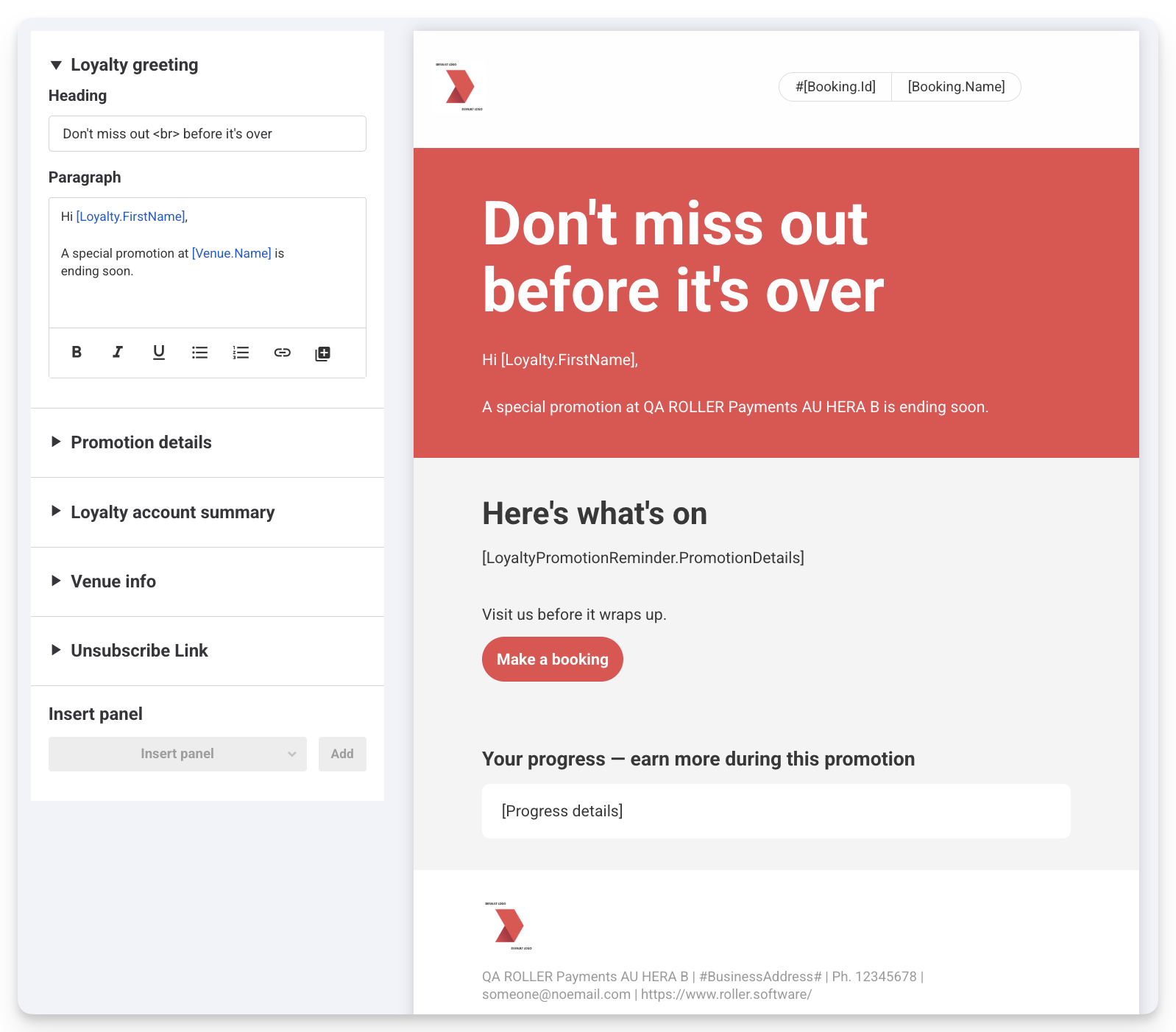
Loyalty promotion reminder
Sent periodically while the promotion is active, to keep it front of mind for guests. The number of reminders and their timing depend on how long your promotion runs.
Every reminder includes the guest's current loyalty status, without them needing to log in or check their balance elsewhere. This includes:
Their current points or reward balance.
Their progress toward any active milestone, if the promotion applies to a milestone rule.
How to customize a loyalty email template
You manage loyalty email templates from the same place as your other email templates, so the customization mechanics work the same way. You can customize each loyalty email — including the subject line, panels, branding, text and messaging — to match your venue voice and language.
From Venue Manager, go to Settings > Design > Email templates.
Find the loyalty email template you want to customize.
Select the template to open it.
Edit the panels, style and settings to match your venue voice.
Select Save to publish your changes.
To learn more, see Customize your email templates. Currently, you cannot disable these emails from sending.
To give online guests another path to join loyalty straight after an online purchase, keep the loyalty invitation panel enabled inside the order confirmation email template.
How guests unsubscribe
Every loyalty email includes an Unsubscribe here link at the bottom.
When a guest selects it, they're unsubscribed automatically and taken to your primary checkout, where a confirmation message lets them know they've been unsubscribed.
Unsubscribing removes the guest from your mailing list entirely, not just from loyalty emails. To rejoin, the guest needs to resubscribe to your mailing list via the online checkout or staff can select the mailing list option at POS or in Venue Manager.