This article shows you how to set up Google Chrome on your supported Windows device for a waiver kiosk and lock it down using kiosk mode. This ensures guests cannot navigate away when signing digital waivers in venue. It also shows you how to automatically make the waiver kiosk open in Google Chrome on device start up.
Add-on feature
Protect your venue against liability and improve the guest experience with digital waivers. To unlock the waivers add-on, contact your customer success manager or the support team.
Waiver kiosk requirements
Make sure your tablet / PC device meets our minimum requirements
Set up Google Chrome for your waiver kiosk
Open Google Chrome and navigate to the correct waiver kiosk url:
Waiver kiosk URL: https://waiverkiosk.roller.app
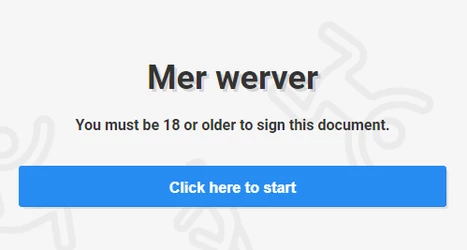
Log in using your ROLLER staff account. If the login is successful, you'll see a Click here to start button
Copy chrome://settings/passwords & paste into a new tab. Disable Offer to save passwords
Copy chrome://settings/payments & paste into a new tab. Disable Save and fill payment methods
Copy chrome://settings/addresses & paste into a new tab. Disable Save and fill address
Close down all tabs except for the tab open with your waiver kiosk URL
Copy chrome://settings/onStartup & paste into a new tab. Select Open a specific page or set of pages
Select Use current pages & double-check that the waiver kiosk URL is the only option that appears
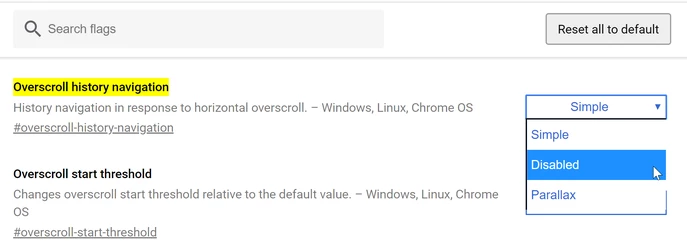
Close down all instances of your Chrome browser completely. It's important to make sure there are no browser windows or tabs open before moving on to the next step.
Lock down with kiosk mode
From your waiver kiosk device desktop, right-click on the Google Chrome icon and select Rename
Rename the icon to Waiver Kiosk
Right-click the Waiver Kiosk Google Chrome icon again and select Properties
Select the Change Icon button. Then click Browse & find the ROLLER icon you just downloaded. Select OK.
Right-click the Waiver Kiosk Google Chrome icon again and select Properties
Click into the target text box and navigate to the end of the text. Add a space and then type:
--kiosk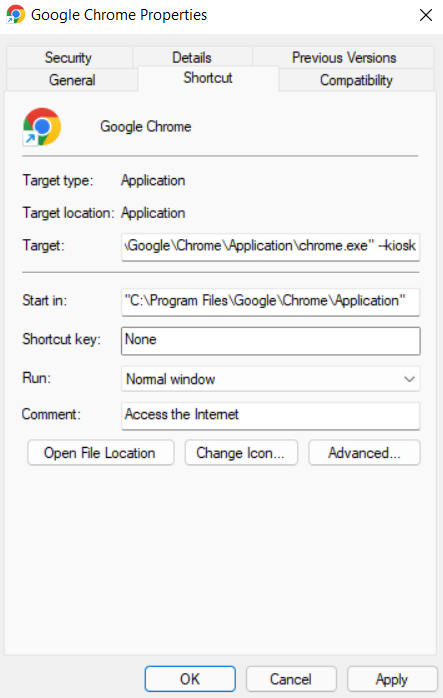
Select Apply
Select OK
Open the waiver kiosk in Google Chrome on Windows start-up
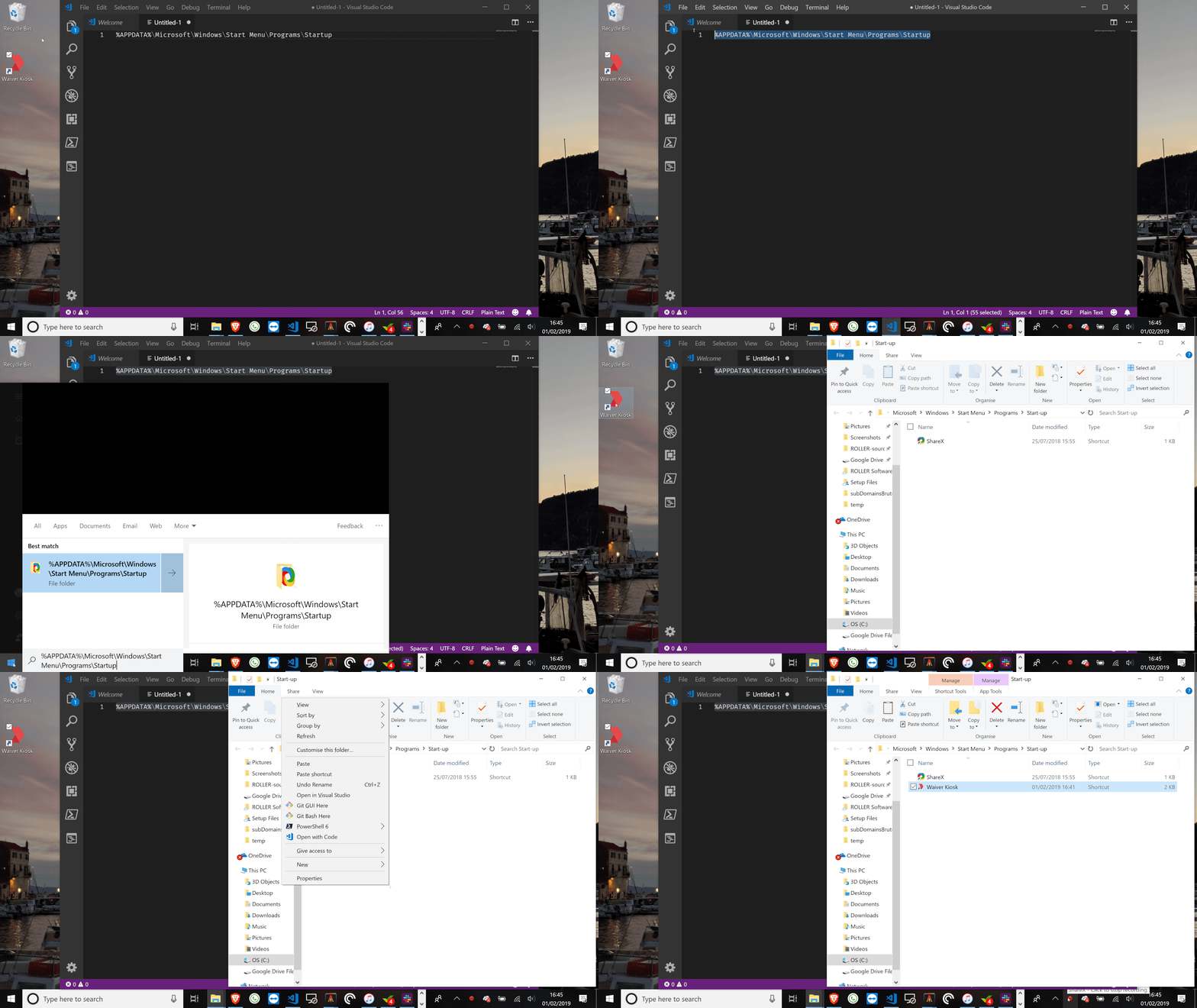
Copy this text %APPDATA%\Microsoft\Windows\Start Menu\Programs\Startup & paste into Windows search
Select the top result that is presented
Keep this window open & navigate back to your kiosk device desktop
Right-click the Waiver Kiosk Google Chrome icon & select Copy
Navigate back to the open window, right-click & Paste
Test the waiver kiosk flow
Open the waiver kiosk icon on your desktop and confirm that the Waiver Kiosk launches in full-screen mode and loads correctly
Log in (if required) and proceed through the waiver kiosk experience