Third-party tags from Facebook allow marketers or web analytics specialists to track the effectiveness and revenue of their marketing spend.
The ROLLER setup allows for the integration of third-party tags like Facebook Pixels via the Google Tag Manager container setup. If you have previously installed the Google Tag Manager container on ROLLER following the instructions Google Analytics Enhanced eCommerce [Legacy checkout].
Here, we'll look at how to install a Facebook Pixel correctly.
This article relates to our legacy online checkout. To track guest behavior in ROLLER's Progressive Checkout, refer to the article Track online guest behavior & checkout conversions.
Create a container file. Download this file as a .json file:
Import the container file:
In Google Tag Manager (the same container that was used to install the other ROLLER Tags) go to ADMIN > Import Container
suggested import options:
Workspace: Default Workspace
Import Options: Merge (then overwrite)
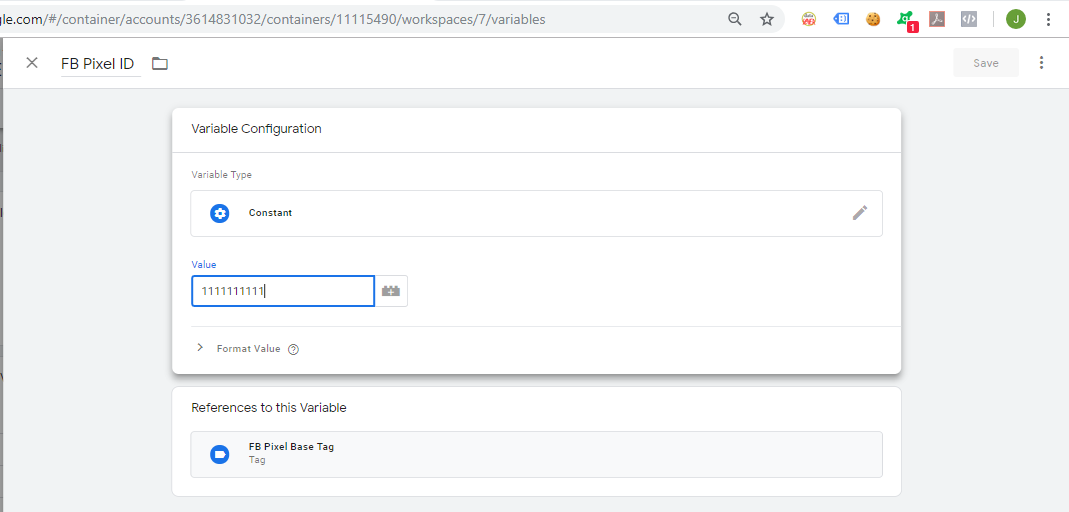
Go to Variables and change the following variable in the GTM container- FB Pixel ID: Change this variable to the Facebook Pixel ID and Save.
Preview the GTM container using the preview mode in GTM and check if the Facebook pixel is firing correctly with the Facebook Pixel Helper (Chrome plugin)
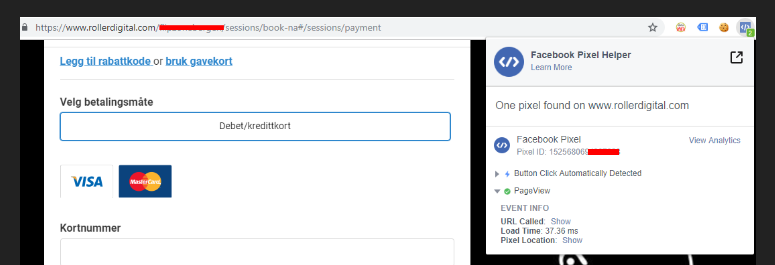
Once the page with the ROLLER checkout is refreshed, click on the Facebook Pixel Helper in the right top of the browser to confirm the pageview Pixel is working - confirm the Pixel ID in the Facebook Pixel Helper is matching the Pixel ID in GTM
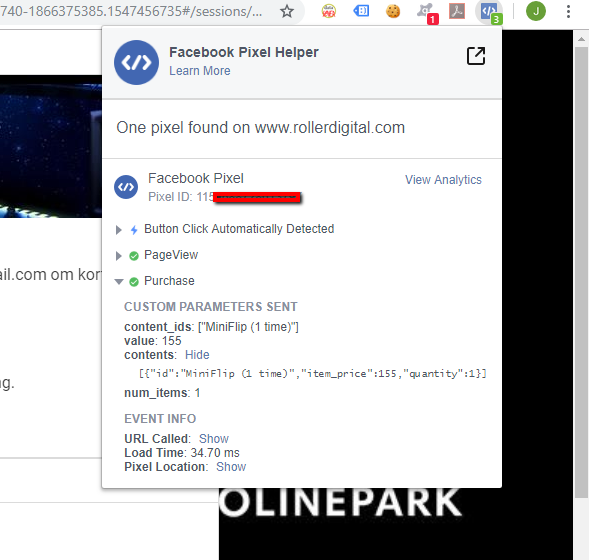
Do the same for a test purchase. This should show up in the Facebook Pixel Helper like this:
Publish the container and check the Facebook account if the page views and purchases are coming in as expected.
Troubleshooting
If using the embedded iFrame solution and the pageviews are only triggered by angulartics events (i.e. the “All Pages” trigger is not used on the rollerdigital.com domain), use the same trigger (“angulartics Pageviews”) for the “FB Pixel Pageview” Tag.