Save the filters and columns you use most as a saved view. Next time, you and your team open the report or page with the data already set up. Saved views work on reports (eg Attendance) and on other Venue Manager pages, including All bookings, daily capacity and the calendar. Everyone at your venue sees the views you save.
This guide shows you how to save a view, switch between views, update or rename one, make one the default and delete one.
Save a view
Save a view for each check you repeat (eg a daily capacity view from 9 AM to 8 PM, or unpaid bookings on All bookings).
From Venue Manager, go to the report or page you want (eg Bookings > All bookings).
Set the filters you want, then select Apply filters.
To show or hide columns, right-click the grid and select the columns you want. To learn more, see the guide Filter, customize and download a report.
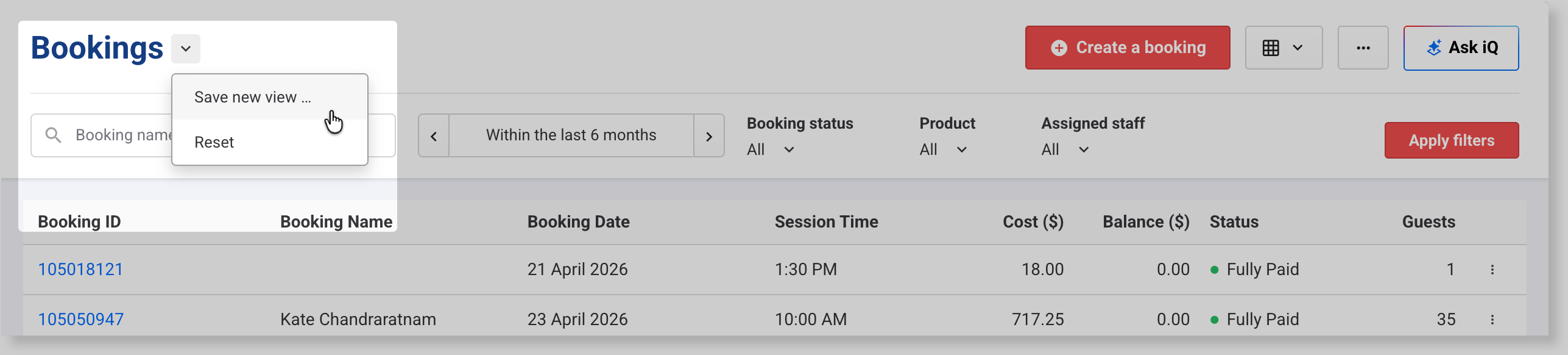
Select the arrow next to the page heading. If there's no arrow, that page doesn't support saved views.
Select Save new view.
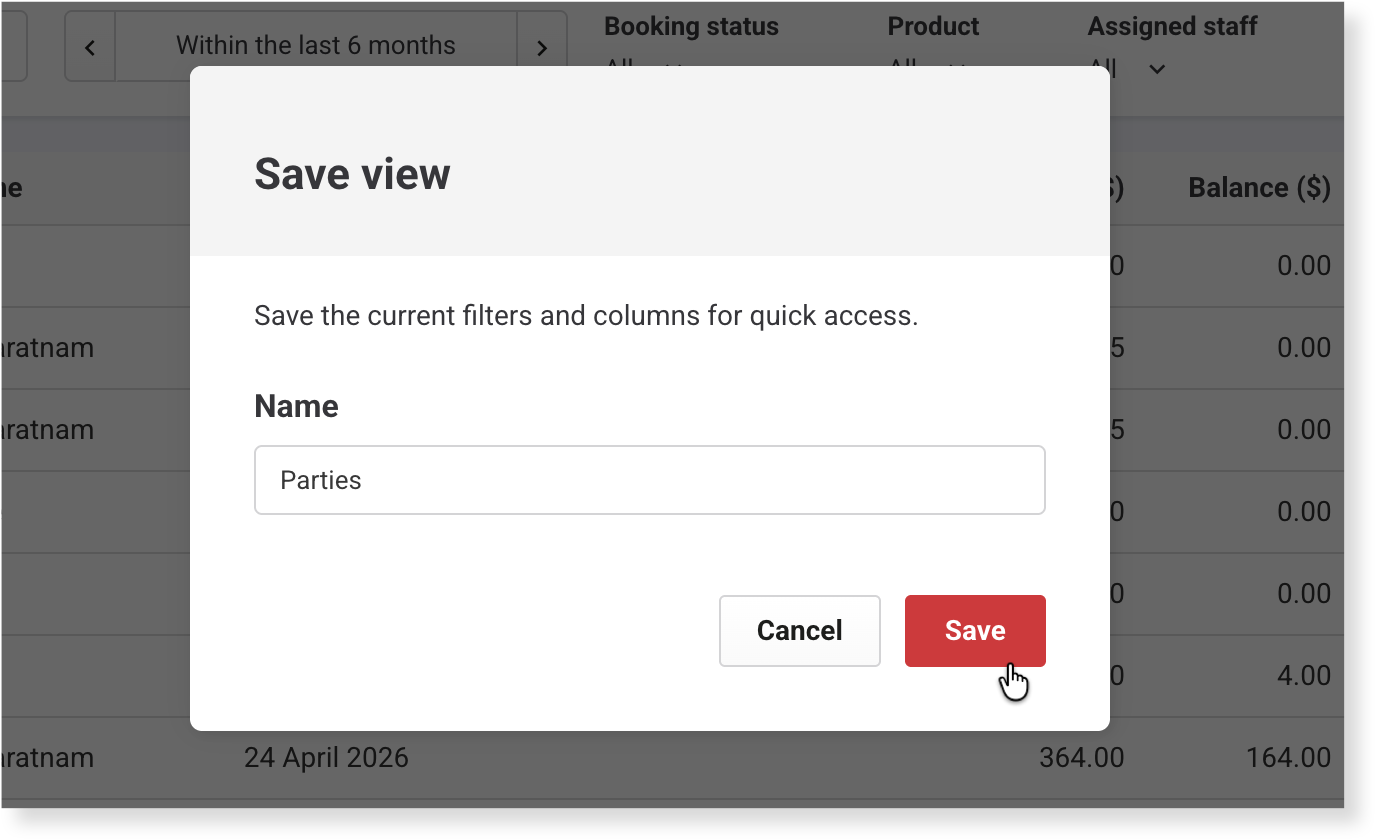
In Name, enter a name for the view, then select Save. Use letters, numbers, spaces and dashes, up to 50 characters.
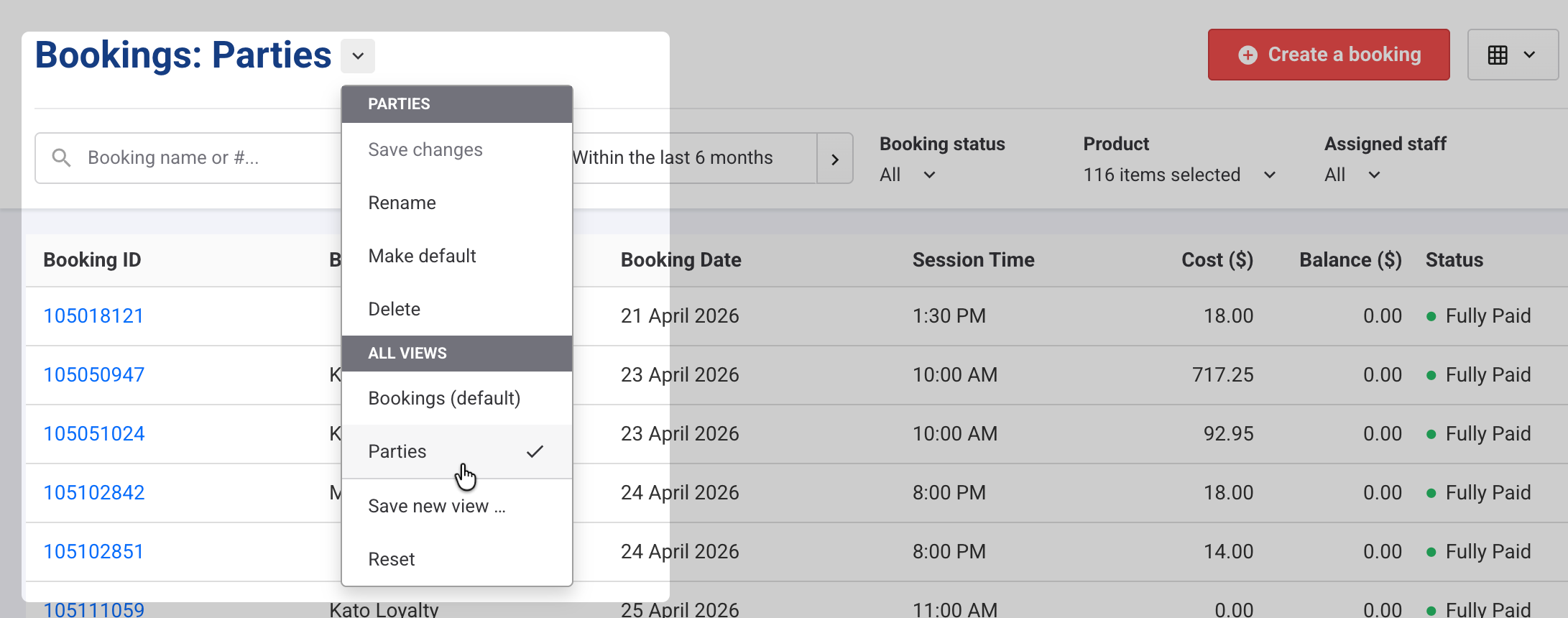
The view's name shows next to the page heading, and the view is listed under All views for everyone at your venue.
Switch to a saved view
Switch views to move between checks without resetting filters (eg from today's bookings to unpaid bookings).
From Venue Manager, go to the report or page.
Select the arrow next to the page heading, then select a view under All views.
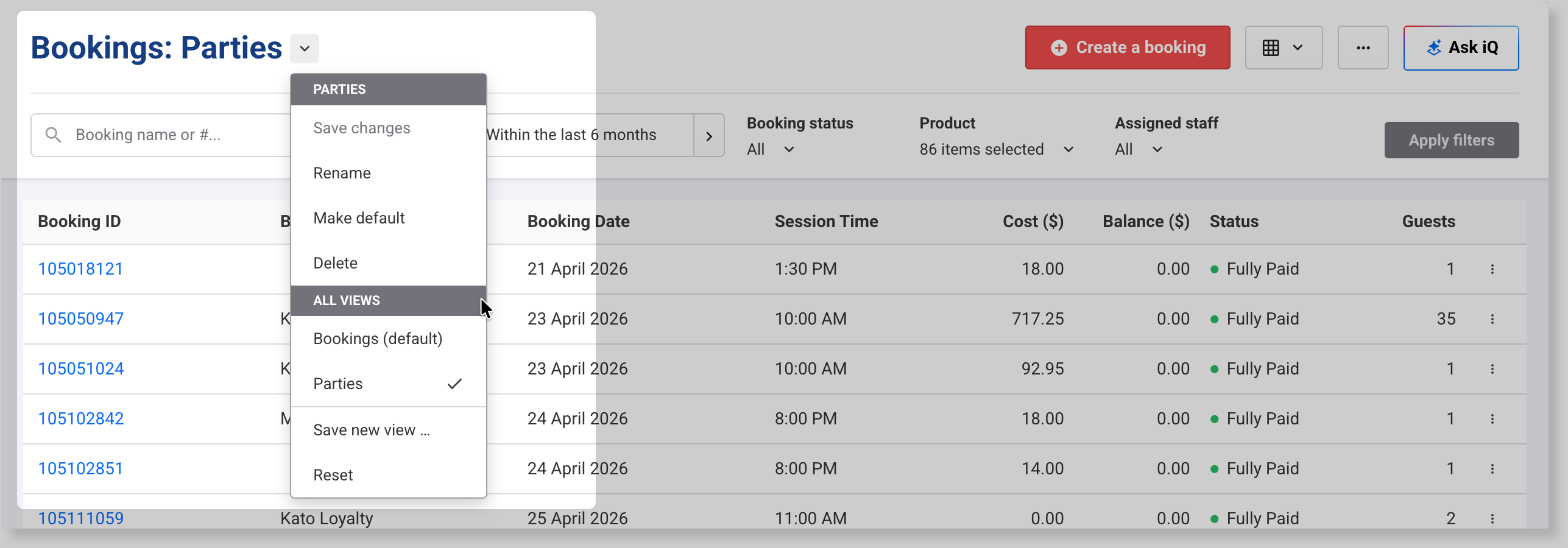
The page's standard view is listed first (eg Bookings (default)). To go back to it and drop any unsaved changes, select Reset.
Update or rename a saved view
When what you check changes (eg you need another column), update the view. Saved changes apply for everyone at your venue.
From Venue Manager, go to the report or page.
Select the arrow next to the page heading, then select the view under All views.
Change the filters or columns, then select Apply filters. An asterisk (*) after the view's name means it has unsaved changes.
Select the arrow next to the page heading, then select Save changes.
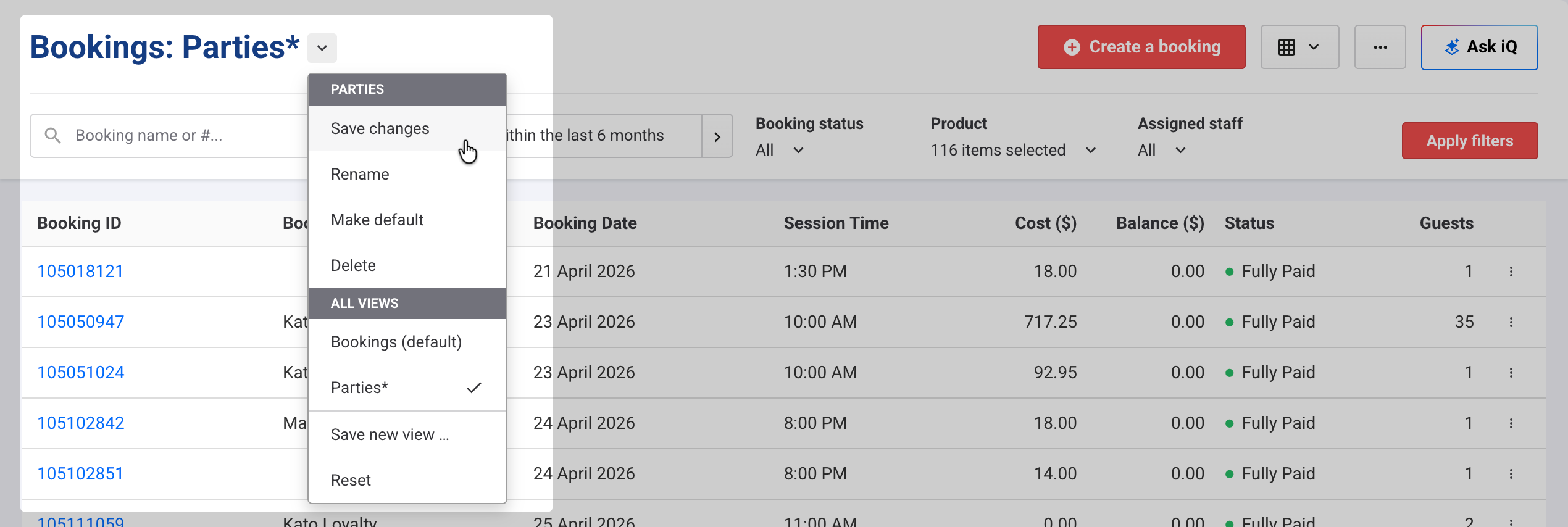
To rename the view, open it, select the arrow next to the page heading, then select Rename.
Make a saved view the default view
The default view is what everyone at your venue sees each time they open the page. Make it the view your team uses most.
From Venue Manager, go to the report or page.
Select the arrow next to the page heading, then select the view under All views.
Select the arrow again, then select Make default.
A default view can't cover more than 31 days (eg Within the last 3 months). If you see Cannot make default, shorten the date range, select Save changes, then try again.
To stop using the view as the default, open it and select Make default again.
Delete a saved view
Deleting views your team no longer uses keeps All views short.
Deleting a view deletes it for everyone at your venue.
From Venue Manager, go to the report or page.
Select the arrow next to the page heading, then select the view under All views.
Select the arrow again, then select Delete.
Select Yes, delete it to confirm.
The page goes back to its standard view, and the view is no longer listed under All views.
FAQs
Do the dates in a saved view update each day?
It depends on the date option you saved. Today, Yesterday, Tomorrow, Within the last… and Within the next… work out the dates each time you open the view, so they move with the calendar. On… and Between… keep the dates you chose.
Can each staff member have their own default view?
Each page has one default view, and it's the same for everyone at your venue. To see a different layout, staff can switch to any other saved view from All views.