Staffing, pricing, promotions and cash flow all depend on knowing what's happening at your venue. Your reports answer the questions you ask every week: what you took, whether the tills balance, whether the payout reached your bank and which members have stopped paying. When you know which report to open, you close off the day faster and catch a shortfall or failed payment while it's still easy to fix.
This guide shows you how to open your reports and which one to use for each job.
Open your reports
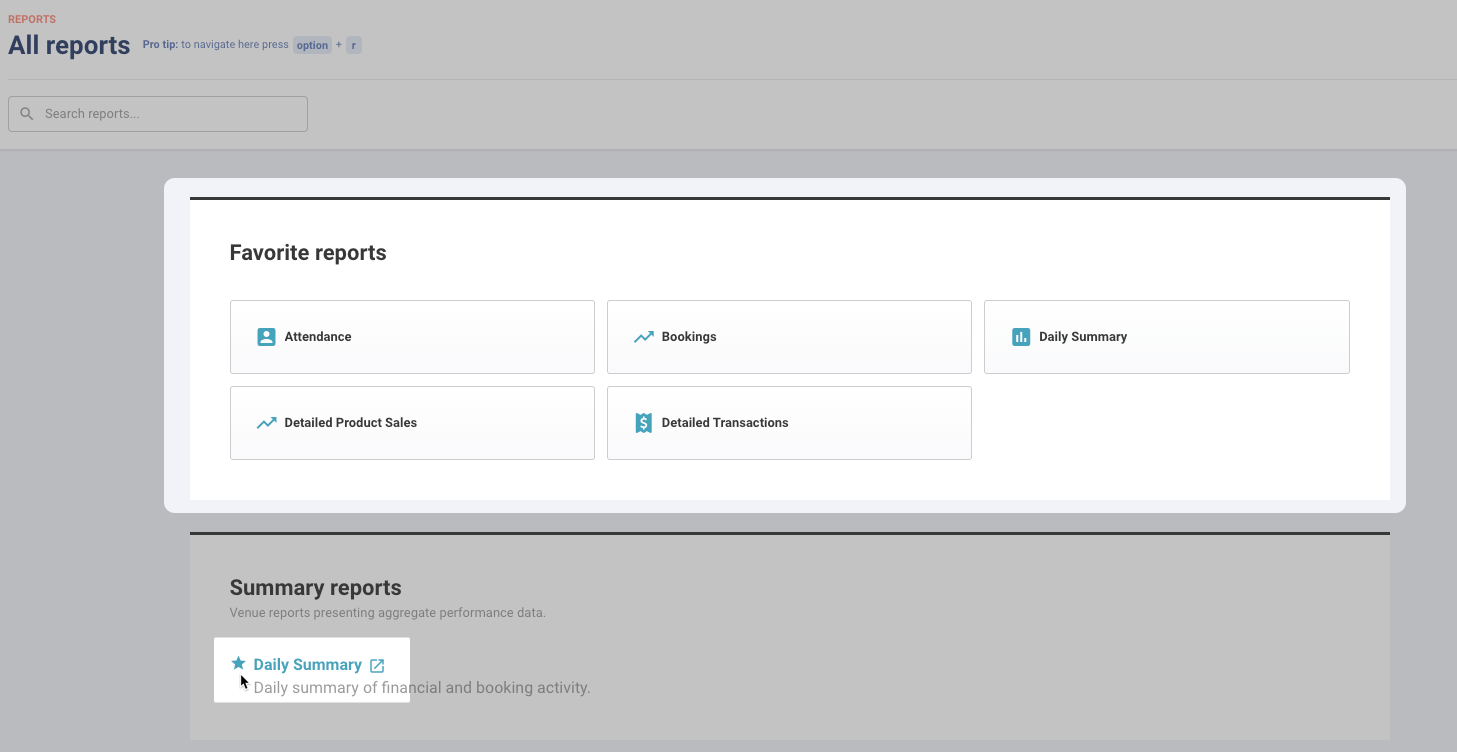
All your reports live on one page. Watch the video for a tour of All reports: the sections, searching and favoriting reports, and scheduling them by email.
The permission required to open a report depends on the section it sits in on All reports (eg Can access Sales reports for the Sales section). The administrator and manager roles have these permissions enabled by default.
From Venue Manager, go to Reports > All reports.
Search for the report, or scroll to the section it sits in.
Select the report.
Reports are grouped into sections on All reports:
Section | What's in it |
|---|---|
Summary reports | A high-level view of one day's performance |
Sales | What you sell and how products perform |
Transactions | Payments, refunds and money still owed |
Guests | Attendance, memberships and loyalty |
Operations | Tills, discounts, staff and stock |
Accounting | Reconciliation, tax and financial reporting |
To get back to All reports from anywhere in Venue Manager, press Alt + R (Windows) or Option + R (Mac).
To keep a report at the top of the page, select the star next to its name. It shows under Favorite reports, for you only.
If a report you need isn't on All reports, it may not be turned on for your venue. Contact your customer success manager or the support team.
Find the right report for the job
Find the job you're doing, then select Show reports to see the reports that answer it and the section of All reports each one sits in.
Check today's sales and takings
At the end of the day, these reports show what sold, what came in and where it came from.
Show reports
Report | Use it for | Section |
|---|---|---|
One day's takings, headcount, payment methods, sales channels and closed tills. Opens in a new tab | Summary reports | |
Sales, discounts and funds received by product, for any date range | Sales | |
Every payment and refund, with payment method and staff member | Transactions | |
Funds received by payment method and sales channel | Transactions |
For a quick look without opening a report, check the Venue Manager dashboard.
To have the Daily Summary emailed to your team every day, schedule it. See the guide Email reports on a schedule.
Balance tills and cash
Find a cash shortfall while the shift is still fresh in everyone's mind.
Show reports
Report | Use it for | Section |
|---|---|---|
POS till sessions by device and date | Operations | |
Cash over or short at till close, by POS device and staff member (PDF) | Operations | |
Refund by Staff Export | Refunds grouped by the staff member who processed them (PDF) | Transactions |
Tips collected, by staff member and payment type | Operations |
Reconcile payments and payouts
When a payout lands in your bank, match it to the transactions behind it.
Show reports
Report | Use it for | Section |
|---|---|---|
ROLLER Payments Payout Export | Payouts broken down by transaction day, to match to your bank deposits (CSV) | Transactions |
ROLLER Payments Transactions | Each ROLLER Payments transaction, with its settlement and payout | Transactions |
ROLLER Payments Daily Summary | Authorizations, refunds, chargebacks and fees by day, channel and payment method | Transactions |
ROLLER Payments Daily Summary (Gross Settlement) | The same summary for transactions settled before your venue moved to net settlement | Transactions |
Charts of funds, payment methods and chargebacks | Transactions | |
Transactions by Card Export | Card transactions grouped by sales channel (PDF) | Transactions |
Monthly fee & tax statement | ROLLER Payments fees and tax for each month | Accounting |
To learn what each report shows and how to reconcile with them, see the guide ROLLER Payments reports overview.
Follow up on money owed
Chase unpaid balances before they're forgotten.
Show reports
Report | Use it for | Section |
|---|---|---|
Bookings with an amount still owing | Transactions | |
Invoices issued and whether they're paid | Sales | |
Payment request links sent to guests and whether they're paid | Sales |
Track product, stock and gift card sales
Knowing which products earn the most tells you what to promote, reprice or reorder.
Show reports
Report | Use it for | Section |
|---|---|---|
Bookings by visit date, with status, headcount, payment status and booking holder details | Sales | |
Package Product Sales | Package sales and the revenue recognized when tickets are redeemed | Sales |
Quantity and value of modifiers sold | Sales | |
Stock sold, with cost, profit and margin | Sales | |
Stock sales with their cost of goods | Sales | |
Stock lost to wastage, voids and refunds, by reason and item | Operations | |
Product Sales by Channel Export | Revenue by sales channel and product (PDF, accrual) | Sales |
Gift cards sold for a period | Sales | |
Detailed Gift Cards | Every issued gift card, with recipient, status and balance | Sales |
Stock Sales and Stock movement report are on the Premium plan and above. A report with a lock icon isn't on your plan: select it to see how to get it.
Track attendance and guest feedback
Attendance shows how busy you really were, not only how many guests booked.
Show reports
Report | Use it for | Section |
|---|---|---|
Ticket redemptions at POS, by product, channel and date | Guests | |
Session Punctuality Export | Session start times against redemption times, including tickets never redeemed (eg no-shows) (CSV) | Operations |
Booking Zip Code Export | ZIP or postal codes and redemptions per booking (CSV). Turn on postcode capture at POS and in your online checkouts first | Guests |
To read guest survey responses and see trends in guest feedback, go to Guests > GX Score. See the guides Analyze guest survey responses and Use the guest insights dashboard.
Track memberships and loyalty
Spot members who've stopped paying or visiting while there's still time to win them back.
Show reports
Report | Use it for | Section |
|---|---|---|
Memberships sold in a date range, with status, redemption days and expiry | Guests | |
Members gained and lost each day, and your net growth | Guests | |
Each time a member used their membership | Guests | |
Redemptions at your venue, including multi-venue memberships | Guests | |
Membership status changes by date (eg declined payment or upgraded) | Guests | |
Cancellations, with tenure, value and reason | Guests | |
Offers shown to members who tried to cancel, and what they chose | Guests | |
Each recurring payment attempt, and why any failed | Transactions | |
Loyalty guests, with points and rewards balances | Guests | |
Points and rewards earned per booking | Guests | |
Rewards redeemed per booking | Guests |
Loyalty reports show for venues with the Loyalty add-on.
Review discounts and staff activity
Check how discounts are used, and by whom, before they cut into your margin.
Show reports
Report | Use it for | Section |
|---|---|---|
Discounts by Booking | Each discount redemption, filterable by discount code | Operations |
Discount Summary Export | Discounts redeemed for a period, grouped by code (PDF) | Operations |
Discounts by Staff Export | Discounts each staff member applied (PDF) | Operations |
Bookings each staff member made (PDF) | Operations |
Close off the month for your accounts
Match ROLLER to your general ledger before you close the month.
Reports marked (accrual) show only if your venue uses accrual accounting, and some columns change with your method. See the guide Choose cash or accrual accounting for your reports.
Show reports
Report | Use it for | Section |
|---|---|---|
Revenue from payment through to deferred and recognized revenue | Accounting | |
Revenue, tax and balances by reporting category and GL code | Accounting | |
Debits and credits for the period, to check your accounts balance | Accounting | |
Deferred revenue per booking at a date (accrual) | Accounting | |
Sales Tax | Tax by tax rate for the period. See Sales Tax report (accrual accounting) or Sales Tax report (cash accounting) | Accounting |
Sales by Category Export | Revenue by reporting category (PDF, accrual) | Sales |
Product Revenue by Reporting Category Export | Revenue per product, grouped by reporting category (PDF, accrual) | Sales |
Xero Export | Journal entries to import into Xero (CSV). See Xero Export (accrual accounting) or Xero Export (cash accounting) | Accounting |
The 1099-K form submitted to the IRS, for US venues | Accounting |
Only the account holder and billing contacts can see the United States 1099-K tax form and the Monthly fee & tax statement.
Report across your HQ venues
From an HQ account, check settings across all your venues in one export. From HQ, go to Reports > All reports.
The permission required to open HQ reports is Can access HQ reports. The administrator and manager roles have this permission enabled by default.
Show reports
Report | Use it for |
|---|---|
HQ Managed Product Settings Export | Product settings for every HQ-managed venue, with product status (CSV) |
HQ Managed Venue Settings Export | Venue settings for every HQ-managed venue (CSV) |
HQ Managed Staff Export | Staff for every HQ-managed venue (CSV) |
Some venue reports also show in HQ accounts (eg Attendance, Membership Growth, Membership Redemptions and Membership Entitlement Redemptions). Choose the venue in the Venue Name filter, one venue at a time.