This report tracks ticket redemptions at POS within a selected timeframe to help monitor guest attendance. It relies on staff accurately checking in or redeeming tickets at POS.
Key difference from Analytics guest visitation metrics
Analytics counts one visit per guest per day for guest visits. See the guide Guest analytics dashboard to learn more.
This Attendance report tracks individual ticket redemptions, giving you an indication of attendance for the day.
Example:
If one guest redeems multiple tickets in one day (eg one for climbing and another for trampolines), the Attendance report counts two unique ticket redemptions, one for each ticket redeemed. The guest visitation metric would count this as one guest visit.
Access and filter the report
From Venue Manager, go to Reports > All reports.
Search for and select Attendance.
Results display by redemption date (tickets redeemed at POS) and session time (default: yesterday).
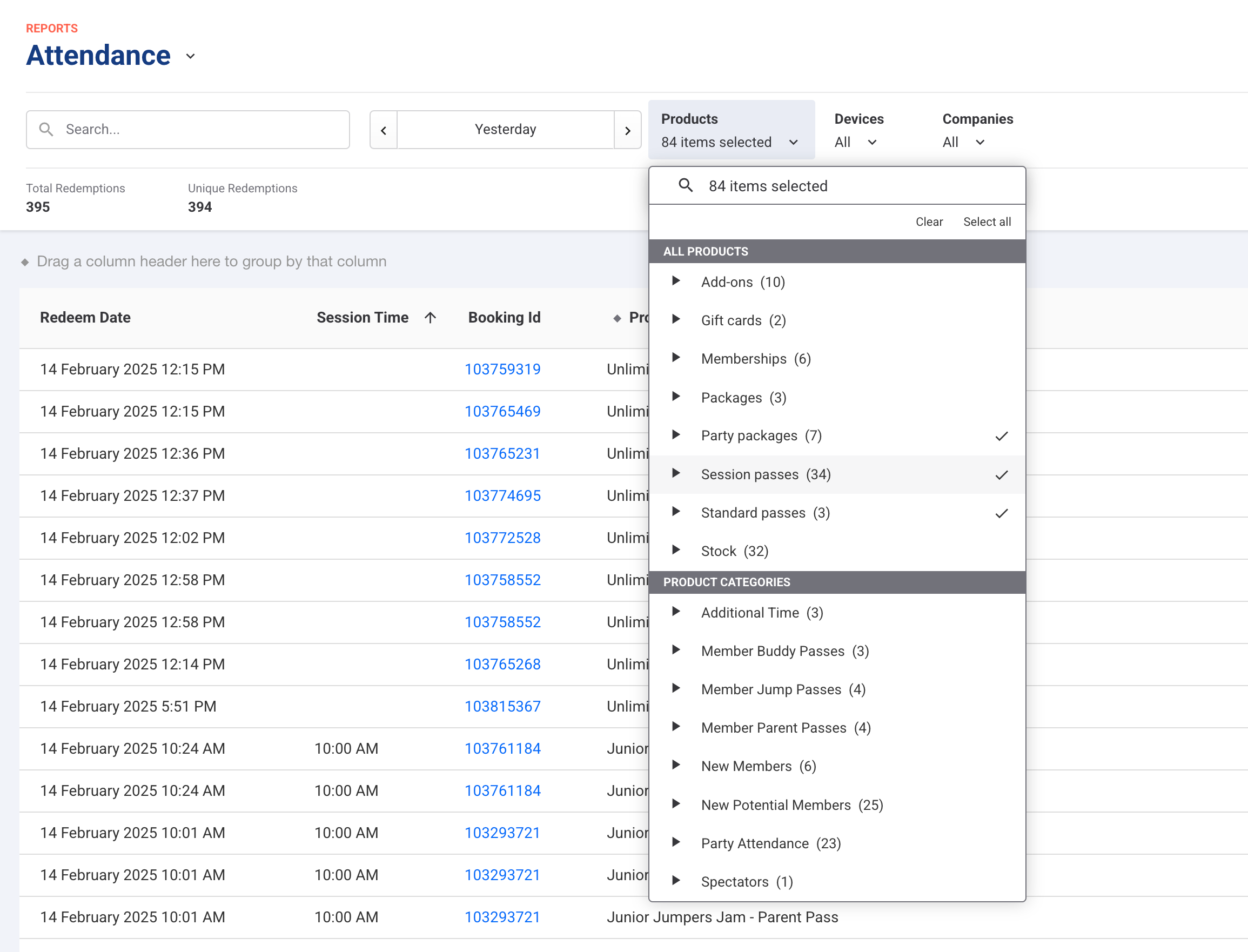
Use the search field to find a booking ID, booking name or ticket ID, or apply filters to refine results by date, product, device or company.
Select Apply filters (top right) to update the results.
Summary metrics
At the top of the report grid, you'll see two summary values for the filtered results. Both include:
Multiple ticket redemptions by the same guest (eg a guest redeems a climbing ticket and a trampoline ticket = two redemptions).
Membership product variations checked in at POS, unless excluded from the Products filter.
Redemption counts explained
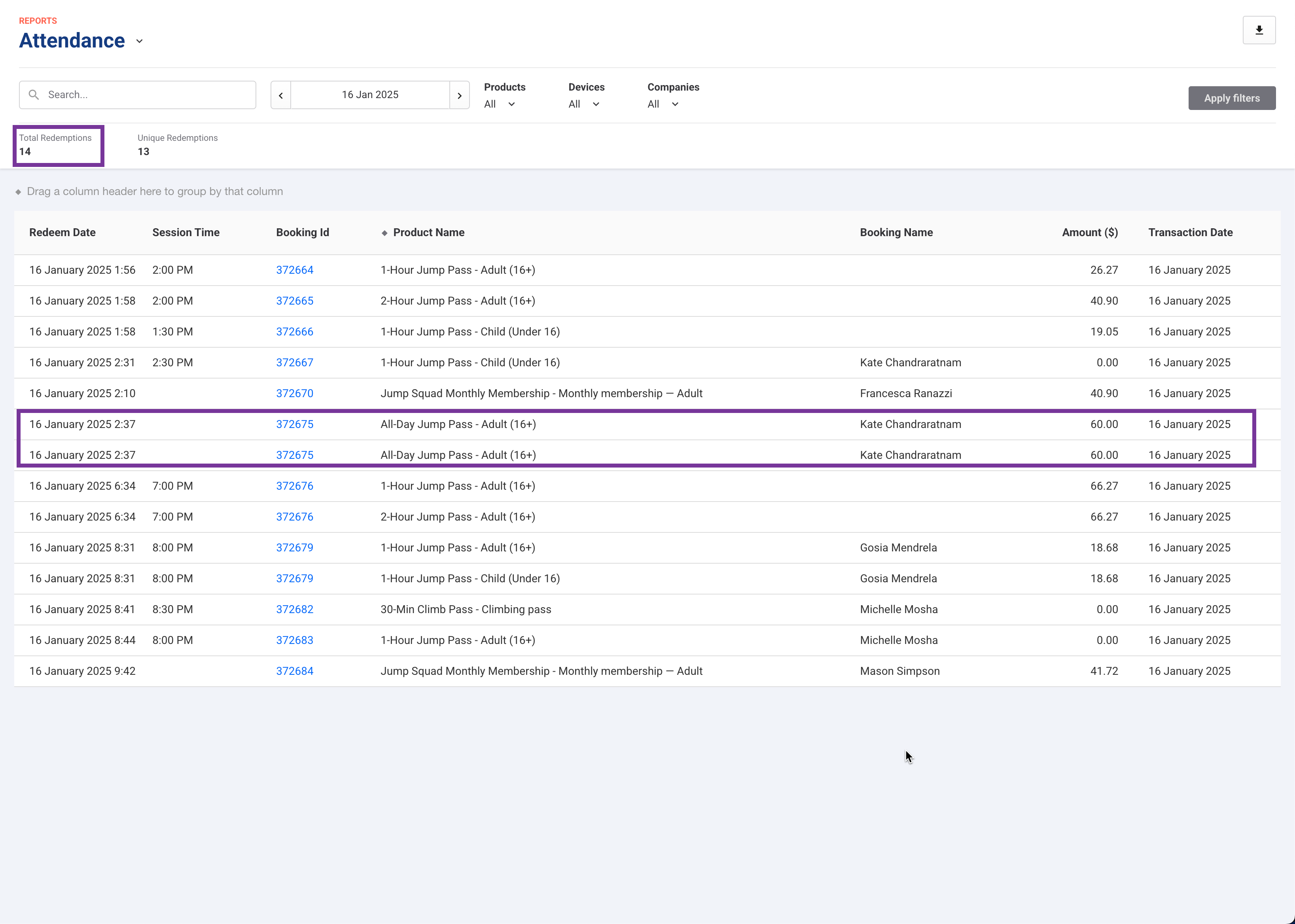
Total redemptions: All ticket redemptions at POS, including multiple check-ins for different tickets and repeat redemptions of the same ticket.
Unique redemptions: Each ticket redeemed at POS counts only one check-in per ticket for products that can allow multiple daily check-ins (eg standard passes).
Example: A guest redeems an all-day standard pass twice on the same day. Total redemptions count both check-ins, while unique redemptions count only one.
Columns in the report grid
Below the summary metrics, each row in the grid is a single ticket redemption.
Column | What it shows |
|---|---|
Redeem Date | The exact date and time the ticket was redeemed (checked in) at POS |
Session Time | The scheduled start time of the booked session, not the time the guest was checked in |
Device | The POS device the ticket was redeemed at |
Booking Id | The booking the ticket belongs to. Select it to open the booking |
Ticket Id | The individual ticket that was redeemed |
Product Name | The product and variation the ticket was purchased for |
Booking Name | The name on the booking |
The email address on the booking | |
Postcode | The postcode on the booking |
Country | The country on the booking |
Amount ($) | The total value of the booking, not the value of the individual ticket |
Transaction Date | The date the booking was originally made |
To change which columns appear, right-click any column header and select the columns you want to show or hide.
Tips for interpreting the numbers accurately
Standard pass tickets
Can be redeemed multiple times.
Can appear multiple times in Total redemptions based on the number of POS check-ins, but once in Unique redemptions.
Expired tickets
Can still be redeemed at POS if staff members override the expiration warning.
These redemptions are included in the report.
Tickets redeemed using a membership
If a guest books a ticket with their membership (eg Gold Membership) and redeems it at POS, it counts as one redemption.
Example: A Day Pass – All Access purchased with a membership discount and redeemed at POS is recorded as one redemption.
Membership product variations sold and checked in at POS
If auto check-in is enabled in POS device settings, or staff check in a membership product when the guest purchases it at POS, it is counted as a redemption.
Any eligible tickets purchased using a membership discount and checked in at POS will also count as redemptions.
Filtering ticketed products only (excluding purchased membership passes in the count)
To exclude membership product variation purchases and view only ticketed products (eg standard passes, session passes, party packages etc), use the Product filter and select these types of ticketed product variations only.
Learn more about tracking guest visitation trends (one visit per guest) using the Guest analytics dashboard in Analytics.