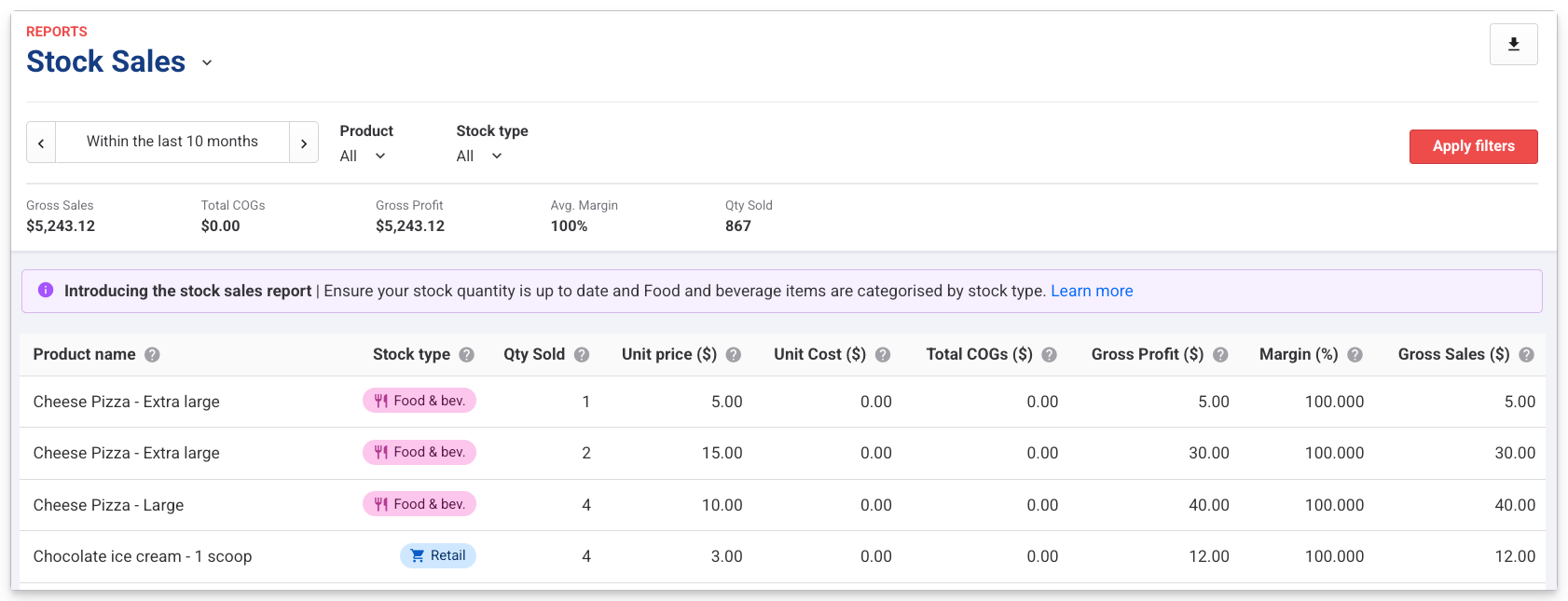
The Stock Sales report provides a view of sales of food & beverage, retail, miscellaneous and other stock item types over any date range.
For each stock product it shows quantities sold, what guests paid, what each item cost the venue, and how much profit and margin were made so you can judge how well your stock is performing.
What is this report used for?
Use the Stock Sales report to answer questions like "how much am I making on this item?" and to support operational decisions about your merchandise and F&B menu.
For example, you might use it to:
Identify higher-margin products to promote.
Spot lower-margin items where a discount would eat into profit.
Compare F&B and retail performance over a chosen period.
Review unit price, unit cost, and margin trends to inform decisions around pricing.
This is an operations report, not a financial report. It's designed to support day-to-day decisions about your stock. It is not a financial report for accounting or tax reporting. For financial reporting, see the Accounting section of the Reports page, or use the Detailed Product Sales report for revenue recognition.
How do I run the report?
The Stock Sales report is located in the Sales section of the All reports page.
To run the Stock Sales report:
From Venue Manager, go to Reports > All reports > Sales section.
Select the Stock Sales report.
Choose the date or date range you want to run the report on, then select Apply.
Filter the report results
You can filter the report to focus on a specific period, product or type of stock.
Date range: use the date selector at the top of the page to choose a day, date, or range.
Product: filter by individual stock products to compare variations of the same product. Only stock products appear in this filter.
Stock type: filter by Food & beverage, Retail, Miscellaneous or Untagged.
Non-stock products (tickets, bookings, memberships, gift cards) do not appear in this report. See the reports overview for the right report for those products.
What data can I see?
Column | Description |
|---|---|
Product | The name of the stock product that was sold. |
Stock type | Whether the product is Food & beverage or Retail, Miscellaneous or Untagged. |
QTY Sold | The quantity of the stock product sold within the selected date range. |
Unit price | The price the guest paid for the item at purchase. |
Unit cost | The cost of goods sold (COGS) value entered for the item. COGS is what it costs the venue to sell one unit. |
Total COGs | The total cost of goods for the quantity sold over the period. Calculated as Unit cost × QTY Sold. |
Gross Sales | The sales revenue from the items sold before factoring in cost of goods. |
Gross Profit | The profit made after deducting the cost of goods. |
Margin | Margin is your profit as a percentage of net revenue (excluding tax), against the item's cost (COGS). For venues with tax-inclusive pricing, the tax portion is removed from the price first, so the figure reflects what you actually keep, not the tax you collect on the sale. |
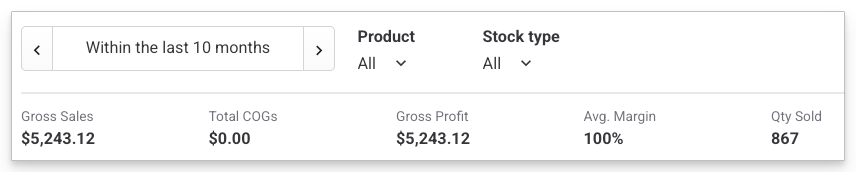
At the top of the report, you'll also see totals for the following:
Total gross sales
Total cost of goods
Total gross profit
Average margin (weighted by revenue)
Total quantity sold
Make sure the report shows accurate data
For the Stock Sales report to be useful, the underlying stock products need to be set up correctly. Without an accurate cost of goods value, profit and margin in this report will be misleading. And without the Food & beverage classification, items won't appear under the correct stock type.
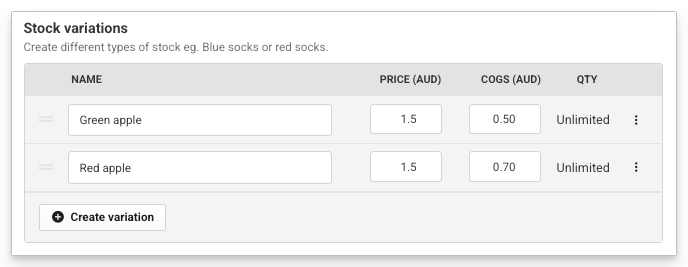
Enter the cost of goods on each stock variation
From Venue Manager, go to Products > Stock.
Select the stock product you want to update.
Scroll to the Stock details section.
For each stock variation, check or enter a value in the COGS field.
Select Save.
Ensure stock products are classified
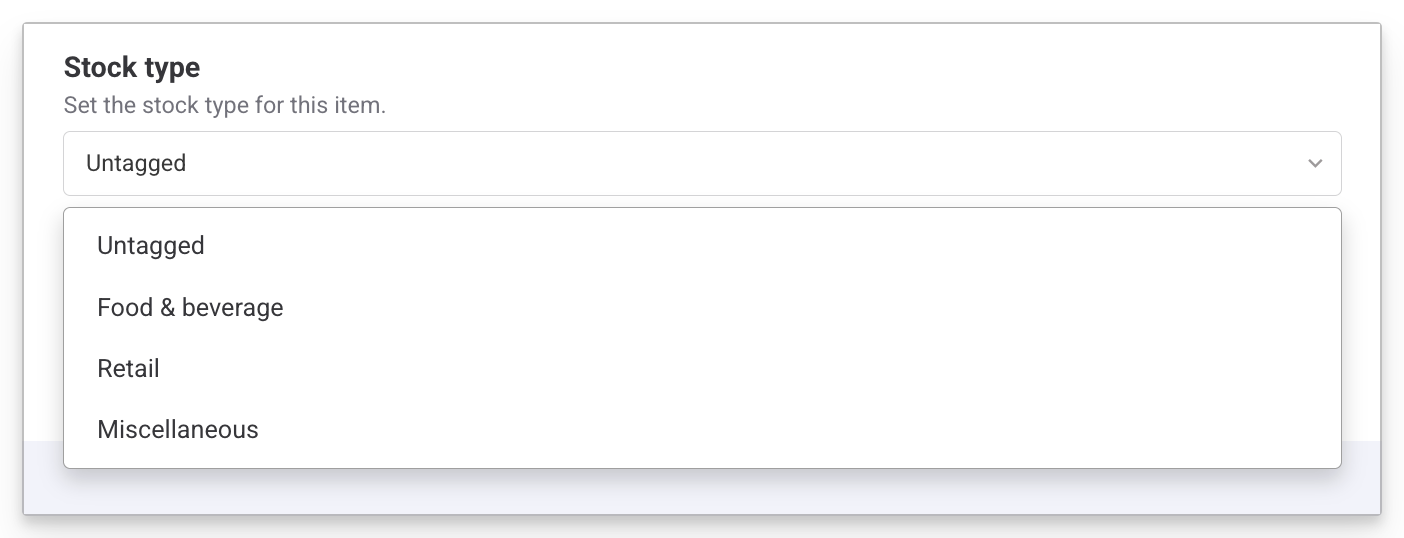
For items to be reported under the correct stock type, each product needs to be labelled accordingly. Anything that hasn’t got a stock type selected will be classified as Untagged.
From Venue Manager, go to Products > Stock and open the product.
Scroll to the Additional options section.
Select the Stock type drop down, and select the correct type.
Select Save.
Frequently asked questions
Why doesn't my product appear in the Stock Sales report?
Only stock products appear in this report. Non-stock products (tickets, memberships, etc.) are reported elsewhere. If a stock product is missing, check that sales fell within the selected date range and that the product has not been archived.
Why are my food & beverage items being labelled as retail or untagged?
For F&B items to be reported under the Food & beverage stock type, each product needs to be labelled as this type in the product setup. See the section Ensure stock products are classified to learn how to do this.
Can I update historic sales with a new cost of goods?
No. The cost of goods recorded against each sale is the value that was set at the time of the sale. Changes to COGS only affect sales made after the update.
What's the difference between Stock Sales and Detailed Product Sales?
Stock Sales is an operations view of stock-only sales like quantities, revenue, cost, profit, and margin. Detailed Product Sales is a revenue and recognition report used by finance teams to validate how sales tie to payments and when revenue is recognised.
How do refunds, voids, and gift card redemptions affect gross sales and QTY sold?
Refunds, voids, and booking cancellations do not appear in the report (if you cancel the entire booking or booking items, those sales won't appear in the report). Bookings paid by gift card will appear in the report.
Do discounts affect unit price or gross sales?
No. Discounts applied to sales are not taken into account in this report.
Is tax included or excluded in unit price?
No, tax isn’t included in the unit price.