Stay on top of your payouts and payment trends with the ROLLER Payments dashboard. Use it to confirm deposit timing, compare performance across date ranges, track chargebacks and support month-end reconciliation.
This guide explains how to access the dashboard and use each section to monitor payouts, analyze payment trends by channel and method and manage disputes.
Access the ROLLER Payments dashboard
You can access the ROLLER Payments dashboard from two places.
From Venue Manager:
Go to Dashboard > Payments, or
Go to Reports > All reports > ROLLER Payments Performance.
The permissions Can access dashboard and Can access Transactions reports are both required for staff to access this dashboard.
How payouts and settlement work
Understanding how payments move through ROLLER is essential for using the dashboard effectively. Here's what happens at each stage:
Here’s how a payment moves through the dashboard stages:
Authorized
The guest's bank approves the payment. Funds are reserved but not yet settled.Pending settlement
The transaction is being processed and cleared through the banking system and card schemes. This is normal and expected; delays here typically mean waiting for banks, not ROLLER.Ready for payout
Funds have cleared processing and been credited to your ROLLER Payments account. These are queued for the next scheduled payout. These funds are included in your next payout.Payout initiated (shown as Last payout)
The transfer has been sent to your bank. Funds typically arrive within 0–2 business days. This is when the cycle completes, but settlement with your bank adds a final delay.
Some ROLLER Payments customers can access their pending settlement funds early using instant cashout. To learn more, see the guide Get started with instant cashout.
Understand what you’re seeing
The ROLLER Payments dashboard is organized into six sections, each designed to help you track a specific aspect of your payments.
Dashboard section | What it shows | Use it to |
|---|---|---|
Current funds position | Pending vs. ready funds | Monitor settlement progress |
Funding | Daily payout breakdown | Confirm amounts and dates |
Key metrics | Payment activity summary | Spot trends quickly |
Channels | Revenue by sales channel | Compare online vs. in-venue |
Payment methods | Guest payment preferences | Track authorization rates |
Chargebacks | Disputed transactions | Monitor dispute patterns |
Current funds position
The Current funds panel shows an at-a-glance view of your funds position.
It summarizes:
Pending settlement — Funds still being settled by banks and card schemes.
Ready for payout — Funds credited to your ROLLER Payments account and queued for payout.
Last payout — The most recent payout initiated to your bank account.
Use this panel to:
Understand what’s still pending settlement vs ready for payout.
See what’s already been paid out (initiated to your bank).
Get a quick sense of payout timing before you reconcile against your bank statement.
With daily net settlement, the payout amounts shown do not include payment fees, including ROLLER Payment fees and network fees.
Keep in mind: once a payout is initiated, it can take 0 to 2 business days depending on your banking provider for the funds to clear and become available in your bank account.

Set up your time period
After the current funds panel, use the date filter to select the time period you want to report on.
Keep in mind that the date range must be seven days or less. If you need a longer view, run multiple seven-day ranges, or export data using ROLLER Payments Payout Export.
Funding
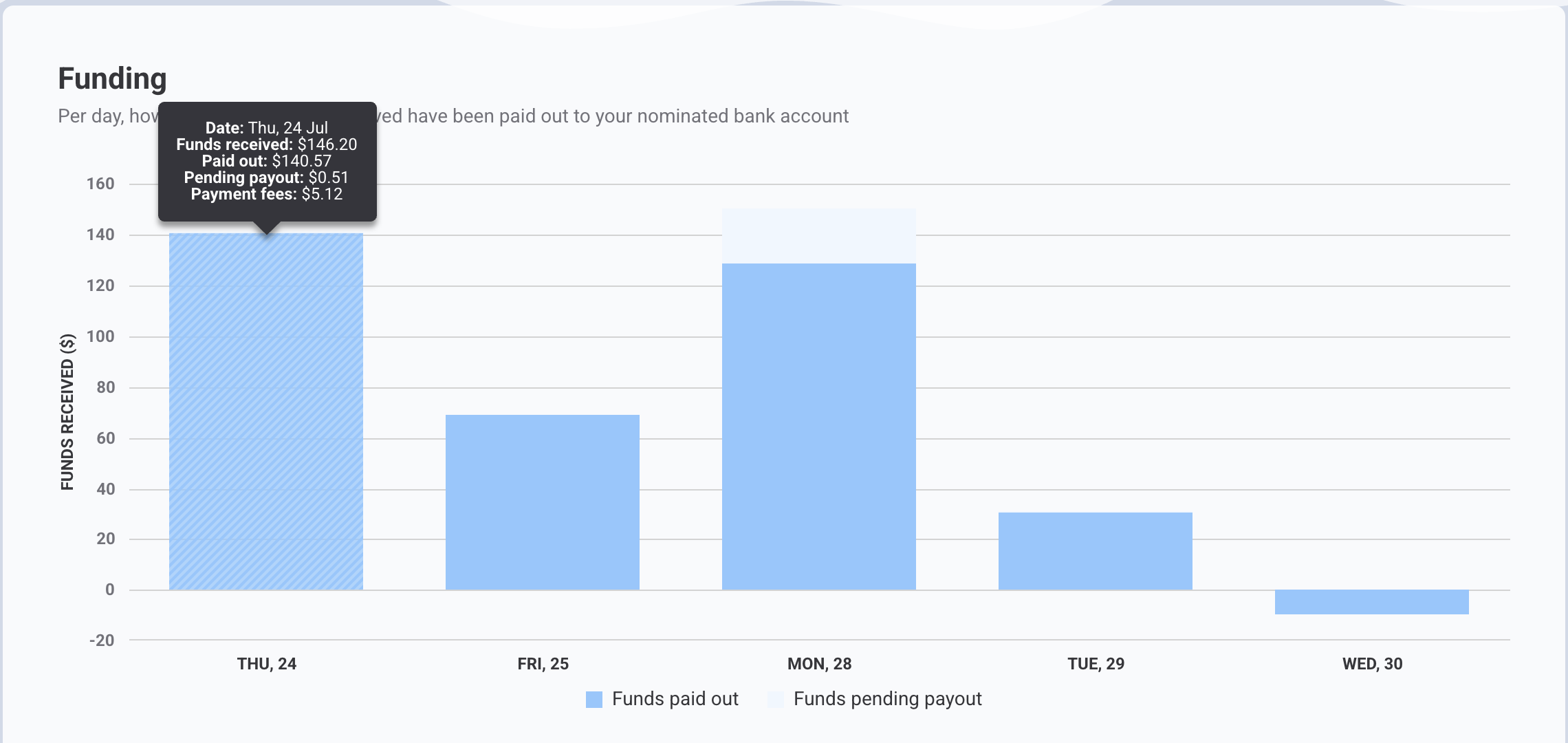
The Funding panel shows a daily breakdown of funds received and how much has been paid out to your nominated bank account.
Use this to:
Confirm payout amounts from ROLLER.
Check payout dates.
Compare payouts to your bank deposits.
The chart breaks down each day into:
Funds received: The total amount received in ROLLER before any fees are deducted.
Paid out: The net amount paid out to your bank account after fees (funds received minus payment fees).
Pending payout: Any amount still pending payout.
Payment fees: Fees deducted from your payout, including ROLLER Payments processing fees and network (bank and card scheme) fees.
Key metrics
The Key metrics section gives you a high-level view of payment activity.
Use this panel to quickly assess:
Whether refund activity has increased (with net settlement, refund totals do not include payment fees).
Whether chargebacks require review.
How overall payment volume is trending.
Metrics include:
Authorized
The total value of authorized transactions for the period.Refunded
The total value of refunded transactions for the period.Net funds received
This period's authorized transaction total, minus any refunded transactions. This is the amount retained before any Platform Fees (ROLLER Payments or network fees).Chargeback rate
This is the number of chargebacks divided by the number of authorized transactions for the period. A small number is indicative of a healthy business.

When you hover over each metric, you'll be able to see specific details from the previous period, such as transaction amounts and chargeback percentages. This includes the difference between the current and previous period for each metric.
Channels
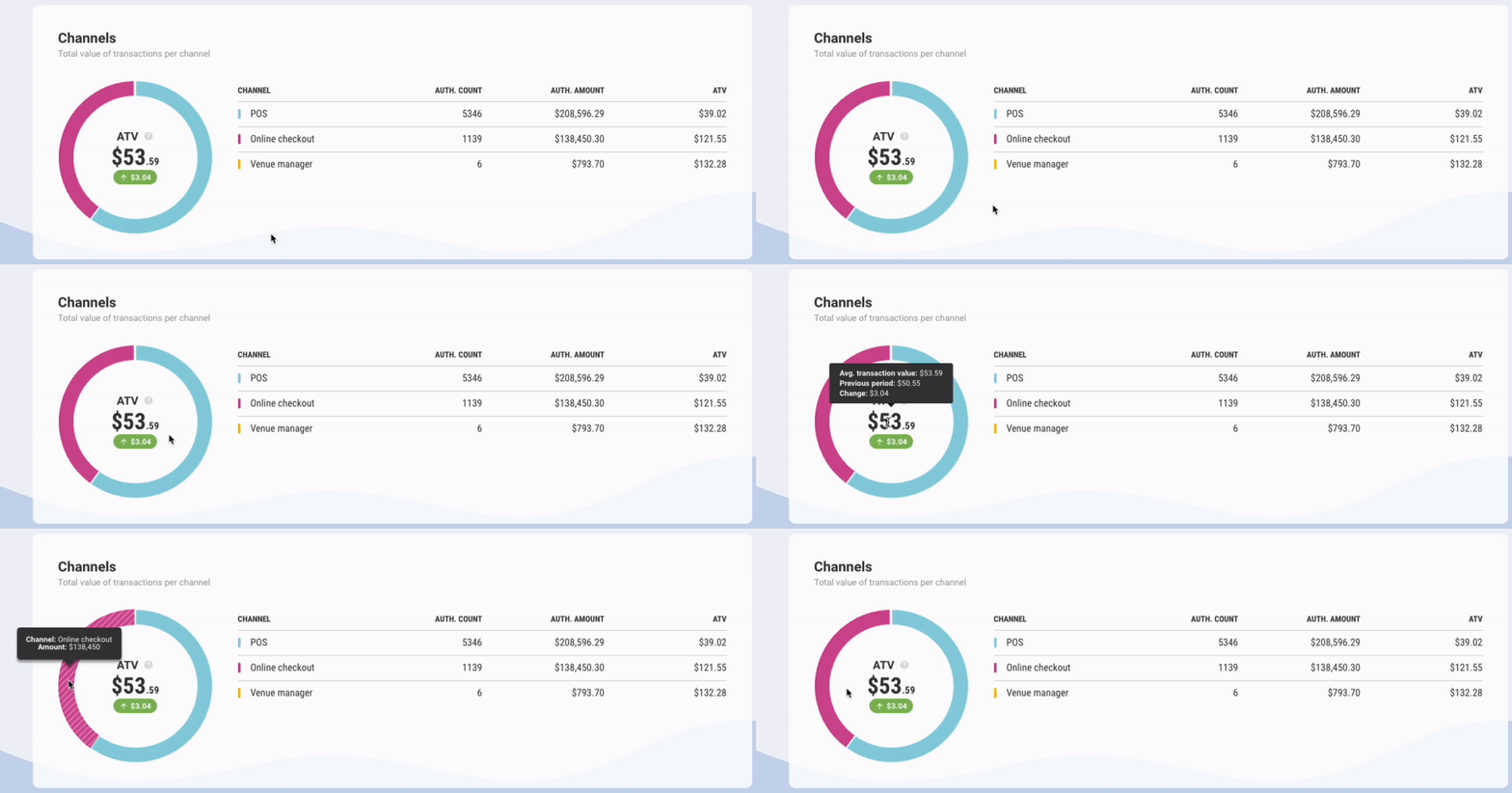
The Channels panel shows where payments are coming from during the filtered time period, such as:
Venue Manager
POS
Online checkout
Third-party integrations
The donut chart visualizes the portion of total payments coming from each channel. The table gives you detailed breakdowns by volume and value.
Use this to understand:
Which sales channels drive the most revenue.
How online and in-venue sales compare.
Whether changes in marketing or operations are reflected in payment activity.
Key metrics:
Auth. Count
The total number of authorized transactions per channel.Auth. Amount
The total value of authorized transactions per channel.ATV (average transaction value)
The average transaction value of authorized transactions per channel. This shows you the average amount your guests spent during the filtered period.
Payment methods
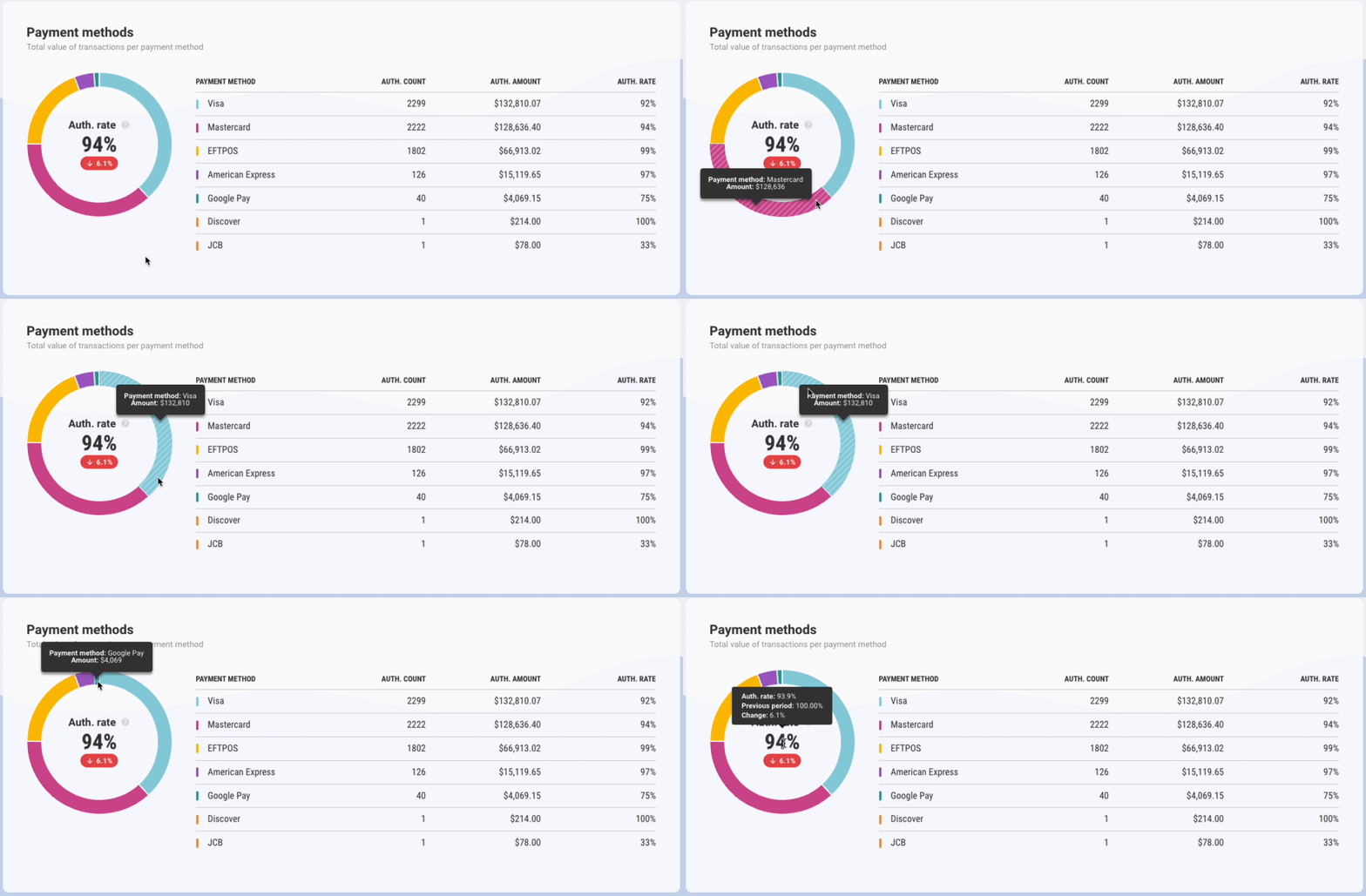
The Payment methods chart shows how guests are paying (eg card types or digital wallets) during the filtered time period.
Use this to:
Identify popular payment methods.
Spot changes in guest behavior.
Monitor shifts in payment trends over time.
The donut chart visualizes the authorization rate per payment method as a portion of the total authorized amount. The table then shows a further breakdown including:
Auth. Count
The total number of authorized transactions per payment method.Auth. Amount
The total value of authorized transactions per payment method.Auth. Rate
The percentage of transaction attempts which result in a successfully authorized payment.
There are numerous reasons a payment might be refused. For example, incorrect CVV entered, 3DS requirements not passed, insufficient funds, unsupported payment method or technical difficulties.
Chargebacks
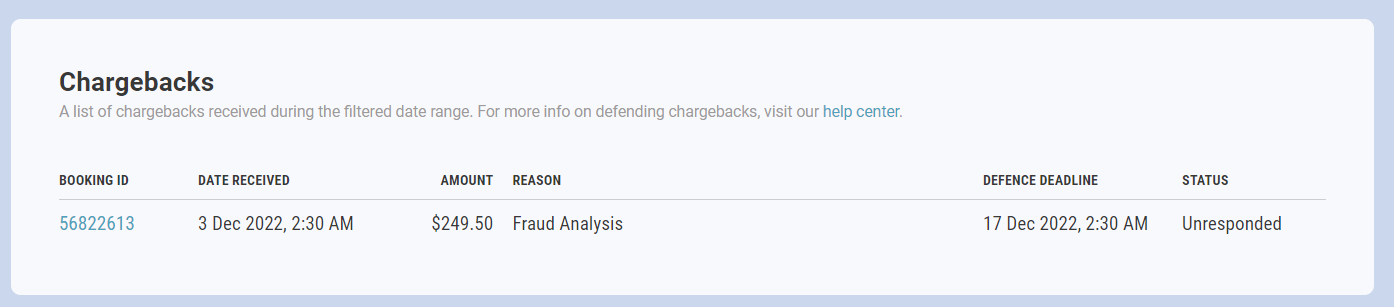
The Chargebacks panel highlights disputed transactions during the filtered time period. It lists all chargebacks received as well as the reason, amount, defense deadline and current status.
Use this to:
Monitor the number of chargebacks.
Track dispute amounts.
Identify patterns that may require action.
What does the status mean?
The status shown next to your chargeback shows what stage the chargeback is currently at. The stages of a chargeback are:
Undefended
This is a new chargeback that you are yet to challenge. You can contact us via the notification email you received related to this chargeback to challenge the chargeback. If you're not sure what to provide, you can take a look at the guide Chargeback reasons and how to defend them.Unresponded
This refers to a new Request For Information by the cardholder's bank.This is the stage that sometimes happens before a chargeback is filed, where the bank will reach out for more information about the transaction without reversing the funds. You can take a look at the email notification related to this request for more information about what to provide.
Auto-defended
Under certain circumstances, ROLLER Payments will defend the chargeback for you immediately, without the need for your intervention.Most commonly, this happens when the payment in question has already been refunded, as this is easy for us to prove and does not require additional information from you. If you see this status, we have defended the chargeback on your behalf.
Pending
This chargeback has been challenged by you, and is pending a resolution from the cardholder's bank.Won
This chargeback was found in your favor, and the funds are returned to you.Lost
This chargeback was found in the cardholder's favor, and the funds have been returned to the cardholder.
To learn more about managing disputes, see Manage chargebacks with ROLLER Payments.