Guest surveys help you understand what your guests think and feel after their visit. By setting up and sharing surveys, you can collect feedback, uncover insights and take action to improve your guests' experience.
This guide walks you through the full setup, from customizing your survey to sharing it with guests.
Set up your guest survey
Available on all plans (except Legacy)
Collect structured guest feedback with guest surveys. If you're on a Legacy plan, contact your customer success manager or the support team to unlock this feature.
From Venue Manager, go to Guests > GX Score > Settings.
First, you’ll customize your guest survey settings, then enable it to start sending emails to booking holders and collecting their feedback automatically after their visit.
Once your guest surveys are active, you can use ROLLER iQ to ask questions about your GX Score or guest sentiment and uncover deeper insights and trends.
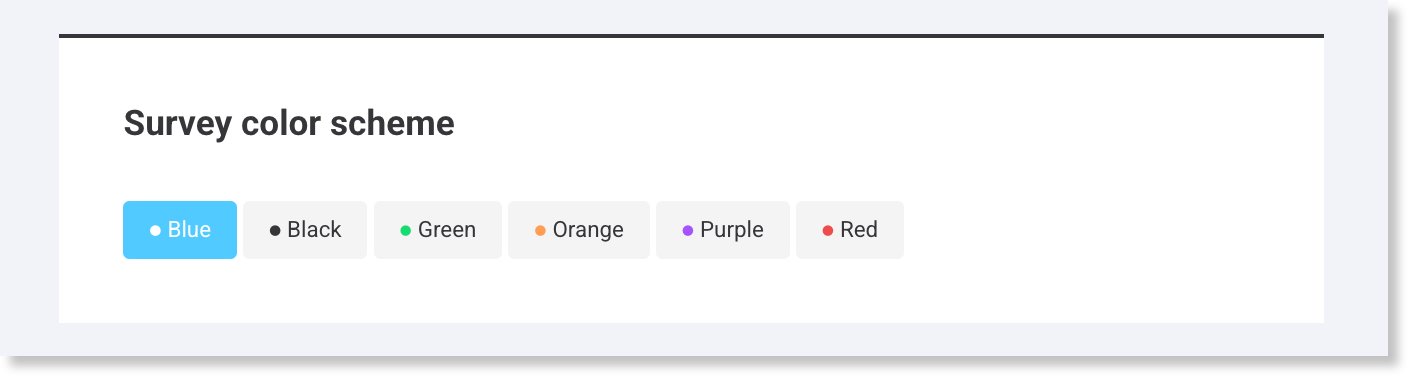
Choose your color scheme
The Survey color scheme applies to the entire survey — question text, buttons, and rating sliders. Select Preview to check how it looks before sharing.
Choose a color that matches your brand. This makes your survey feel custom to your venue and guests, which can help build trust and increase response rates.
 Choose your rating factors
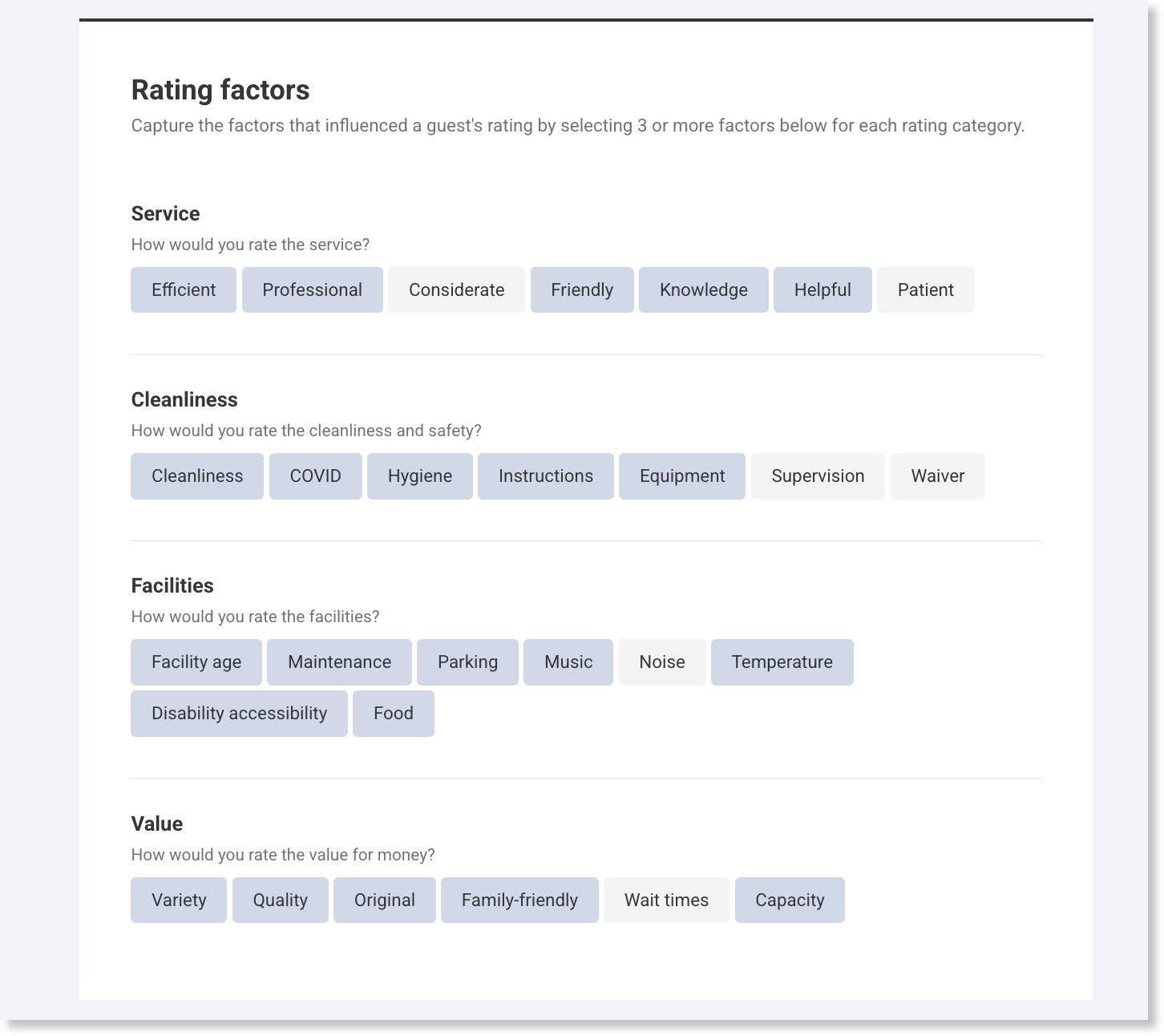
Help guests share more meaningful feedback by selecting at least 3 factors for each category you want them to rate. These factors appear after the guest gives a star rating, helping you understand what shaped their experience.
The categories are:
Service – friendly staff, efficiency and professionalism.
Cleanliness and Safety – hygiene, equipment and supervision.
Facilities – parking, music and temperature.
Value – quality, variety and wait times.
Guest survey responses link directly to booking and sales data, giving you instant feedback on specific products and experiences (ie party bookings).
Add additional questions
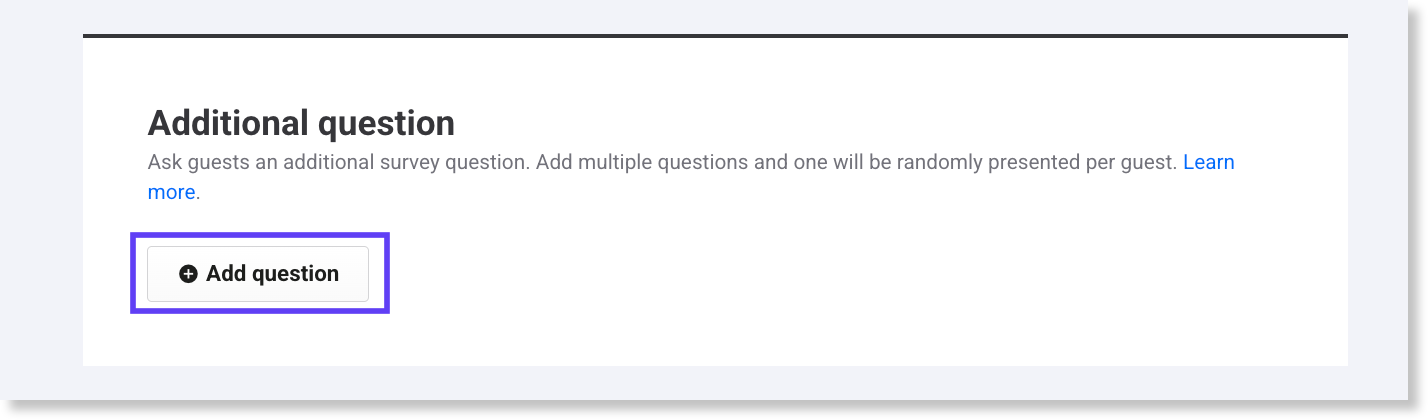
Choose from a list of pre-written questions designed for venues like yours to gather deeper insights from guests.
If you add multiple questions, guests see one randomly selected question per survey. This keeps it short and boosts responses.
Select Add question.
Choose one or more questions from the panel.
Customize the question description (optional).
Select the answer responses.
Select Save.
Examples of additional questions
"Which social media platform do you use most?"
"How did you hear about us?"
"Would you recommend us to a friend — and if not, why?"
Can I create my own questions?
You can’t add your own questions. Guest surveys use a standard set designed for consistent benchmarking across venues.
Edit or remove questions added
You can edit or remove survey questions you've added at any time.
Select the pencil icon to edit or replace a question.
Select Add question to add new ones.
Select the trash icon to remove questions from future surveys.
Set up feedback notifications
Only staff with a ROLLER account can be selected to receive notifications.
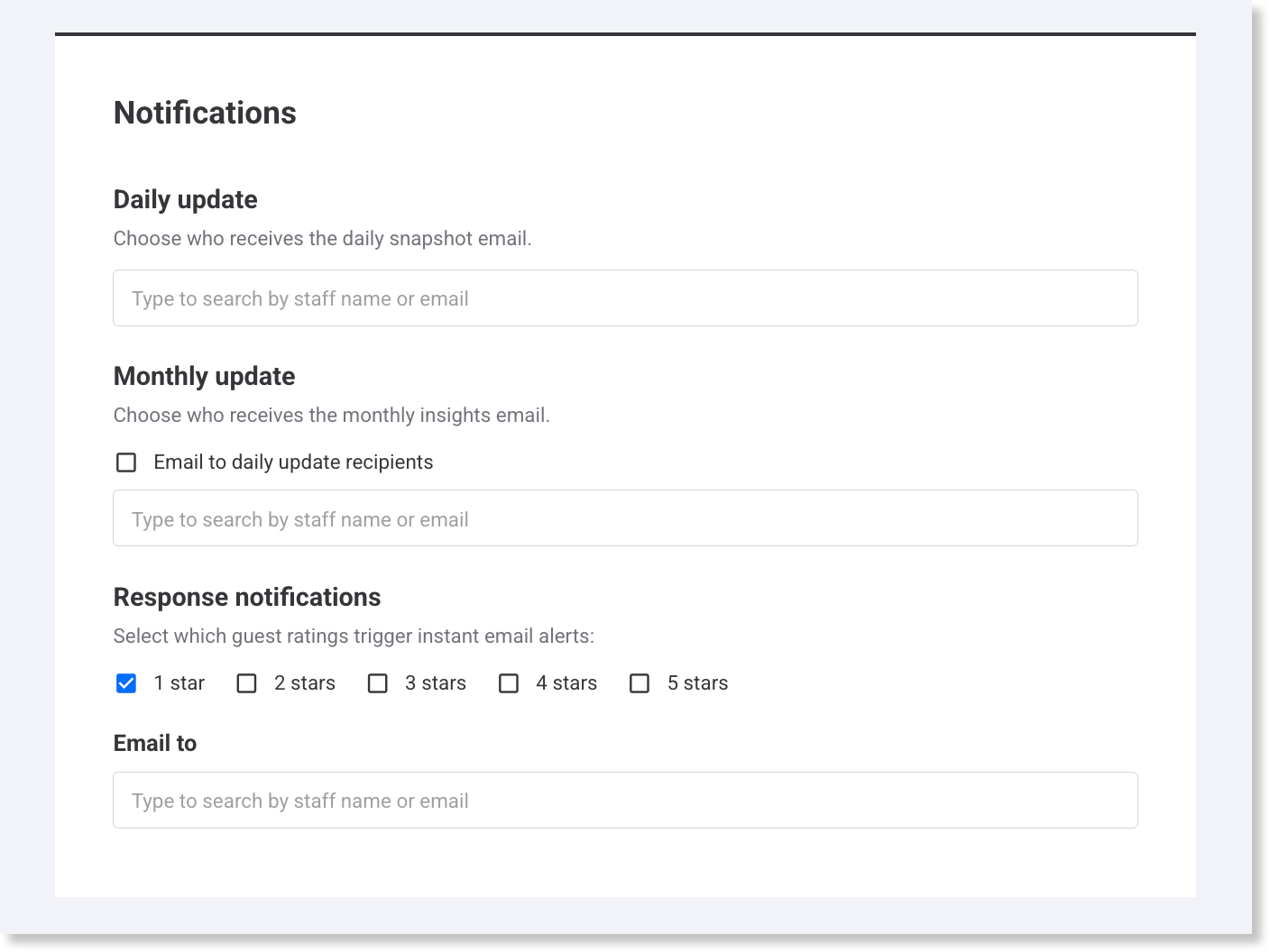
Keep the right people in the loop by setting up survey notifications to track guest feedback and manage guest survey performance.
Daily update
ROLLER emails a daily snapshot of your GX Score performance to selected staff members.
The daily update includes:
Your venue’s current Guest Experience Score.
A breakdown of Fans (4–5 stars) vs Critics (3 stars or below)
The number of responses and surveys sent
The most recent guest comments
How guests answered: “How did your visit compare to your expectations?”
Add or remove daily update recipients
By default, ROLLER selects your account owner and primary contacts (set in staff settings) to receive daily updates.
Select the X next to a name to remove a recipient.
Enter an email address to add a new recipient.
Monthly update
ROLLER emails a monthly digest of your venue’s GX Score performance to selected staff members.
This summary highlights key trends and guest insights from the past month to help your team stay focused on what matters most.
The monthly update includes:
A summary of overall guest sentiment.
A list of what guests loved and what they said could be improved.
A ranking of the booking hosts who received the best feedback.
A list of negative responses that haven’t been actioned.
Add or remove monthly update recipients
By default, ROLLER selects your account owner and primary contacts to receive monthly updates.
Select the X next to a name to remove a recipient.
Enter an email address to add a new recipient.
Select Email to daily update recipients if you’d like the same people to receive both updates.
Offer incentives
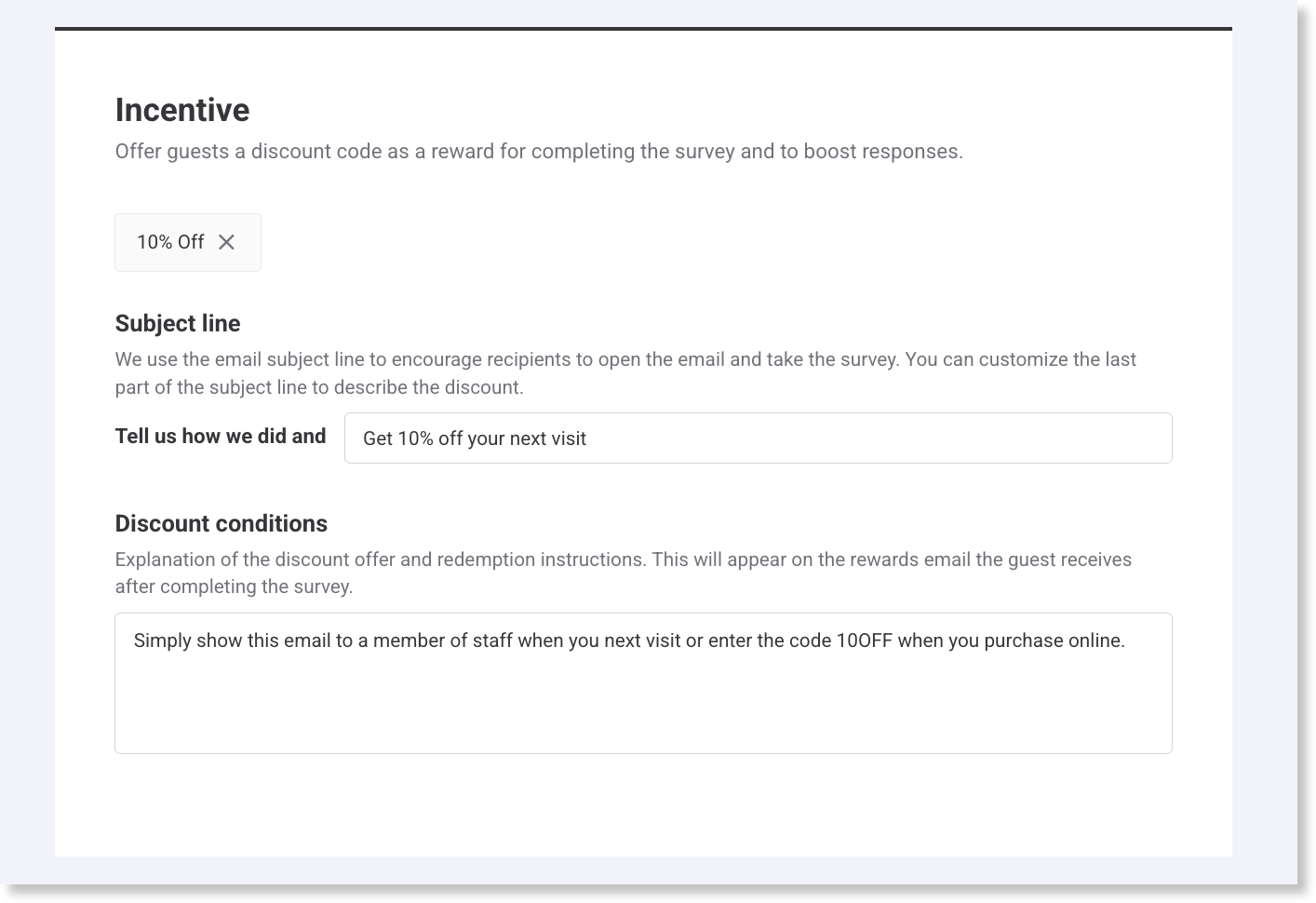
Encourage guests to complete the survey by offering a reward, like a discount code. Once a guest completes the survey, they'll automatically receive the discount by email. This can help encourage repeat visits.
Under Incentive, choose Select discount code
Select an existing discount code. To create a code specifically for guest surveys, visit Discount codes in ROLLER to learn more.
Complete the last section of the email subject line to get your guests’ attention, eg “Tell us how we did and enjoy 15% off!”
Enter the Discount conditions to make the offer clear, eg “Valid for 15% off any purchase over $10, in-store or online. Expires in 14 days.”
Select Save.
Response notifications
Set up instant email alerts to monitor guest feedback and respond quickly to low ratings.
Each email includes the guest’s survey response, contact details and booking info — so your team can follow up fast and turn things around.
Select which star ratings trigger a notification (eg 1 and 2 star ratings).
Choose recipients from the Email to drop-down.
By default, ROLLER includes the account owner and primary contacts (set in staff settings).
Preview your survey
Select Preview in the top-right corner of the guest survey settings page to see how your survey will appear to guests.
Share your survey
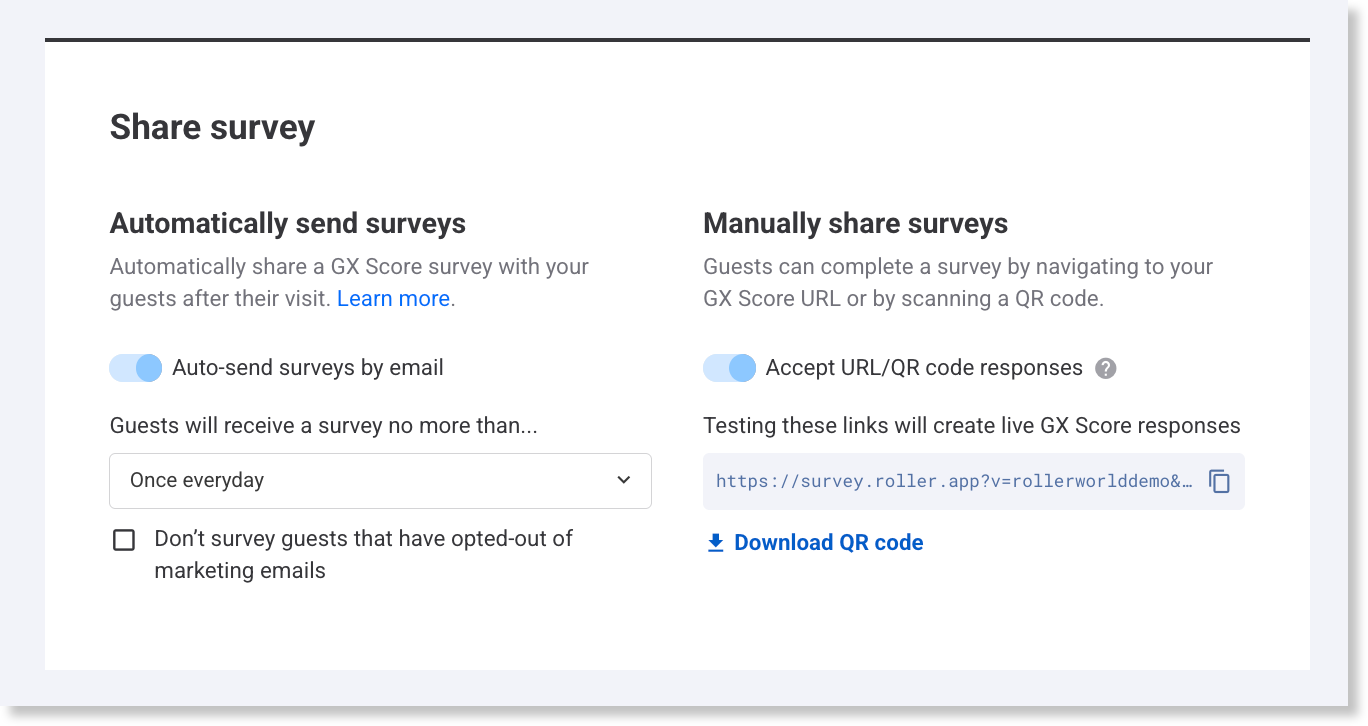
You can collect guest feedback automatically by email or manually by URL or QR code. You can also use both at once to capture more responses.
Automatically by email
ROLLER sends surveys to booking holder email addresses after their visit, based on the product they booked:
Session pass: 1 hour after the session ends
Standard or membership pass: 5 pm local time on the day of visit, or 1 hour after redemption if redeemed after 5 pm
The survey will be sent to the booking holder to complete.
Surveys are only sent if:
The booking wasn’t canceled, rescheduled or marked as a no-show.
The booking holder has an email address.
They haven’t already reached your max survey-per-guest setting (if configured).
To set up email surveys:
From Venue Manager, go to Guests > GX Score > Settings.
Under Share survey, enable Auto-send surveys by email.
Choose how often surveys are sent and whether to exclude marketing opt-outs.
Select Save to start collecting feedback.
Manually by URL or QR code
Use a survey link or QR code to capture feedback from guests who may not have an email on file.
From Venue Manager, go to Guests > GX Score > Settings.
Under Share survey, enable Accept URL/QR code responses.
Select Copy URL or Download QR code.
Print and display QR codes in key areas — like exits or café tables.
Guests complete the survey on their phone and are prompted to enter their name and contact details at the end. If they skip this, their response is recorded as unidentified.
Surveys submitted via QR code or URL aren't linked to a booking ID or sales information.