Share a checkout link that applies your discount for guests, with no code to type. When a guest opens the link, they see your redemption instructions, and the discount applies once their cart qualifies.
Shareable discount URLs are currently supported with full-page progressive checkouts. They can't be used with overlay or legacy checkouts. If your venue uses an overlay checkout, see Automatically apply discount codes in overlay checkout, which requires developer support. Shareable discount URLs are not available for discounts set to issue codes on purchase.
Step 1: Create or select a discount
Create a new discount or use an existing one. Select a discount type below to learn more:
Percentage discount (eg 10% off)
Fixed amount discount (eg $5 off)
BOGO offer (eg Buy 1, get 1 free)
Flat price discount (eg Jump for $15)
Step 2: Set up a shareable URL
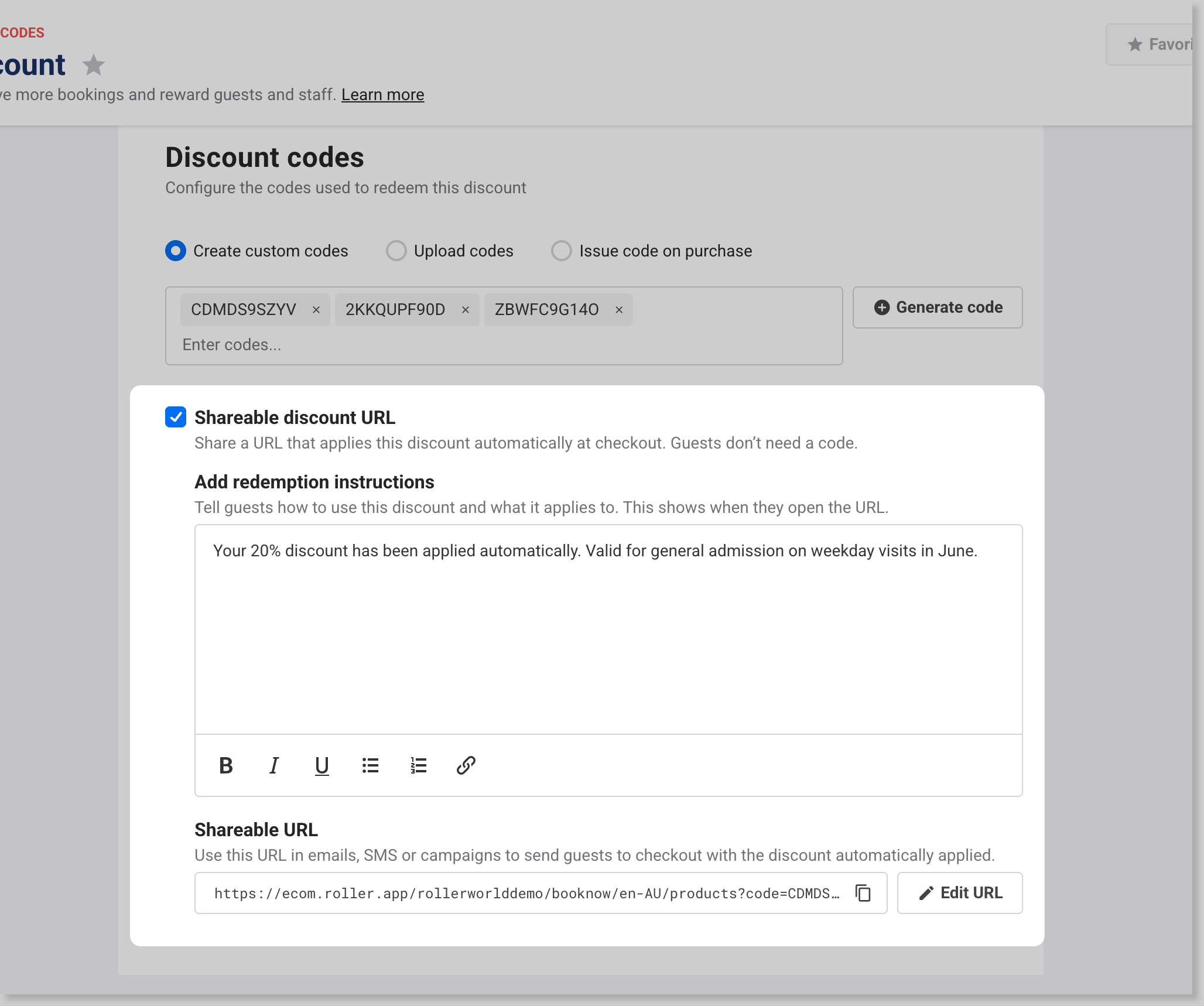
When creating or editing your discount, select Shareable discount URL to generate a link that applies this discount automatically at checkout. Guests don't need to enter a code.
The URL is pre-generated using your venue's default checkout (primary checkout) and the first discount code you created. To change either, select Edit URL:
Choose the Destination checkout. This is the checkout the link opens.
Choose the Discount code to use.
Copy the generated Shareable discount URL.
Select Save to confirm.
You can also use the copy button next to the URL on the main page to copy it at any time.
You can create multiple shareable URLs for different checkouts, and they'll all stay active. The checkout selector builds the link, it doesn't save a setting, so it resets to your primary checkout URL after you save. That doesn't affect any links you've already created.
Under Add redemption instructions, enter the message guests will see when they open the discount link. Describe what the discount applies to and any conditions they should know. You can format your message using bold, italic, lists or links. Keep it short. ROLLER saves only the first 150 characters, and the formatting behind bold, lists and links counts toward them. For example:
Percentage discount: Get 15% off all online bookings made in June. Discount applies automatically at checkout.
Fixed amount discount: Save $10 when you book any one-hour session online in July. Discount applies automatically.
Buy & Get discount: Book two laser tag sessions and get the second free. Available for online bookings made before June 30. Discount applies automatically when both are added to your cart.
Step 3: Share the link
Share the URL in emails, SMS or campaigns to send guests directly to checkout with the discount pre-applied.
Guests must open this specific link to receive the automatic discount. If they navigate to your standard checkout link without it, the discount won't apply.
FAQs
Why can't I copy my shareable discount URL?
Add a message under Add redemption instructions first. Until it has one, the copy button and Edit URL are grayed out. The link also stops applying the discount if you remove the message later.
Can my link open a specific product?
Yes. Copy the product's address from your checkout, then add the end of your shareable discount URL to it, from ?code= onward. For example, a product link with the code added looks something like this: https://ecom.roller.app/yourvenue/yourcheckout/en/product/65290?code=SUMMER20
If the product's address already has a ? in it, start what you add with & instead (eg &code=SUMMER20). Before you share it, open the new link in a private browser window and check your redemption instructions show.
To copy a product's address, see Add a direct link that opens at a specific product in the guide Add full-page checkout experience to websites and social pages.
My shareable link didn't apply the discount. Why?
Check that you opened the shareable discount URL, not your usual checkout link. The shareable URL ends in ?code= followed by your code, and it's the only link that carries the discount. When it works, your redemption instructions pop up as soon as checkout opens. Without them, guests see full price and no error, so they may not realize anything's wrong. To get the right link, open the discount and select the copy button next to Shareable URL.
The link opens checkout, but guests don't see my redemption instructions. What should I check?
Checkout only applies the code from the link when the discount can be used online that day. In the discount's settings, check that:
Availability > Discount usage includes today. This is the day the guest books, not the day they visit.
Availability > Sales channels includes Checkout & API.
Add redemption instructions still has a message in it.
To find the discount and change these settings, see Find the discount in Venue Manager in the guide Troubleshoot discount code redemption errors.
What happens if the cart doesn't meet the discount's conditions?
The discount isn't applied to those items, and the guest pays full price for them. Products the discount covers still show Discount available, because the label only checks the product. It doesn't check the visit date, the session time or how many items are in the cart (eg the second ticket in a Buy & Get offer). Use your redemption instructions to tell guests what they need to book.
Can I stack or combine multiple discount codes in one URL?
No. Only one code can be used in the checkout URL.