When managing multiple venues, you can switch between accounts without logging out and search bookings across all venues you have access to.
Switch venues
If you're in a managed venue, you can jump back to HQ in a single click using the Switch to HQ shortcut — or switch to any other venue using the full venue list.
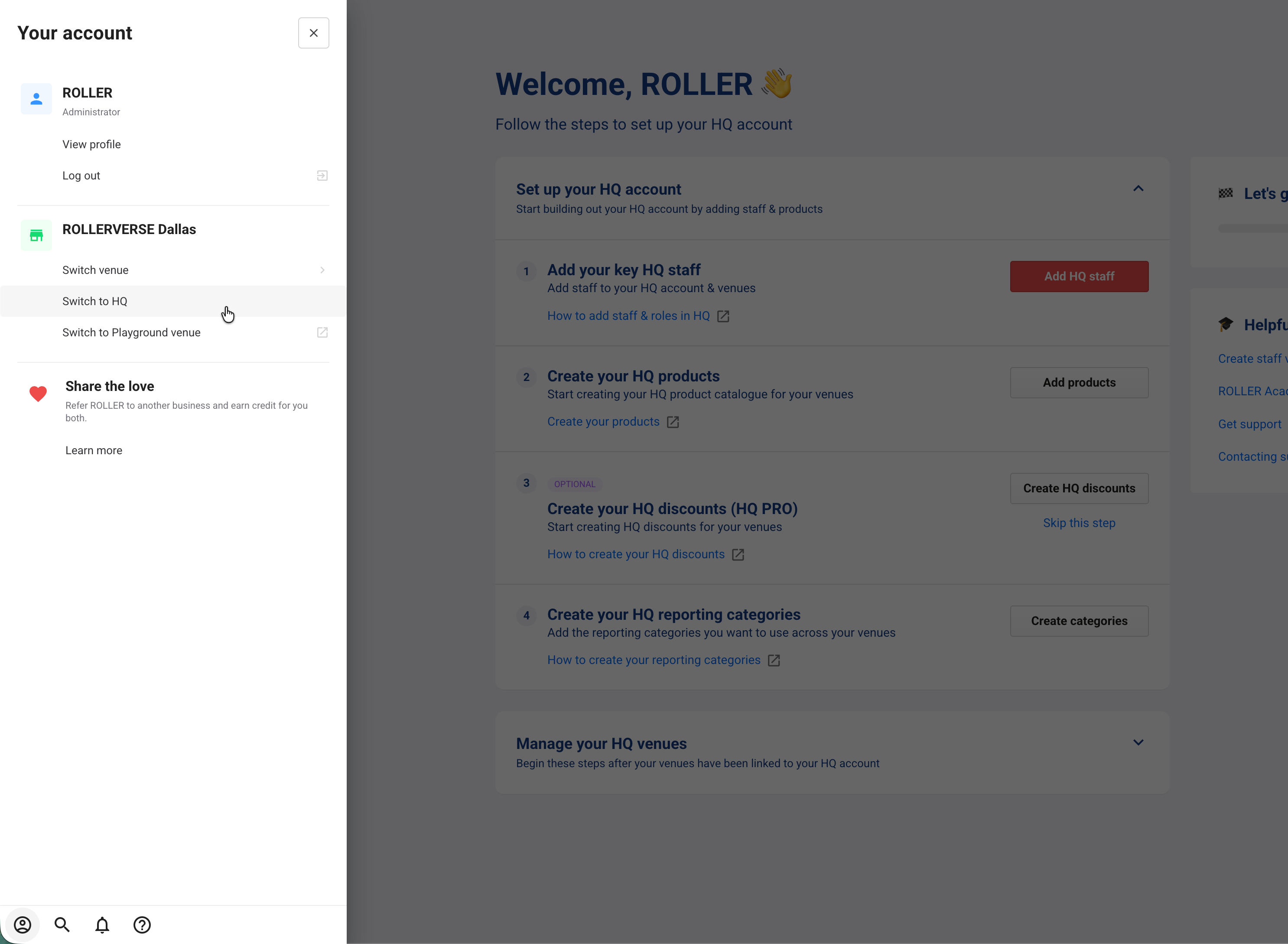
Switch to HQ quickly
From Venue Manager:
Select your account profile (the person icon at the bottom of the main menu).
Select Switch to HQ.
Switch to HQ only appears when you're viewing a managed venue and your account has access to HQ.
 Switch to another venue
From Venue Manager:
Select your account profile (the person icon at the bottom of the main menu).
Select Switch venue.
Select a venue — it opens immediately.
Your HQ venue is pinned to the top of the Switch venue list. You can also use the keyboard shortcut ⌥ + V to quickly switch venues.
Set a default venue
If you have access to multiple venues, you can set a default so you land in the right place every time you log in.
If you manage staff accounts at HQ, you can set a default venue for a staff member when creating or editing their account in Settings > Staff.
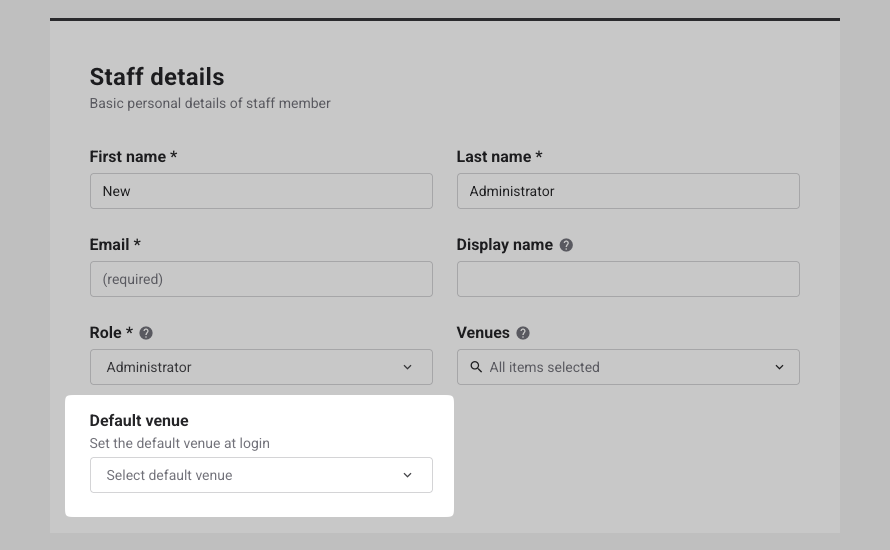
To set your own default venue:
Go to Your account
Select Switch venue.
Select the menu button at the top of the list and select Default venue.
Land on the same product when you switch
When you switch venues while viewing a product, you’re taken to the same product in the venue you switch to, instead of that venue’s product list. This saves searching for it again when you’re comparing a product across venues or checking its setup in one of them.
Switching from HQ to a managed venue that has the product opens that venue’s version of it.
Switching back to HQ from a product page opens the matching HQ product.
If the venue doesn’t have the product, you land on that venue’s product list instead.
Search bookings across venues
Use multi-venue search when you're not sure which venue a guest booked at. It's particularly useful for call center staff or central support teams who take guest calls and need to quickly find and update bookings.
To search across venues, staff need an HQ-managed staff account with access to the relevant managed venues.
From the HQ account or managed venue:
Go to the Search bar in the main menu.
Select a record type — for example, Bookings, Guests, or Members.
Enter the guest's name, email, or booking ID and select what you're searching for from the drop-down.
Select a booking to open it in the relevant venue.
Result: Results show bookings across all venues you have access to.