What's happening
The booking confirmation screen cannot be accessed after payment details are entered in the online checkout.
Why it happens
This means that Payment methods in Venue Manager have not been configured properly.
Payment methods determine how your guests can submit their payments through ROLLER.
Payment options include credit cards, Apple Pay, Google Pay and more. These options must be enabled so that guests can purchase products online.
Configuring payment methods is a feature available to customers using ROLLER Payments.
How to fix it
Follow the steps below to enable payment methods in the online checkout.
From Venue Manager, go to Settings > Account > Payments.
Select the Add payment methods field.
Select the payment method(s) you'd like to offer your guests and select Apply.
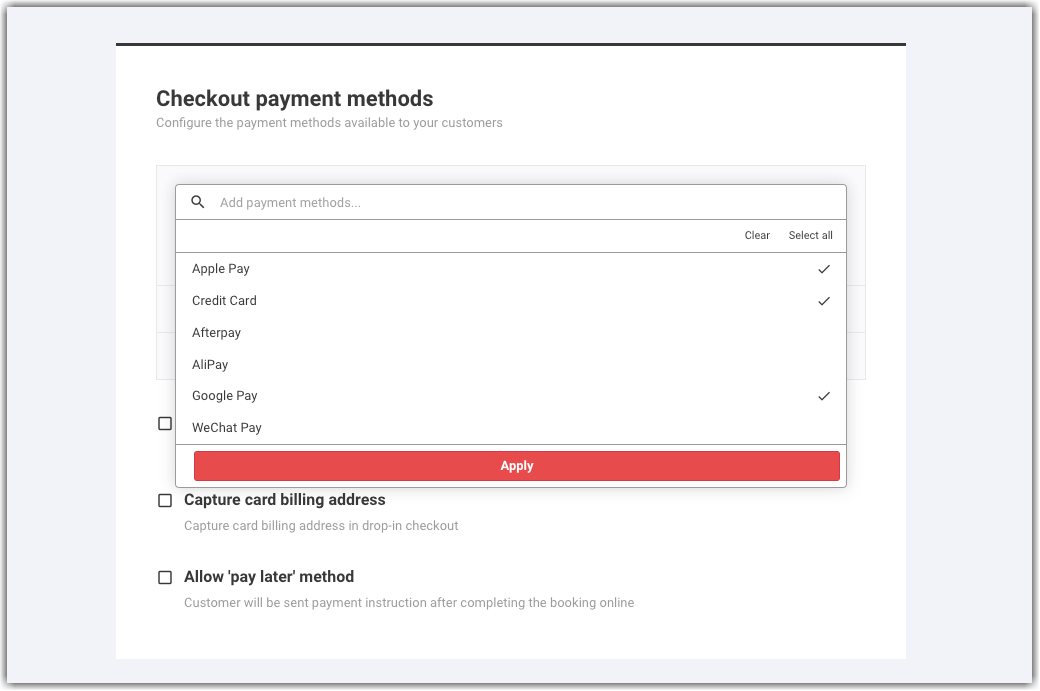
Select Save at the bottom right of the payments page.
Check it's working
Now test if you can now put through payments. Follow the steps below.
Go to Apps > Progressive checkouts > All checkouts.
Select the URL for the checkout you want to test.
Create a new booking and enter your payment details.
Confirm you can move onto the booking confirmation screen once you've entered test payment details by selecting Pay.