Problem
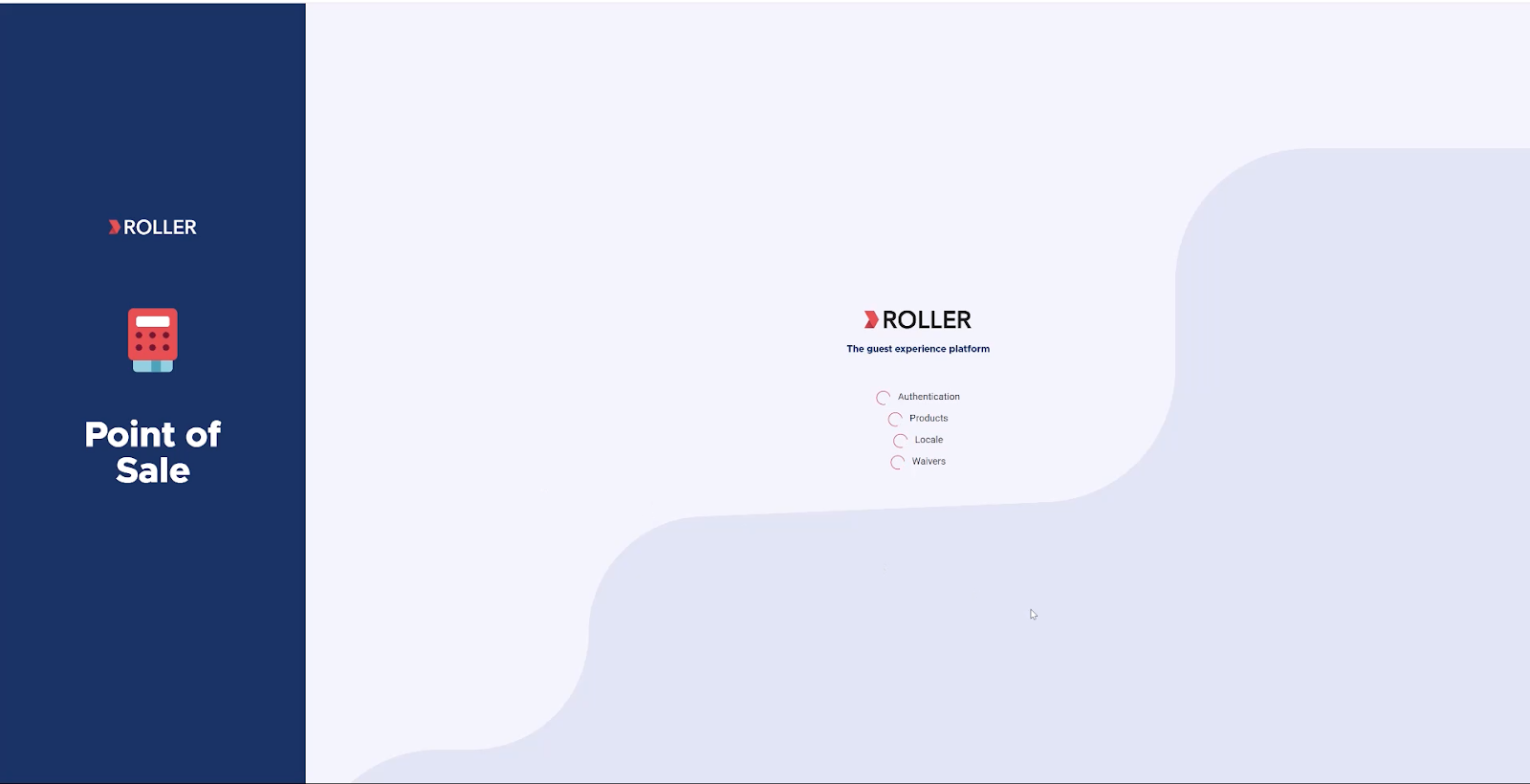
When attempting to log in to ROLLER POS, the screen continually refreshes and doesn’t allow the user to move on.
Cause
The POS device has an inaccurate time and/or date causing user authentication to fail. This can occur if daylight savings time has been misconfigured, there are problems syncing to internet time servers, a recent power outage, manual misconfiguration and more.
Solution
Update the date and time on your device to enable the POS device to authenticate at login.
Change the POS device time
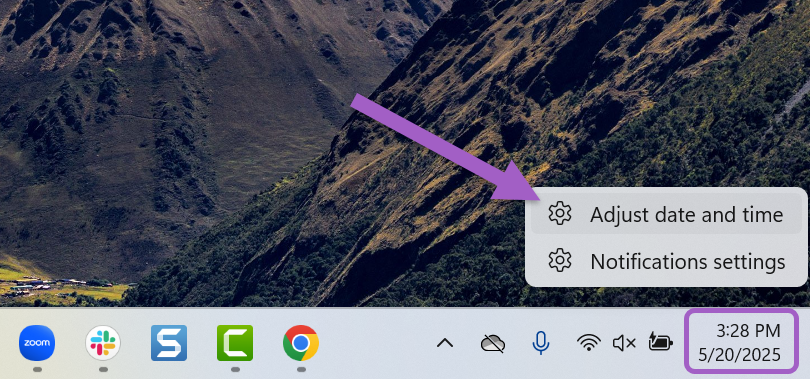
On the POS device, right-click the bottom-right corner of your screen (taskbar).
Select Adjust date/time.
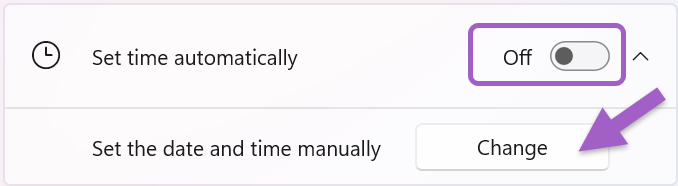
Toggle Set time automatically to Off in the Date & Time settings window.
Select Change next to Set the date and time manually.
Adjust the date and time to the correct values.
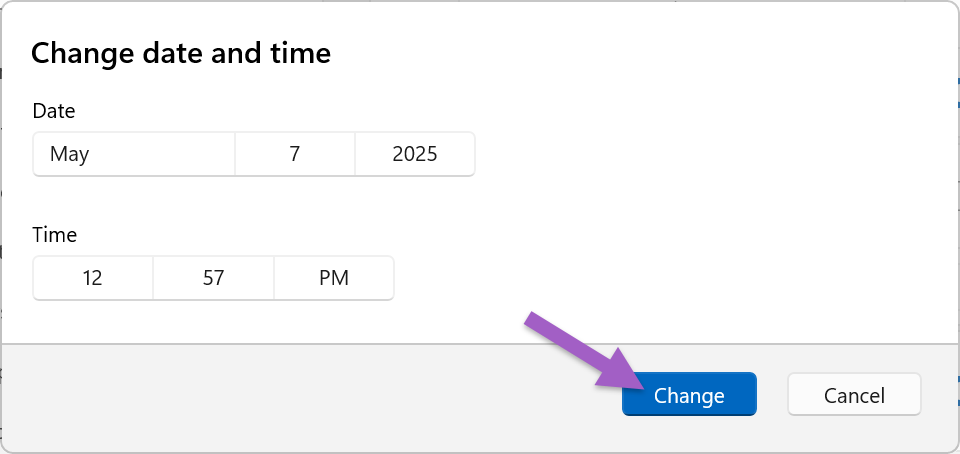
Select Change.