Find the fix for the most common POS problems, from banners at the top of POS to devices you can't select.
ROLLER Connect is not connected
If a banner at the top of POS says ROLLER Connect is not connected, or that the link with ROLLER Connect has been lost, POS can't reach ROLLER Connect on that computer. Receipts, dockets and the cash drawer won't work until it reconnects.
To fix it, see the guide Why does POS say ROLLER Connect is not connected?
If you'd rather not run ROLLER Connect for receipts and dockets, cloud printing connects supported Epson printers to POS over your network instead. To learn more, see the guide Get started with cloud printing.
POS offline error

If a bar at the top of POS shows Time offline with a timer, your POS computer isn't connected to the internet.
If the bar keeps appearing and disappearing, your internet connection is dropping in and out. Ask your IT team to check it.
POS keeps working offline for some tasks. To learn more, see the guide Use ROLLER POS in offline mode.
No payment taken
If ROLLER POS is saying payment has been received, but the card terminal hasn’t taken any payment, make sure offline card payments are turned off for that POS device:
Log in to POS.
Go to More > Settings > Hardware.
Under General Hardware Settings, make sure Offline card payment? is set to No.
To learn more, read the FAQ guide Why is POS saying payment received, but the card terminal hasn’t taken any payment?
Receipt printer issues
If you print through ROLLER Connect, see the guide ROLLER Connect: Receipt printing troubleshooting. If you use cloud printing, see the guide Cloud printing: My printers have been set up correctly, so why aren't my dockets and receipts printing?
Cash drawer issues
Follow our cash drawer troubleshooting guide.
Menus and items have disappeared
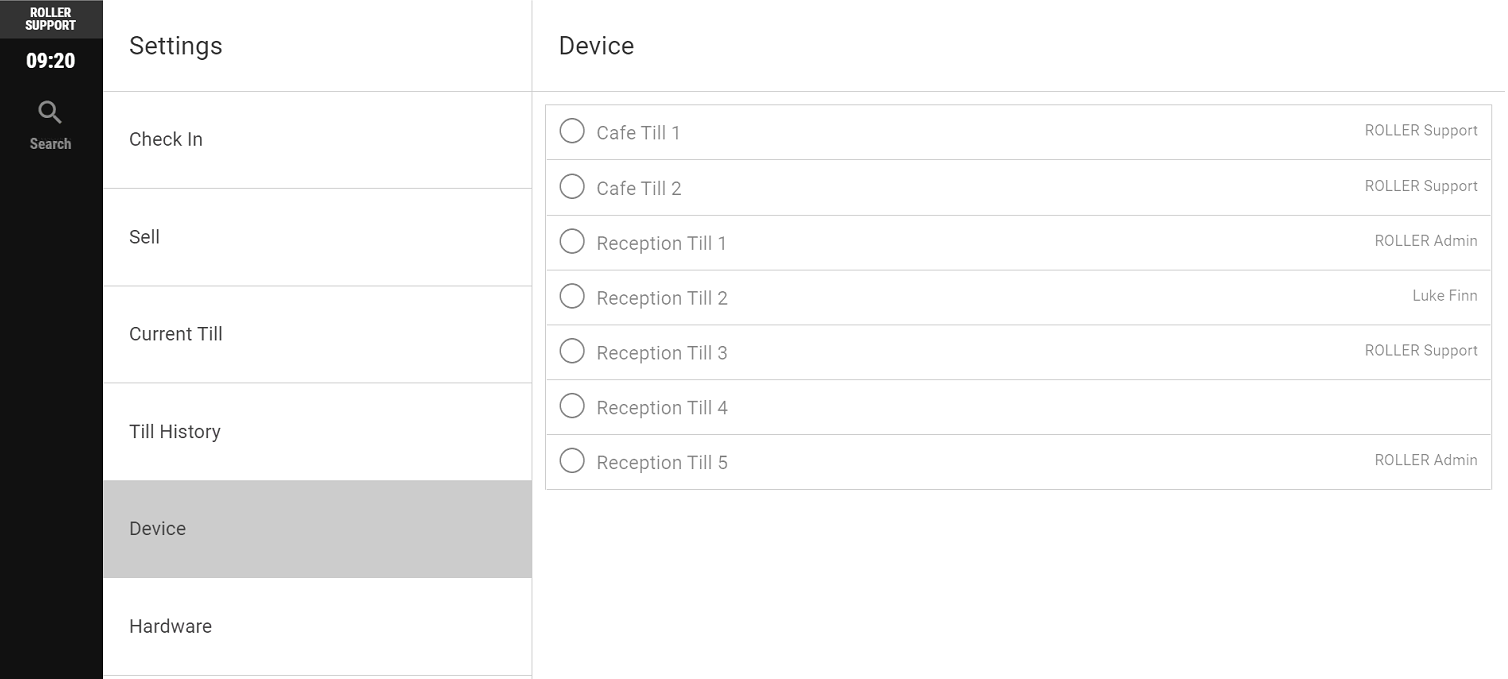
This means that your POS device has been deallocated. To reallocate your POS device, follow the steps below.
From POS, go to More > Settings > Device.
Select the correct device from the list and your menu items should all reappear.
POS devices are grayed out
This means that all POS devices are allocated.
To reallocate your device at POS, first deallocate it in Venue Manager. To learn how, see Deallocate a POS device profile in the guide Log in to POS.
Product or ticket is missing
If you can't find a particular product or ticket type you want to sell in POS, you need to add it to your POS menu. Refer to the guide Create and edit your POS menus.