Optimize your operations and have complete peace of mind knowing that printed receipts, tickets and production dockets will never be lost using ROLLER’s cloud printing feature.
This guide walks through the cloud printing process from start to finish, with some handy tips and FAQs along the way! Keep reading to learn more.
Should I use cloud printing?
Yes! Cloud printing comes with a wide-range of benefits.
Connect your printers via a cloud-based technology, which enables greater control over printers and print settings.
Ability to connect printers over Ethernet or WiFi.
Access to improved printer troubleshooting and error handling within POS.
Configure backup docket printers in case your primary printers experience technical issues.
Plus, you can customize your receipt and docket templates.
If your venue currently uses ROLLER Connect for your printer set up, see our FAQs below for how to make the switch to cloud printing. If your venue wants to use ROLLER’s mobile food & beverage feature, then at a minimum, your docket printers must be connected to cloud printing.
Who is cloud printing available for?
Cloud printing is available on all ROLLER subscription tiers and can be used if you have any kind of receipt or docket printing at your venue.
Cloud printing is especially important for venues with food and beverage operations, as you can connect your POS devices directly to your docket printers when using ROLLER’s mobile food & beverage ordering feature. To learn more, read the guide Prepare for mobile food & beverage ordering.
If you’d like to use an integrated Kitchen Display System (KDS) at your venue and send food & beverage orders to a screen in your kitchen, read the guide Integrate with Fresh KDS and configure your devices to get started.
Requirements
Below are the requirements your venue must meet before you can get started with cloud printing.
All printers must be one of the supported Epson printer models. These include:
EPSON TM-m30II (Ethernet): Built for easy connectivity with tablets.
EPSON TM-M30III (Ethernet): Built to support both retail and hospitality environments. Due to the compact design it’s a good choice for businesses with limited counter space.
EPSON TM-T88VII (Ethernet): Built to support both retail and hospitality environments.
EPSON TM-T82III (Ethernet): Built to support venues with a low volume of POS transactions.
EPSON TM-U220IIB (Ethernet): Built to withstand high temperature environments (eg kitchens). Please be aware that this printer has limited graphical capabilities and you won't be able to print barcodes on your receipts.
These printers can be used for all docket, receipt and ticket printing.
We recommend that you buy more than one printer if you're printing production dockets. Two or more printers are better able to handle the printing load.
Cloud printing does not currently support the printing of sticker tickets or wristbands. If your venue uses sticker printers or wristband printers, you can use ROLLER Connect alongside cloud printing.
Printers must be connected to the local area network via Ethernet or WiFi (not USB). Ethernet connection is recommended over WiFi as it provides greater network stability.
Launch cloud printing at your venue
It’s quick to get started with cloud printing at your venue. Complete these simple steps:
Get your Epson ePOS printers.
Set up each printer with a static IP address, enable ePOS and generate and export an SSL certificate for connecting to POS devices.
Add your printers to a print station in Venue Manager.
Enable cloud printing at POS.
Below is a full rundown of the preparation work you must complete before you can launch cloud printing at your venue.
For the smoothest set up experience, make sure you follow each of the steps below in full. Doing so will ensure that your receipts, dockets and tickets print correctly with no errors or issues.
Select the Learn more links to see the detailed guides for each step in the process.
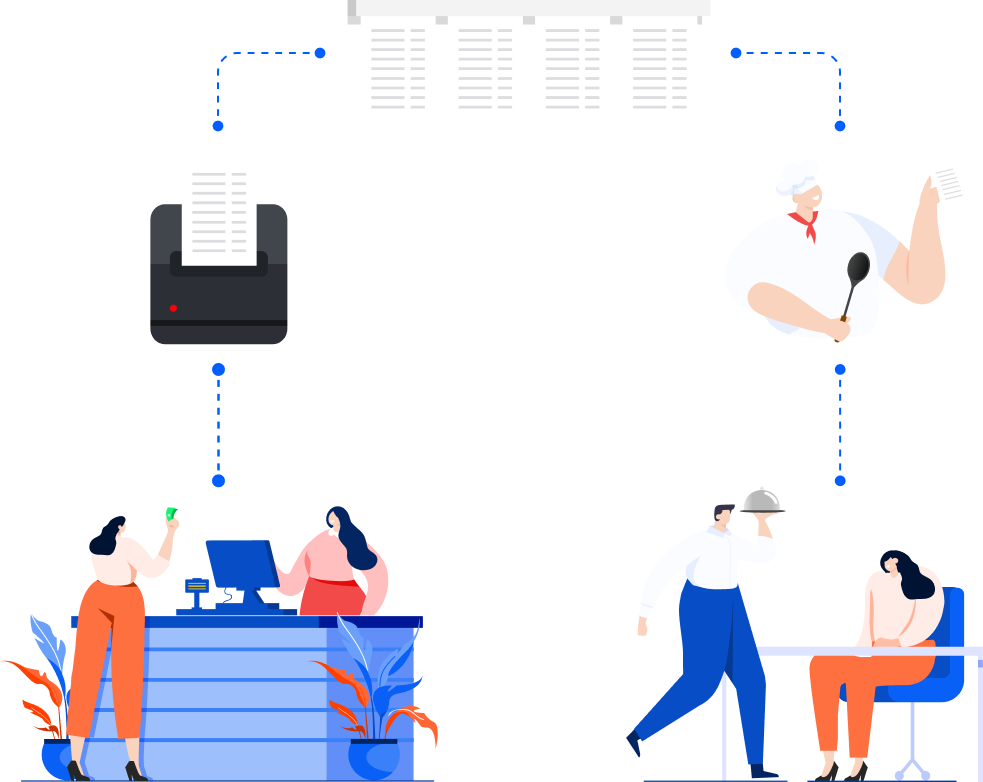
Get your printers
First up, if your venue isn’t currently using one of the supported Epson printer models, you'll need to invest in the supported hardware. These include the following printer models:
EPSON TM-m30II (Ethernet)
EPSON TM-M30III (Ethernet)
EPSON TM-T88VII (Ethernet)
EPSON TM-T82III (Ethernet)
EPSON TM-U220IIB (Ethernet) (this model is used for high heat environments)
Printers must be connected by Ethernet or WiFi (not USB).
Configure your printers
Next, connect your printers to the network and give each printer its own unique static IP address. Once this is done, for each printer, enable ePOS functionality and generate and export an SSL certificate to import on every POS device you want to connect. Learn more
Create print stations in Venue Manager
Now, add your printers in Venue Manager. Go to Settings > Devices > Add a print station. Enter the static IP address into the print station. Then run a test print against each printer. Learn more
Confirm your POS settings
Check your global and individual POS settings for receipts and dockets. The POS device setting to only open the cash drawer for cash payments is enabled by default once cloud printing is switched on at POS. Learn more
Switch on cloud printing at POS
Once you’ve completed all the steps above (in full), you’re ready to start using cloud printing. The final step is to switch the feature on at POS, so that your POS devices and printers can start working together to print receipts, dockets and tickets.
When you’re ready to start using cloud printing at POS, select Switch to print stations and complete the checklist in Venue Manager to confirm you’ve followed the steps above. Once this is done, you’re ready to go! Learn more
[Optional] Customize your receipt and ticket templates
You can also customize the appearance of your guest-facing receipts and tickets in Venue Manager.
Learn more about customizing receipts
Learn more about customizing tickets
Once cloud printing is enabled at POS, it takes over the printing of receipts, tickets and production dockets as well as till reports.
Checklist to go live with cloud printing
It’s important that every step has been completed in full for cloud printing to work. If not, you’ll run the risk of issues and errors when it’s switched on for your venue.
Buy one of the supported Epson printer models (if you don’t already use one of these models at your venue).
Configure your printers, including connecting to the local network, entering a static IP address for each printer, enabling ePOS printing and creating and installing your SSL certificates.
Create your print stations in Venue Manager.
Enable all relevant POS and cash drawer settings.
Run successful test prints from Venue Manager.
Confirm your launch date and enable printers at POS.
Arrive early on launch day for testing, including test prints from POS.
Once you can confidently tick off each of the tasks above, and your test prints from POS on launch day are successful, you’re ready to go!
If you run into any issues on launch day, or the feature is not working as expected, you can disable your print stations and revert back to your previous printer setup. From Venue Manager, go to Settings > Devices. Then select the options menu (3 dots) in the top right of the page. Select Disable print stations from the dropdown.
FAQs
Below is a list of common FAQs to help answer any questions you might have as you get started with cloud printing. We recommend reading through the FAQs before you get started.
I already use ROLLER Connect, how do I switch to cloud printing?
Confirm you’re using a supported printer model, then configure your printers and create your print stations in Venue Manager (see the instructions above).
Run successful test prints on each of your print stations.
Confirm all setup steps have been completed in full before enabling cloud printing at POS.
Do I need to replace all my printers if I want to use cloud printing?
No, you don’t have to replace all your printers if you decide to use cloud printing.
At a minimum, if your venue intends to use ROLLER’s mobile food & beverage ordering, your docket printers must be one of the following supported models:
EPSON TM-m30II (Ethernet)
EPSON TM-T88VII (Ethernet)
EPSON TM-T82III (Ethernet)
EPSON TM-U220IIB (Ethernet)
You can choose to replace all your printers with a supported Epson model and use cloud printing throughout your venue, otherwise you can use ROLLER Connect for non-supported printer models.
Can I use cloud printing if I use sticker printers or wristband printers?
Yes. Cloud printing doesn’t currently support these printers but you can use ROLLER Connect alongside cloud printing for this type of printing.
If I want to use mobile food & beverage ordering, which printers need to be ePOS enabled?
At a minimum, if you want to use ROLLER’s food & beverage ordering feature, then your docket printers must be one of the supported ePOS printer models listed above.
Should I connect my printers via WiFi or Ethernet?
You can connect printers to the local area network via WiFi or Ethernet. But, while WiFi is available, we recommend connecting via Ethernet as this offers a more stable connection. If connecting via WiFi, make sure the printer is in a place where you have a strong signal, otherwise there may be a printing delay.
Can I connect printers via USB to POS when using cloud printing?
No. You’ll need to connect over the local area network. Connecting a printer to your POS device via USB won't work. We recommend connecting via Ethernet as this offers the most stable connection.
How are dockets different from receipts?
Production dockets are printed to designated venue printers and list out specific food and beverage items (stock products in ROLLER) so that kitchen staff know what to prepare for each new order. They are distinct from receipts, containing only information related to the food and beverage items purchased. Cloud printing supported printers can be used for printing receipts, dockets, and tickets.
Do I need to have my POS windows open for receipts and dockets to print to the correct printers?
Cloud printing is linked to your POS devices and you must have at least one active POS window open for production dockets and receipts to print. To learn how to change (or disable) device timeout, read the guide Manage individual POS device settings.
Can I have a POS device that sends receipts and dockets to both a printer using cloud printing and a printer using ROLLER Connect?
Yes! Both cloud printing and ROLLER Connect support this type of configuration.
For example, you can have a POS device that sends production dockets to a printer in your kitchen that uses ROLLER's cloud printing feature. This same POS device can also be linked to a wristband or sticker printer using ROLLER Connect.