Tipping is a way for guests to express their appreciation for excellent service. This guide will walk you through the process of setting up the automatic assignment of tips, and adding and assigning tips at POS.
Set the default assignment of tips
Tips are assigned automatically based on the default tipping options set in global POS tipping settings. You can select to assign tips automatically to the booking host (so long as a host has been assigned to the booking), logged-in staff member at POS or the general pool.
Booking host
Tips go to the assigned booking host (eg party host). Selecting this option ensures party hosts receive tips automatically, saving time on manual tip tracking.
If no host is assigned to the bookings, tips default to the staff member logged in at POS or the general tipping pool, depending on how you've configured tips to be allocated in global POS tipping settings.
Logged-in staff member
Tips go to the staff member currently logged in at POS.
General tipping pool
Tips go to a shared pool for distribution among staff.
Make sure to configure your tipping option based on how you want tips to be allocated by default.
Add and assign a tip
Adding and assigning tips at the point of sale (POS) is a simple process:
From POS, search for and select the booking.
Select Tip at the bottom of the booking page.
Choose the tip payment method.
Enter a custom amount or select a preset tip percentage that the guest wants to tip.
The tip is automatically assigned based on your default tip settings.
Processing cash payments that include a tip: Cash tips are processed separately from the booking balance. When a guest pays cash and wants to include a tip, enter only the booking balance as the cash amount received first, then enter the tip as a separate amount. If the full cash amount (booking + tip) is entered as a single payment, the system will treat the tip as additional cash tendered on top of the booking balance, which can result in an incorrect change calculation.
Override the default tip assignment
If you want to allocate the tip differently from the default assignment, you can:
Search for and select another staff member. If the team member does not have a ROLLER account, you can add a note with their details.
Choose the booking host to assign the tip to.
Choose the general pool to assign the tip to. The general pool appears at the top of the list.
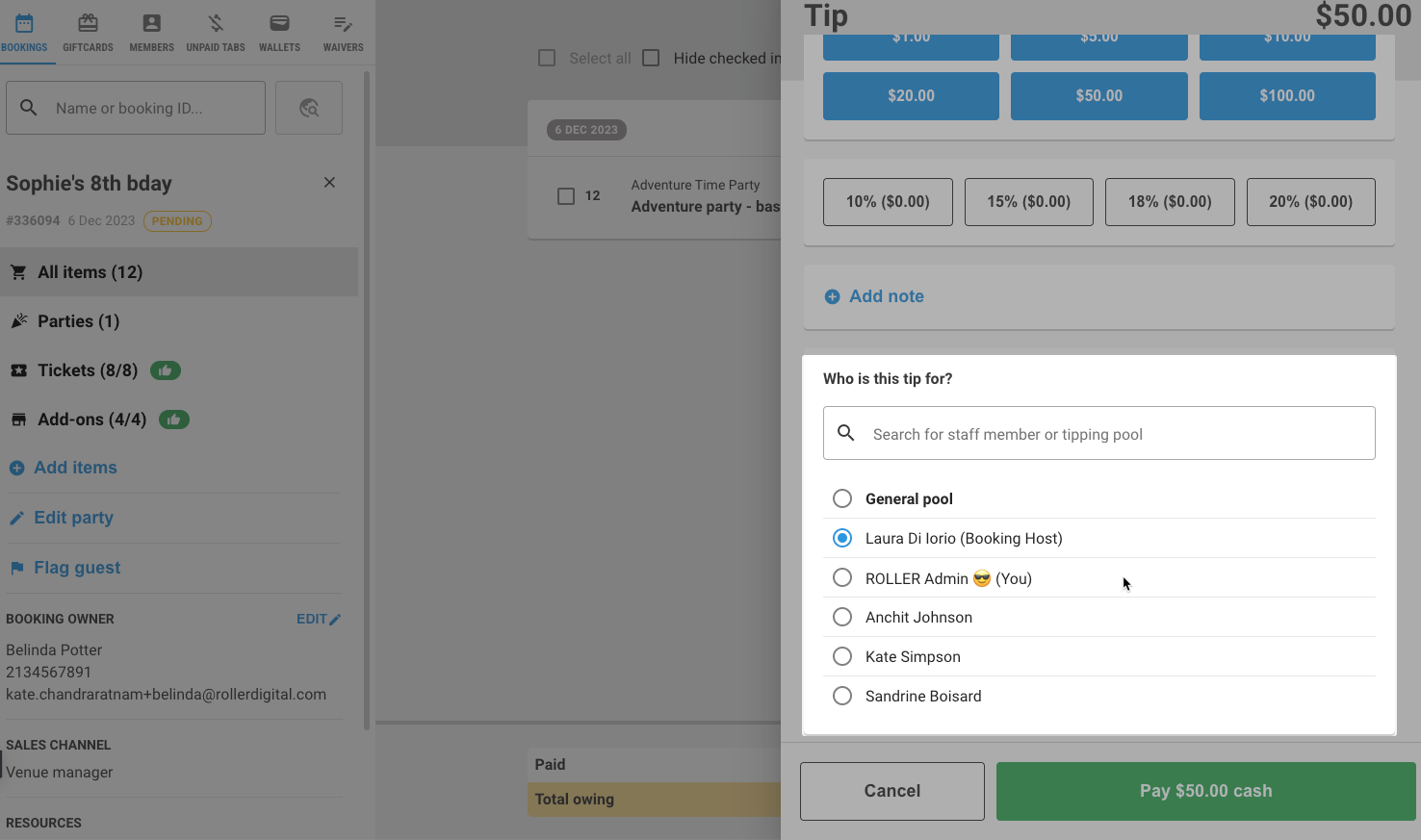
Finally, select Pay to process the tip and any amount owing for the booking. Note that once you select Pay, you can no longer change the staff member the tip is assigned to.
Report on tip assignment
You can report on the assignment of tips and any notes added in the Staff Gratuity report.