What you’ll learn in four minutes or less
How to create product schedules for regular peak and off-peak sessions that run from open to close, with higher pricing and extended opening hours for peak days (eg Friday to Sunday).
You can set up the varying opening hours for peak and off-peak days in operating hours. Then create two schedules for the product, an off-peak schedule and a peak schedule, both fully linked to the opening and closing times set up in operating hours. This allows the higher-priced tickets to be available on peak days, and the lower-priced tickets on off-peak days, from open to close.
Before getting started
Set up your operating hours for the varying opening hours across the week.
Create resources for the session pass product to manage venue capacity.
Create a session pass product with peak and off-peak tickets at different prices.
Assign the resources to the session pass product in the product and ticket settings.
Remember to assign resources to your product tickets so that ROLLER can manage capacity and availability for the schedule session times.
First, create the off-peak schedule
Follow the steps below to create an off-peak schedule for your venue.
To create the off-peak schedule:
From Venue Manager, go to Products > Schedules.
Select the product, then select Create schedule.
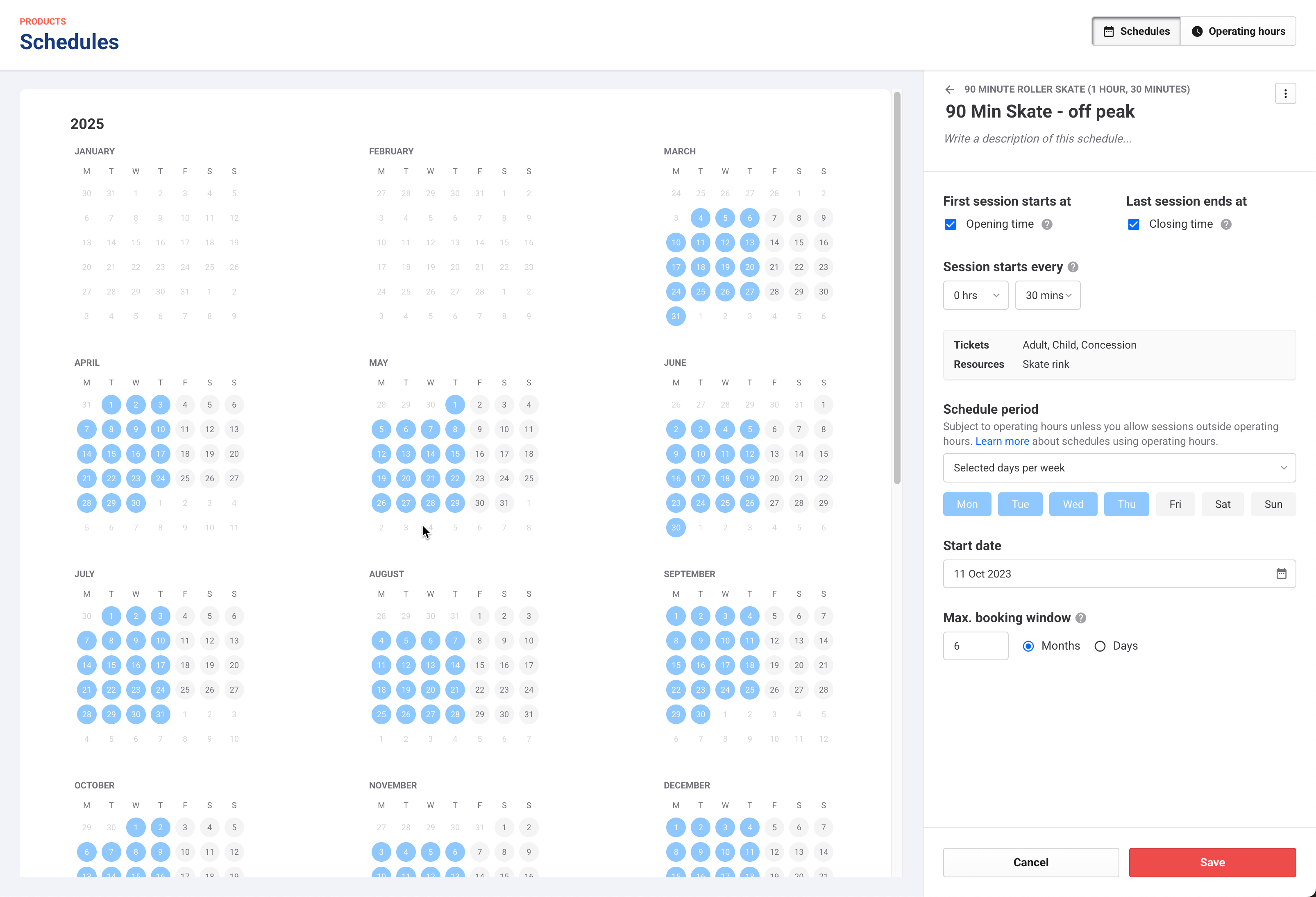
Give the schedule a name (eg Off peak - Mon to Thurs) and description.
Then complete the schedule options as follows to fully link the off-peak schedule to the venue's operating hours.
Option | Steps |
|---|---|
First session starts at | Link your first session start time to your opening time. |
Last session ends at | Link your last session end time to your closing time.
|
Session starts every | Choose how often you want sessions to start between your opening and closing time. |
Tickets and resources | Remove the peak ticket from the schedule.
|
Schedule period | Choose when you want the schedule to be available, subject to operating hours:
|
Start date | Select the Start date for the sessions to be available. |
Maximum booking window | Select the maximum booking window for guests to be able to book into the future. The booking window automatically extends on a rolling basis each day. |
Select Save. The off-peak schedule is available from Open to Close, Monday to Thursday.
Next, create the peak schedule
Create a separate product schedule for the peak ticket.
In Schedules, from the same product, select Create schedule.
A Days already in use message appears.
This is because by default, all weekdays are selected when creating a new schedule. These days are conflicting with the weekdays selected for your peak tickets. You'll resolve this when selecting the schedule period and days for the peak schedule.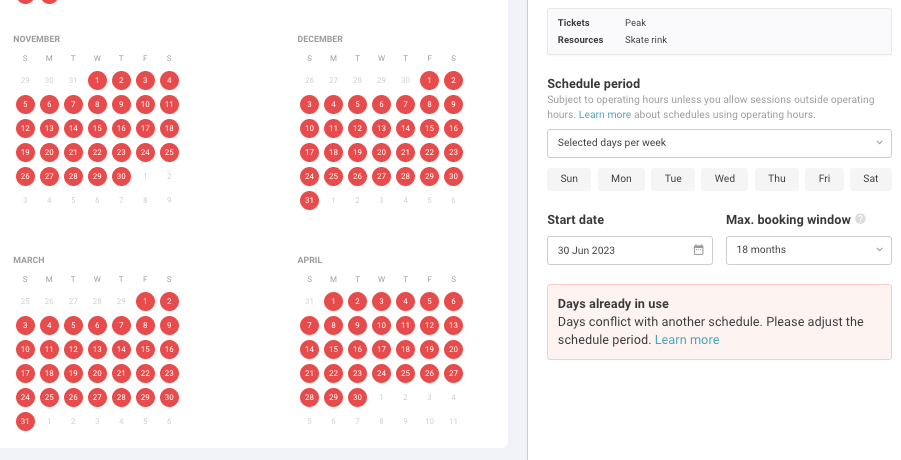
Follow the steps as outlined for the off-peak schedule but this time:
Remove the off-peak ticket from the tickets and resources card so that the schedule is only for the peak ticket
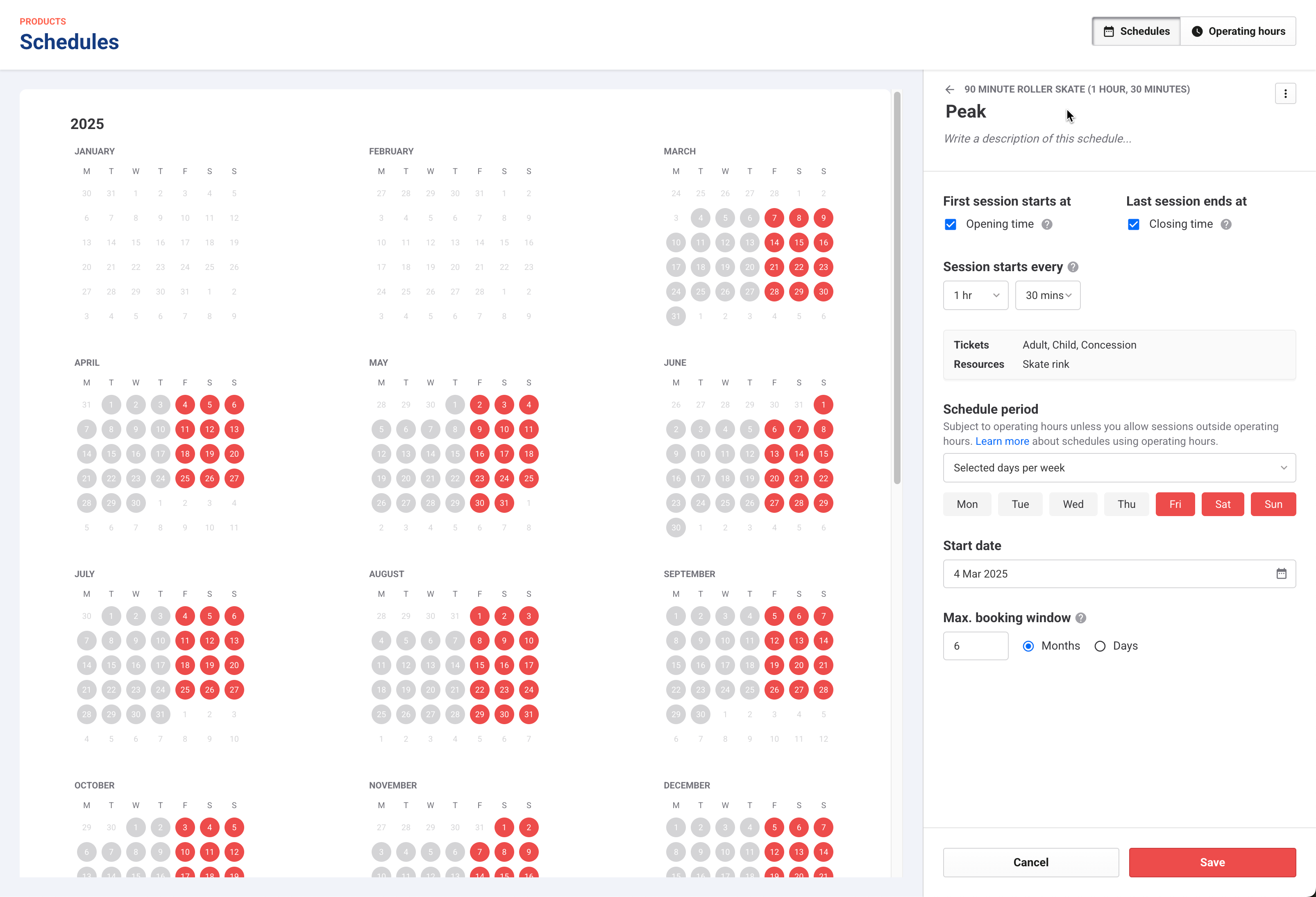
Select Friday, Saturday and Sunday for the schedule period. Once this is done, the days conflict message will disappear.
Once saved, the peak schedule is available from Open to Close, Friday through to Sunday, subject to operating hours.
To check if tickets are available, go through the process to book guests through Venue Manager or sell tickets at POS, or the online checkout flow for guests booking online.
Create a booking in Venue Manager and go through the booking flow for the product for over the phone bookings.
If you want to sell tickets online, add the product to an online checkout and go through the online purchase flow for the product.
If you want to sell tickets in person, add the product to a POS menu, launch the relevant POS device and check the tickets are available on the right days and times.
If sessions are not appearing how you think they should be, check how your operating hours are set up, including any scheduled changes or temporary hour overrides to standard hours.
Learn more about creating your product schedules using operating hours.