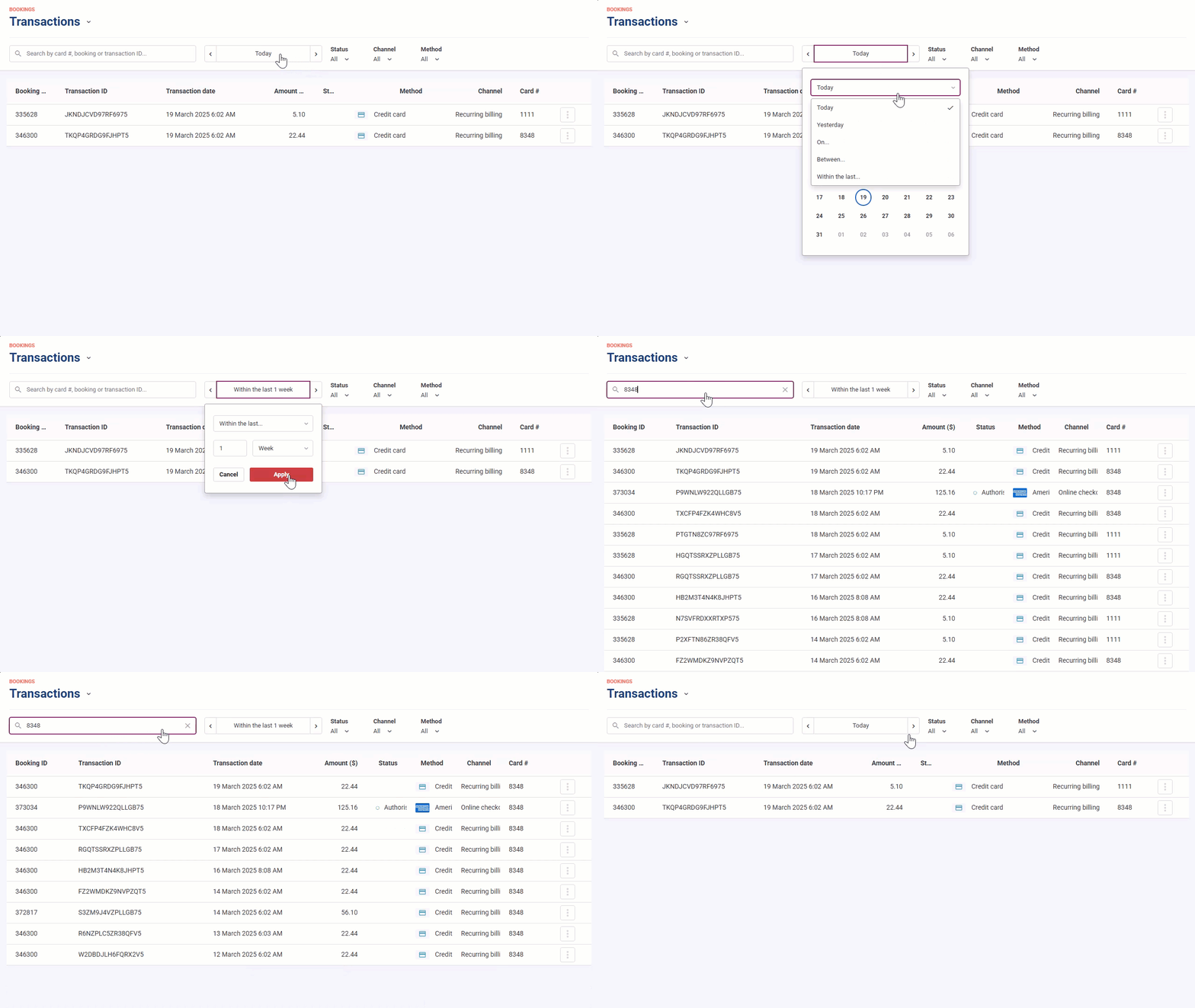
You can search for bookings in Venue Manager using the Transactions view by entering the last 4 digits of a guest’s credit card for payments processed through ROLLER Payments.
When to use this
Using search, you can enter the last 4 digits of a guest’s credit card number and view any bookings made with that specific card.
This is useful if the booking or guest information is unavailable, which often occurs during stock or concession transactions.
Additional filters can be applied to refine the results, including the transaction date, channel and method to help you find the Booking ID in question.
Steps
Follow the steps below to search for a booking using a guest's card number:
From Venue Manager, go to Bookings > Transactions.
Choose a date or date range for your transaction search, then select Apply.
Using the search box, enter the last 4 digits of the card number used to make the booking.
The grid will automatically refresh with the transaction(s) that meet your search criteria.
You can use the Status, Channel and Method filters to refine the search criteria and narrow down the list of transactions to find the exact booking you are looking for.