Stock on hand tells you what's on the shelf, but not how much of it is already promised to upcoming parties and pre-booked packages.
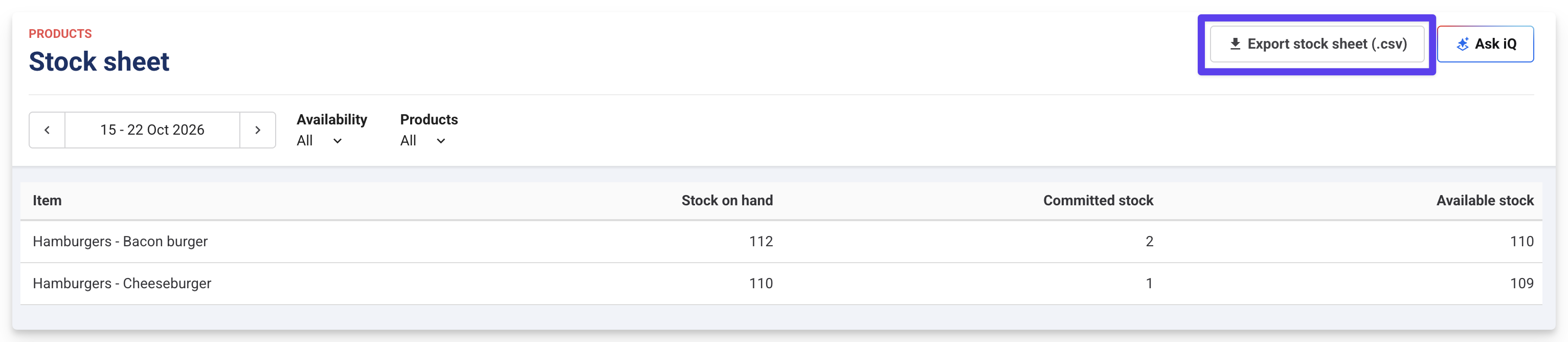
The stock sheet shows how much stock is committed to bookings over the next 7 days and how much is still available, so you know what to order before the weekend. Filter the report to the desired date range and it will show the exact stock needed to support bookings within that period. You can also export the view to CSV.
How the stock sheet works
The stock sheet lists each stock item that's committed to bookings in the date range you choose. This includes items in party package bookings, like birthday cakes and drinks.
For example, a party booked for Saturday includes a birthday cake and 3 pizzas. If you select a date range that includes Saturday, both items appear as committed stock. If you select Monday to Wednesday, they don't.
To keep your ordering accurate, set the date range to cover the bookings due before your next supplier delivery. Then, check the stock sheet again after guests confirm numbers or change their selections.
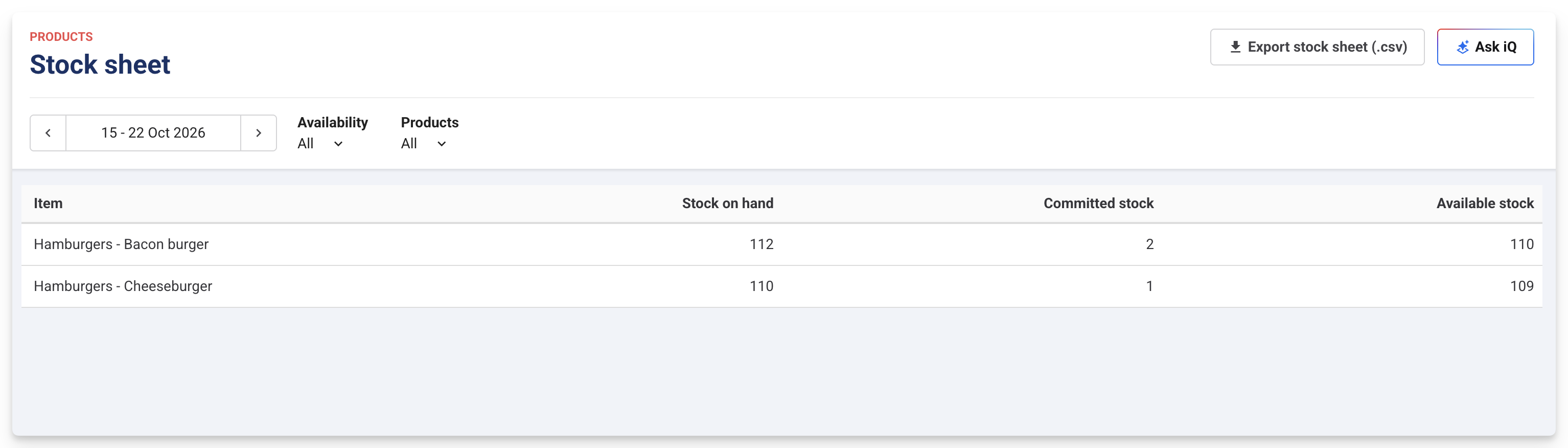
Column | What it shows |
|---|---|
Item | The stock product and variation (eg Birthday cake — Vanilla). |
Stock on hand | The units you currently hold. |
Committed stock | The units already included in bookings within the selected date range. |
Available stock | Stock on hand minus committed stock. This is the number to order against. Example:
|
View committed stock for a date range
From Venue Manager, go to Products > Stock > Stock sheet. Then you can:
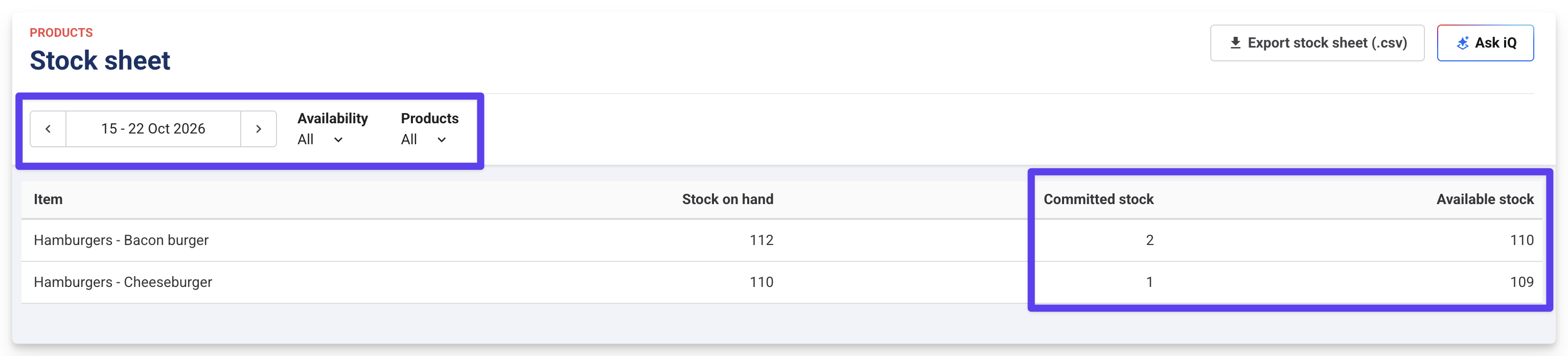
Use the date picker to select a date range of up to seven days (eg the upcoming weekend).
Use the Availability filter to focus on items you're running short of, or items with unlimited quantity. Select an option from the dropdown.
Use the Products filter to view specific items only (eg cakes). Select the items you want to view from the dropdown.
Review the Committed stock and Available stock columns to confirm what you need to order.
To export the stock sheet, select Export stock sheet (.csv).