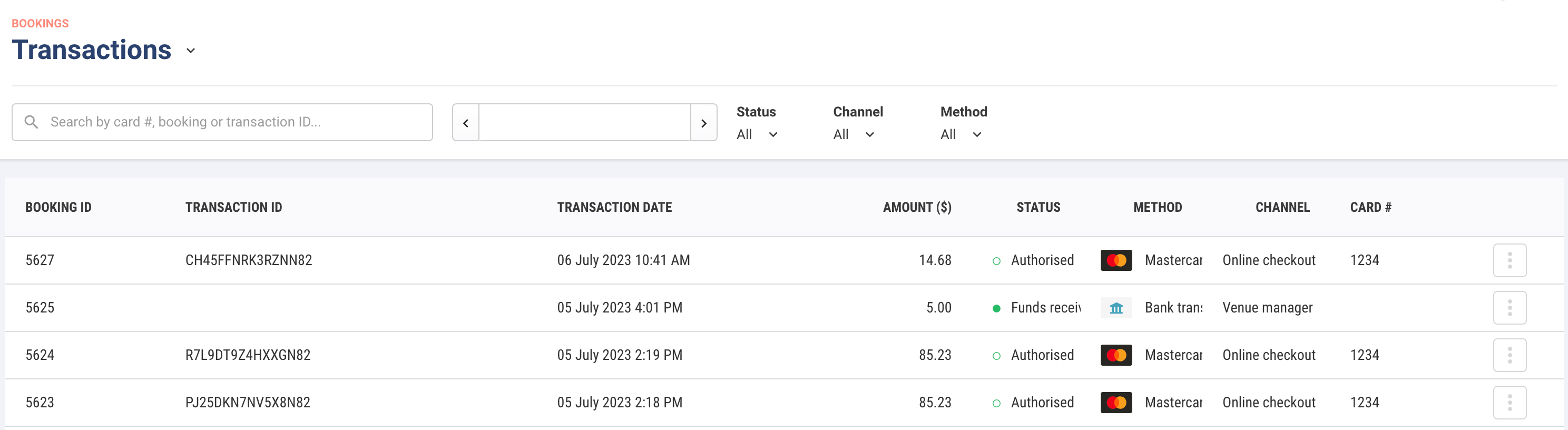
The transactions view displays a list of every ROLLER Payments transaction within your account. You can use this grid to quickly verify or troubleshoot recent transactions. This article outlines the information you can access in the transactions grid for venues using ROLLER Payments.
When to use
Determine the specific status of a transaction (settled, failed, refunded).
Use the transaction date and last four digits of the payment card to locate transactions when the booking or guest information is unavailable.
Quickly investigate and authenticate claims of double charges.
Identify transactions that have not yet settled.
Search for transactions
From Venue Manager, go to Bookings > Transactions.
Choose a date or view up to 7 days of transactions. Refine your search using the Status, Channel and Method filters.
To search transactions, use the search bar by entering:
Last 4 digits of the card number
Transaction ID (from confirmation email or bank statement)
Booking ID
View transactions
Use the transactions grid to view the status of a specific transaction. Selecting a transaction allows you to access the booking side panel to view payment activity or go to the booking record.
For an explanation of ROLLER payment statuses, refer to ROLLER Payments - Payments lifecycle.