Streamline your POS operations with ROLLER’s quick and intuitive way to add stock products and their associated modifiers to the cart at POS. Faster ordering at POS means more efficient operations and a better experience for your guests.
This guide walks through how to sell stock products and their associated modifiers at POS.
Need a refresher on how to create your stock products and modifiers? Read the guides Create your stock products and Create and edit stock modifiers.
Select stock products and modifiers at POS
To add stock products and modifiers to the cart for purchase, follow the steps below.
At POS, use the left-side menus to navigate between your products.
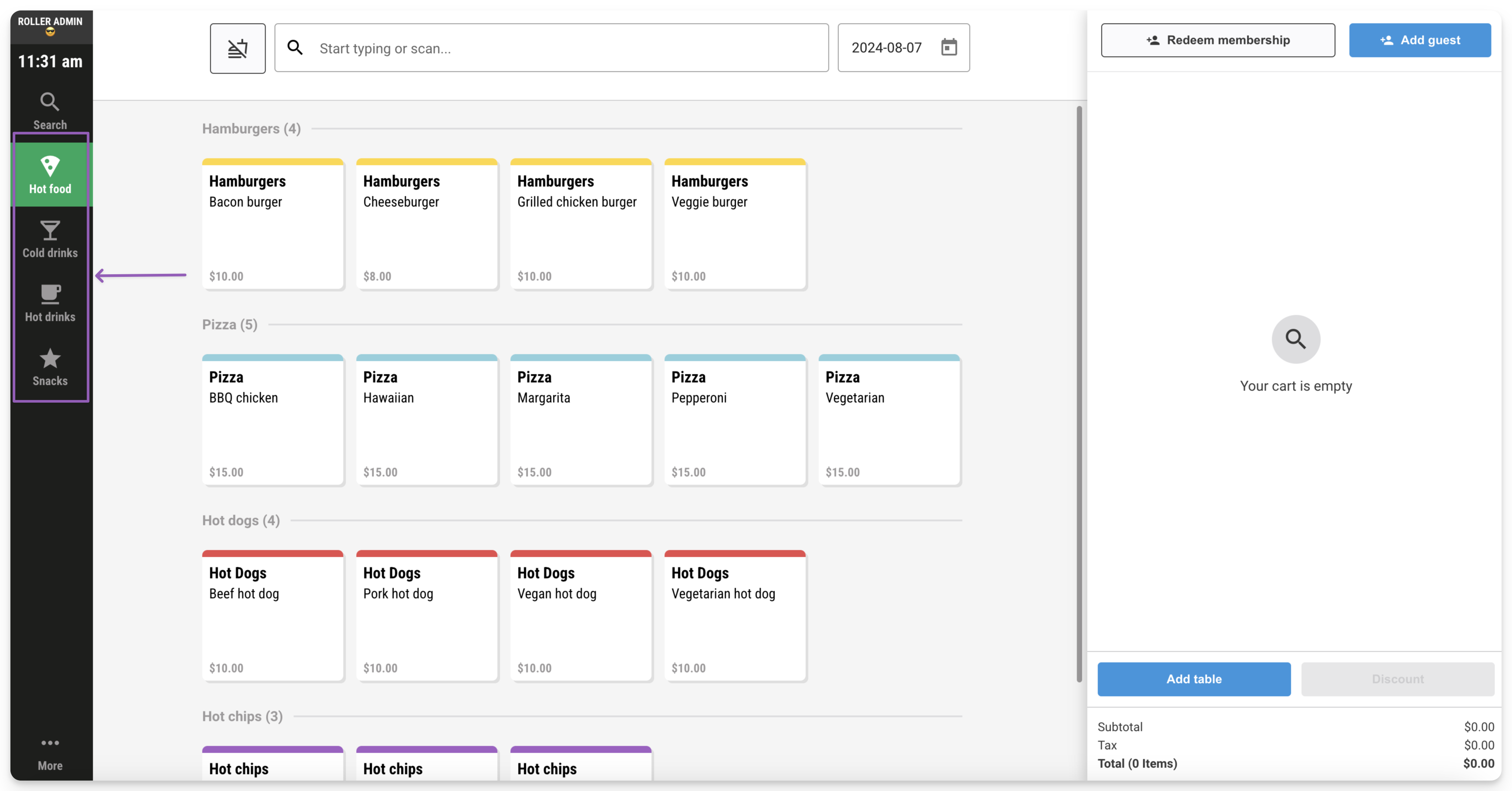
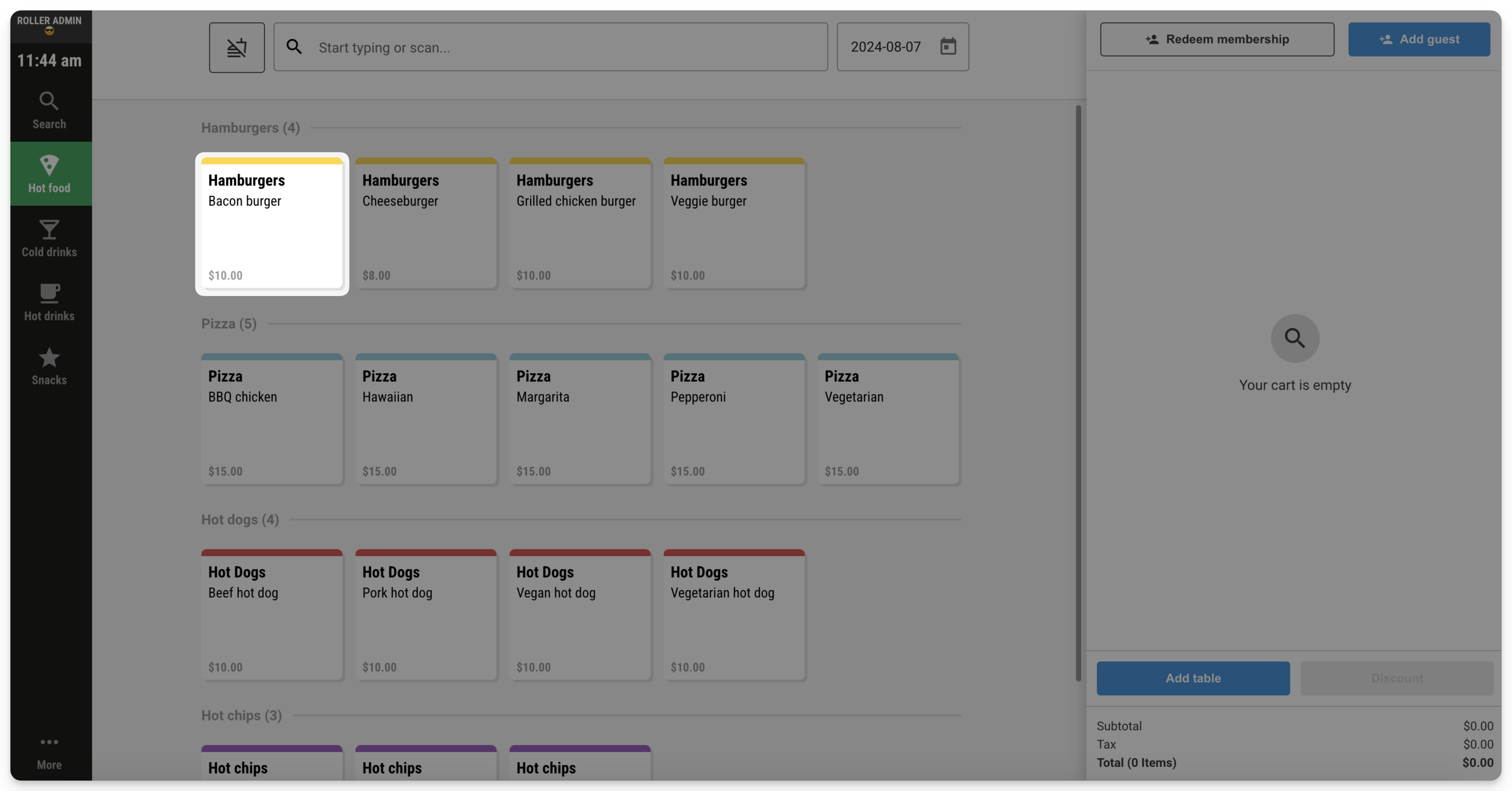
Select the tile for the stock product you want to add to the cart.
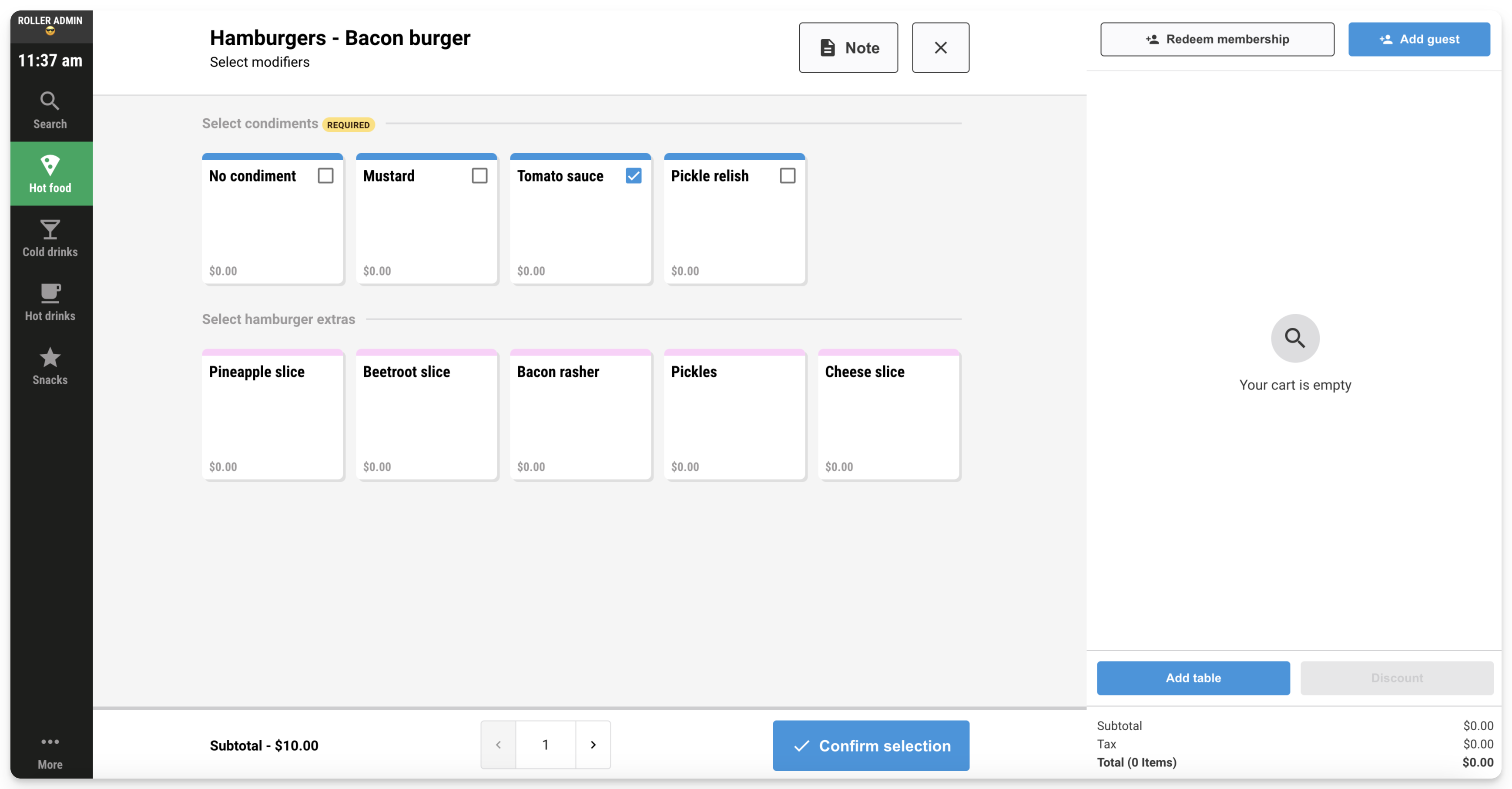
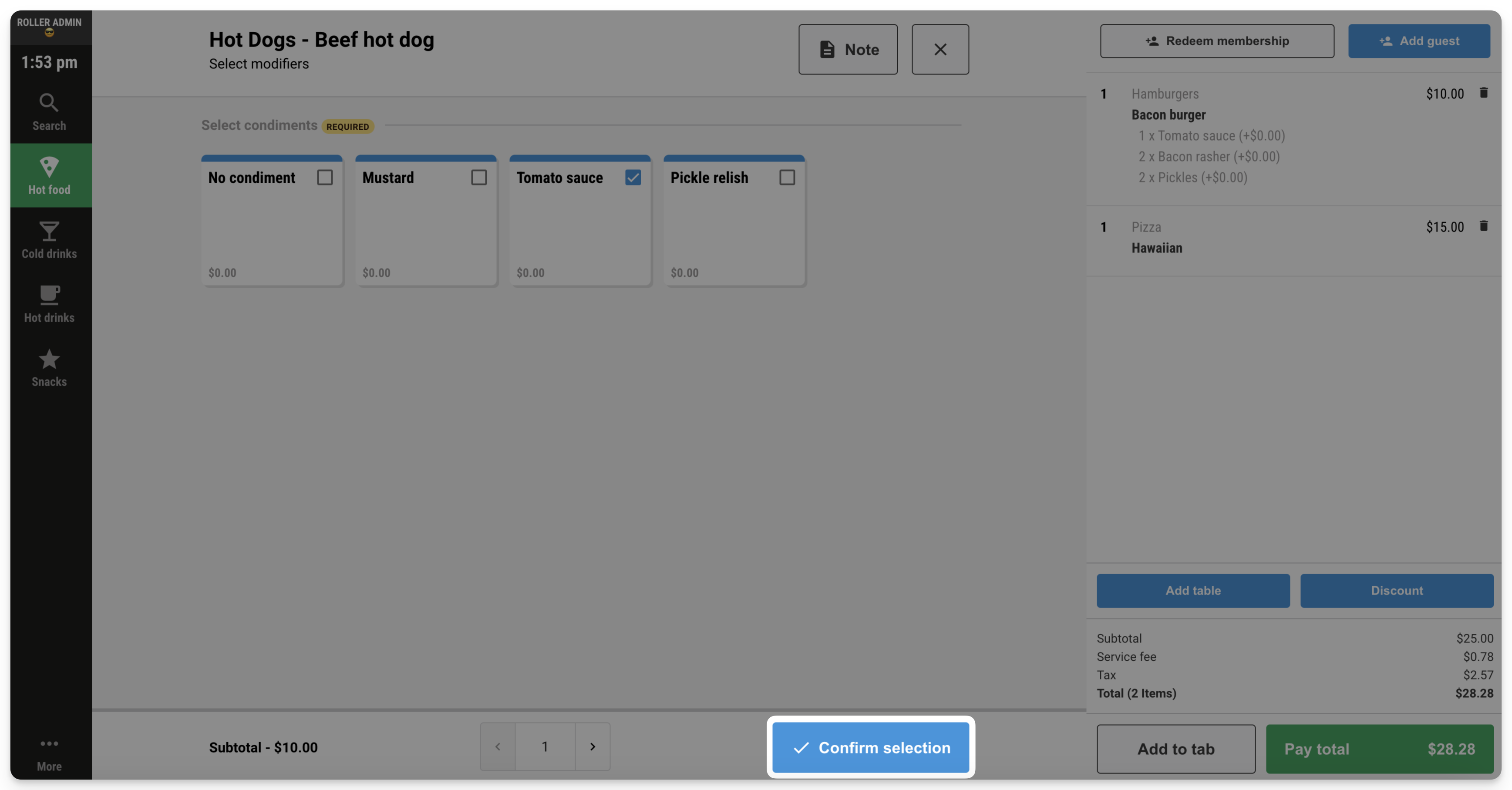
If the stock product has any associated modifiers, then the modifiers screen will display with all the modifiers listed. To add modifiers to the stock product, select the tiles for each modifier.
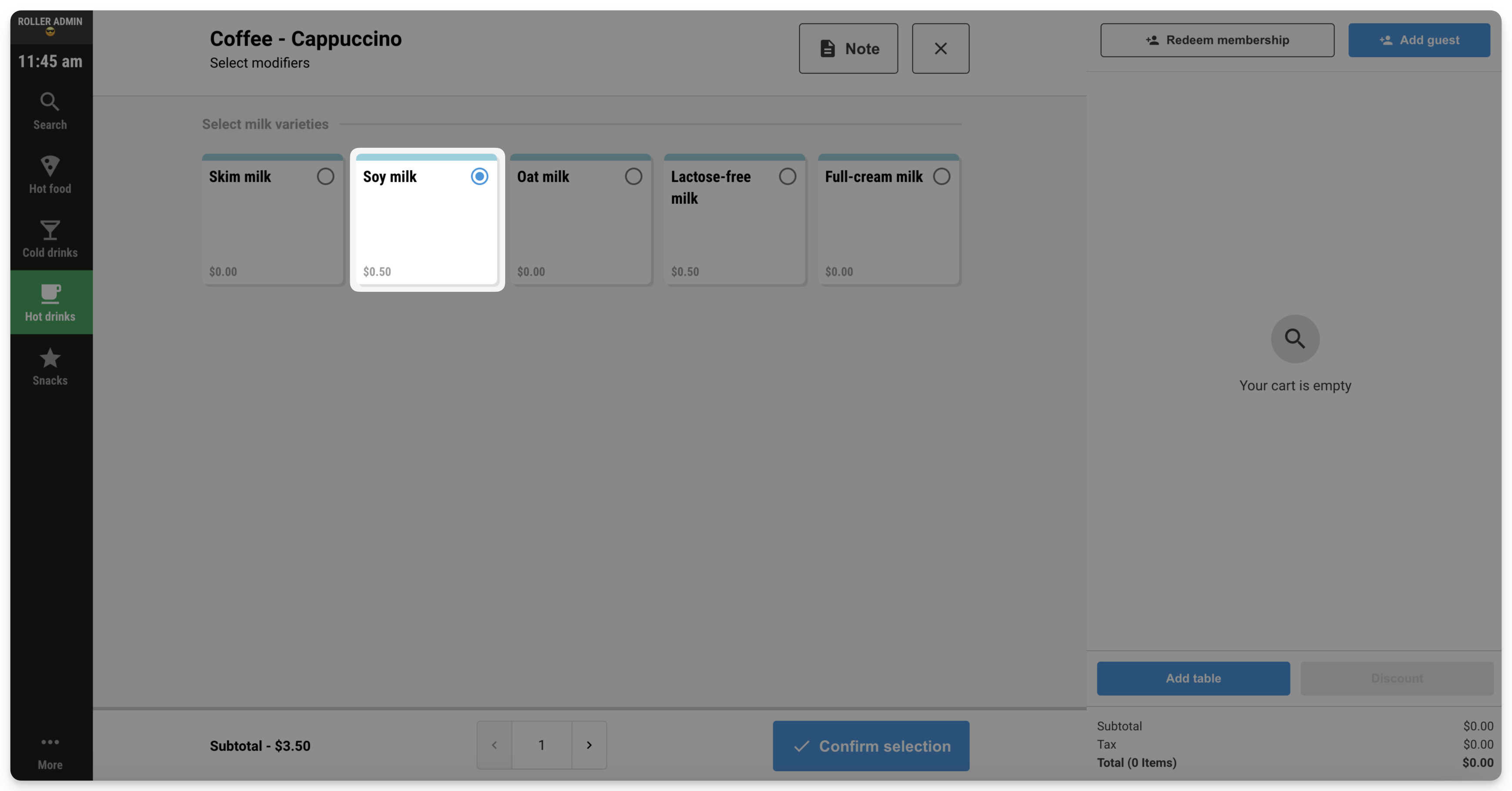
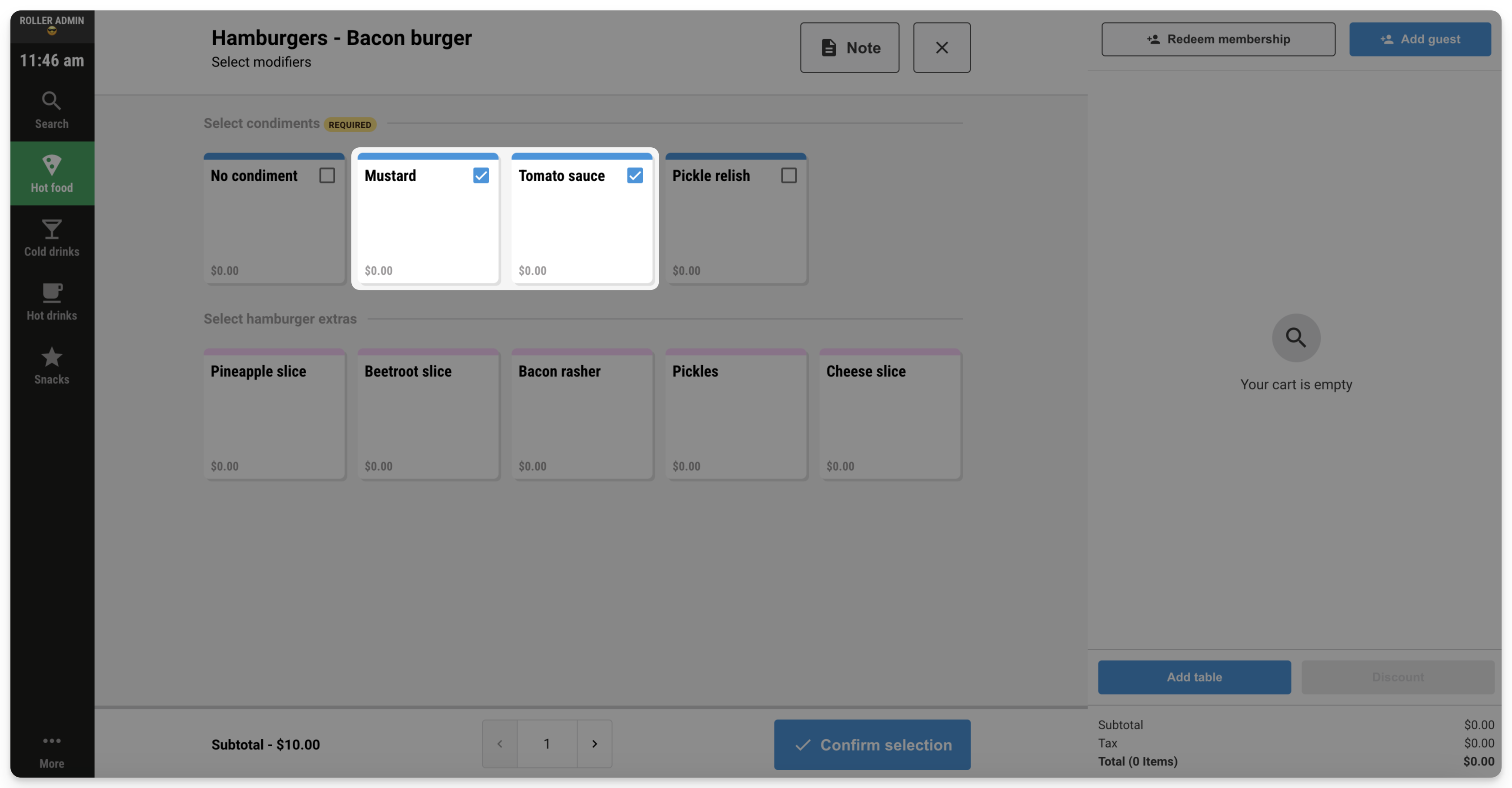
For single-choice modifiers (you can only choose one, eg milk type in a coffee) a blue circle will appear on the tile when it’s selected.
For single-select modifiers (you can only choose one serving of that modifier, eg tomato sauce on a burger) a blue checkmark will appear on the tile when it’s selected.
For multi-select modifiers (you can choose more than one serving of that modifier, eg pineapple slices on a burger) a number will appear on the tile showing how many servings have been added. To add more than one serving, continue to select the tile until the required number of servings has been added.
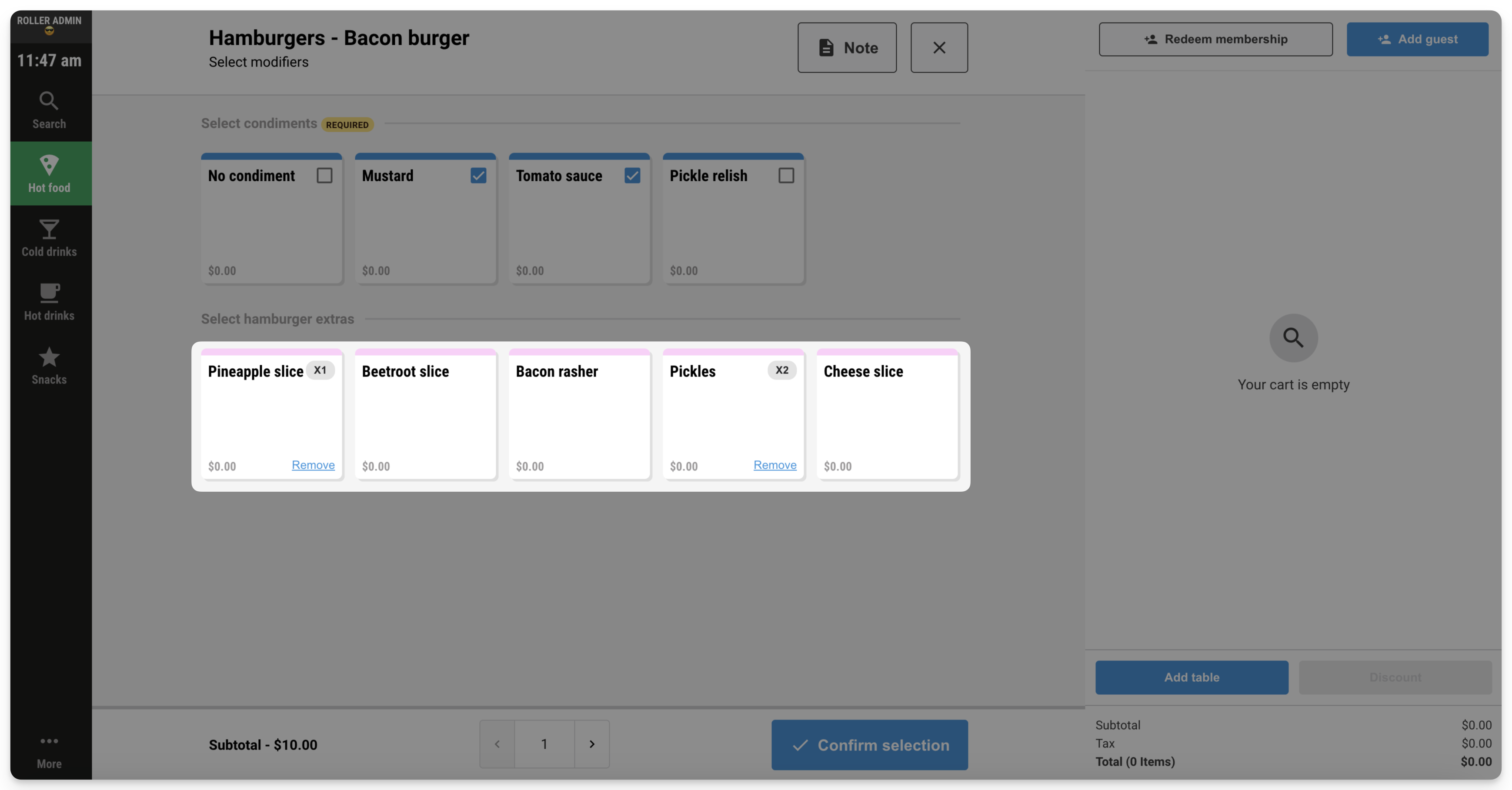
Modifiers will display in the following order: Required (the stock product must include at least one of these modifiers), then single-select modifiers, then multi-select modifiers.
Add a note to the stock product at POS
If you’d like to add a note to a specific stock product order, for example, the guest has an allergy or a particular request, then you can do so from the modifiers page.
Select Note at the top of the screen, then add your note and select Save. When you add the stock product to the cart, you’ll see the note attached.
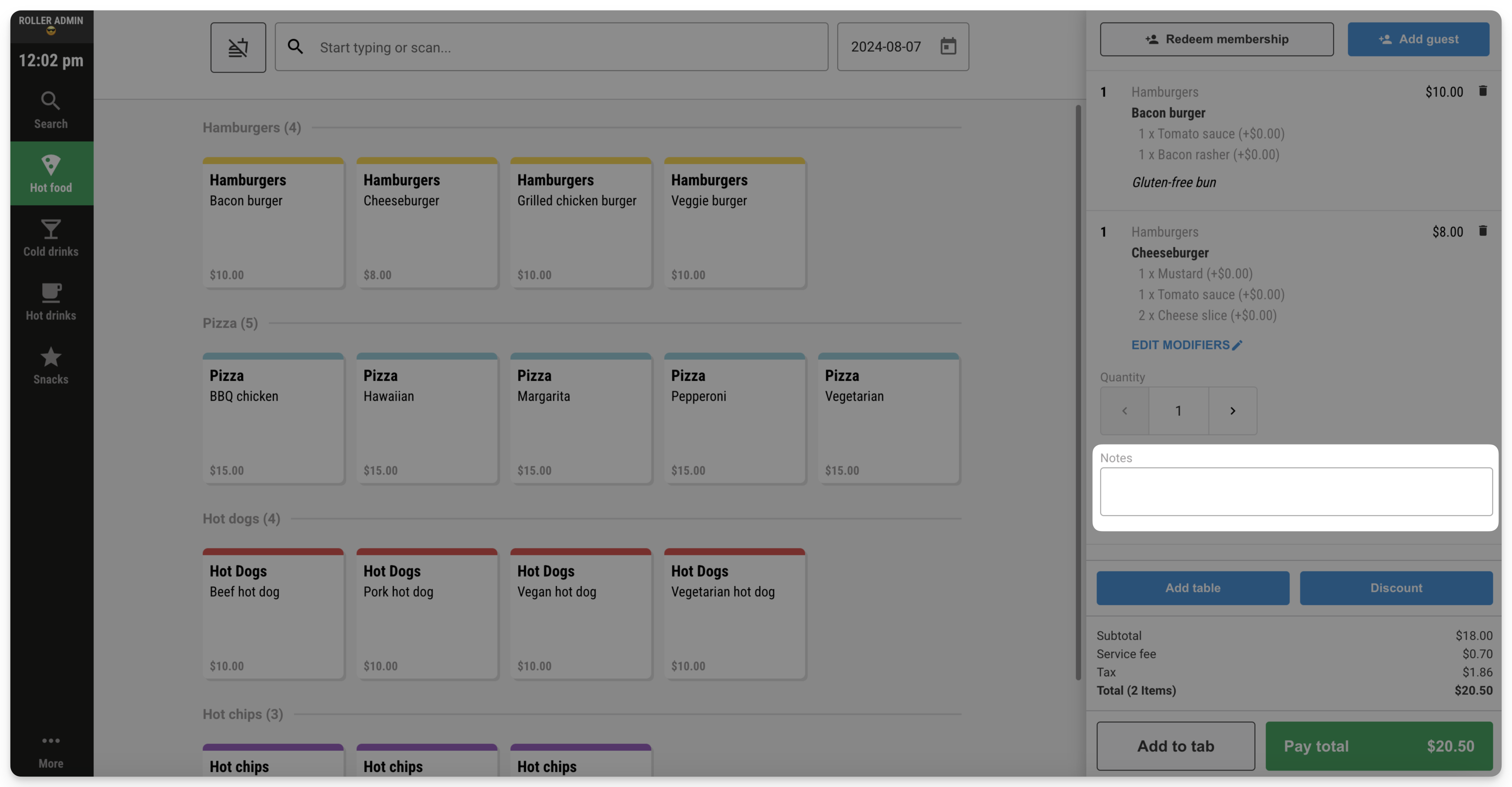
You can also add a note to a specific stock product and its modifiers after it’s been added to the cart by selecting the stock product in the cart and adding a note in the box provided.
Remove or adjust stock modifiers at POS
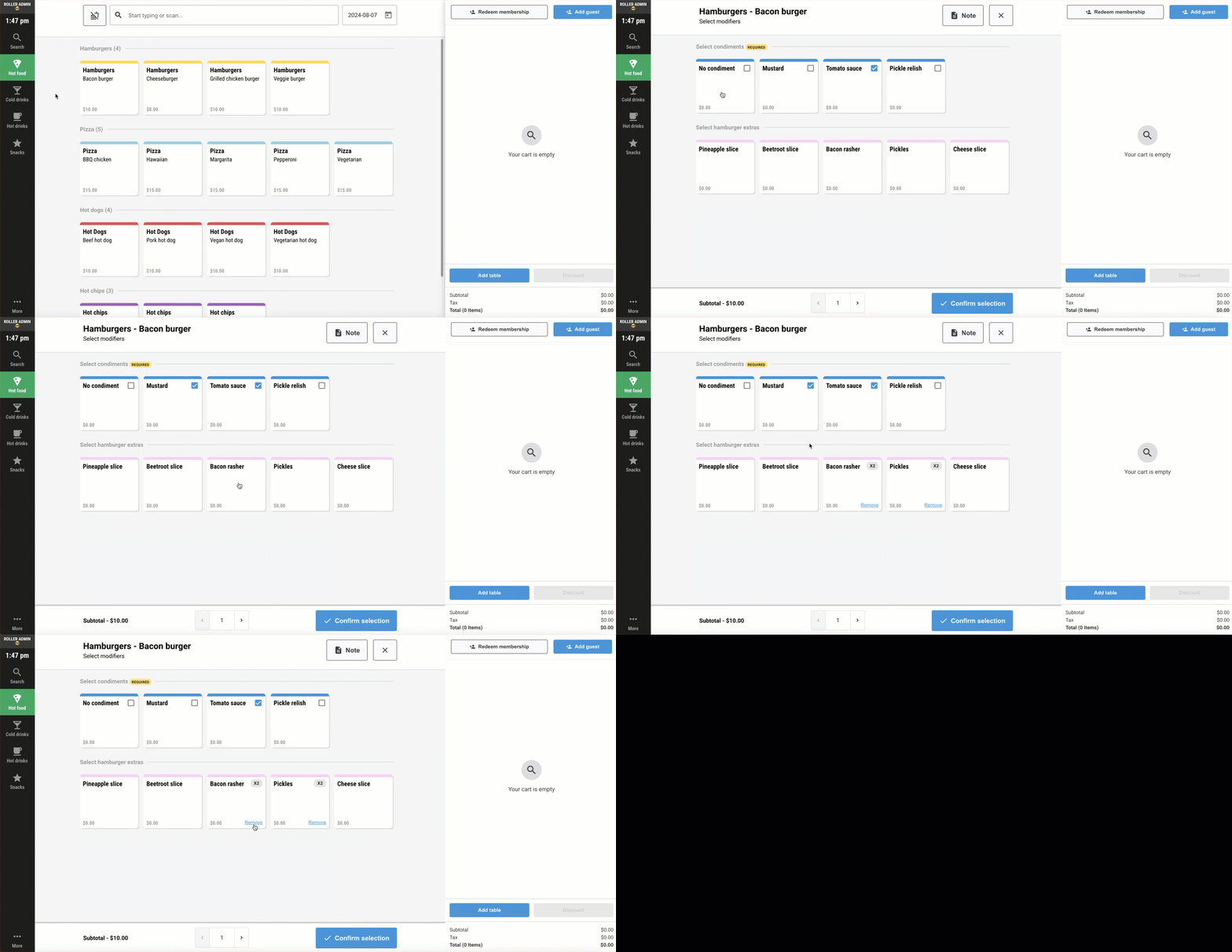
If you’d like to remove or adjust any modifiers, either:
De-select the tile (single-choice modifiers and single-select modifiers),
Or select the Remove button on tiles for multi-select modifiers.
This removes all servings. For example, if you added 3 rashers of bacon to a burger instead of 2, all rashers will be removed and you’ll have to select the bacon rashers tile again to add 2 rashers.
You can also make edits to your stock products and modifiers after they’ve been added to the cart by selecting the stock product in the cart and adjusting the quantity and modifiers where prompted.
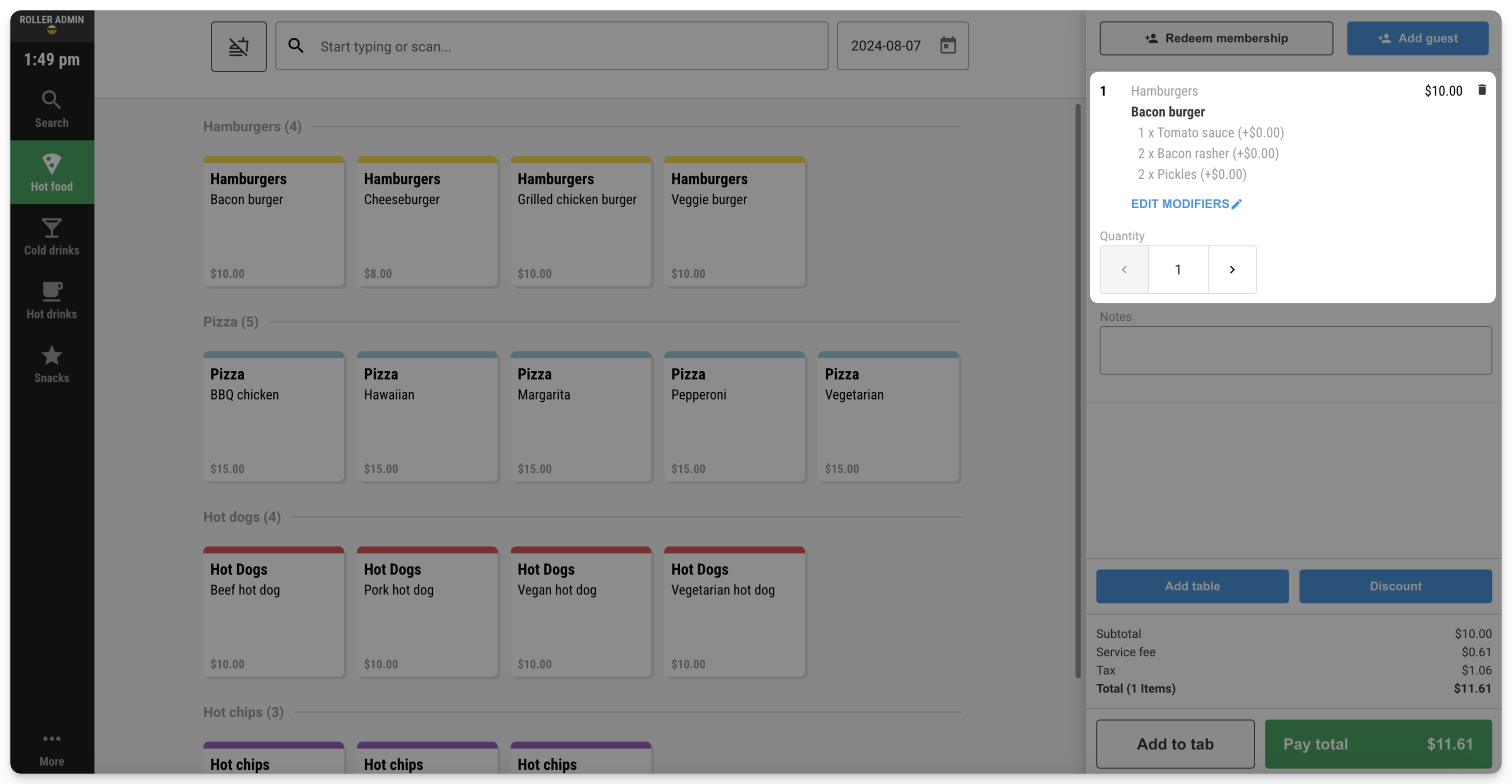
Add stock products and modifiers to the cart at POS
Once you’re ready to add the stock product and modifiers to the cart, select Confirm selection at the bottom of the screen and the cart will be updated with the order.
Repeat the process above to add more stock to the cart.
When adding stock to the POS cart with modifiers, remember to only link modifiers to the correct stock products. For example, if you receive an order for two coffees and the guest has requested soy milk for one of the coffees, you should add one regular coffee to the cart and then add another coffee to the cart with the soy modifier. If you add both coffees to the cart and then add one soy modifier afterwards, the modifier will apply to both coffees and the order will be incorrect.
Take payment at POS
To learn more about how to apply discounts and process payments at POS once you’ve added stock to the cart, read the guide Sell stock products at POS.