Premium feature
Schedule F&B orders to the kitchen. To unlock this feature with a Premium plan and above, contact your customer success manager or the support team.
Choose when food and beverage items ordered at POS, checkout or Venue Manager reach your kitchen. Schedule individual items or the whole order to send to your kitchen display or docket printer at a set time, so guests receive their order when they’re ready to eat.
Scheduling works for stock items sold at POS, checkout and Venue Manager, but the scheduling itself is done at POS. Staff can also reschedule and cancel scheduled orders right up until they send.
Before you get started
This feature is available for cloud printing venues only. To learn more, see the guide Get started with cloud printing.
For venues who use KDS, confirm that you’re connected to ROLLER’s Fresh KDS integration to access this feature. To learn more, see the guide Integrate with Fresh KDS and configure your devices.
Configure your settings
To get started:
From Venue Manager, go to Apps > Point of Sale > Settings and scroll down to Order fulfilment.
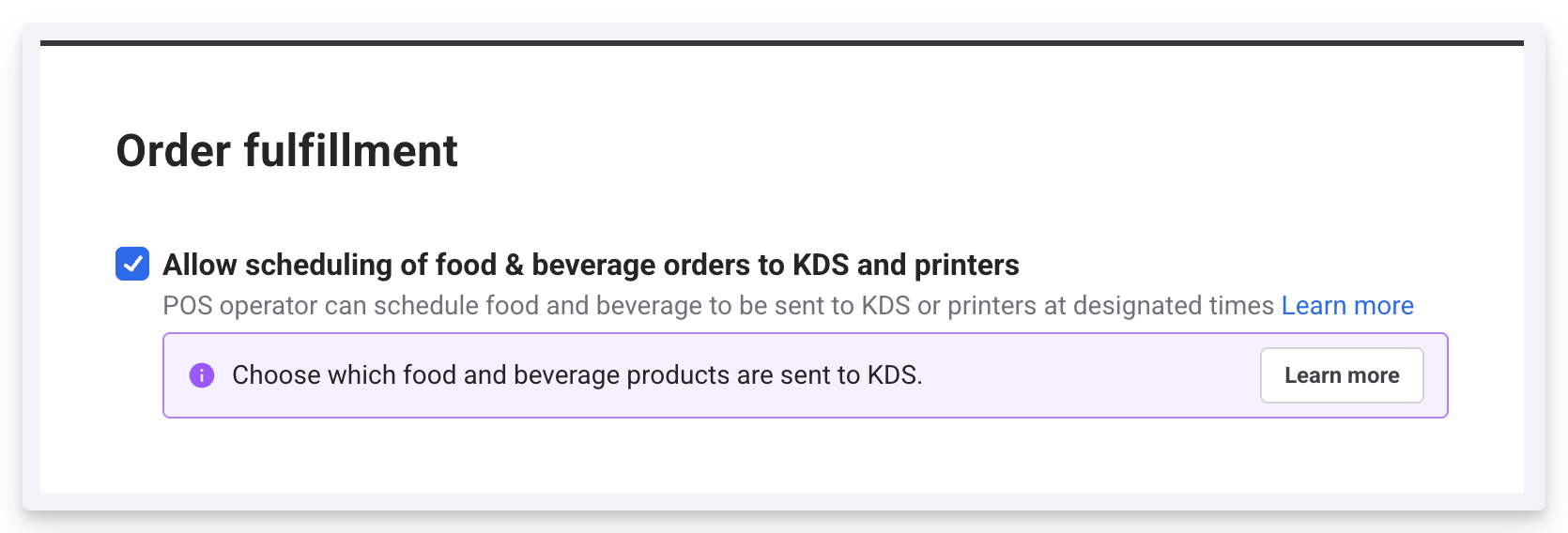
To enable order scheduling check the box Allow scheduling of food & beverage orders to KDS and printers.
Select Save.
Schedule orders at POS
Once you’ve configured the correct settings, you can start to schedule orders from POS.
Search for and select the booking with the items you want to schedule.
To schedule all items in the booking, select the print options menu at the top of the screen and from the dropdown select Schedule items.
To schedule individual items in the booking, select the checkbox next to the items and then select the print options menu at the top of the screen, and from the dropdown select Schedule items.
You can manually adjust the time you want your items to send to the KDS or printer under Send time. Or, you can select the increment buttons provided to adjust the time and set the order schedule.
Then, select Schedule to complete the action.
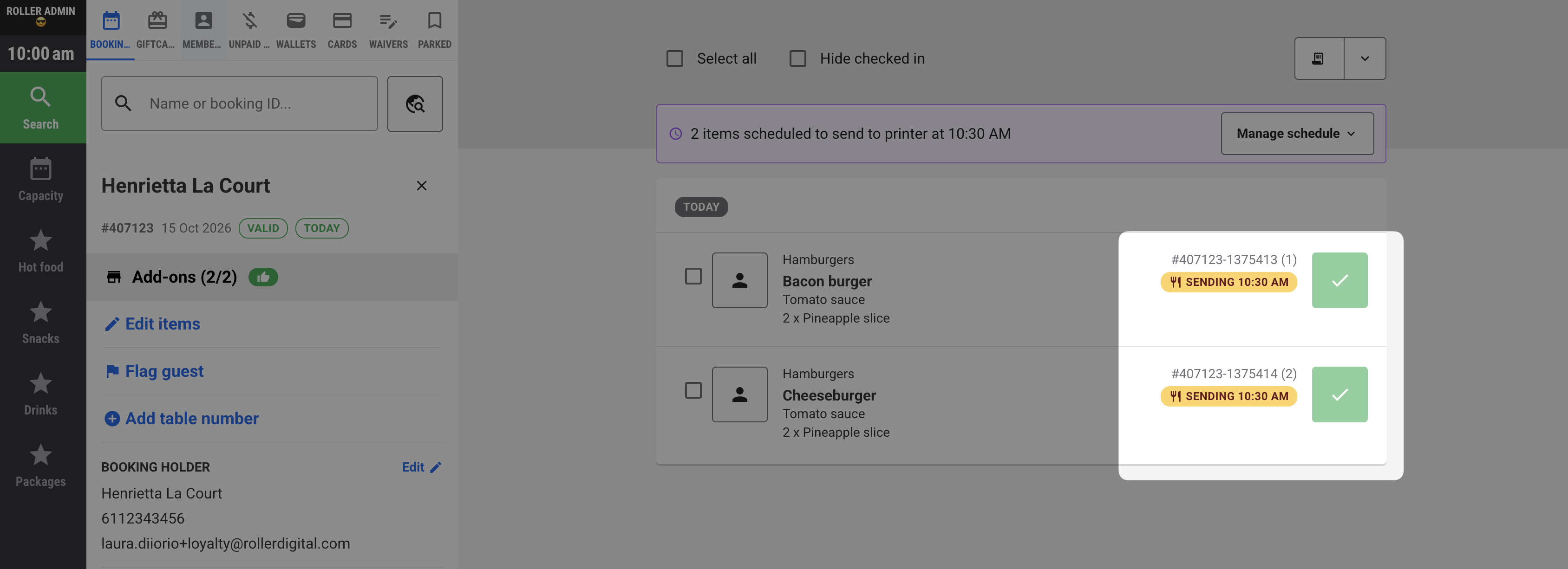
The booking now has a banner showing when scheduled items will be sent to the kitchen. This banner disappears when the order is sent to the KDS or printer, and you can’t make any changes to the schedule once this happens.
If you have the setting Auto-print production dockets (cloud printing) enabled, you can still schedule orders, but these will be labelled reprints.
When you view the order at POS, you’ll also see an order status pill attached to each item in the booking, giving you a clear view of where the order is at.
Edit an order schedule
To make changes to an order schedule, from POS:
Search for and select the booking with the items you want to make changes to.
Select Manage schedule from the purple banner.
Select Send all now from the dropdown if you want to override the schedule and send the items to the KDS or printer now.
Select Reschedule to adjust the scheduled time.
Select Cancel scheduled if you no longer want to schedule the order to the KDS or printer.
These changes are applied immediately.
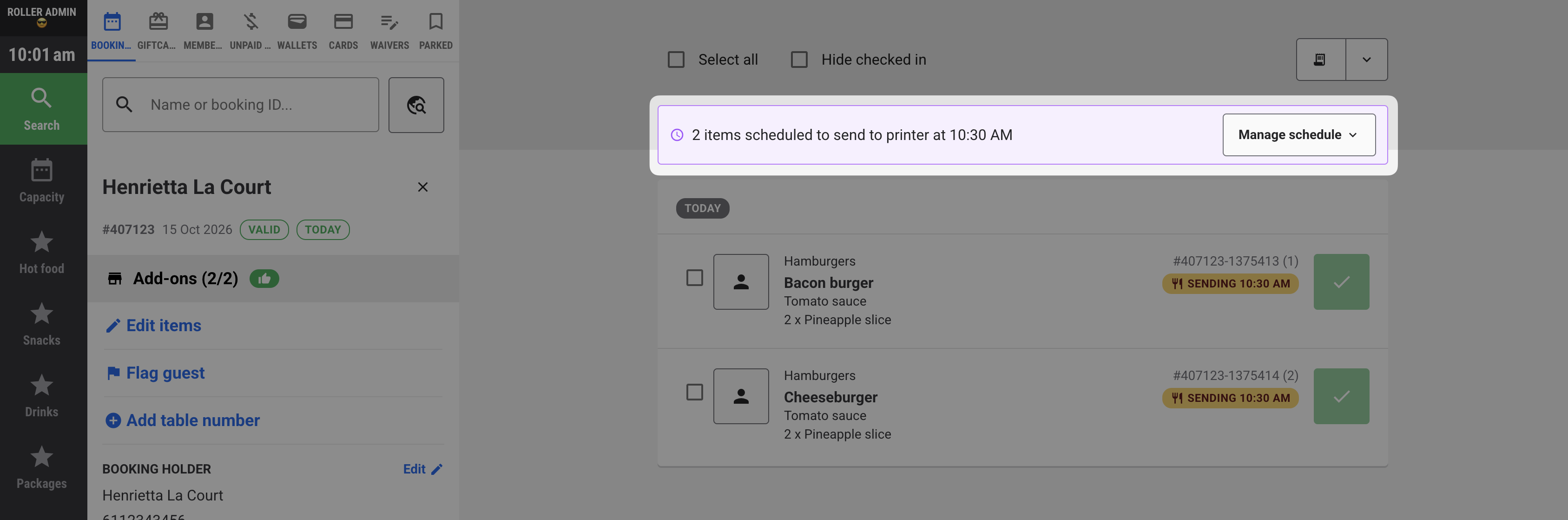
If you don’t see the purple banner or the Manage schedule button, this means the order has been sent to the kitchen and you can no longer make changes to the schedule.