This feature is currently in closed beta. If you’d like to be involved, please contact your customer success manager or the support team.
Premium feature
Send order notifications using Fresh KDS. To unlock this feature with a Premium plan and above, contact your customer success manager or the support team.
Let guests enjoy your venue instead of waiting at the counter for their food and beverage orders. When staff complete orders on your KDS screen, your guests receive an SMS telling them it's ready to collect. This helps you serve faster and reduce missed pickups.
If an order goes to more than one preparation area (eg a burger to the kitchen and a soft drink to the bar), the guest receives a separate SMS as each area finishes its part of the order. The order's status in POS also updates as staff prepare items, so you can see when it's in progress and complete.
Before you get started
This feature is available for cloud printing venues only. To learn more, see the guide Get started with cloud printing.
Venues must be using ROLLER’s Fresh KDS integration to access this feature. To learn more, see the guide Integrate with Fresh KDS and configure your devices.
You can also customize your KDS settings to sync an order status from the kitchen to POS devices throughout your venue. When guests inquire about their order, POS staff can update them without needing to inquire with the kitchen. To learn more, see the guide Sync Fresh KDS order status in POS.
This feature does not apply to venues in the US and Canada. If you run a venue in the US or Canada, you can continue to use Fresh KDS's own SMS feature.
Configure your webhooks
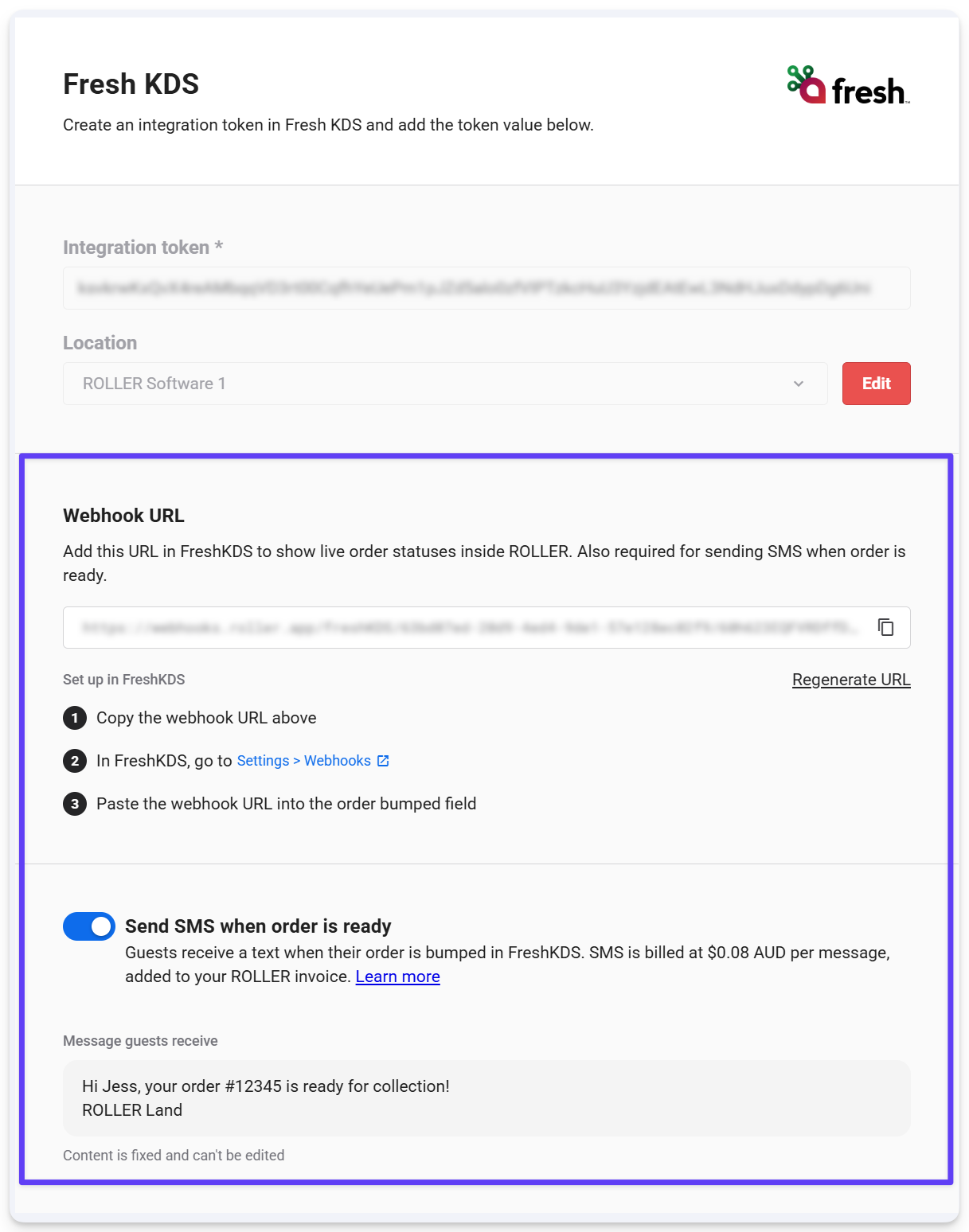
Before you can send SMS order notifications from POS, add the webhook URL to your Fresh KDS integration so ROLLER receives order updates from Fresh KDS.
From Venue Manager, go to Settings > Integrations and scroll down to the Fresh KDS section.
Under Webhook URL, select Generate webhook URL (if you haven’t already done so). Copy the webhook URL.
Toggle on Send SMS when order is ready to enable this feature. Beneath this you’ll see the message your guests will receive when their order is ready (this can’t be edited from Venue Manager).
Now you have to add the webhook URL to your Fresh KDS account.
Log into your Fresh KDS account. From the dashboard, select Webhooks from the left-side panel.
Select + Create Webhook.
Give your webhook a Name.
Paste the webhook URL you copied above into Endpoint URL.
Under Triggers, select KDS Order Created and KDS Order Bumped.
Select the Location.
Select Create.
SMS order notifications also work with your mobile food & beverage checkouts. If a guest enters their mobile number when they order online, they receive an SMS once the order is ready.
Send SMS notifications to guests
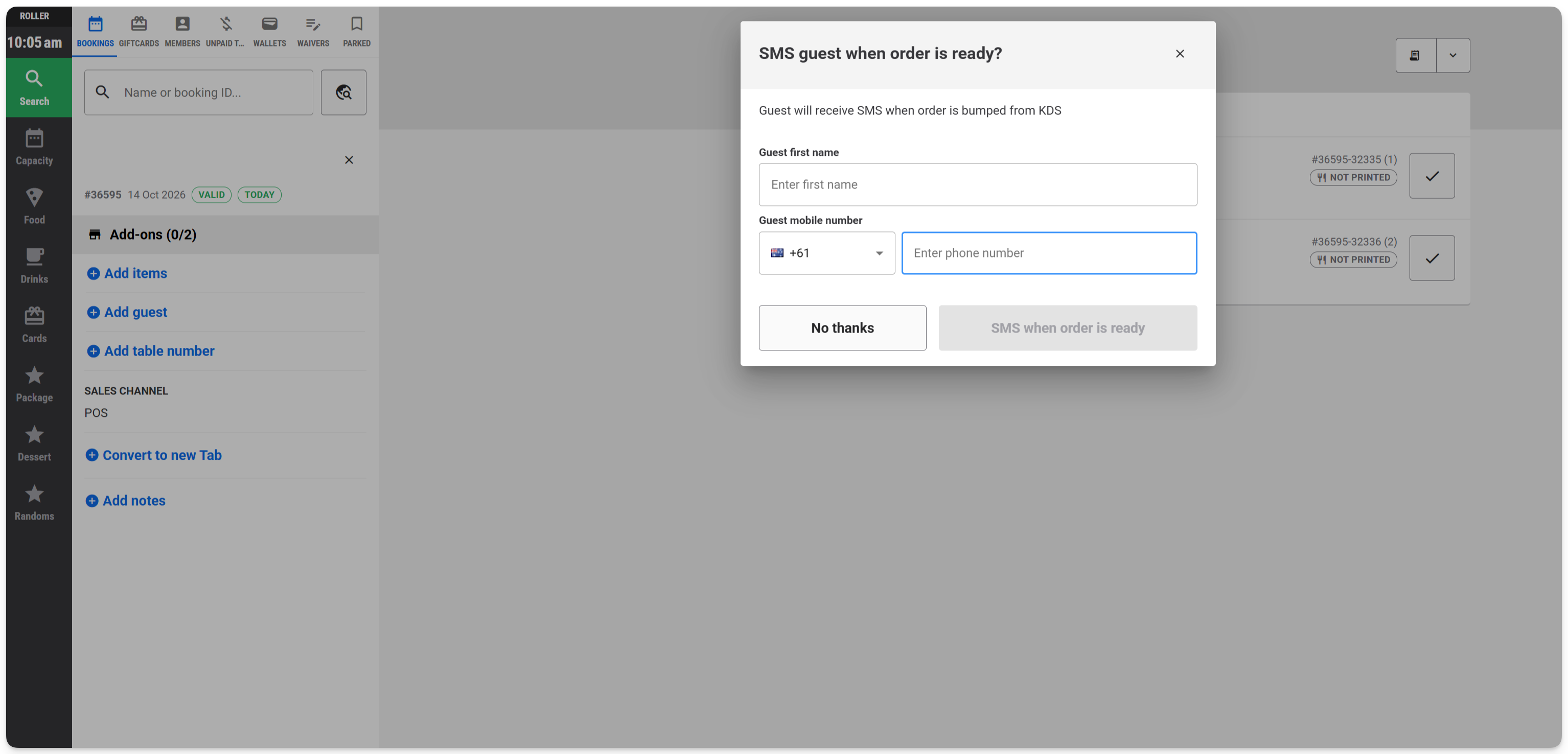
Once the setup steps above are complete, at POS, when you take an order and process the payment, you’ll be prompted to add in the guest’s phone number and name so they can receive a text when their order is ready.
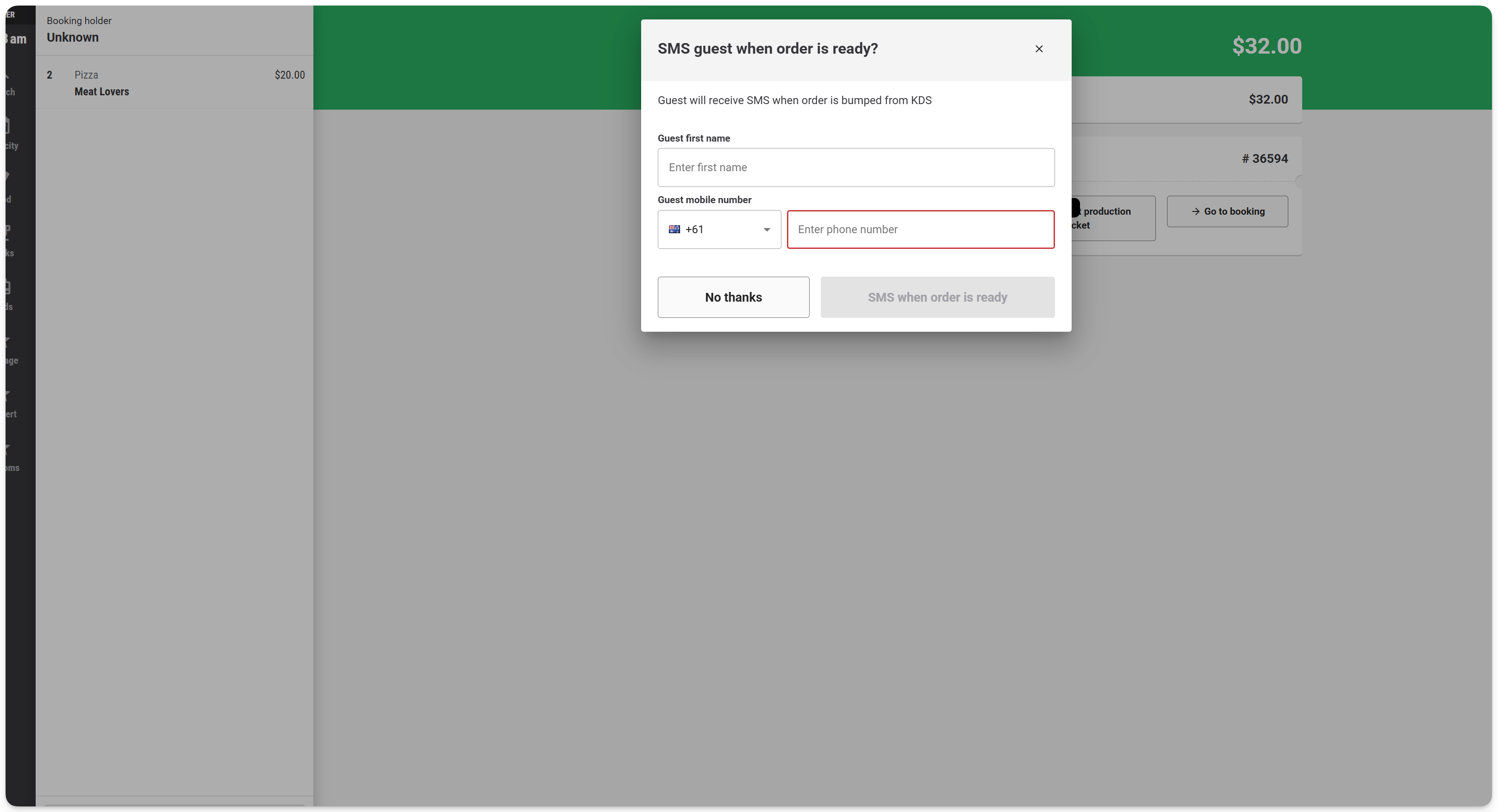
If you’ve already added the booking holder’s details to the order, the prompt appears with those details pre-filled. Check them, then confirm whether to send the SMS.
If Auto-print production dockets is turned off and you don’t select Print receipt(s) from the payment page, you’re prompted to add in the guest’s phone number and name when you print the docket from the booking details page instead.