Use a Kitchen Display System (KDS) screen to manage food and beverage orders in your venue.
‘Printing’ from ROLLER to KDS is the way an order is sent to KDS, so the kitchen sees what they need to see when the orders are ready to be made.
This guide explains how printing to KDS works, how to send orders from POS and how reprints behave and how to use the colour coding shown on the KDS screen.
Who this is for
This guide is for venues running KDS in the kitchen. Your venue may have food and beverage orders coming in from any combination of:
POS
Online checkout
Mobile food & beverage checkouts
Available for cloud printing venues only
Printing to KDS is only available for venues using cloud printing. To learn more see the guide Get started with cloud printing.
How it works
When you print a production docket for an item, ROLLER sends that order to your venue’s KDS screen(s).
The same action covers updates to orders, so if the order changes and opt to reprint, the kitchen sees a ticket labelled as a reprint to signify the change.
Good to know:
Printing is the trigger: orders only appear on KDS when an item is printed from POS, including orders placed online or built into a party package.
Reprints are flagged: when you reprint an item, KDS shows it as a new order with a clear Reprint label so the kitchen knows it has changed.
Modifications: to existing orders (eg. updated notes, customer details) show as a new item on the screen once they’re printed.
The kitchen only sees what matters to them: notes, booking holder name, tab reference (if applicable) are included, but other non-kitchen information does not copy to the KDS screen.
Before you start
Before you start, make sure you have:
A Fresh KDS device connected to ROLLER: see the guide Integrate with Fresh KDS and configure your devices to learn more.
A user role with permission to print kitchen receipts at POS and Venue Manager. See the guide Permissions by feature and role to learn more.
Updated POS device settings (optional): switch on Auto-print production dockets (Cloud printing) in POS device settings. This means that items are sent to the KDS screen automatically after purchase without the need to select print. If you decide not to use this setting, you can still print items to send them to the KDS. See the guide Manage individual POS device settings.

Send orders to KDS from POS
When an order is taken at POS, the kitchen items reach the KDS screen as soon as the order is printed.
To send an order to KDS from POS:
From POS, take the order as usual and complete the payment with the guest.
If you’ve enabled the auto-printing setting, the order will be sent automatically to the KDS and no further action is needed. If not, in the Booking complete screen, select Print receipt(s).
For venues on Premium+ plans, you can also sync your Fresh KDS order status to POS. To learn more, see the guide Sync Fresh KDS order status in POS.
Send a pre-ordered booking to KDS
For bookings made in advance, you can send the order to the kitchen on the day when guests are ready to eat.
For example, if a group has ordered five pizzas in a booking made two weeks in advance, on the day of the party when the guests have arrived and are ready for their meals your venue staff can simply print the items to send to KDS.
The kitchen sees the order on the KDS screen at the moment you print, not when the booking was made.
To send a future-dated or party-package order to KDS from POS:
Search for and and open the booking.
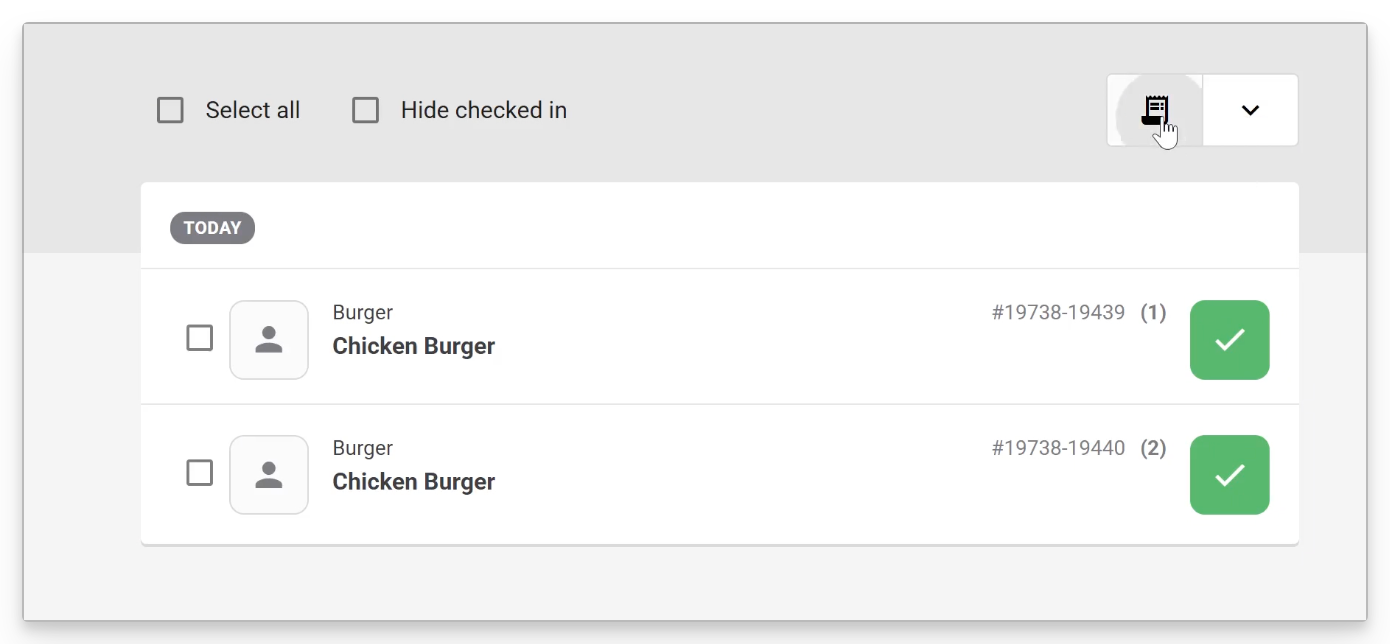
Find the food and beverage items in the booking and use the checkboxes to select certain items. If you want all the food and beverage items printed, you don’t need to select any individual items.
Select the docket icon at the top to print to KDS.
Reprint an order
When you reprint an item, the kitchen sees it as a new order with a Reprint label, so they know the order has changed since the original ticket.
To reprint an order:
From POS, open the booking.
Find the food and beverage items in the booking and use the checkboxes to select certain items. If you want all the food and beverage items printed, you don’t need to select any individual items.
Select the docket icon at the top.
You’ll see a confirmation screen, select Yes, reprint.
The reprinted order appears on the KDS screen as a new ticket with the Reprint label. You will see the sales channel that it originated from with the colour band and label.
Color coding on your KDS screen
Orders on the KDS screen display with a colour band that shows where the order came from, so kitchen staff can tell at a glance whether a ticket originated at POS (for here) or through a mobile food & beverage checkout (to go).
You can change the default colours in your KDS settings so they match how your kitchen prefers to work
FAQs
Is my venue on the new or legacy KDS printing workflow?
The new printing workflow was released in May 2026, and all venues created after that date use it by default. Many existing venues are still on the legacy workflow, where orders send to KDS automatically as soon as they're purchased, with no print step involved. To check which workflow your venue is on, or to move to the new one, contact your Customer Success Manager or the support team.
What triggers an order to appear on my KDS screen?
Printing is what sends an order to KDS. When you print a production docket for an item, whether it was placed at POS, online, or as part of a party package. That’s when ROLLER sends that order to your KDS screen(s). Nothing reaches the kitchen until it's printed.
Why does a reprinted order show up as a new ticket on KDS?
When you reprint an item, KDS shows it as a new order with a clear Reprint label, so kitchen staff know the order has changed since the original ticket. The same happens with modifications like updated notes or customer details. Once printed, they appear as a new item on the screen.
Why do orders on my KDS screen show different colours?
Orders display with a colour band showing where they came from, so kitchen staff can tell at a glance whether an order originated at POS (for here) or through a mobile food & beverage checkout (to go). You can change the default colours in your KDS settings to match how your kitchen prefers to work.