Premium+ feature
Sync order status to POS from the kitchen using Fresh KDS. To unlock this feature with a Premium plan and above, contact your customer success manager or the support team.
Serve guests faster by having their food and beverage order status available to share at POS. Venues using cloud versions of Fresh KDS can now customize their KDS settings to sync the order status from the kitchen to POS devices throughout the venue. When guests enquire about their order, POS staff can update them without needing to enquire with the kitchen.
This guide walks through how to sync Fresh KDS order status to your POS devices.
Before you get started
Setting up this functionality in KDS will also allow your venue to take advantage of future improvements to the ROLLER and Fresh KDS integration.
Check the following:
This feature is available for cloud printing venues only. To learn more, see the guide Get started with cloud printing.
You have integrated with Fresh KDS and configured your devices. To learn more, see the guide Integrate with Fresh KDS and configure your devices.
You’re across order fulfilment with KDS. To learn more, see the guide Order fulfilment with KDS.
Sync Fresh KDS order status in POS
Some initial setup is required in Fresh KDS to enable the POS order status sync.
Log into your Fresh KDS account. From the dashboard, select Webhooks from the left-side panel.
Select + Create Webhook.
Give your webhook a Name.
Paste your Endpoint URL into the space provided. To find your endpoint URL, from Venue Manager, go to Settings > Integrations. Scroll to the Fresh KDS section and select Generate webhook URL.
Under Triggers, select KDS Order Created and KDS Order Bumped.
Select the Location.
Select Create.
After these setup steps are complete, this is how it works during service:
A guest places an order, venue staff ‘print’ the order to Fresh KDS and it’s sent to the kitchen.
The kitchen staff update the order status from Fresh KDS once the order moves status.
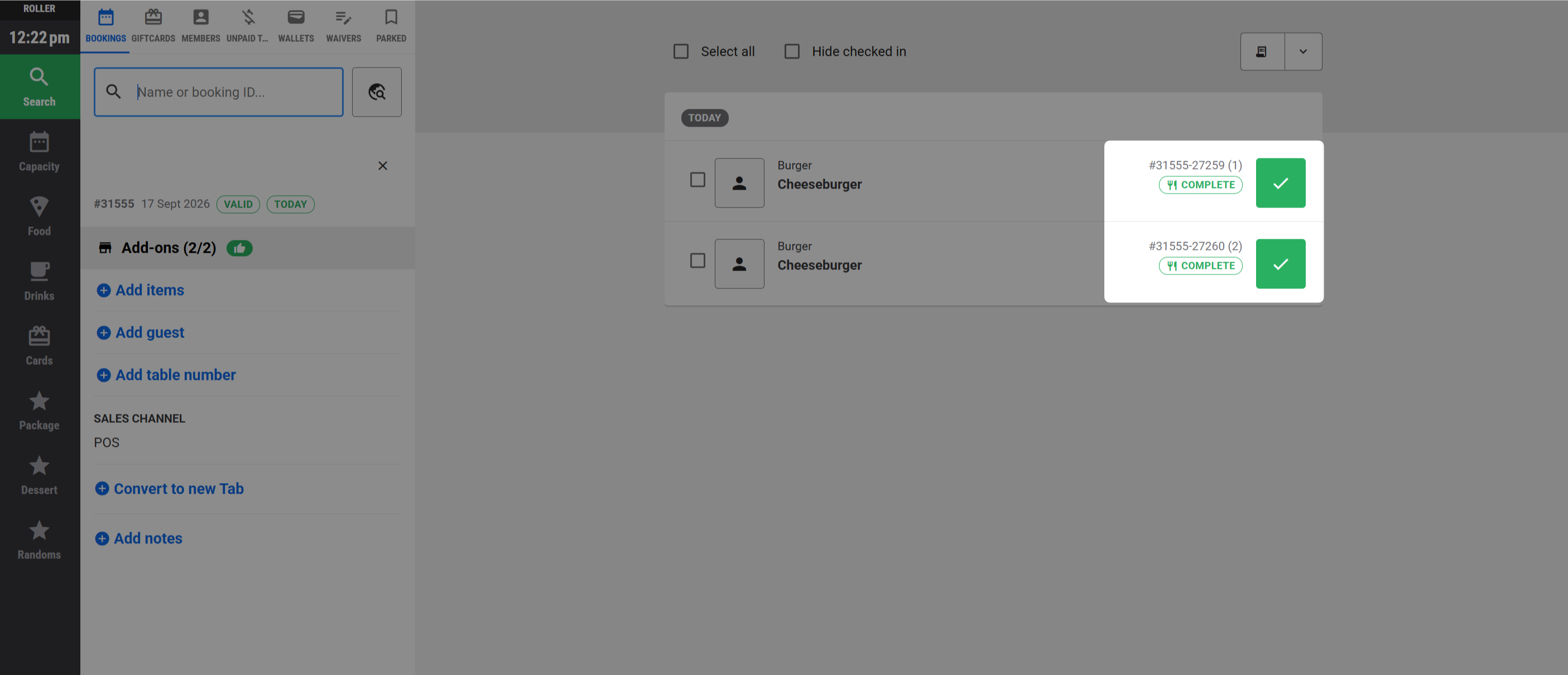
The updated order status is synced to POS and shows as a pill next to the order. The statuses show:
Not printed (grey): item has not been printed and sent to KDS yet.
Pending (yellow): has been sent to the kitchen, but order has not been started yet.
In progress (blue): order is currently underway and being prepared by the kitchen.
Ready (green): all items in an order are ready to deliver to the guest, or to be collected.
Complete (grey): order has been handed over to the guest.
The order status shows per order (which may contain multiple food and beverage items) rather than per item (eg individual food and drink items).