This article walks you through setting up display screens in ROLLER Karting. You'll create channels for the different screens around your venue, add the slides each one shows, and tune your TVs to them.
About display screen channels
Display screen channels are digital signage for your venue. Each channel is a rotating set of slides, and each screen is tuned to one channel by opening a URL.
Two ideas do most of the work:
A channel is what you tune a TV to. It has its own URL.
Slides are what the channel shows. A channel holds one or more slides that rotate.
Any number of TVs can be tuned to the same channel. You might run one channel for trackside screens, another for the waiting area, another behind the point of sale counter showing a menu, and another for leaderboards.
There's no limit on how many channels you create and no licensing attached to them, because they run locally from your ROLLER Karting server. Resource usage is light, so venues can comfortably run 20 or 30 channels.
Changes take effect straight away. When you edit a channel, every TV tuned to it updates in under a second without needing a refresh.
Two states per channel
Each channel has two states, and you choose which slides appear in each:
When an activity is not running. Good for past results, upcoming races, images, and promotions.
When an activity is running. Most venues show only a scoreboard here, so guests watching a live race aren't shown ads or other content.
.png)
Before you begin
ROLLER Karting is installed. See Install ROLLER Karting if you haven't completed the install yet.
You can sign in as an admin, or with settings access.
You know which screens you want around the venue and what each one should show.
Each screen can open a web page in a current Chromium-based browser, in line with ROLLER's browser requirements. A mini PC behind the screen, a streaming stick, or a smart TV's own browser all work.
Step 1: Open Display Screen Channels
Follow the steps below:
From the left menu, go to Settings.
Under the General header, select Display Screen Channels.
The list shows your existing channels, each with a preview link, an edit option, and a delete option.
.png)
Step 2: Create a channel
Create one channel per group of screens that should show the same thing. Follow the steps below:
Select NEW CHANNEL.
Give the channel a name that describes where the screens are, for example Trackside TV Screens or Waiting Area.
Save the channel, then open it to add slides.
Step 3: Add slides to each state
Open the channel and build up the two states. Follow the steps below:
Choose the state you want to work on: when an activity is not running, or when an activity is running.
Add the slides you want that state to show.
Drag slides to change the order they rotate in.
Nine slide types are available:
Image. Show your own artwork, for example a menu board or a sponsor panel.
Website. Show any web page, for custom or data-driven content.
Leaderboard. Show the fastest lap times over a period you choose.
Previous Run Results. Show results from the race that just finished. Works well in the pit lane as drivers climb out of their karts.
Upcoming Run. Show who's in the next race, and which kart and grid position each driver has. Works well in the pit lane as drivers get into their karts.
Upcoming Schedule. Show the race sessions coming up.
Scoreboard. Show live timing for the race or races currently running.
Last Passings. Show the most recent lap times. Usually placed on track just past the finish line, so drivers get immediate feedback on their last lap.
Current Event Standings. Show points standings for the current event. Useful when running a Grand Prix or another bracket-style competition.
Step 4: Configure your slides
Open a slide to set it up. Most slides share these settings:
Duration. How long the slide shows before the channel moves on.
Disable Slide. Turn a slide off without deleting it.
Limit and Skip. How many rows to show, and how many to skip from the top. A limit of 10 with a skip of 10 shows positions 11 to 20, which is useful for continuing a list onto a second screen.
The sections below cover what's specific to each type.
Leaderboard slides
Show the best times of the year, month, week, or day.
Give the slide a custom title.
Limit it to certain race tracks, so a screen only shows results from the track it sits beside.
Filter or exclude leaderboard tags, so a screen shows only the boards you want.
.png)
Race information slides
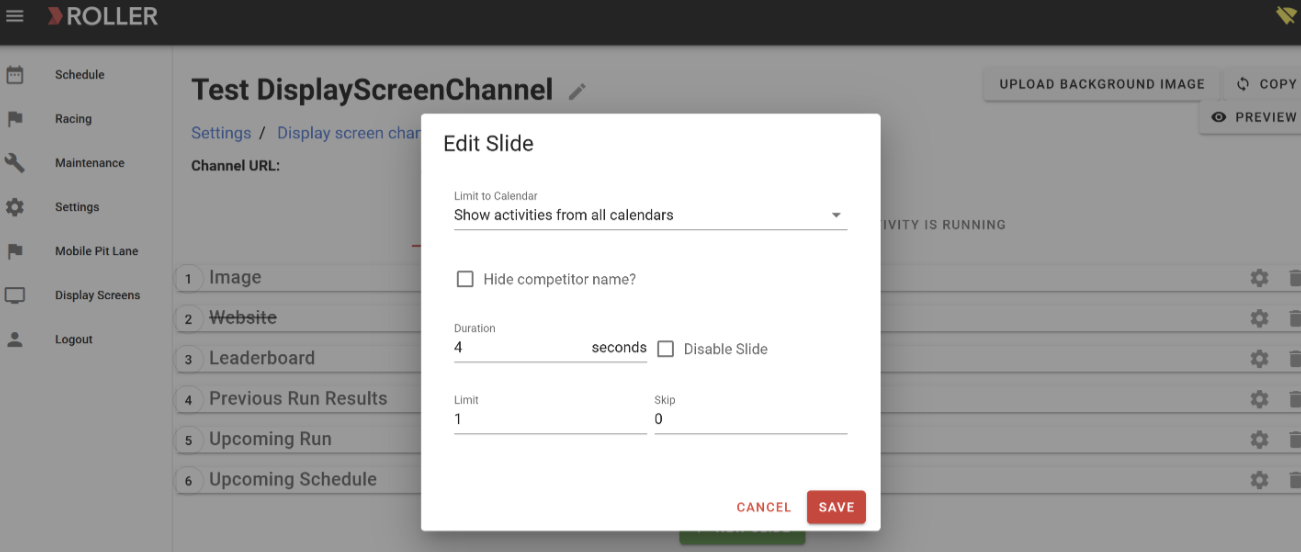
Previous Run Results, Upcoming Run, Upcoming Schedule, Last Passings, and Current Event Standings all share the same two settings:
Limit to Calendar. Show activities from all calendars, or just one, so a screen beside a particular track only shows that track's races.
Hide competitor name? Leave names off the screen if you'd rather not show them.
Scoreboard slides
Scoreboard has the most settings, because it's what guests watch during a live race:
Limit to Course. Show all courses, or just one.
Hold Time After Run Completes. Keep the scoreboard up for a set number of seconds after the race finishes, so drivers and spectators can read the final result before the channel moves on.
Show timer when time is less than. Bring up a countdown once the race is inside the number of seconds you set.
Rotation Hold Time. How long the scoreboard holds before rotating, when it has more drivers than fit on screen.
Hide competitor name? and Hide competitor column? Control whether driver names and the competitor column appear.
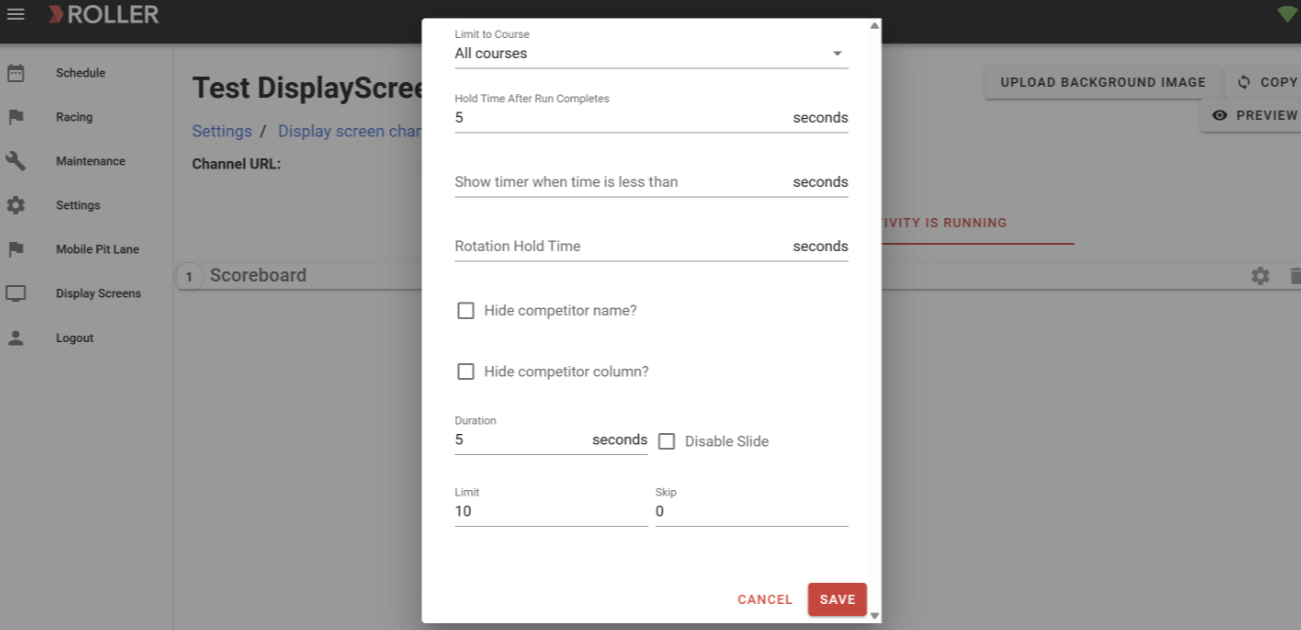
Image slides
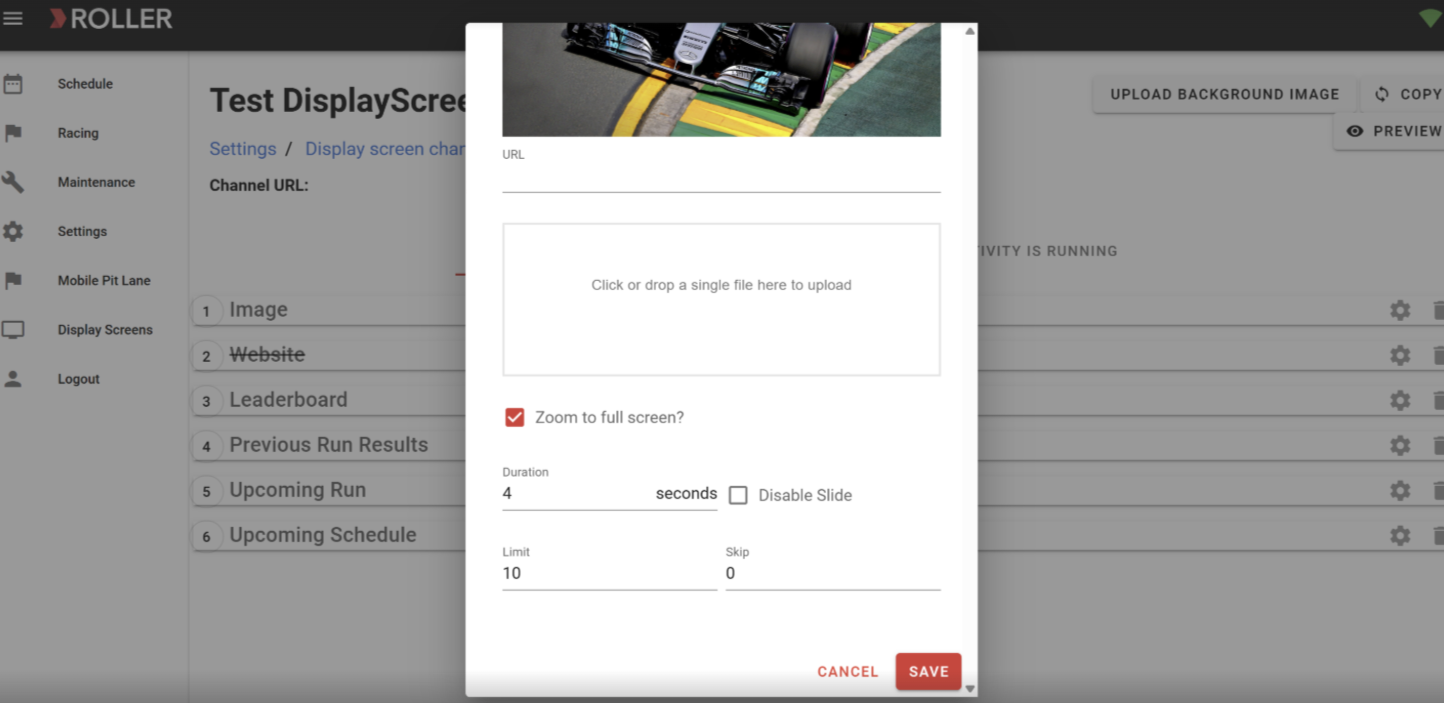
Link to an image that's already on the web, or upload one to be served locally by ROLLER Karting.
Turn on zoom to full screen if the image isn't the same shape as the TV. The image is scaled up as large as it can go without being cut off.
Image slides are how most venues run custom content like a styled menu board or a sponsor panel.
Website slides
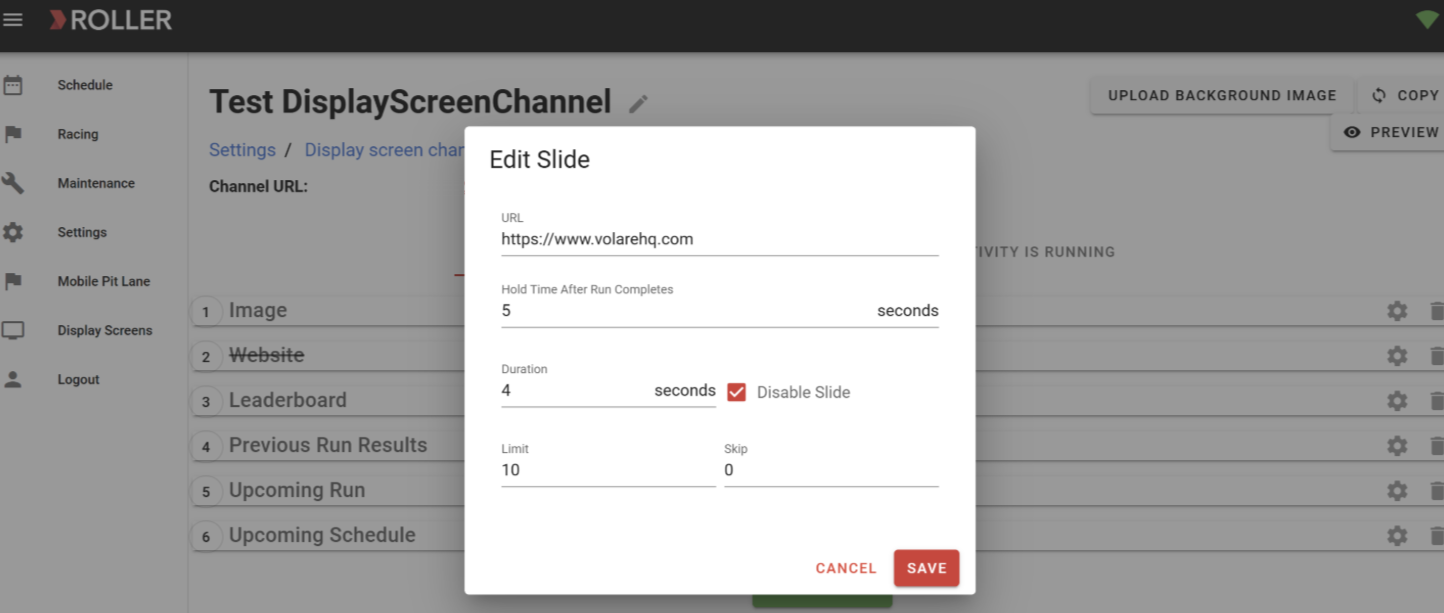
Point the slide at any web page, so anything you can build on a page can appear on screen, including animated content or a page that pulls data from the ROLLER or ROLLER Karting APIs.
Pass parameters to the page if it needs them.
Set a hold time after a run completes. On a slide in the activity-is-running state, this keeps the slide up for a set number of seconds after the race finishes before the channel returns to its normal rotation.
Step 5: Tune your screens to the channel
Each channel has its own URL, shown at the top of the channel. Follow the steps below:
Copy the Channel URL.
Open that URL on each screen you want tuned to the channel.
Repeat for each channel you've created.
The URL is intended to be opened inside your venue's network.
Use PREVIEW on the channel to check what a screen will show before you set up the hardware.
Step 6: Reuse and adjust channels
COPY. If a new channel should be similar to an existing one, copy it rather than building it again from scratch.
UPLOAD BACKGROUND IMAGE. Set a background image for the channel.
PREVIEW. Open the slideshow to see it as guests will.
Frequently asked questions
How many channels and screens can we have?
There's no limit on channels and no licensing attached to them, because they run locally from your ROLLER Karting server. Resource usage is light, so 20 or 30 channels is practical. Any number of TVs can be tuned to the same channel.
What hardware do we need for the screens?
Anything that can open a web page in a current Chromium-based browser, in line with ROLLER's browser requirements. Venues use mini PCs behind the screen, streaming sticks, low-cost Android boxes, or a smart TV's own browser. Beyond that, ROLLER Karting doesn't require particular hardware.
Do screens need refreshing after we change a channel?
No. Every TV tuned to that channel picks up the change in under a second, as long as it's connected.
Can different screens show different leaderboards?
Yes. Create a channel per screen group and use the leaderboard slide settings to limit each one by race track, or filter and exclude leaderboard tags. That's how venues run a cadet leaderboard on a party room screen and a different board in the cafe.
Can we show our own content, like a menu or sponsor ads?
Yes. Use an image slide to upload or link your own artwork, or a website slide to point at a page you've built.
Can we stop ads showing during a race?
Yes. That's what the two states are for. Put only a scoreboard slide in the activity-is-running state, and keep promotional content in the state that shows when no activity is running.
What's next
With your screens running, your venue setup is complete and you're ready to run races.