Once bookings are flowing into ROLLER Karting, your race schedule fills itself. What's left is getting drivers into karts and out on track. This article walks you through running a standard race in ROLLER Karting, from drivers checking in to the checkered flag. You'll open the session, assign drivers to karts, start and control the race, and make changes on the fly when a kart fails or a driver swaps in.
About running a race
Once your venue is set up and bookings are flowing into ROLLER Karting, most of your day happens in the Racing section, where you start, stop, and manage races. A race session appears at its booked time, drivers are added to it automatically as they're checked in and have their waivers assigned in ROLLER POS, and the race is started, monitored, and finished from the same screen. Results go out by email or print at the end.
You can run races from two places that stay in sync in real time: the Mobile Pit Lane on a phone or tablet, which most staff use trackside, and a more detailed racing screen built for tablets and PCs. You can have several screens and apps open at once and they all stay current.
You can run a race whether the booking came from an online timed session or a walk-up standard pass. Timed sessions arrive with names already assigned, so there is less to do at the pit lane. Standard passes are added to the next available session manually when the guest arrives.
Race assignment and control can happen at any station, so staff at the front desk and marshals trackside can both work the same session.
This article covers running a standard race session. Setting up and running a Grand Prix or other auto gridded group event works differently and is covered separately.
Before you begin
ROLLER Karting is installed and connected to ROLLER. See Install ROLLER Karting if you haven't completed the integration yet.
Your race track, run templates, and product mapping are set up, so bookings create the right kind of race on your schedule. See Set up your race track in ROLLER Karting, Create a run template in ROLLER Karting, and Map bookings to ROLLER Karting.
Your karts are added to ROLLER Karting. See Manage karts in ROLLER Karting.
Drivers have been checked in and had their waivers assigned in ROLLER POS. A driver's name only appears for assignment once their waiver is on file, which acts as a built-in safety check.
Step 1: Open the Mobile Pit Lane
Most staff run races from the Mobile Pit Lane, which you can open on a phone or tablet trackside. Follow the steps below:
From the menu, select Mobile Pit Lane.
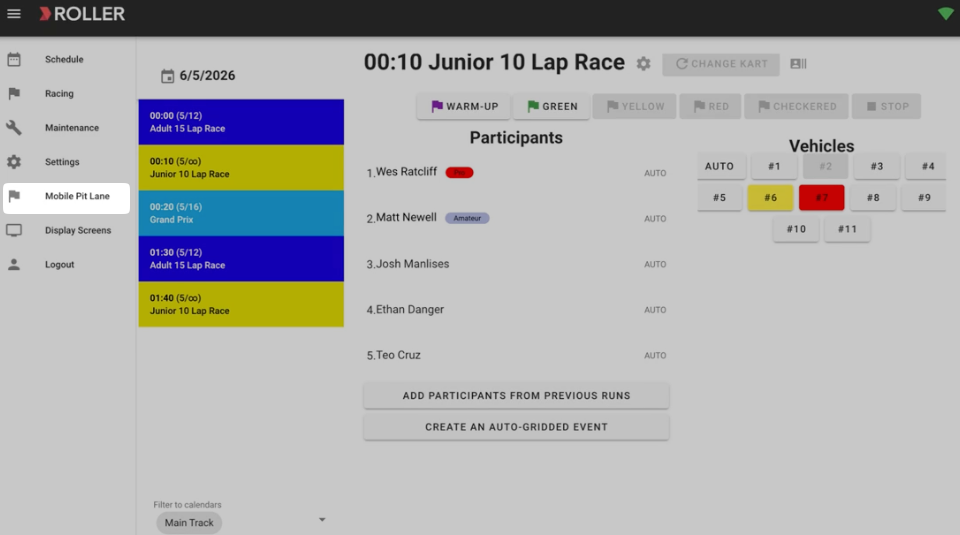
Find your race in the schedule. Bookings made in ROLLER appear here automatically, with the next race to run at the top of the list. As races finish, they drop off the list, so the top is always your next race.
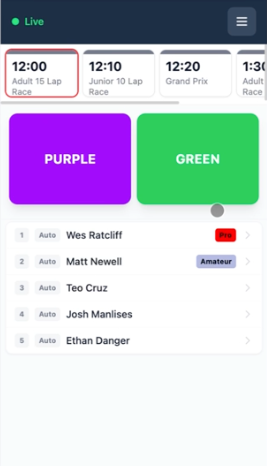
Driver names appear automatically as tickets are assigned and waivers are checked in. This is set up through your product mapping. See Map bookings to ROLLER Karting.
Step 2: Assign drivers to karts
Open the race and set your drivers into the karts they'll drive. Follow the steps below:
Select the race you want to run.
If your karts are auto-assigned, line the drivers up in grid order and send them out in that order. For example, the first driver in position 1, the second in position 2, and so on.
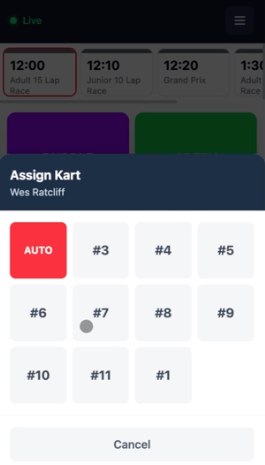
If you're assigning karts manually, tap a driver's name and then tap the kart number to assign them. For example, tap a driver's name, then tap 3 to put them in kart 3.
To move a driver, tap their name again and tap a different kart number. Their assignment switches straight away.
Step 3: Start the race
When the grid is set, start the race one of two ways:
Select GREEN to start the race and begin timing straight away.
Select PURPLE to start the race but hold timing until the Run Countdown Starts condition set on the run template is met. See Create a run template in ROLLER Karting.
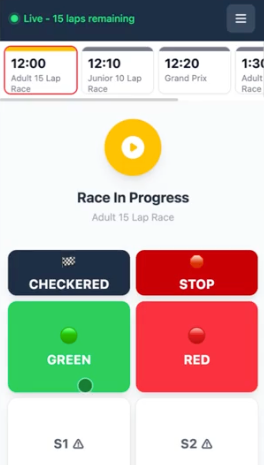
Once the race is running, you'll see the laps remaining, or the time remaining for a time-based race.
Step 4: Control the race
While the race is running, you can raise digital flags and stop or end the race from the same screen.
To slow the race, select YELLOW. Any automated slowdowns run at the same time.
To raise a red flag, select RED.
To resume racing after a yellow or red flag, select GREEN, then confirm.
To stop the race, select STOP, then confirm.
To end the race, select CHECKERED, then confirm.
Run races from the racing screen (tablets and PCs)
Alongside the Mobile Pit Lane, ROLLER Karting has a more detailed racing screen built for tablets and PCs. It stays in sync with the Mobile Pit Lane in real time, and its buttons are large and high-contrast, which helps at outdoor tracks.
The same race controls are available here. The racing screen also lets you:
See the live scoreboard. Select a race to watch positions and lap times as they happen.
Change karts mid-race. Select Change Kart, then choose the driver and the kart to move them to. Their results move with them.
Adjust laps or time. Select the Settings icon to extend the time on a time-based race.
Start the next race. Select the next race, tap a driver's name and then a kart number (or just tap the next number to move down the grid), then select GREEN or PURPLE to start.
Frequently asked questions
Can we run more than one race at the same time?
Yes. Races can overlap. You can send out a new race while another is still in progress, which helps you manage capacity and track flow.
What's the difference between the green and purple starts?
Green starts the race and begins timing immediately. Purple starts the race but holds timing until the Run Countdown Starts condition on the run template is met, which suits formats where drivers head out before the timed portion begins.
A driver's kart failed mid-race. Can we move them?
Yes. Staff can reassign karts mid-race or adjust participants during a live session, and timing resumes from the next loop crossing.
What happens if we lose internet during a session?
Most karting operations, including race scheduling and timing, run locally on your venue's Windows machine. If your connection drops, you can keep running races and capturing data, then reconcile once you are back online. Cloud access is only needed for features like online leaderboards and syncing new bookings.
How do results reach the driver?
Results are sent to drivers automatically when the race ends. Each run template sets how its results are delivered, by email, by print, or both, so how a driver receives them depends on the race style they booked. See Create a run template in ROLLER Karting for where to turn on results delivery.
Can I resend or reprint a driver's results?
Yes. On the results list after a race, select the print or email icon next to a driver to send their results again.
Can staff tell age groups apart quickly when gridding?
Yes. Driver names can be color coded by age bracket so staff can identify groups at a glance.
What's next
With standard races running, you're ready to set up more complex group events like Grand Prix parties.