A 40-person corporate booking, a birthday league night, a school group that wants everyone to get a fair run: a Grand Prix party runs a large group across several rounds and works out who advances for you. This article walks you through setting up and running a Grand Prix party in ROLLER Karting. You'll build the event once as a reusable template, then run the whole thing on the day, from the first practice round through to the final.
About Grand Prix parties
A Grand Prix party is an auto gridded group event. A group of drivers runs a series of rounds, for example practice, qualifying, and a final, and ROLLER Karting works out who advances and where they start each round based on how they performed. It works like a sports bracket: results in the early rounds decide the grid for the later ones.
You set the event up once as an auto gridding template, then run it on the day. The template is where all the complexity lives, so running the event is largely automated.
The auto gridding template, under Settings > Auto Gridded Group Events > Auto Gridding Templates, is the heart of the event. For each round you set the run template that defines the race, where the drivers come from, how they're sorted, how many carry across, how they're lined up, and how karts are assigned. You can also save custom grids as lineup templates under Settings > Auto Gridded Group Events > Lineup Templates.
A built-in simulation lets you test a template with a sample field, for example 40 drivers, and watch how they move from round to round before you ever run it live. It saves setting up a real event on the track just to check your logic.
This article assumes you're comfortable running a standard race. If you haven't run a single race yet, get comfortable with that first, then come back for the group event format.
Before you begin
ROLLER Karting is installed and connected to ROLLER, your race track and run templates are set up, and your karts are added. See the articles in the Configure section if you haven't completed setup.
You've created the run templates you want each round to use, for example a practice, a qualifying, and a final. See Create a run template in ROLLER Karting.
You're comfortable running a standard race.
You know your event format: how many rounds, how drivers advance between them, and roughly how many drivers you expect.
Part 1: Set up the auto gridding template
You build the event once as a template. ROLLER Karting comes with a few pre-made templates, and editing one works the same way as creating a new one, just with the fields pre-populated.
Step 1: Open Auto Gridding Templates
Open the templates list to create or edit an event. Follow the steps below:
From the menu, go to Settings.
Under the Auto Gridded Group Events header, select Auto Gridding Templates.
Select the option to create a new template, or open a pre-made one to edit.
.png)
Step 2: Name the template
Follow the steps below:
Enter a Name for the template.
Set a Color as a hex value, for example #ff0000. This makes the event easy to spot later.
Step 3: Set up the rounds
The rounds are the sequence of sessions drivers move through. A template starts with three rounds, which suits a typical Grand Prix of Practice, Qualifying, and Final. You can add or remove rounds to match your format. Follow the steps below:
Select NEW ROUND to add a round, or remove any you don't need.
Drag a round by its handle to change the order.
Select the info icon on a round to read a plain-language summary of where its drivers come from, how they're sorted, and how they're lined up. This is a quick way to sanity-check a round without opening it.
Select the chevron to expand a round and edit it.
.png)
Step 4: Configure each round
Expand a round to set how it runs. Practice rounds are simple, while later rounds pull drivers forward from earlier ones.
Round Name: For example Practice, Qualifying, or Final.
Run template: The race format for this round, for example an 8 min Race. See Create a run template in ROLLER Karting.
Select participants from: Where this round's drivers come from. Use the event participant list for the first round, so everyone in the party takes part, then pull from an earlier round for later rounds.
Sort by: How the incoming drivers are ranked: best laptime, best average laptime, last start position, last finish position, points total, or randomly. Use randomly for a practice round, where there are no earlier results to rank on.
Inverted: Select this to reverse the sort, which is how you build reverse grids.
Filter by: How many drivers carry across: top or bottom percentage, or top or bottom number. A value field appears underneath for the figure, for example 100 to carry everyone across, or 10 for the fastest ten. This is how you build A mains, B mains, and knockout brackets.
Lineup by: How drivers are arranged across the runs in this round. Balanced splits them evenly so races are well matched, leaders get P1 puts each qualifier first in their own race, and race each position and custom give you more control.
Max participants per run: How many drivers race together, limited by what your track holds.
Create this many: How many runs to create for this round.
Randomize each copy: Vary the order across those runs rather than repeating the same arrangement.
Invert run order: Flip the order the runs happen in.
Vehicle assignment: How karts are handed out for the round. Leave it at none to keep drivers in whatever they're already in, or choose an option such as keeping them in the same kart as the previous round, giving a random kart, assigning manually at the pit lane, or giving the fastest drivers the slowest karts to even out the field.
.png)
Step 5: Simulate and save
Before you rely on a template, test it. Follow the steps below:
Run the simulation with a sample field, for example 40 drivers.
Watch how drivers move from round to round and check the event behaves the way you intended.
When you're happy, select SAVE.
Part 2: Run the Grand Prix on the day
Once the template is built, running the event is close to running standard sessions. The party arrives on your schedule as a booking from ROLLER, and ROLLER Karting handles splitting the field and moving drivers between rounds.
Step 6: Check in the full party
Because a party is often larger than the track holds, ROLLER Karting splits it across sessions when you create the event, so the guest list needs to be final first. Follow the steps below:
Confirm every driver in the party is checked in.
Remove anyone who didn't show up, and add any walk-ins.
Only move on once the session lists your complete field.
Step 7: Create the event
Turn the checked-in party into a running Grand Prix. Follow the steps below:
Right-click the session that holds the full party.
Select Create event.
Enter a name for the event.
Select the auto gridding template you want to use, for example your Grand Prix.
Leave auto-transfer between rounds checked so ROLLER Karting moves drivers on automatically once every race in a round is done.
Select Create.
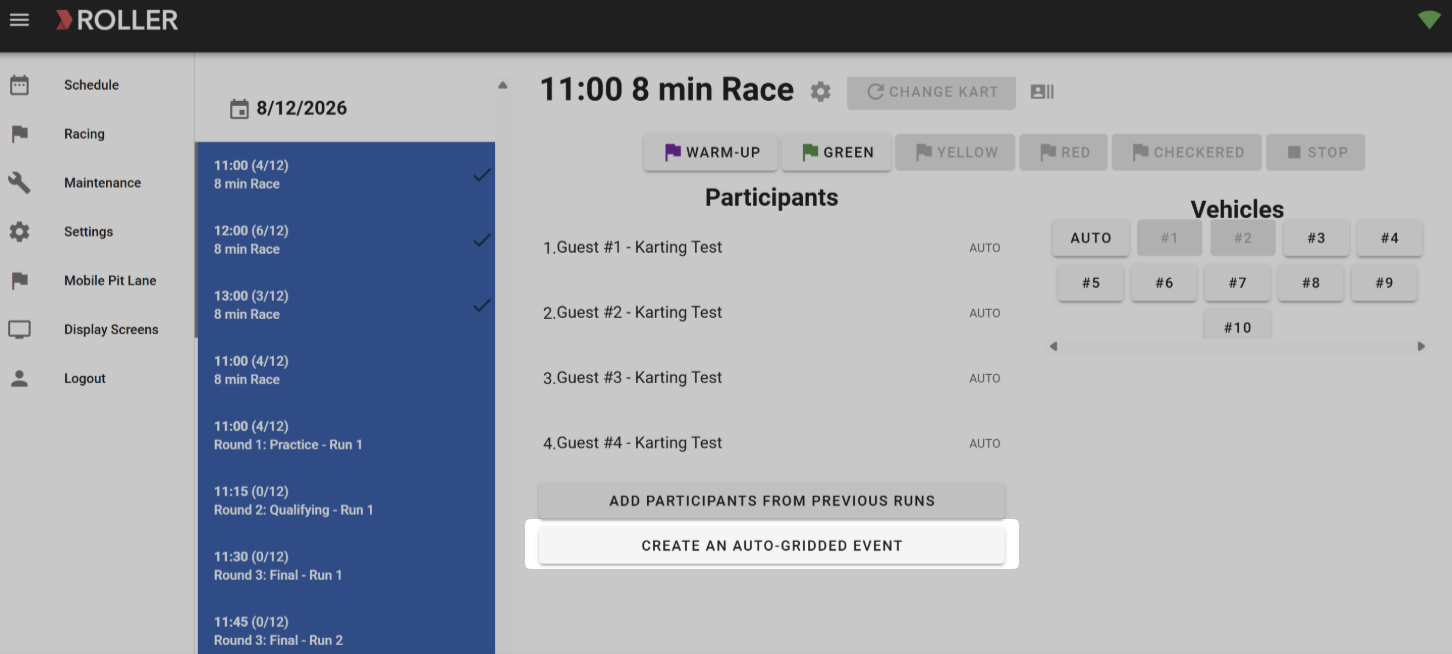
ROLLER Karting keeps your original party group, which you can return to at any time, and places everyone into the first round, split across correctly sized sessions. For example, 24 drivers might become two round-one races of 12.
Step 8: Run each round
From here it runs like standard racing, one session at a time. Follow the steps below:
Select a race and start it with the GREEN flag.
Let the race run, then select STOP and confirm.
When the round finishes, ROLLER Karting calculates the results and moves drivers into the next round automatically, re-gridding them according to your template.
Repeat for each session until the final is run.
Later rounds stay empty until the round they pull from has run, because who advances and where they start depends on those earlier results.
Step 9: Handle drop-outs and changes
If a driver pulls out partway through, you can remove them without breaking the event. Follow the steps below:
Find the driver's upcoming session.
Delete them from it. The advancement calculations still work correctly.
Standard race controls apply throughout, so you can also change karts and move drivers between sessions the same way you would in a normal race.
Frequently asked questions
How does ROLLER Karting fit a 50-person party onto a track that holds 12?
When you create the event, ROLLER Karting reads the full guest list and splits it into correctly sized sessions automatically. A field of 24 might become two sessions of 12, and 20 might become two of 10. You don't do any of the splitting yourself.
Can I test an event before running it for real?
Yes. Every auto gridding template has a simulation. Run it with a sample number of drivers and watch how they move from round to round, so you can confirm your setup does what you intended before a single kart hits the track.
Do I have to manually move drivers to the next round?
No, as long as you leave auto-transfer between rounds checked when you create the event. ROLLER Karting detects when every race in a round is finished and moves everyone on. If you clear that option, you advance each round yourself.
A driver drops out mid-event. What do I do?
Find their upcoming session and delete them from it. The advancement math still works, and you run the remaining races as normal.
Can we run knockout formats like A mains and B mains?
Yes. Use Filter by to carry across the top or bottom drivers by percentage or number, and select Inverted? to grid slowest-first. That lets you build A mains, B mains, losers brackets, and reverse grids.
Can we run a members-only or league Grand Prix with its own leaderboard?
Yes. You can tag the run templates used in the event, for example Tuesday Night League or Member Heats, so leaderboard results only show drivers from that event type.