Your resellers see your terms, your payment instructions and who to contact, in your own words, without you briefing each one. Set them once here and they apply to every reseller.
Advanced channel management add-on
Let your resellers book your tickets themselves, with every booking recorded in ROLLER. Available on all plans with the advanced channel management add-on. The reseller portal is in early access. To add it or learn more, contact your customer success manager or the support team.
How global reseller settings work
Global settings versus reseller records
Global reseller settings apply automatically across all your resellers, while reseller records control settings for individual reseller partners:
Global settings: Apply venue-wide, including your reseller terms and conditions, contact details, booking notification email, and custom payment display names and instructions. From Venue Manager, go to Settings > Resellers.
Reseller records: Manage settings specific to individual resellers, including contact information, pricing tiers, and assigned payment methods. From Venue Manager, go to Guests > Resellers.
Setting up payment options
Payment options use a two-part setup across global settings and reseller records:
Configure globally: Turn on the payment options you offer, then enter custom display names and payment instructions using your venue's preferred wording.
Assign per reseller: Choose which enabled payment methods an individual partner can use within their reseller record.
Important: Turn on Bank transfer and Pay on arrival in global settings before they become selectable in a reseller record.
Payment option | What it does | How it’s assigned |
|---|---|---|
Pay at booking | Resellers pay online when they book, using the payment methods you've configured in Settings > Account > Payments. | Assigned automatically when you set the reseller's payment terms to Pre-pay required on their record. |
Charge to account | Bookings add to the reseller's running account balance in ROLLER. ROLLER does not create or send invoices, so you bill the reseller directly using your venue's external accounting system. | Assigned automatically when you set the reseller's payment terms to Credit account on their record. |
Bank transfer | Resellers pay by transfer after booking through the online reseller portal and before the visit date. Your bank details and instructions appear during checkout and in confirmation emails. | Turn on in global reseller settings first, then assign to the reseller's record. |
Pay on arrival | Resellers book online through the portal, and payment is taken when the guests arrive at your venue. | Turn on in global reseller settings first, then assign in the reseller's record. |
ROLLER tracks each reseller's account balance in Venue Manager but does not generate or send automated invoices. Use your venue's accounting or invoicing system to bill resellers directly based on their balance on your standard invoicing cycle.
Configure your global reseller settings
The permission required to manage your global reseller settings is Can access reseller settings. Administrators have this permission enabled by default.
From Venue Manager, go to Settings > Resellers.
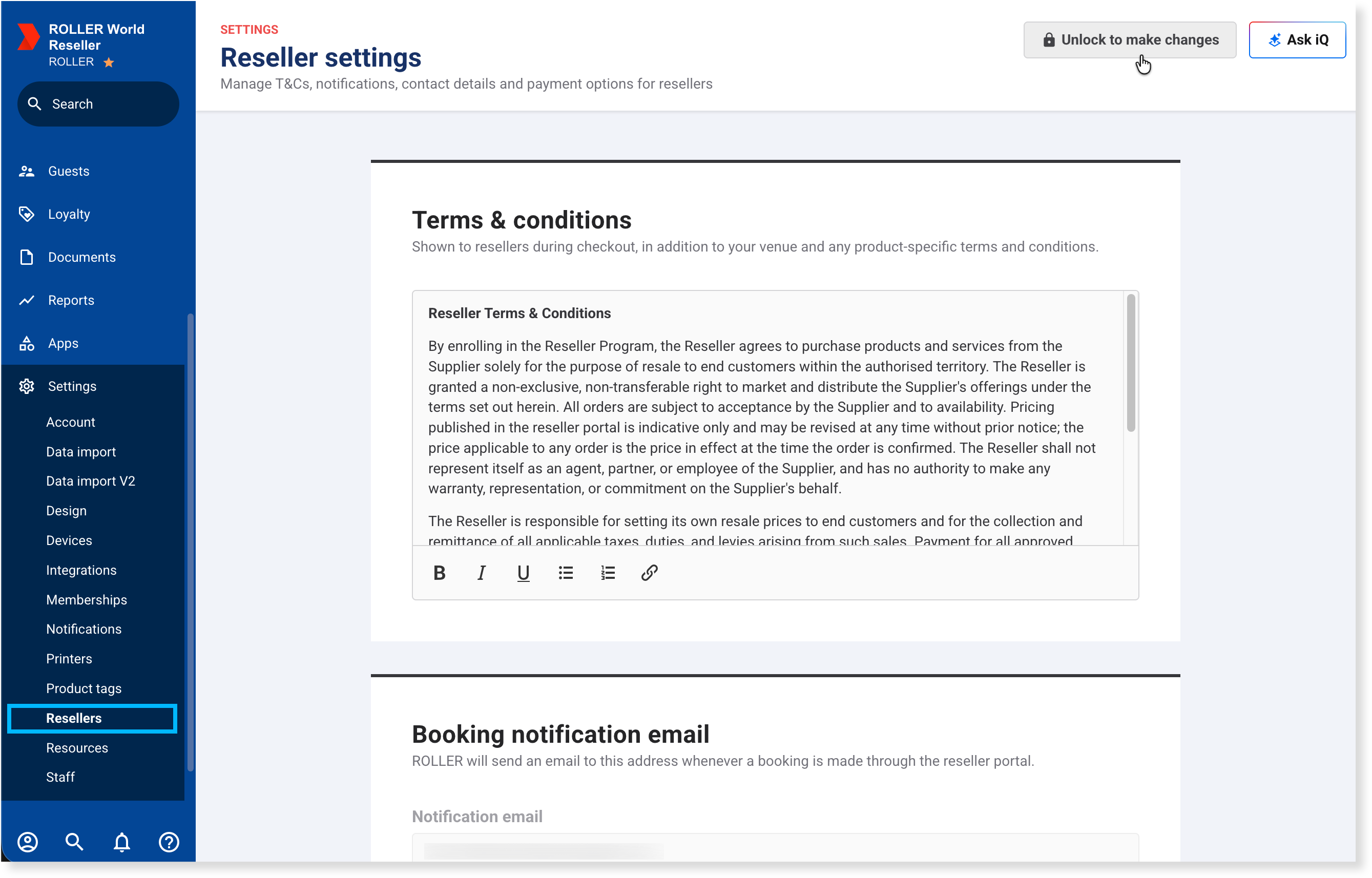
Select Unlock to make changes at the top right.
Under Terms & conditions, enter the terms your resellers see when they book in the reseller portal. These display during the reseller booking process alongside your general venue terms and any product-specific terms.
Under Booking notification email, enter an address in Notification email. Your team receives a notification at this address whenever a reseller makes a booking. Resellers can also nominate their own notification email, which you can enter in their reseller record.
Under Contact page, enter your Contact email, Contact phone and Support instructions. Resellers see these wherever they might need help in the reseller portal, including the sign-in page.
Under Payment options, select each option you offer (Bank transfer, Pay on arrival or both) if any of your resellers pay using these methods.
Pay at booking and Charge to account aren't set here. ROLLER assigns them from the payment terms you choose in each reseller record (Pre-pay required or Credit account).
For each selected payment option (as well as Charge to account if using credit accounts), set a Display name and Payment instructions. For example, you can rename Bank transfer to "Wire Transfer" and provide your account number and required payment reference.
.png)
Select Save.
Show the amount owing in confirmation emails
Resellers who book through your reseller portal on charge to account, bank transfer or pay on arrival haven't paid when they get their confirmation email. Turn on Amount due in your order confirmation email template so the email shows the total still to pay. It's off by default.
The permission required to edit email templates is Can edit email templates. Administrators and managers have this permission enabled by default.
To show the amount due:
From Venue Manager, go to Settings > Design > Email templates.
Select Order confirmation.
On the Content tab, scroll down and expand the Order fields on the left of the preview.
Turn on Amount due.
.png)
(Optional) Change the label in the Amount due field.
Check the wording in Outstanding amount notice. It shows in the email with the amount due.
Select Save.
To check it, select Send test email at the top right and enter the booking ID of a reseller booking that hasn't been paid.
.png)
Amount due also shows in the order confirmation email your guests get, but only when they still owe money on their booking. Guests who've paid in full won't see it.
Next steps in your setup
Now that your global settings are saved, continue setting up your reseller channel:
FAQs
What happens to resellers who already have Bank transfer or Pay on arrival if I turn it off here?
Turning off a payment option globally disables it for new checkout bookings. Existing reseller records retain the setting, but the option will not display at checkout until re-enabled globally.
Do changes to these settings reach resellers I've already created?
Yes. Updated terms, contact details, and payment instructions apply immediately across all existing and new reseller accounts.
Can I give one reseller different terms?
Global reseller terms apply to all resellers using the portal. If a specific partner requires unique contractual terms, keep those on file externally in your commercial agreement.
Do reseller bookings also go to my venue's booking notifications email?
Reseller bookings trigger standard venue booking emails in addition to the address specified in your global reseller notification settings.