Problem
When you print a membership card from POS, it may include extra information like the date, time and page number. This happens because browser and print settings include headers and footers by default, which adds these fields to the printout.
Solution
To print membership cards in the correct format, make sure to turn off the Headers and footers option in your print settings. This removes the extra details from the card.
Follow the steps below to update your print settings.
Remove headers and footers from membership cards
From POS, go to Search.
Select the Members tab in the top navigation bar.
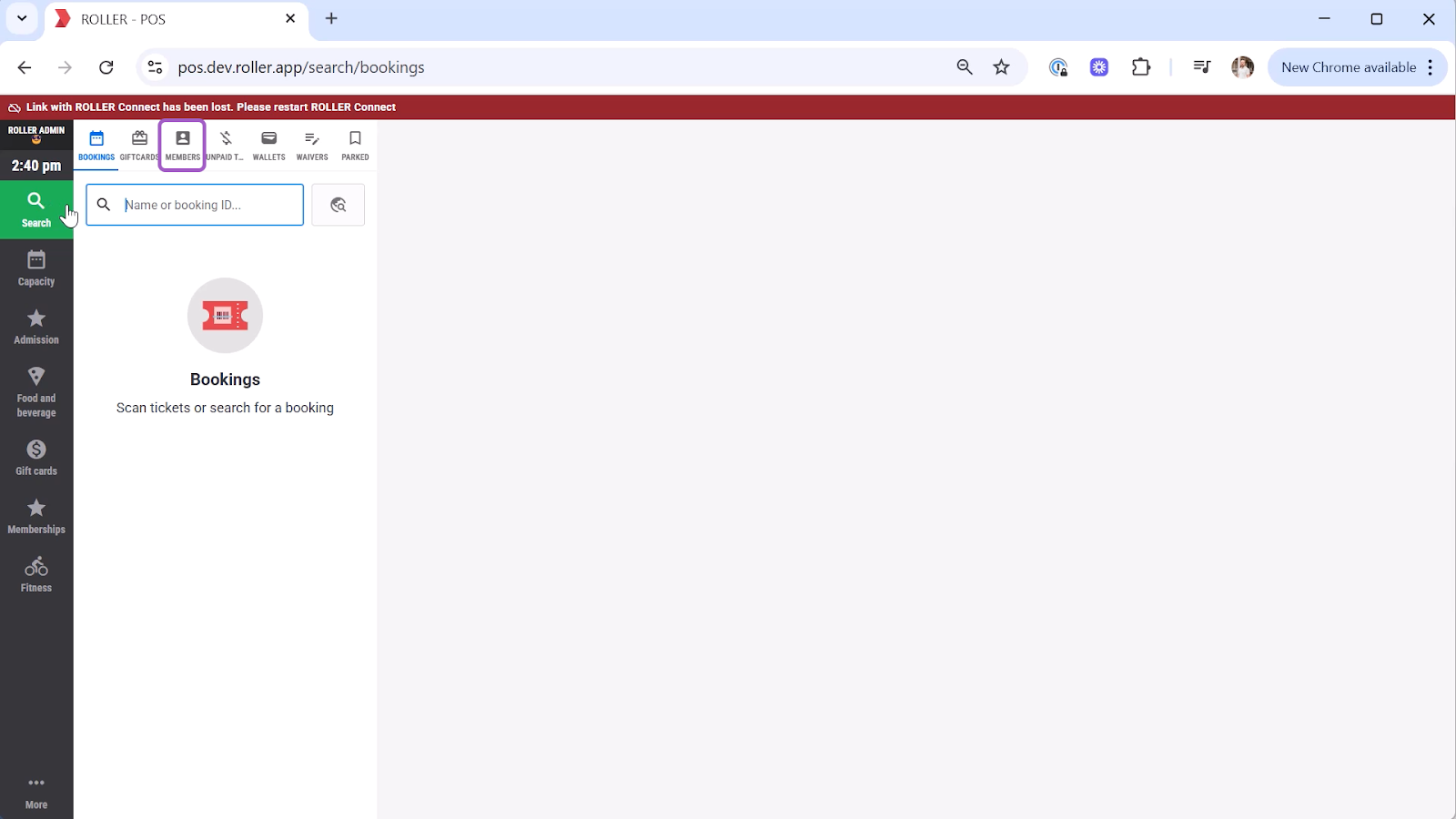
In the search bar, enter one of the following:
Member’s name
Membership ID
Name of the person who purchased the membership
Select the membership from the search results.
Select the Guest tab.
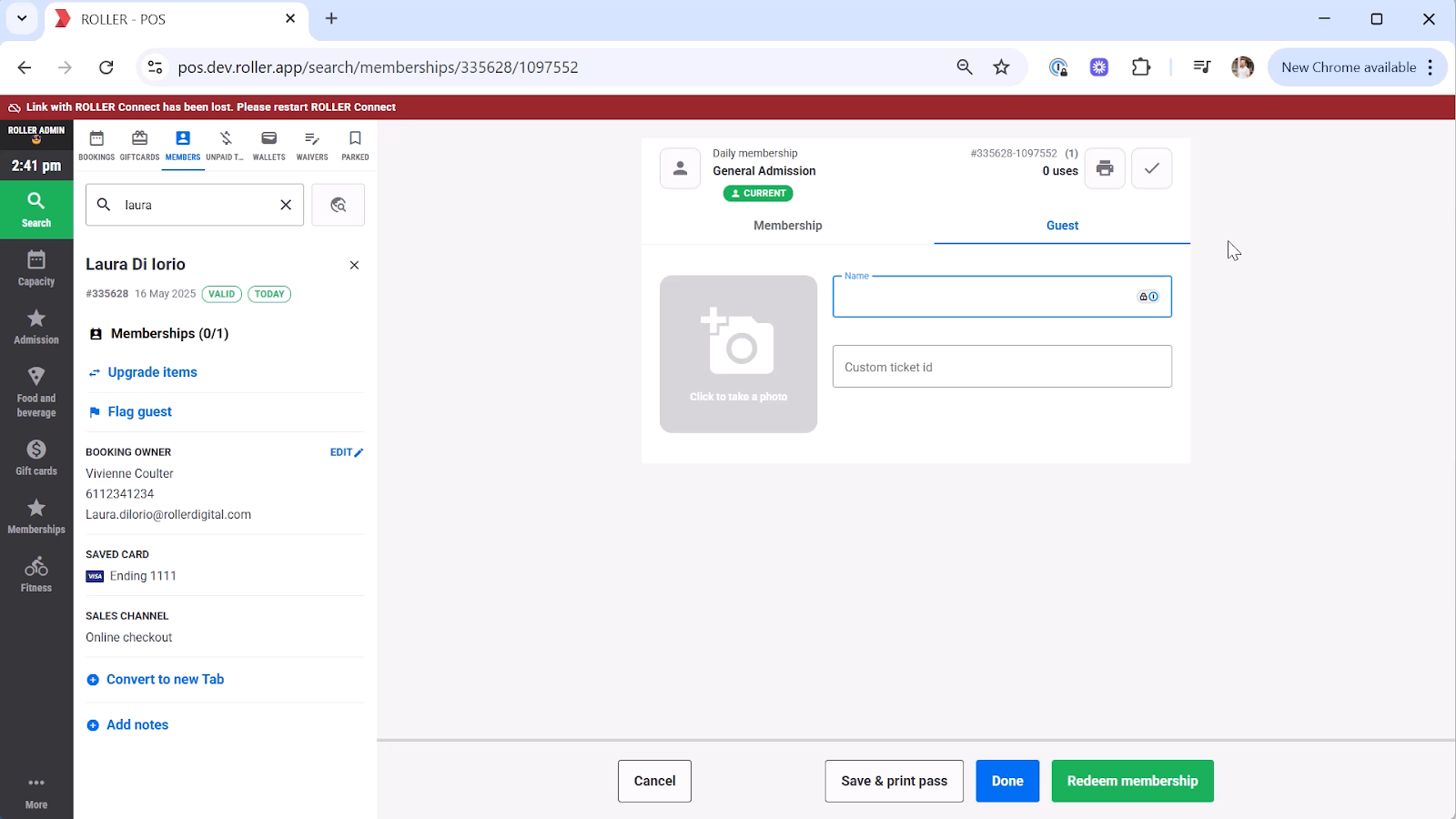
Make sure these fields are complete:
Name
Custom ticket ID
Photo
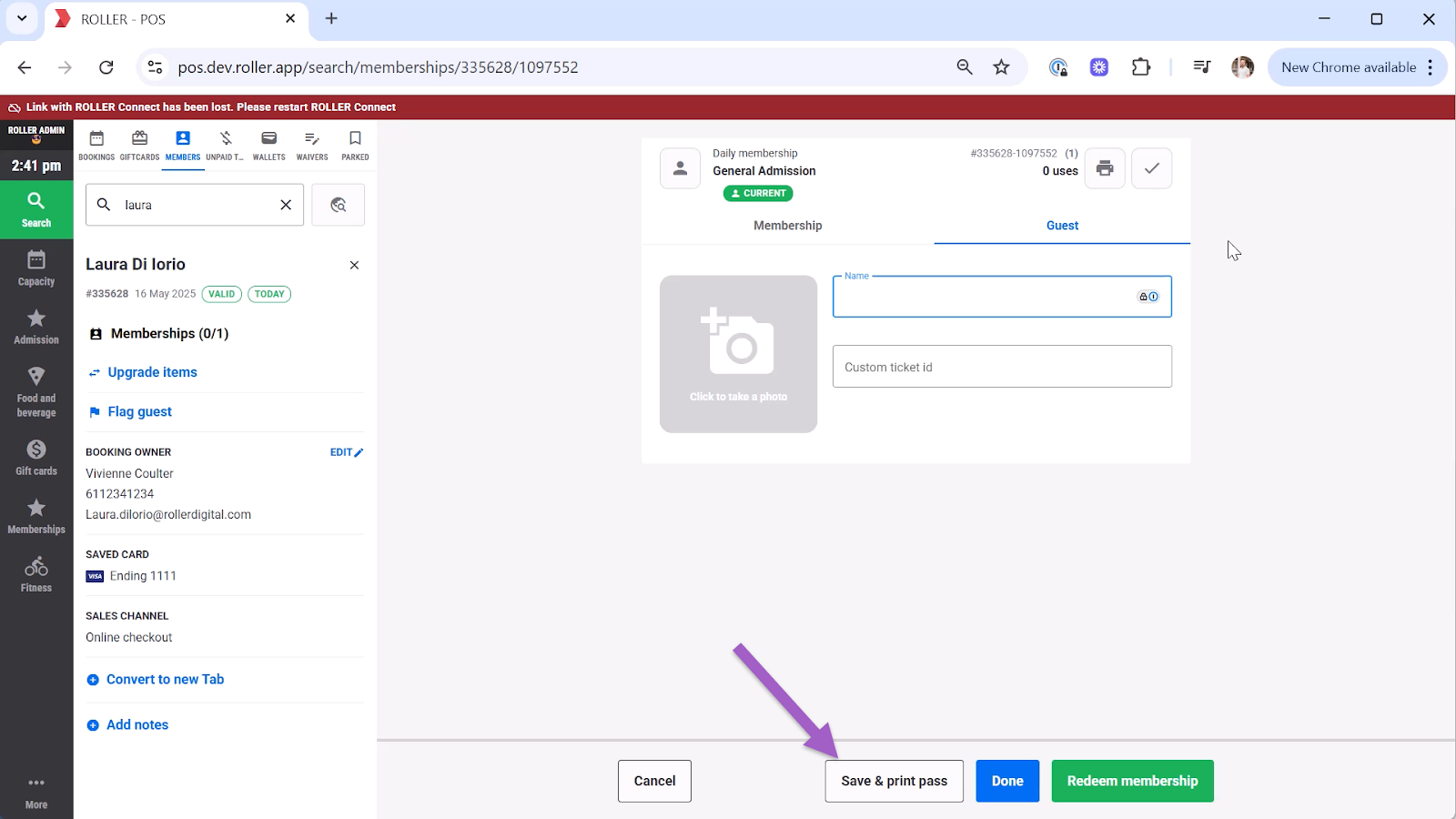
Select Save & print pass.
Select More Settings on the print screen.
Ensure the checkbox for Headers and footers is unchecked.
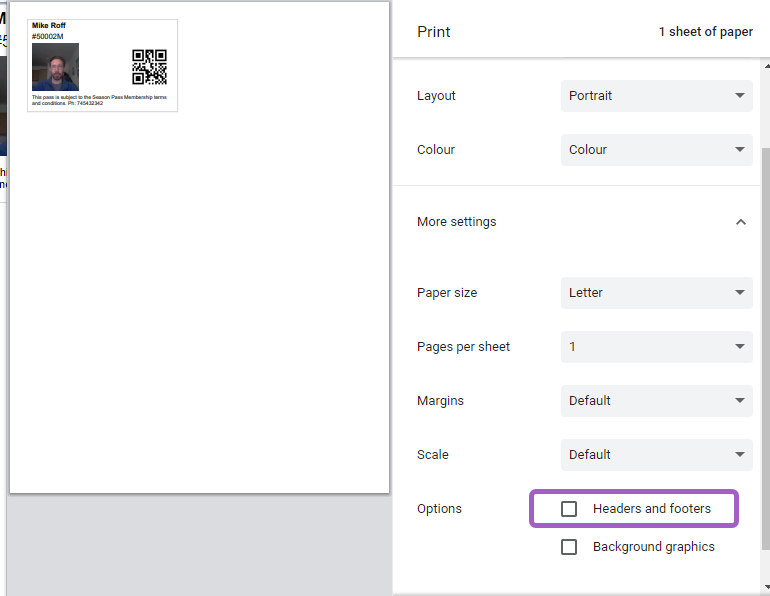
Select Print.