This guide provides an overview of ROLLER's different APIs and best practices.
See the API changelog to keep up-to-date with updates to the ROLLER API.
API access
API access is an add-on feature to an existing ROLLER subscription. Contact your customer success manager or the support team if you're interested in subscribing to this feature.
APIs
API documentation can be found in the ROLLER developer center at https://docs.roller.app.
ROLLER has two APIs as follows:
Reporting API
The Reporting API provides venues with a mechanism to extract ROLLER data and syndicate that data to an external database, business intelligence or analytics platform. It does not provide any ability to write data to ROLLER.
This API should not be used for real-time data use cases, as it does not allow you to query specific records, and returns paginated data for a time period. It is optimized for periodic export of records on an hourly or daily frequency.
For more information, see the guide Reporting API overview and Reporting API in the ROLLER developer center.REST API
The REST API is a general-purpose API which supports live use cases and enables the creation of ROLLER bookings.For more information, see REST API in the ROLLER developer center.
General concepts
Authentication
ROLLER APIs use an OAuth2 flow whereby the consuming app uses its client id and client secret from ROLLER to request an access token from the /token endpoint. It is this access token that is used in calls to API endpoints.
The access token is short-lived. Its expiry is provided in the token response and may change from time to time. Therefore consumer apps should always reuse the current token until they receive a 401 (Unauthorized) response from any endpoint at which time they should request a new token.
Do not request a new token for each API call.
This may result in a 429 (Too many requests) response and result in the suspension of your API credentials/access.
For more information regarding the authentication endpoint, go to API authentication in the ROLLER developer center
Scope
The scope of a set of API credentials (client id and client secret) is limited to a single venue. If you have multiple ROLLER venues you must create separate sets of credentials for each venue. For more information regarding creating API credentials, go to API access in the ROLLER developer center.
A set of credentials will enable the consumer app to access both the production and playground environment endpoints as per information regarding environments.
Rate limiting
Each set of API credentials are limited to one API call per second.
We don't recommend sharing a set of API credentials between consumer apps, as this may result in a 429 (Too many requests) response.
Create API credentials in ROLLER
After subscribing to API access with ROLLER, you can create API credentials to link ROLLER's public API with an external application.
When you create a new API key, you define the scope of that key. This means you choose what it's allowed to do and choose the actions a key can perform and the type of data it can touch, so each key only has the access it needs.
This makes it easier to share a key safely with a partner or agency, keep sensitive data like guest and financial information locked down and stay ahead of privacy requirements like GDPR and CCPA, without slowing down the integrations you rely on.
Booking, Capacity and Payment write endpoints are restricted and only available on request. To get access to these endpoints, contain your CSM or ROLLER support.
To get started:
From Venue Manager, go to Settings > Integrations > API Keys.
Select Create client key. A pop-up window will be displayed.
Select to create API Key or Gate Server Key from the toggle options.
Enter a description in the Client key name field which describes the consumer app that these credentials will be allocated to (eg Data warehouse app).
Select Create.
Then, define the API key scope:
From the API keys list, select the options menu (three dots) at the end of the row for the API key you wish to update.
Select Update scope from the dropdown.
Depending on what you want your API key to have access to, select either No access, All unrestricted endpoints or Specific endpoints.
If you select Specific endpoints for either (or both) the REST API and Reporting API, choose the actions and data types the key needs.
Select Confirm.
Enter the client ID and client secret ID into the appropriate fields in the external application's account. If you're not sure where, contact the provider's support team.
To learn more, see Generate a ROLLER API key in the ROLLER developer center.
See the guide Extend your capabilities with our integrations to find out more about the integrations we currently support and our partner directory.
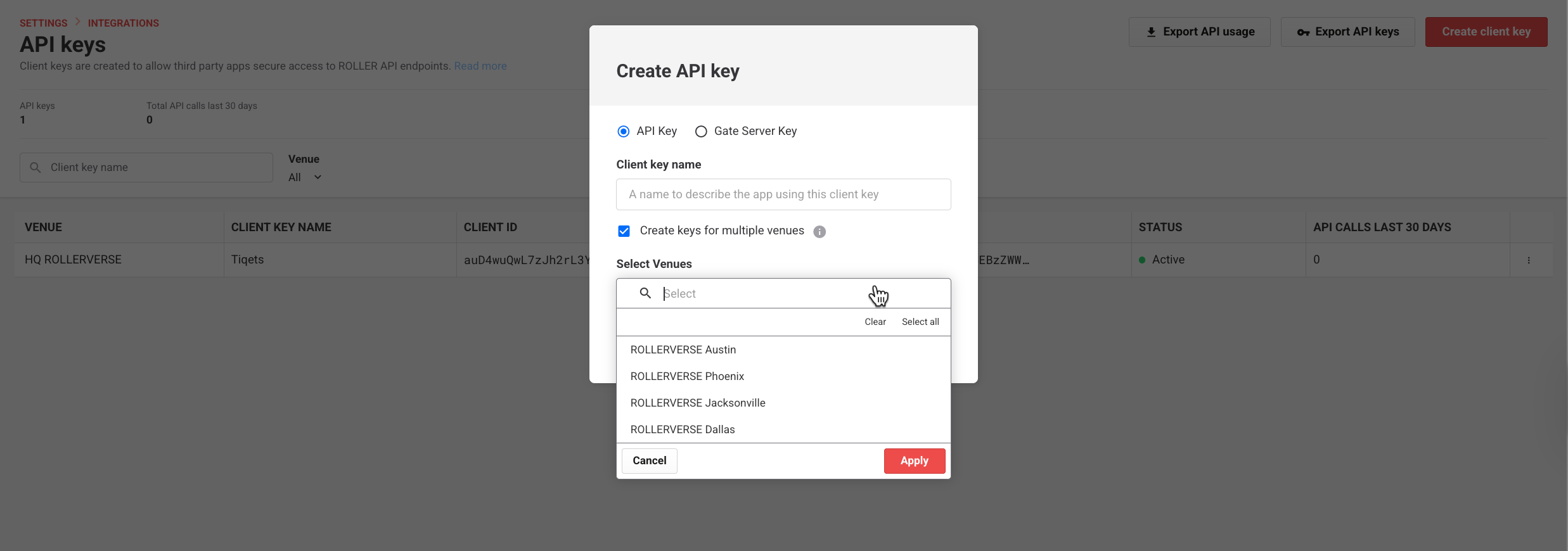
Create API keys for multiple venues (HQ)
If you're working from HQ and want to generate a key that works across multiple connected venues:
Select API Key as the key type.
Enter a Client key name to describe the integration or app.
Select the Create keys for multiple venues checkbox.
Use the Select venues drop-down to choose one or more venues connected to HQ that you would like to include.
Select Create to generate the keys.