Use bulk editing to update HQ products already added to one or more managed venues. This saves time by pushing changes to multiple venues at once — whether it’s a single venue, a venue group or all managed venues.
Updating the HQ master product settings does not change products already shared and added in managed venues. To apply updates, you must use the bulk edit feature. This means you'll always have the HQ master product to revert to when needed.
In this guide, we'll walk through how to edit HQ products using the Bulk edit feature in your HQ account, select the venues you want to apply changes to and publish those changes.
HQ subscription
Available for all HQ venues. To get started, contact your customer success manager or reach out to the support team.
Edit HQ products added by your venues
Follow these steps to push updates to products already added to managed venues, even if it's a single managed venue update.
From HQ Venue Manager, go to Products (or Products > Stock if you want to bulk edit stock products).
Select the product that you want to update.
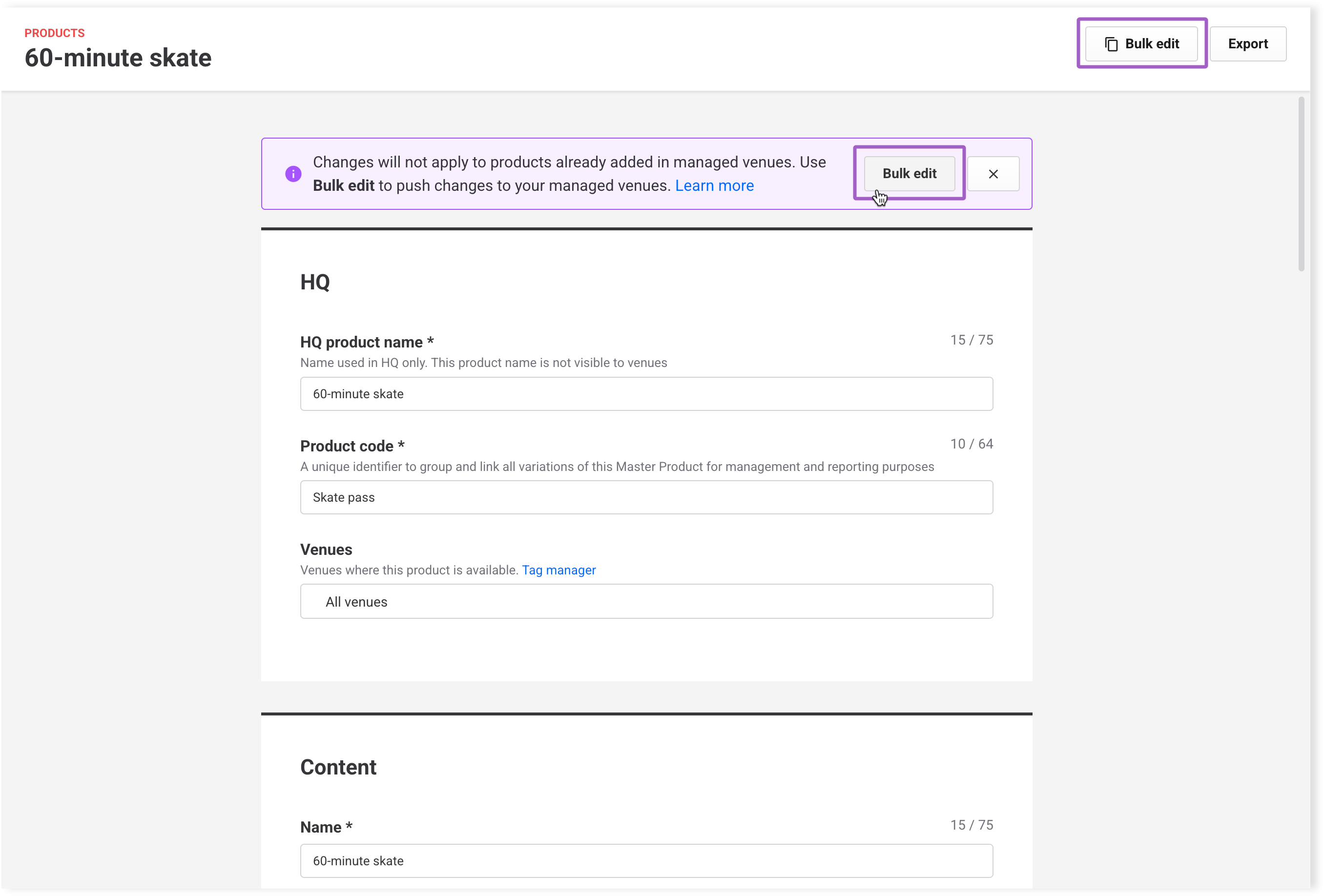
Select Bulk edit (top right of the HQ product's settings page) or from the alert.
From the Venues tab, select the venues to apply changes to. Or, select the Tags tab to select one or more venue groups.
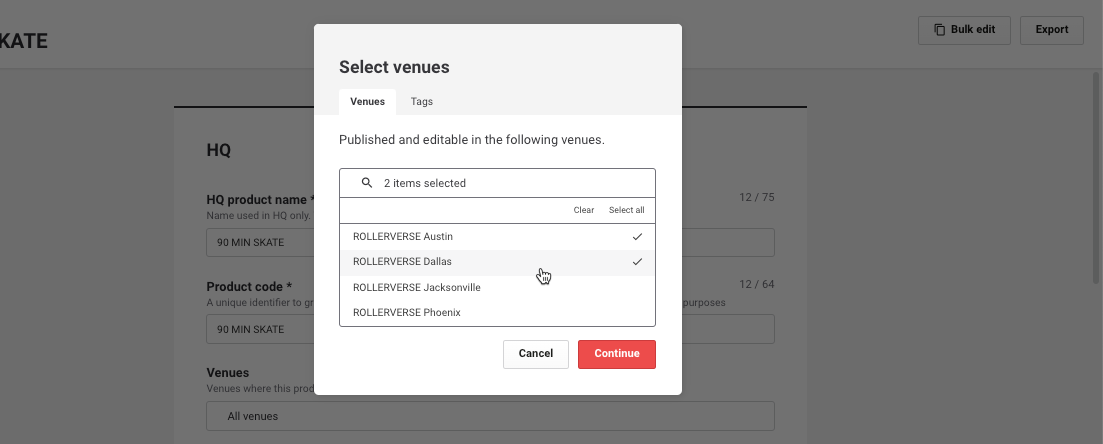
Select Continue.
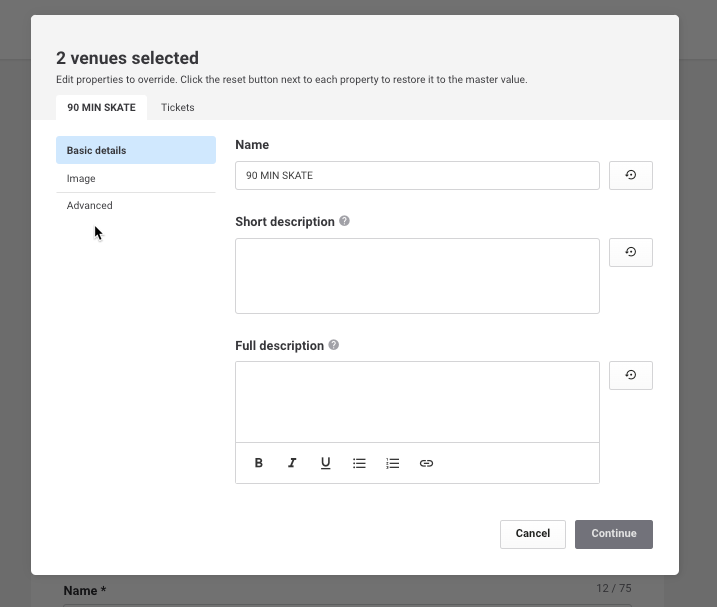
Edit product properties such as:
Basic
Name, descriptions
Image
Product thumbnail image
Advanced
Add-ons, terms and conditions, product instructions
To edit variations, go to the Variations tab and update:
Price (price rule)
Select an existing price rule from the drop-down. To create a new one, see the guide Get started with price rules
Enter price changes per ticket (and per tier if a price rule is applied).
Variation details
Name, description
Variation thumbnail image
Shows up in POS and when a full online description is used
Sold at venue
Shows whether the selected venues sell the variation:
All sell = box ticked
Some sell = box indeterminate
None sell = box empty
Check the box to force all selected venues to sell it.
Hover over the reset icon to compare the variation details with the master product. If different, you can select the reset button next to each field to revert back to the master HQ product's default value.
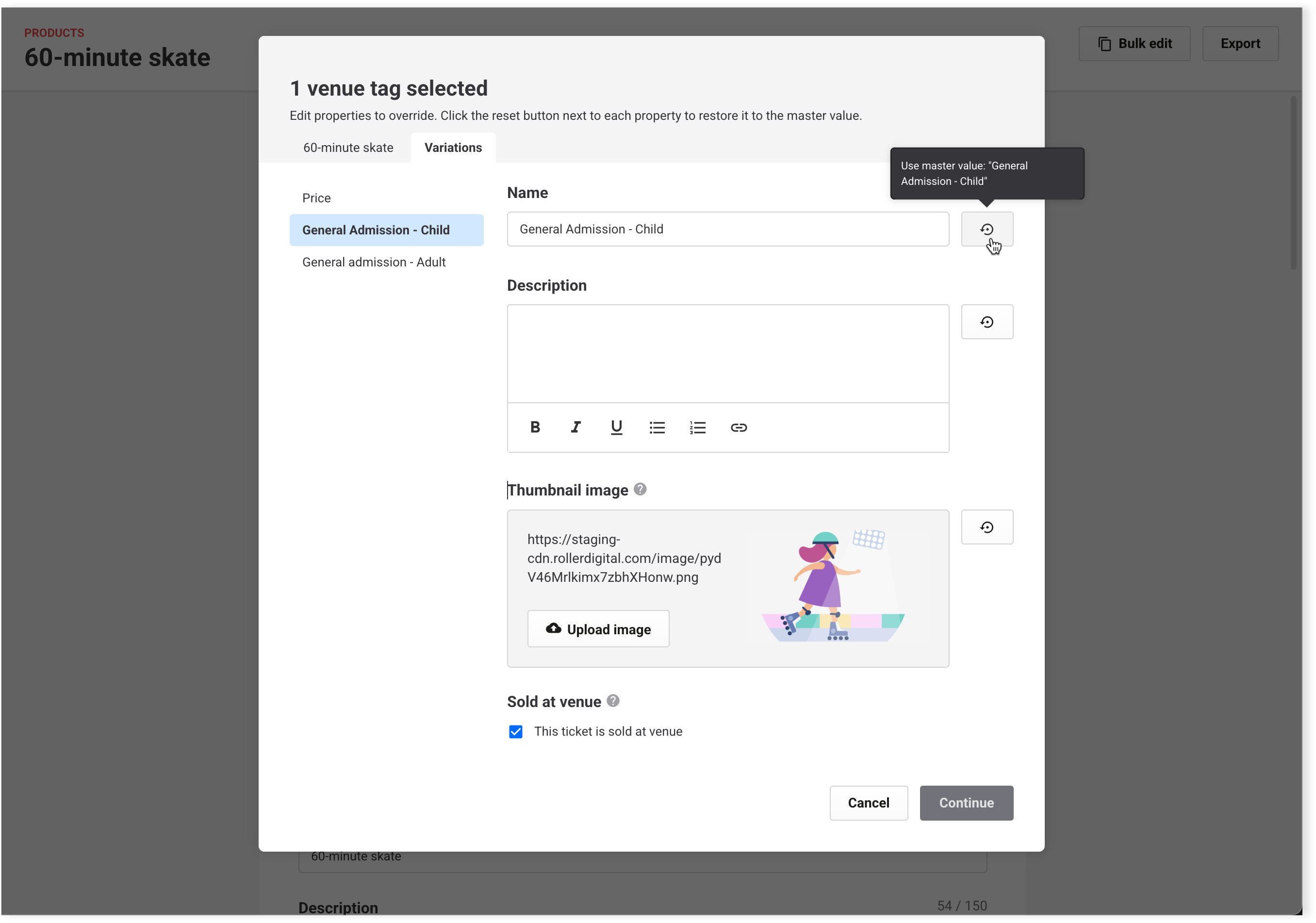
Select Continue to confirm changes.
(Optional) Select Export to download a change log of changes made.
Select Save and publish.
If the selected venues are selling the product, updates apply immediately.
Export product settings for managed venues
Export a CSV of product settings across venues to review differences before bulk editing.
From HQ Venue Manager, go to Products.
Select the product that you want to review.
The product settings page opens.
Select Export at the top right.
From the Venues tab, select the venues that you want to review. Or, select the Tags tab to select one or more tags (venue groups).
Select Export to download and review a CSV file.
The file shows the product settings you can bulk edit across selected venues (not all product settings).