Add a booking holder to a POS sale so you can find the booking later by the guest’s name. With the guest’s permission, you can also add them to your mailing list while their details are open.
This guide shows you how to add a booking holder to a new sale and update their details in an existing booking.
A booking holder is optional for most sales, including fixed-price memberships. For a recurring payment membership or a multi-pass, POS asks for a booking holder with a name and an email address before you take payment.
Add a booking holder to a POS booking
When a guest gives you their details at the counter, add them to the sale as the booking holder.
From POS, select one of the menus in the left-side panel. This will open the cart on the right side of the screen.
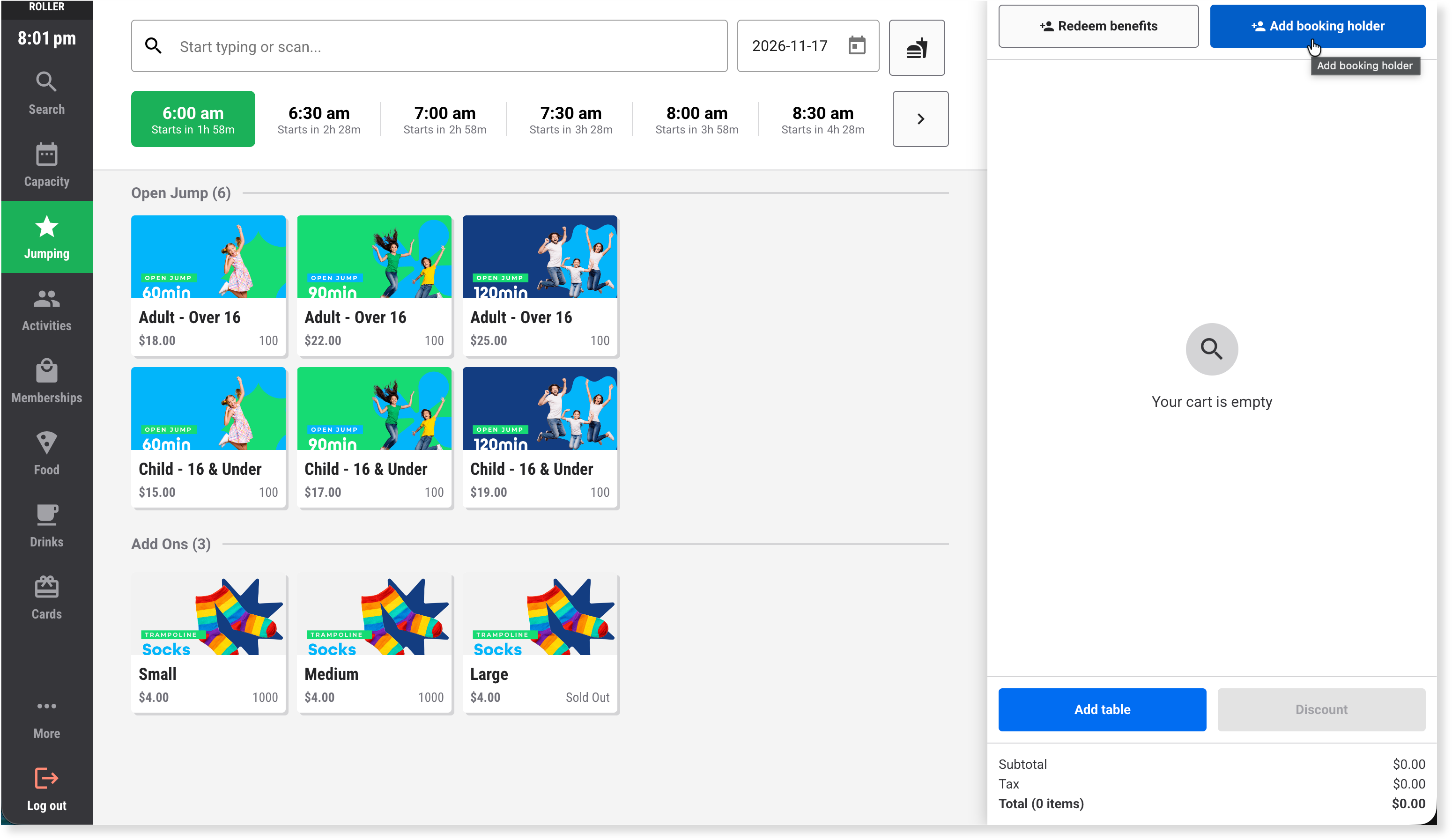
At the top of the cart, select Add booking holder. The Booking holder details panel opens.
Find the guest or add a new one:
To use an existing guest record, search by name, email, phone number or membership number, then select the guest.
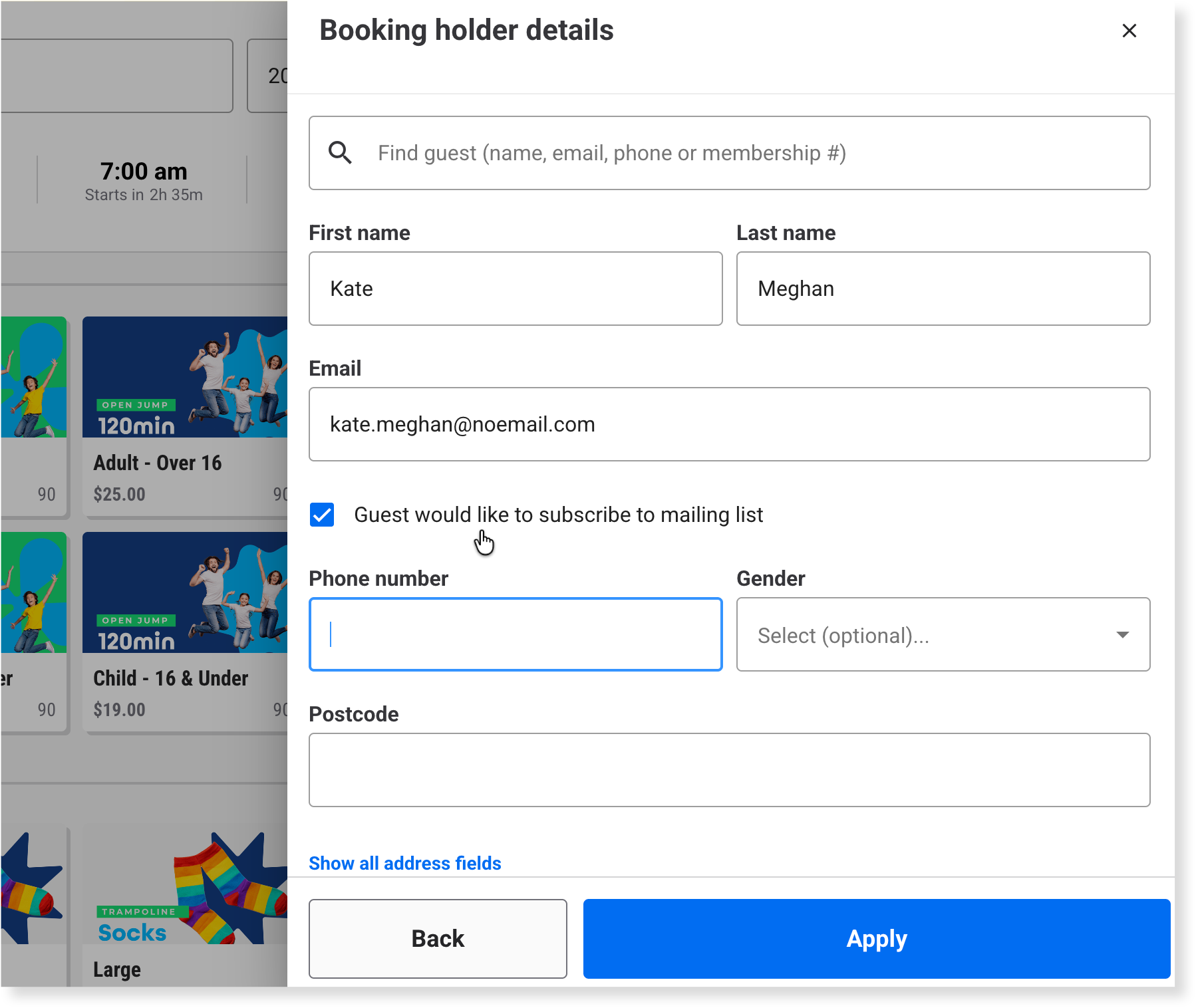
To create a new guest record, enter the guest's details.
Ask the guest if they’d like to join your mailing list, then turn Guest would like to subscribe to mailing list on or off to match.
New guest: the option is already on if your venue uses ROLLER Loyalty. See the guide How guests join your loyalty program.
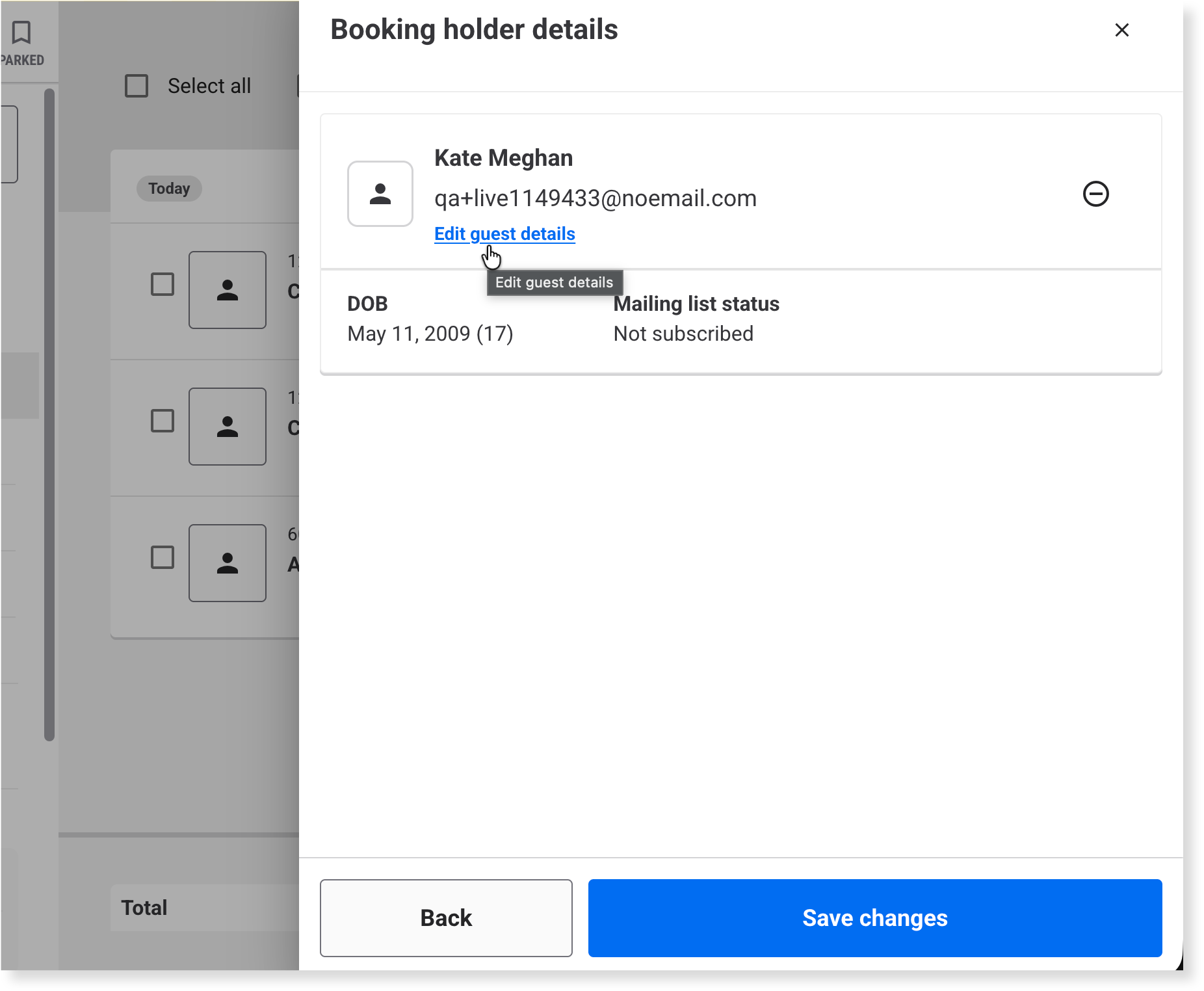
Existing guest: Mailing list status shows Subscribed or Not subscribed. To change it, select Edit guest details.
Select Apply. The guest's name shows at the top of the cart under Booking holder, and you can finish the sale.
If you select Pay total before adding a booking holder, POS asks for their details. To skip this for quick sales (eg food and drinks), turn on Skip "New Guest" details in your POS device settings. To learn more, see the guide Manage individual POS device settings.
Edit or remove the booking holder before you take payment
If you added the wrong guest or need to fix a detail, change it from the cart before you take payment.
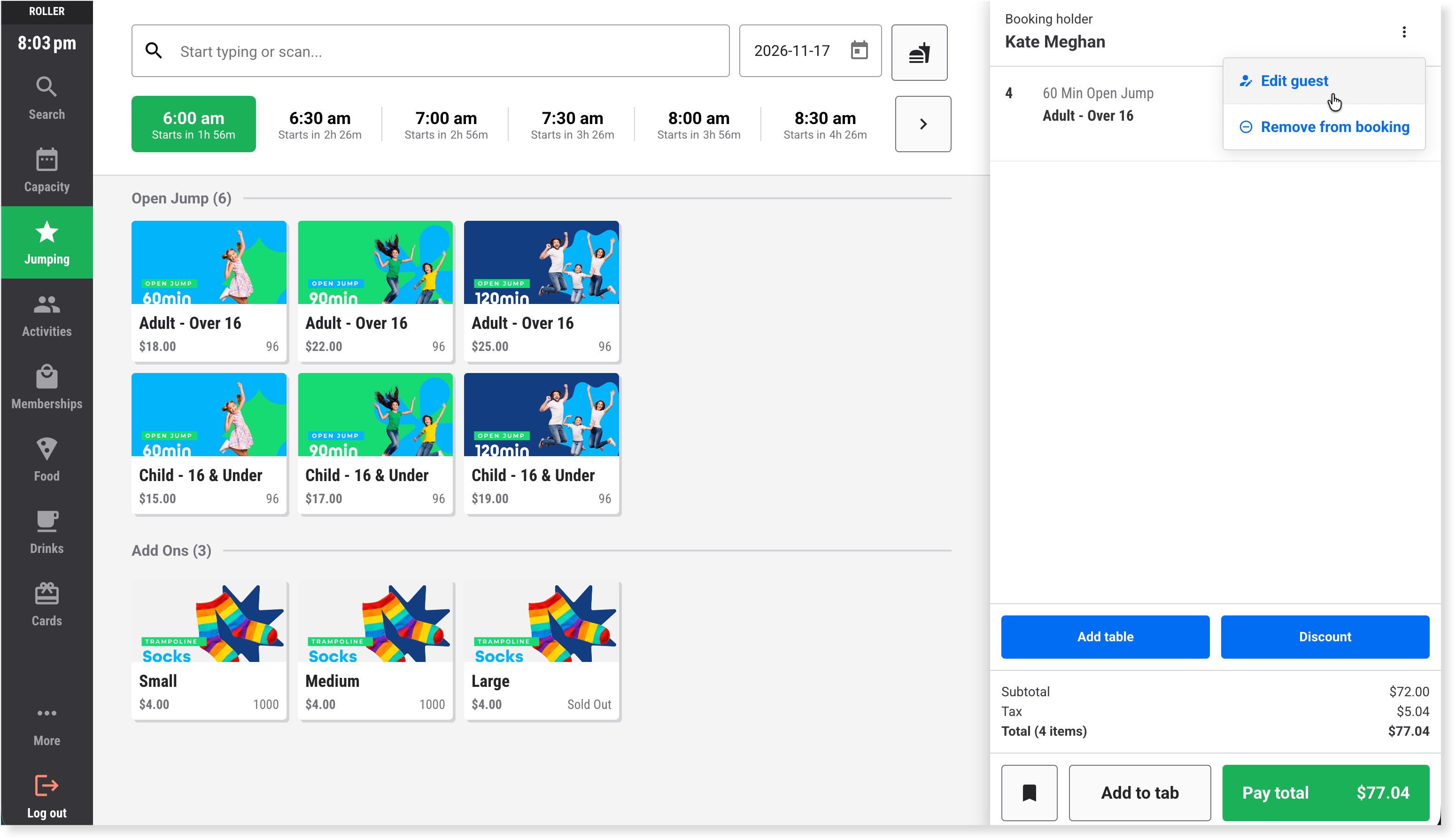
At the top of the cart, select the options menu (3 dots) next to the booking holder's name.
Select Edit guest to change their details, or Remove from booking to take them off the sale.
Edit the booking holder's details in an existing booking
When a booking holder's details change, update them from the booking.
From POS, search for the booking and open it.
In the booking details panel on the left, select Edit next to Booking holder.
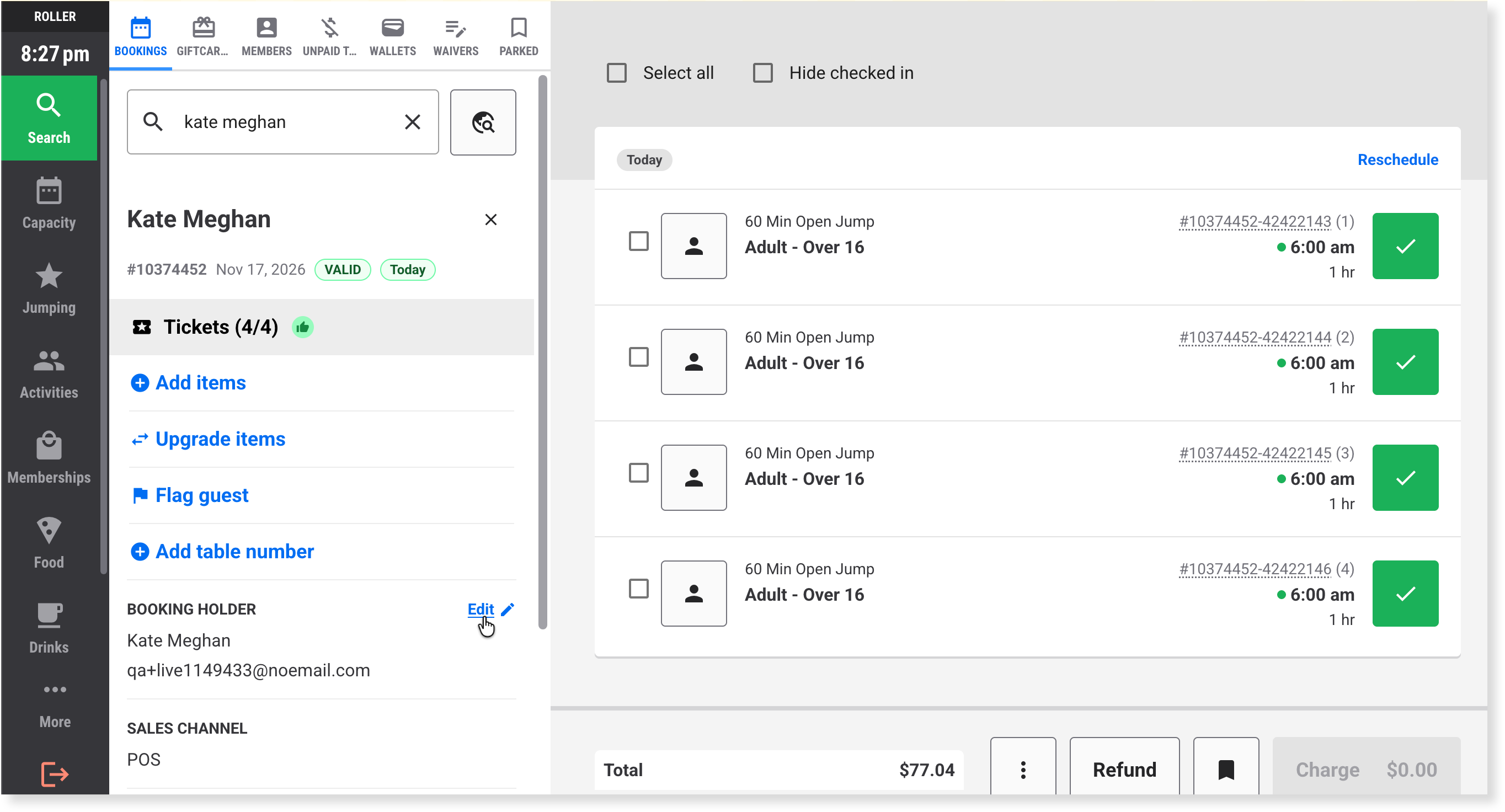
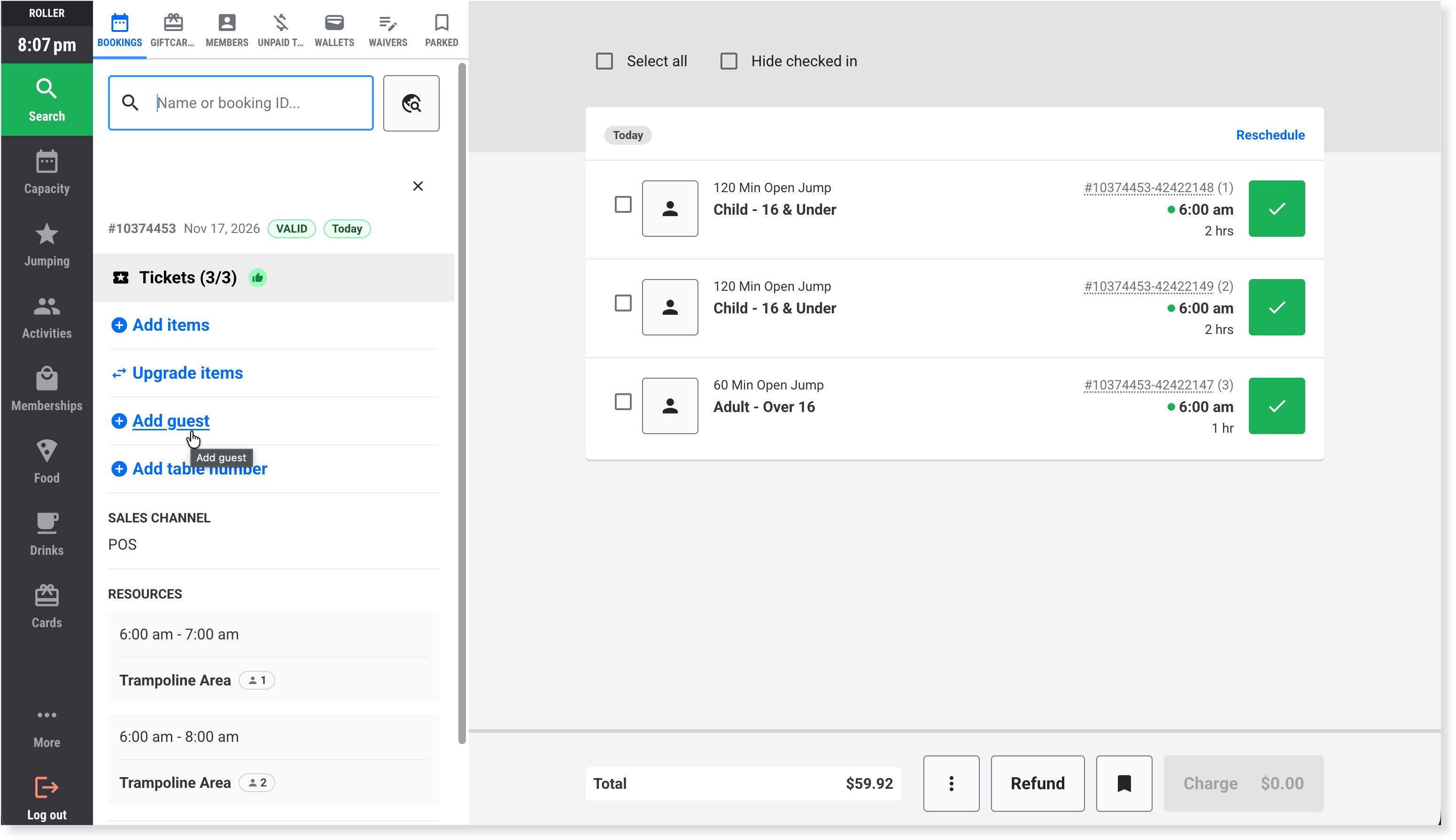
If the booking has no booking holder, you won't see Booking holder in the panel. Select Add guest to add one.
Edit the guest's information. If you're editing any part of an address, then the full address must be provided.
To put the booking in another guest’s name, search for them in the field at the top of the panel, then select them.
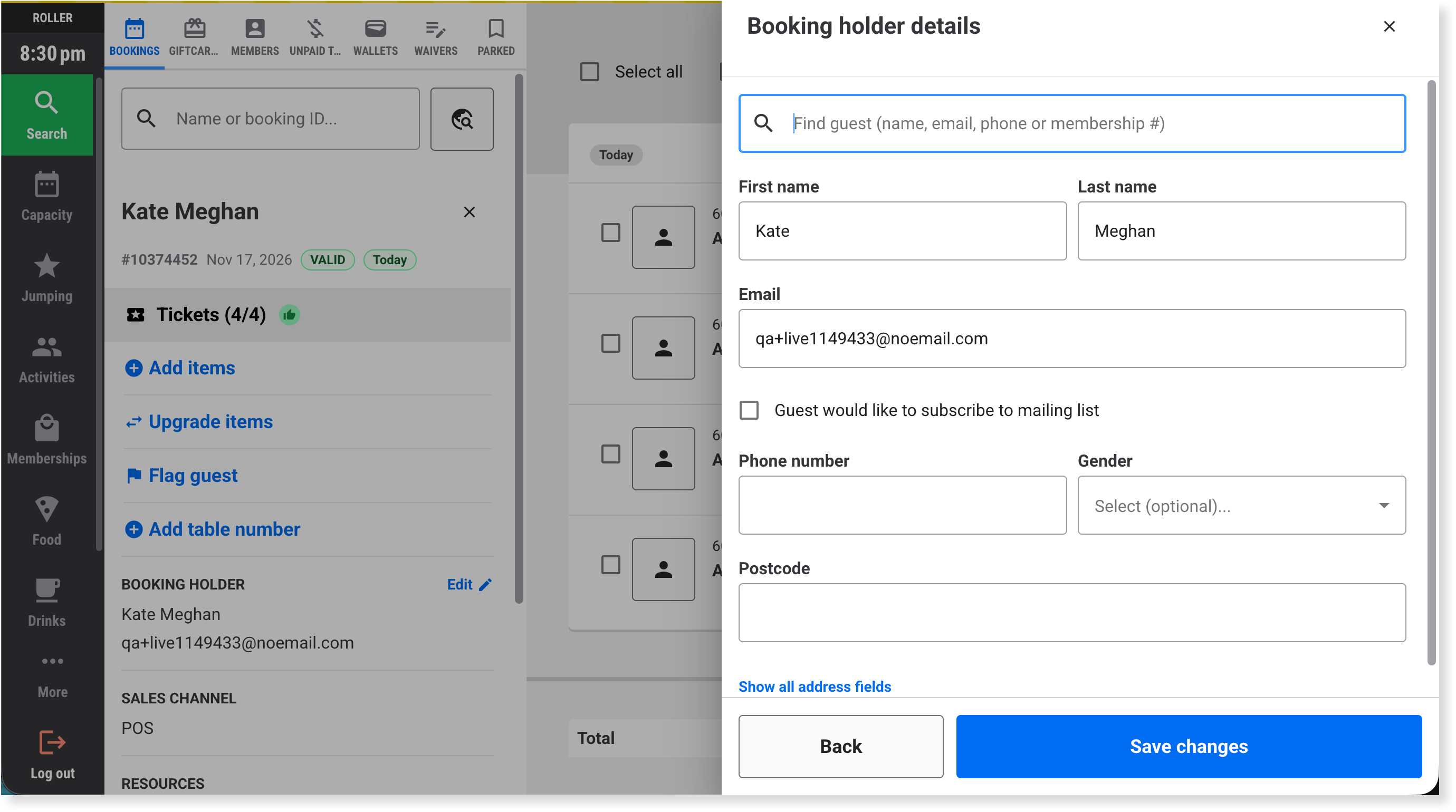
Select Save changes.