All plans (except Lite Legacy)
To unlock this feature, contact your customer success manager or the support team.
Create branded receipt templates that give guests a clear summary of their purchase or refund. These customizable layouts make it easy to format the information shown on POS receipts and payment confirmations.
The currency symbol, date and time format update automatically based on your venues language settings. All other text in the template defaults to English, but you can rewrite the text fields in your venues preferred language as needed. You can also configure them to meet regional or legal requirements.
You can format the receipt layout, control what data is shown and preview changes in real time — all from Venue Manager.
Custom printed receipts are only supported with cloud printing, not with ROLLER Connect.
Open a receipt template
From Venue Manager, go to Settings > Design > Receipt templates.
Select a template to edit it. Alternatively, select the options menu (3 dots) on the right and select Edit template.

Receipt content panels
Each receipt template is made up of fixed panels. You can’t reorder them, but you can update the content in fields and enable or disable fields.
You can rewrite any editable text fields in your venues preferred language eg. updating Refund Tax Invoice to RechnungsKorrektur.
As you make changes, the live preview receipt updates in real time.
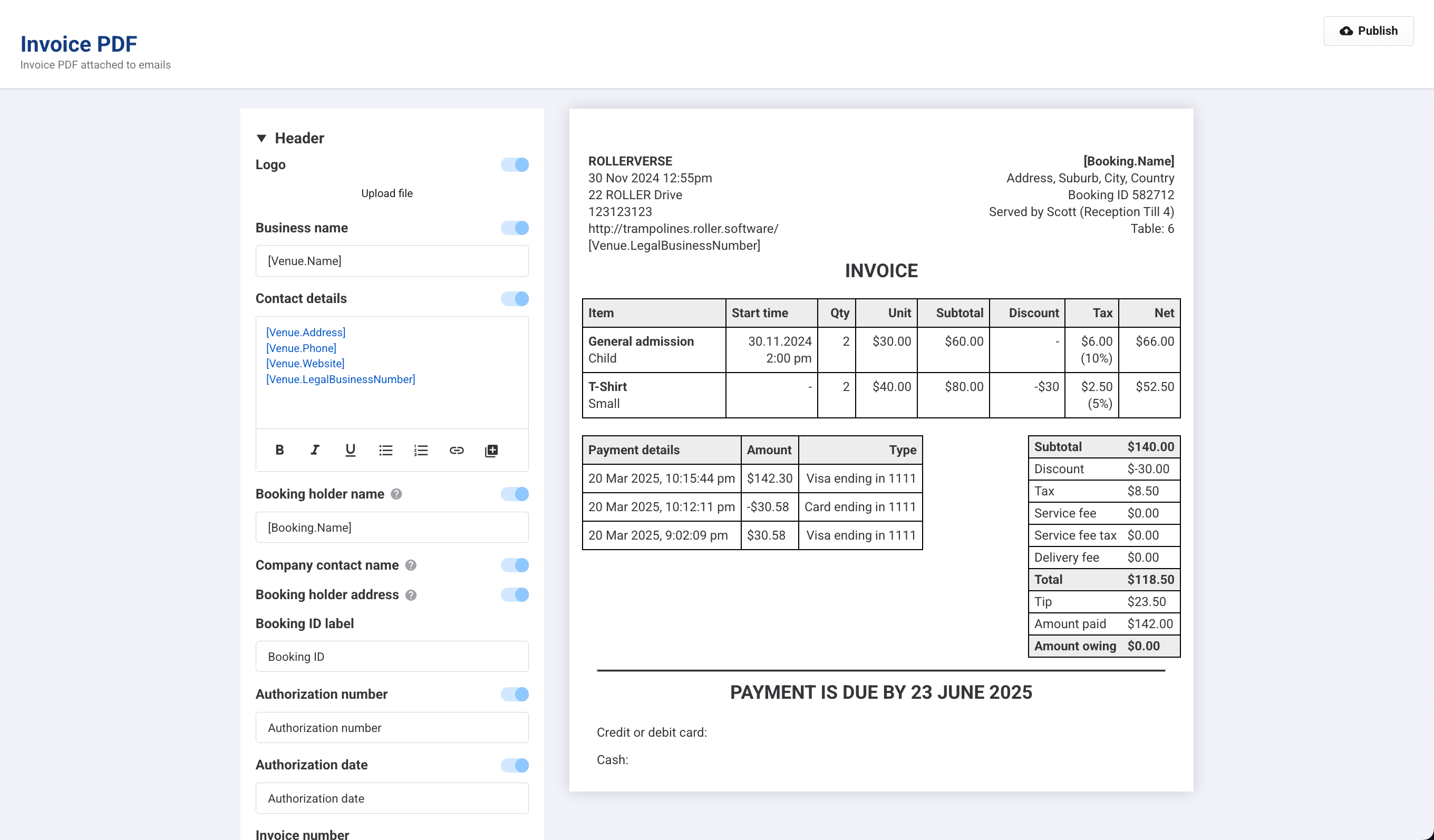
All receipt templates
These content panels are available in all receipt templates.
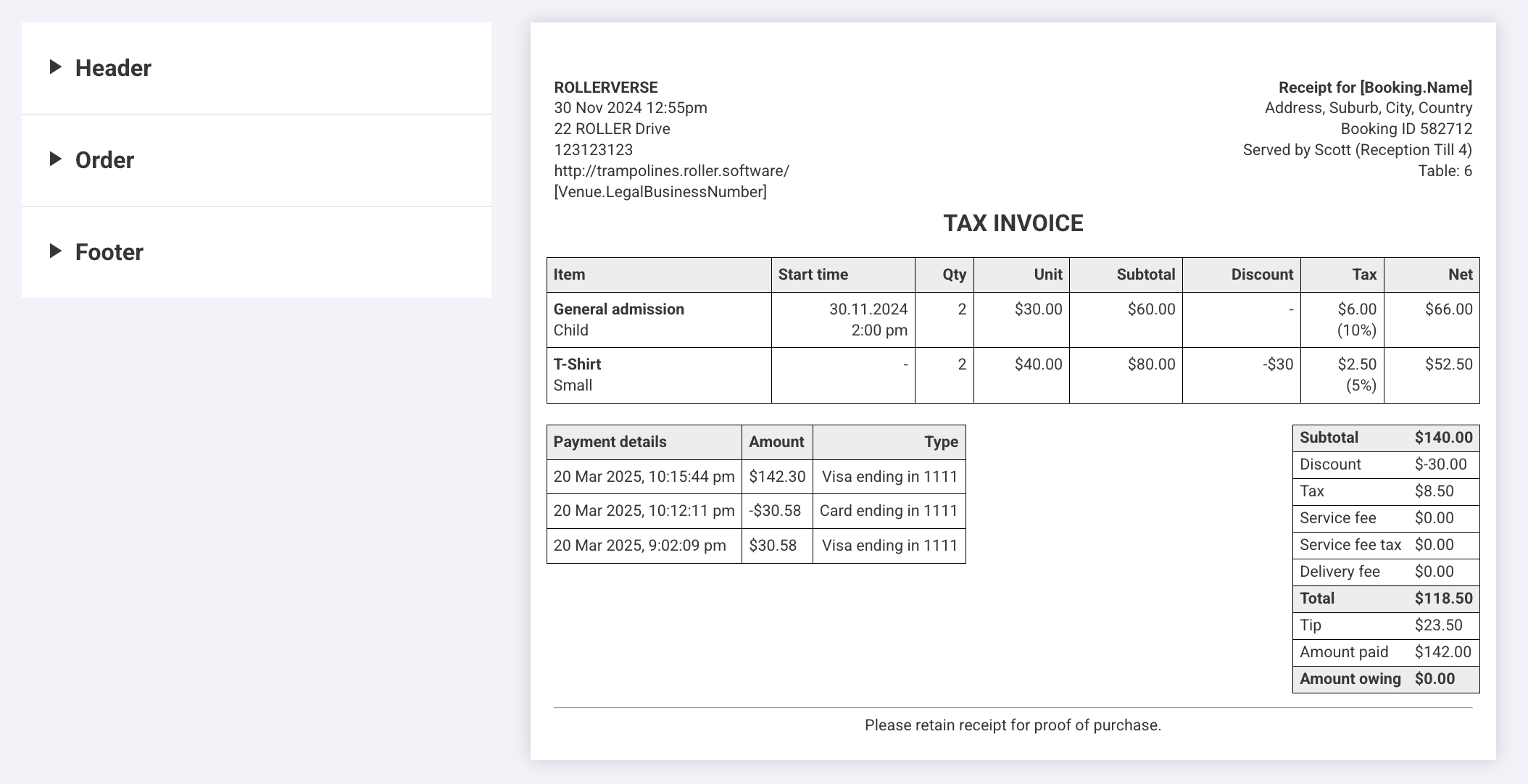
Header
Upload your logo and add your business name and contact details. You can use placeholders for these.
Toggle fields like booking holder name, table reference and POS operator. You can also change the text for these fields.
Additional fields including authorization number, invoice number and related metadata may appear if enabled in your venue settings.
Order
Update the document name for both payment receipts and refund or return receipts (eg "TAX INVOICE" or "REFUND TAX INVOICE").
Choose whether to show session time, service fee tax and itemized discounts or tax.
Update the text for each field as needed for your venue or regional requirements.
It's each venue’s responsibility to verify that their configuration meets all legal obligations in their region. ROLLER cannot provide guidance on this.
Footer
Add footer text using a text editor with basic formatting support (bold, italics, lists and links).
Printed receipt template
These content panels only show in the Printed receipt template.
Custom printed receipts are only supported with cloud printing, not with ROLLER Connect.
Ticket barcode
Enable a barcode to let guests check in using their receipt.
Tipping (POS receipts only)
Show tipping suggestions and terms of agreement text.
Purchaser details
Toggle on/off to show customer info.
Fiskaly (if enabled)
Display compliance info and QR code if integrated.
Guest survey (GX Score) link
Include a survey link for customer feedback.
Invoice PDF template
You can add a custom notes section to your invoice PDF.
To add the notes section, contact your customer success manager or the support team.
Edit a receipt content panel
To edit a specific section:
Select the panel from the left-hand menu.
Use the toggles to show or hide elements.
Edit field titles, labels or agreement text.
Preview changes in real time on the right-hand panel.
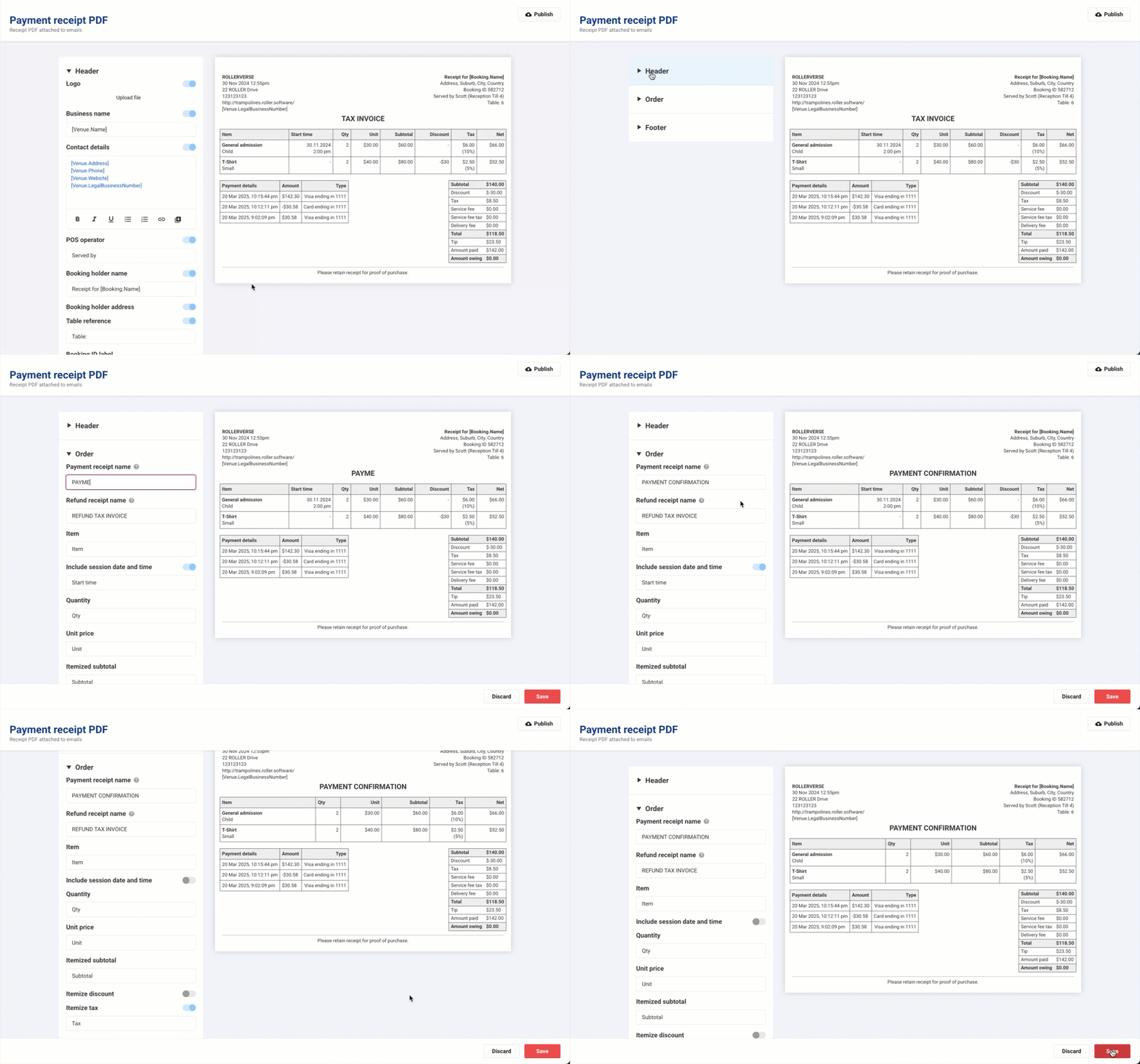
Receipts will reflect real booking details when issued at POS or exported as PDF.
Refund receipts
To customize your refund receipts, you can update the Refund receipt name field to meet your venue or regional requirements.
Preview and publish your changes
Once you're happy with the updates, select Save to publish your changes.