Guest flags help staff record and share important information about guests so they can deliver personalized experiences and manage visits. Staff can see flags when searching for guests, making bookings for existing guests, or checking guests in at POS. If a banned guest books online using an email address or phone number that matches their guest record, a notification appears in the activity center.
If you’re looking to block a customer, use the Ban guest flag to identify the guest. When a banned guest books online, ROLLER sends an activity center notification so your team can review the booking and decide what to do next. You can also require a manager code at POS before staff redeem tickets for banned guests.
Pro and above feature
Easily record and share information about guests with Guest Flags. Available on Pro, Premium and Enterprise plans. To upgrade, contact your customer success manager or the support team.
When to use
There are five different flags that can be assigned to guest records in Venue Manager and POS.
Here are some examples for when to use each flag.
Flag | Description |
|---|---|
Ban | Use the Ban flag to identify guests you want to block from redeeming tickets at POS and to alert your team when they book online. When a banned guest books online using a matching email address or phone number, a notification is sent to the activity center so your team can take action. You can also require manager or supervisor approval at POS using their POS PIN to prevent staff from redeeming tickets for banned guests. |
VIP | Use the VIP flag to outline any special instructions for VIP guest visits and personalize the experience they get at your venue. |
Medical | Use the Medical flag to inform your team about how to manage any guest medical requirements such as allergies. |
Alert | Use the Alert flag to highlight when specific guests visit. For example, you can use this flag to monitor (rather than ban) a guest with a history of refund-fraud, or simply to delight a returning guest who forgot their jumper. |
Competency | Use the Competency flag to record the competency levels of guests and provide safe and enjoyable experiences (eg rock climbing competency). |
When creating a flag, you can add specific instructions for staff and set how long the flag remains active (eg a 3-month ban).
What you’ll see
Any staff member can view the assigned flags and comments in a variety of areas in Venue Manager and POS.
Guest flags and comments can’t be seen by guests.
All staff members can see guest flags and comments in various parts of Venue Manager and POS, including guest searches, bookings, member or waiver holder records and guest experience score response. Guests cannot see these flags or comments.
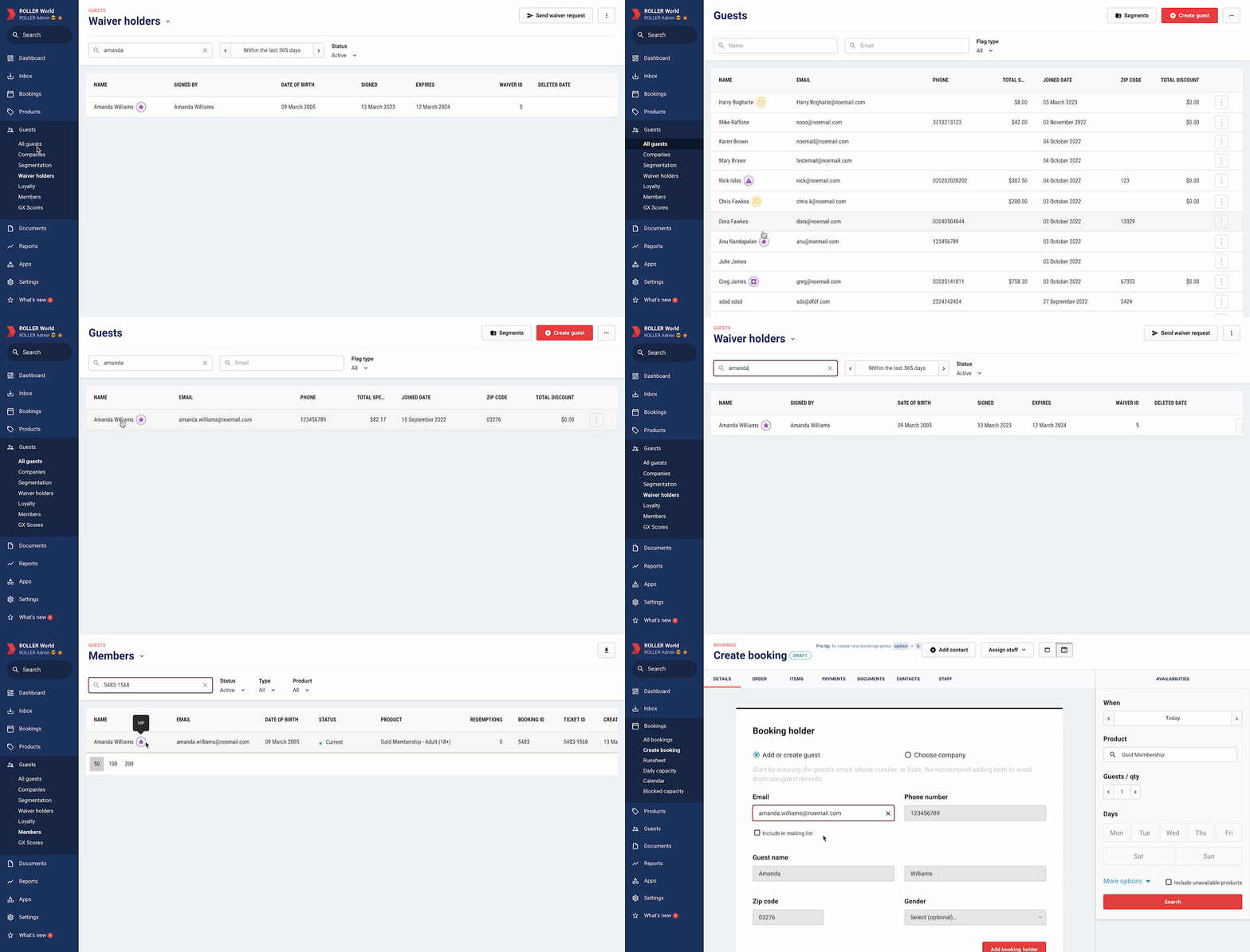
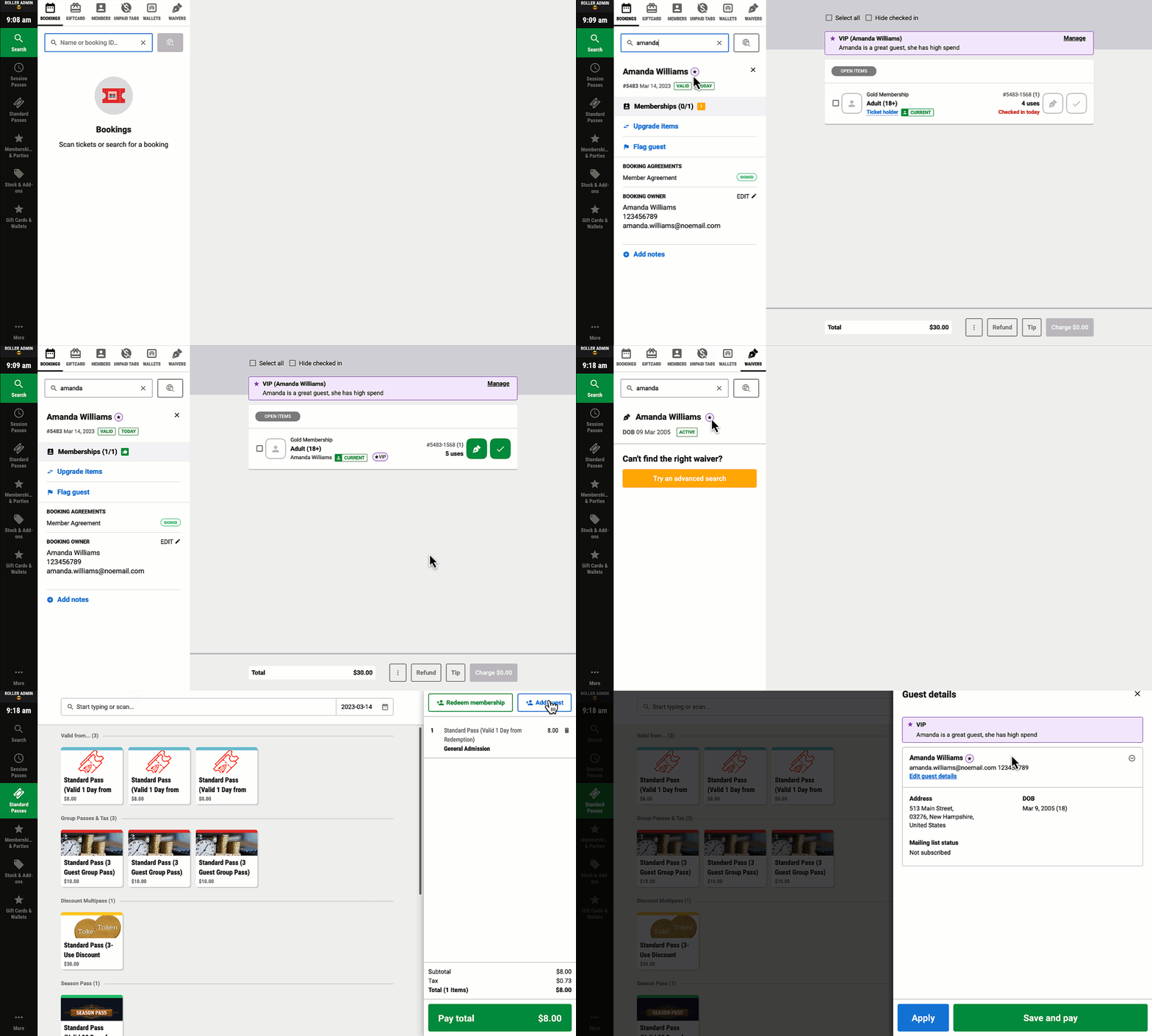
From POS, staff can see guest flags when searching for guests, bookings, memberships and waivers, as well as when adding guests to bookings, redeeming tickets at POS and assigning waivers.
Assign a flag or ban to a guest record
All staff members can assign guest flags, except for Ban flags.
To assign the Ban flag, Venue Manager and POS staff must have the Venue Manager permission Can ban guests enabled. Administrators and managers have this role enabled by default.
From Venue Manager, go to Guests > All guests.
Search for and select the guest.
The guest details appear.
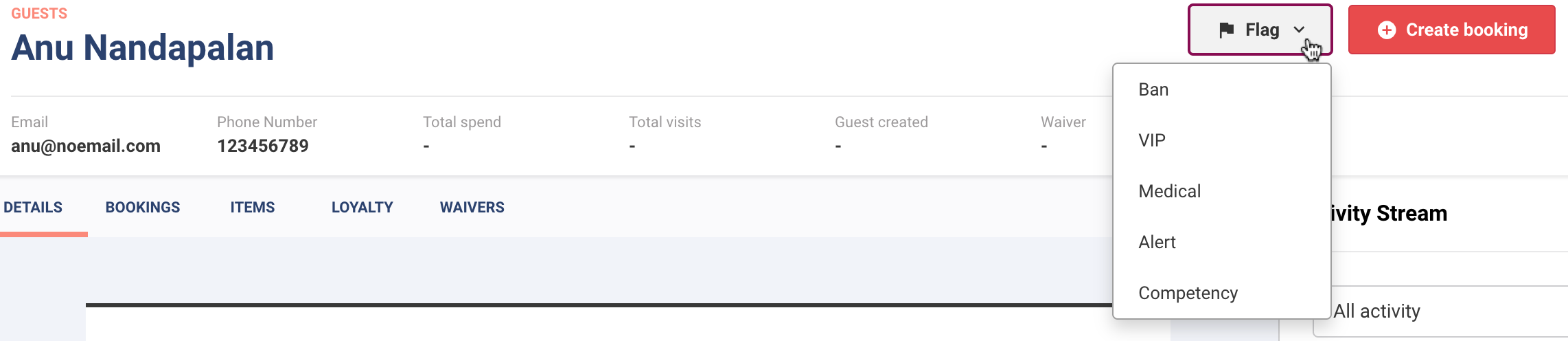
From the Flag drop-down at the top of the page, select the flag you want to add: Ban, VIP, Medical, Alert or Competency.
(Optional) Add any comments you want to share with all staff.
(Optional) Add an expiry date for the flag. The flag will automatically expire on the date you choose.
Select Add.
Select Save.
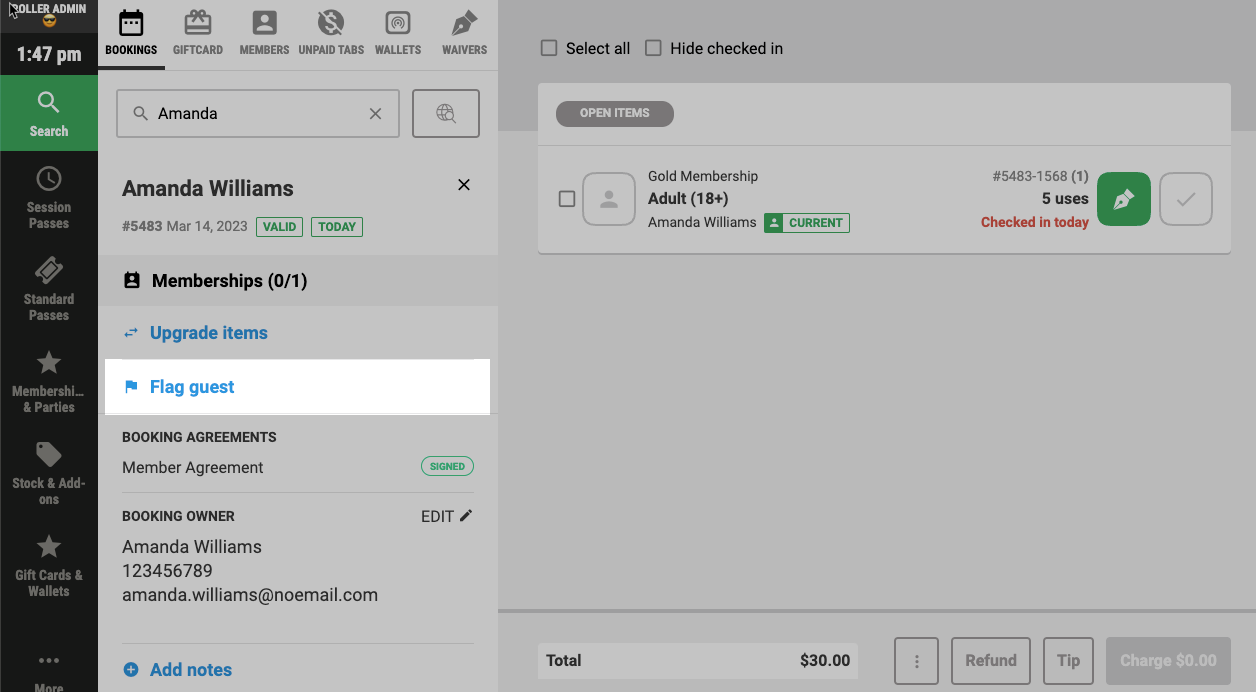
From POS, search for the guest booking or membership.
Select Flag guest from the booking summary panel.
Select the guest to assign the flag to.
Select the type of flag.
(Optional) Add any comments you want to share with all staff.
(Optional) Add an expiry date for the flag. The flag will automatically archive on the date you choose.
Select Add.
You can assign multiple types of flags to a guest but only one flag per type. For example, you can only ban a guest once—previous bans must be removed before adding a new one.
Activity center alerts when banned guest books online
When a banned guests makes a booking online using an email address or phone number that matches a flagged banned guest in ROLLER, an alert will automatically be sent to the activity center for you or you staff to act quickly to manage the situation if needed.
You can also configure who can view to respond to these alerts in Settings > Notifications in Venue Manager. Learn more
Manage guest flags at POS
Watch how to manage guest flags at POS — assign flags and handle guests with a ban flag.
Require a manager code at POS
You can set POS to require a manager code when staff try to redeem tickets for banned guests.
From Venue Manager, go to Apps > POS > Settings.
Scroll to Guest management.
Select Banned guests: manager code required.
If you do not want to require a manager code when a banned guest attempts to redeem their tickets, you can disable this setting.
View a list of flagged guests in Venue Manager
From Venue Manager, go to Guests > All guests.
From the Flag type filter at the top of the page, select the type of flag you want to see.
A list of all guests with the flag appear.
Select a record to see when the flag was assigned in the booking's activity stream and any comments that have been added.
You can also export the filtered records as a CSV file.
Guest flags data can be extracted from the ROLLER Data API. And assigning a guest flag will also trigger a webhook event for any booking and customer webhooks.
Edit or remove a guest flag
All flags except ban flags can be edited or removed from the guest record at any time in POS or Venue Manager. To update Ban flags, the permission Can ban guests must be enabled. Administrators and managers have this role enabled by default.
Go to Guests > All guests
Search for and select the guest you want.
From the flag banner at the top of the page, select Manage.
Edit or remove the guest ban.
Search for and select the guest booking or membership.
From the flag banner at the top of the page, select Manage.
Edit or remove the guest ban.
Frequently asked questions
Can I prevent banned guests from buying tickets online?
No. Banned guests are not notified they are banned and are still able to purchase tickets online. However, an automatic alert is sent to the activity center when an online booking is made with an email address or phone number from a banned guest record (coming soon).
Is there any setup required by me before I can use guest flags?
The permission Can ban guests must be enabled for Venue Manager and POS staff to add the Ban flag. Administrators and managers have this permission enabled by default. If you want other staff to flag guests as banned, you may want to create a custom role. Otherwise, you're ready to start flagging guests.
How can I prevent staff from allowing banned guests to redeem tickets?
A POS configuration setting has been added to require a manager code when attempting to admit a banned guest into your venue.
From Venue Manager, go to Apps > POS > Settings.
Select Banned guests: manager code required.