Problem
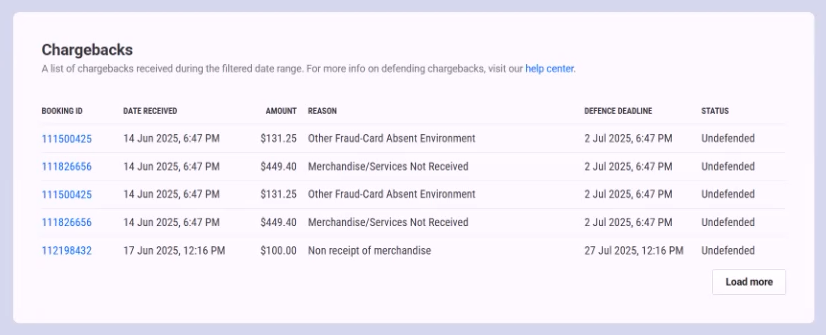
You need to find details on chargebacks in Venue Manager, such as the amount, chargeback reason, and deference deadline and more.
Solution
In the ROLLER Payments dashboard, use the Booking ID and Transaction date to search for chargeback details. Start by finding the original transaction in the Bookings Transactions grid.
Since the booking date often doesn’t match the chargeback date, confirming the original transaction helps you locate the correct chargeback.
Follow the steps below to find chargeback details in Venue Manager.
Find the transaction details
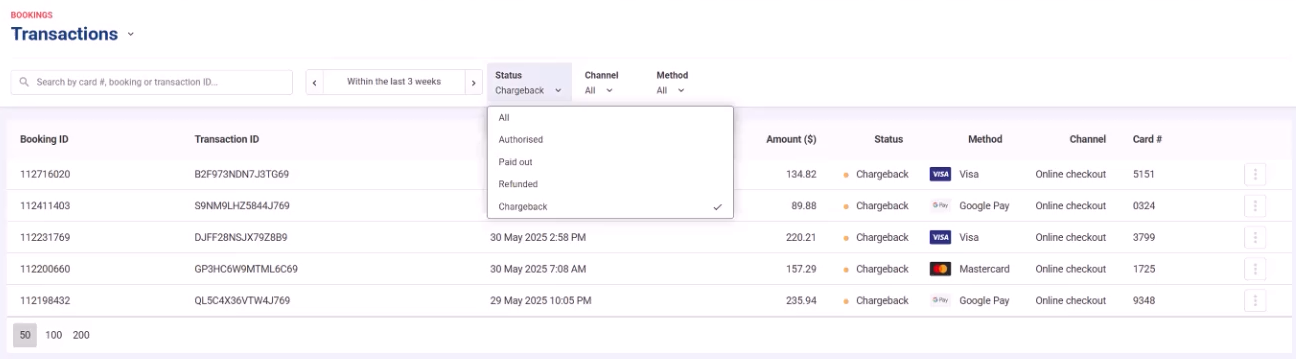
From Venue Manager, go to Bookings > Transactions.
Select Chargeback from the Status dropdown menu.
Choose a date or date range for your transaction search, then select Apply.
The grid will automatically refresh with the chargebacks(s) that meet your search criteria. Note the Booking ID.
Find the chargeback details using the ROLLER Payments report
From Venue Manager, go to Dashboard > Payments.
Choose a date or date range for your chargeback, then select Apply.
Using the Chargebacks table, find the Booking ID of the chargeback. If it does not appear on the list, select Load More.