POS uses two different credentials, and the most common cause is entering the wrong one. Your staff account password signs you in the first time a device is used. After that, staff sign in with a 4-digit POS PIN.
If you've never activated your account, you don't have a password yet. Check your inbox for the ROLLER welcome email.
Which credential POS is asking for
Credential | What it is | When POS asks for it |
|---|---|---|
Staff account password | The password you created when you activated your account | To allocate the POS device the first time it is used, along with your email address |
POS PIN | A 4-digit code, emailed to you when you activate your account | Every sign-in after the device is set up and allocated to the POS computer |
You need the Can access POS permission to sign in to POS. Administrator, manager, POS operator and booking agent roles have it by default.
Sign in to allocate the POS device
The POS device must already exist in Venue Manager. To check, go to Apps > Point of Sale > Devices.
Allocating a POS device needs the Can adjust POS settings (device & hardware) permission. Administrator, manager and booking agent roles have it by default. POS operators don't — if POS asks for a manager PIN instead of accepting your password, that's why. A manager or administrator can enter their own POS PIN to approve it.
Enter your email address.
Enter your staff account password. This is the same password you use to sign in to Venue Manager. If you've forgotten it, select the reset password link on the POS sign-in page.
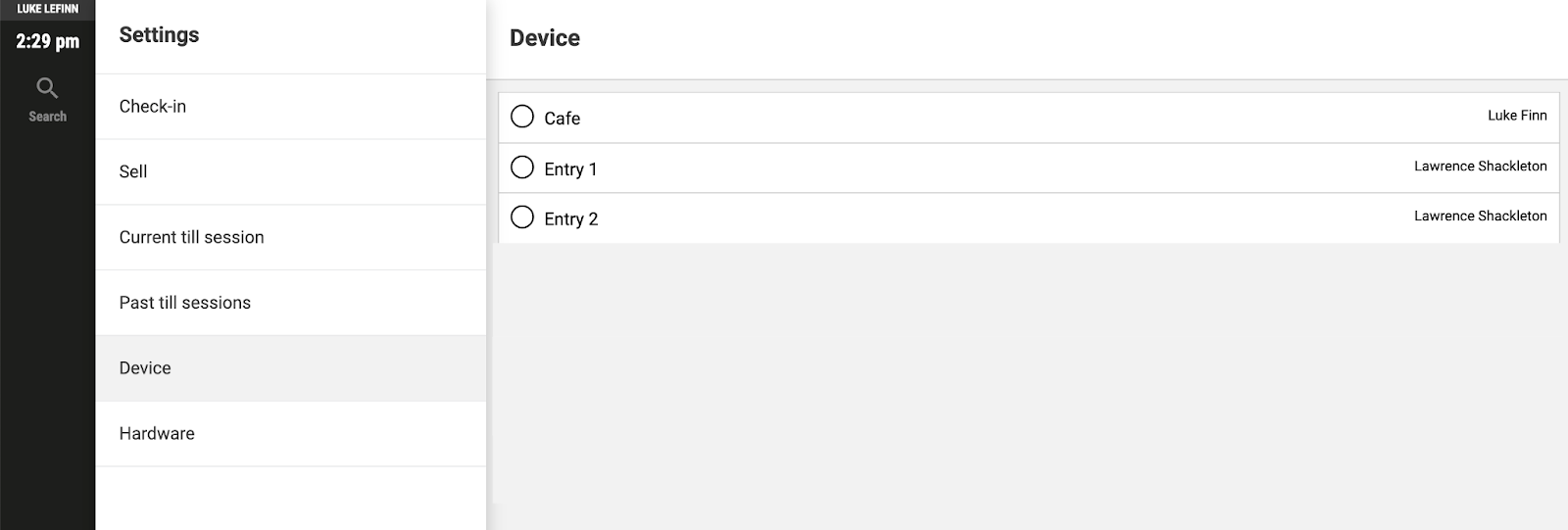
Select a POS device from the list to allocate it to the computer or tablet. A POS computer can only use one POS device at a time.
Sign in with your POS PIN
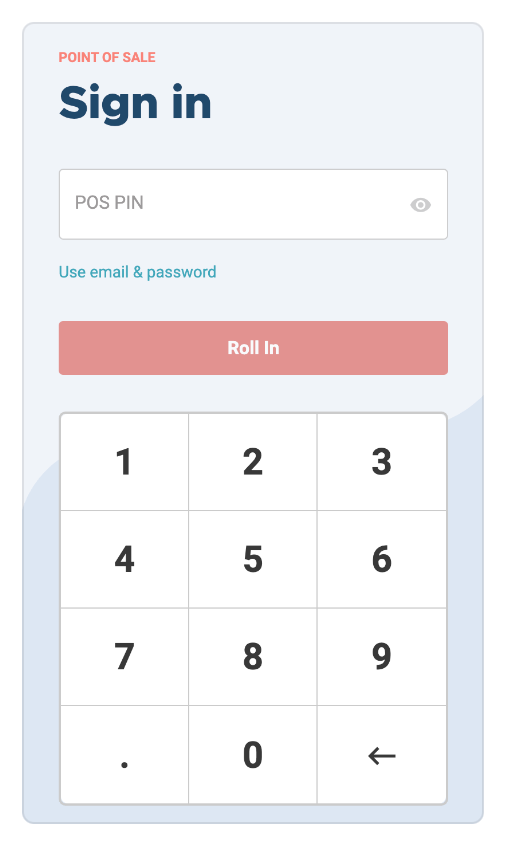
Once a ROLLER POS device is allocated to a physical POS computer, you and your team sign in with a POS PIN for quick access.
On the Sign in screen, enter your 4-digit POS PIN.
Reset a forgotten password or POS PIN
Both can be reset or changed by staff with the Can access staff settings permission. Administrators have this permission by default.
If the staff account hasn't been activated yet, an administrator can resend the invite from the staff account in Venue Manager.
Still can't sign in?
If POS asks for a manager PIN rather than rejecting your credential, the POS session has ended and the device needs reselecting. See Why is my POS device asking for a manager PIN at login?
Otherwise, contact your customer success manager or the support team.