This article walks through the three different ways in which you can reactivate a recurring payment membership in Venue Manager.
A recurring payment membership can only be reactivated if the booking with the membership hasn't been canceled also. If the booking itself has been canceled, then any recurring payment memberships in that booking cannot be reactivated.
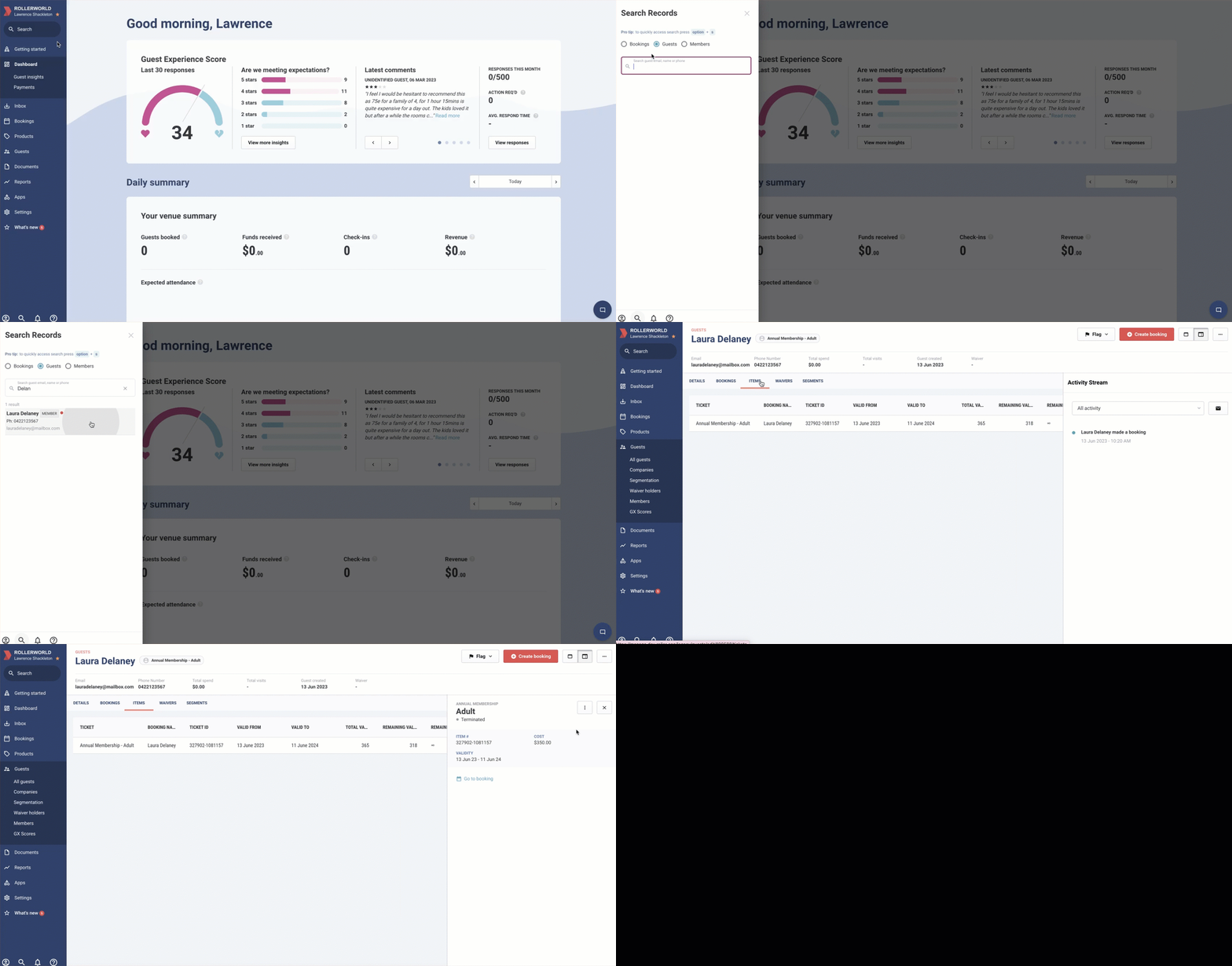
Reactivate memberships from search
From Venue Manager, find and open the booking with the recurring membership that has been canceled.
Select the Items tab.
Select the recurring membership you want to reactivate.
From the right panel, select the options menu (3 dots) and then select Reactivate membership.
Reactivate memberships from the Bookings page
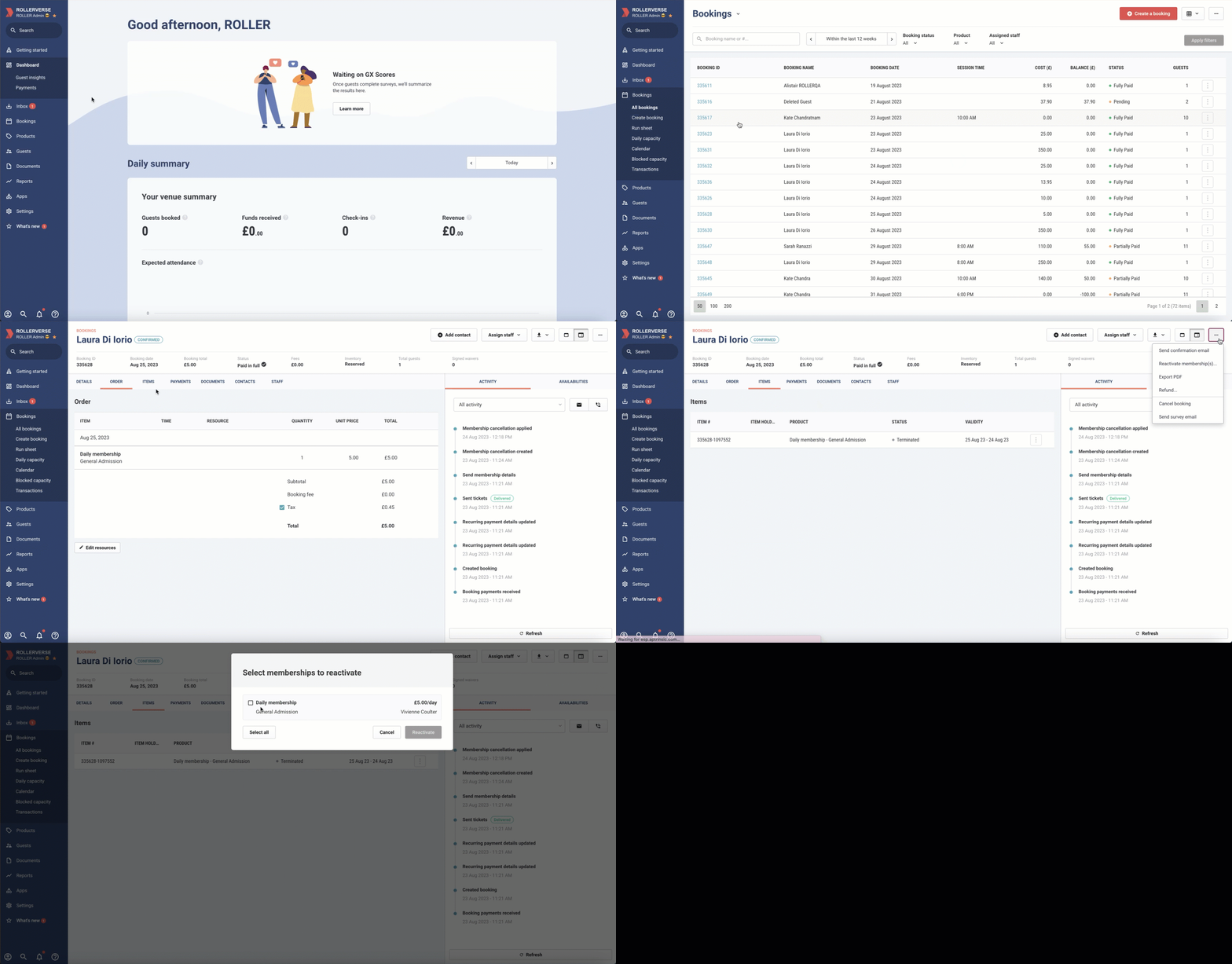
From Venue Manager, go to Bookings > All bookings.
Search for the original booking (when the membership was purchased) and select it.
In the top-right corner, select the options menu (3 dots).
Select Reactivate membership. If there is more than one membership in the booking, you will be asked to confirm which memberships you would like to reactivate.
Reactivate memberships from the Members page
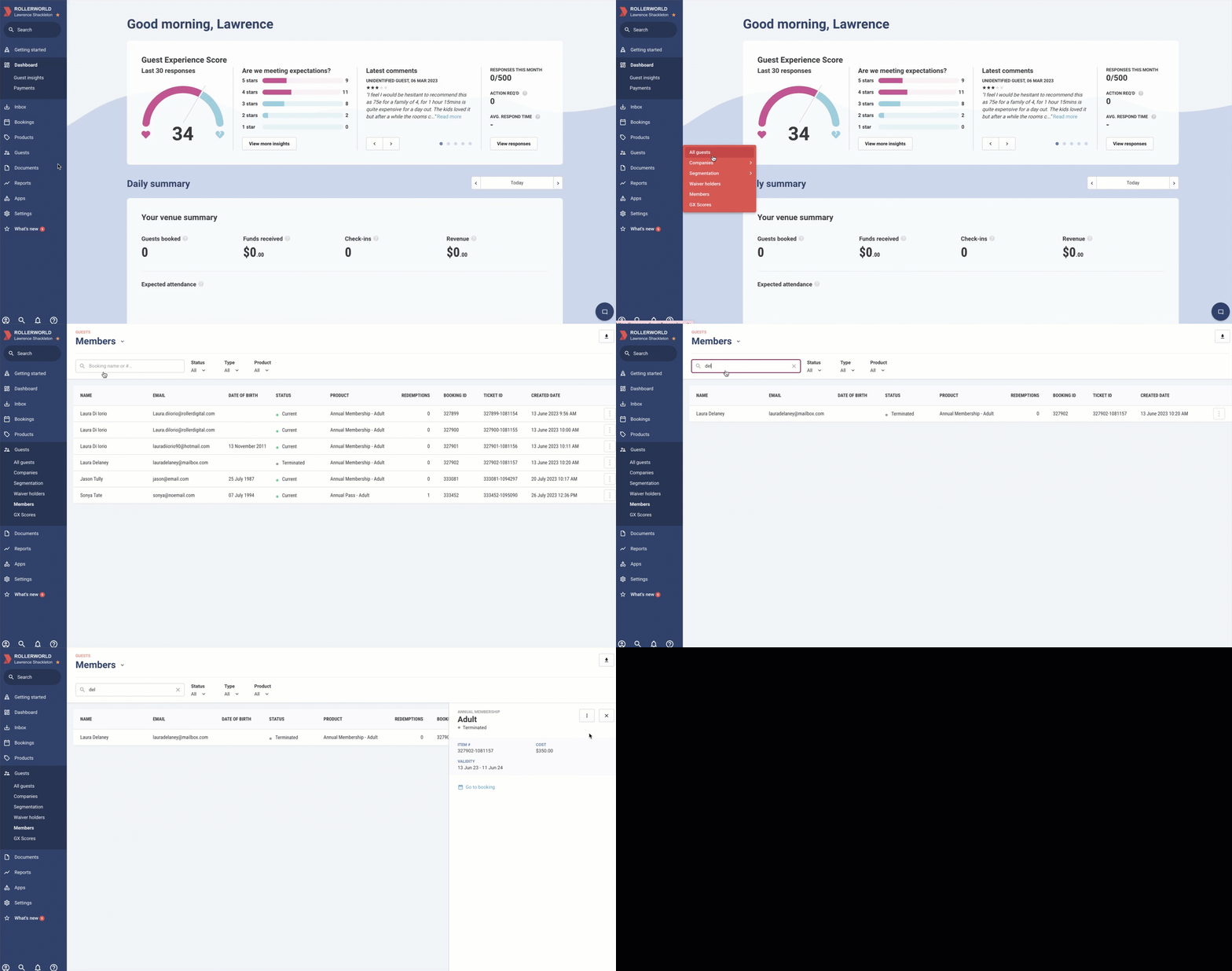
From Venue Manager, go to Guests > Members.
Search for the name of the membership holder you want to reactivate.
Select the member.
From the right panel, select the options menu (3 dots) and then select Reactivate membership.
When Reactivate membership is selected, the guest will automatically be charged for the first recurring payment. Once payment is successful, the membership is active again, and each recurring payment will be charged on the new membership anniversary date.
If payment fails, you will need to update the payment details provided and re-take payment for the membership.
Depending on your venue’s rollout stage, you may either manually enter new card details or send a secure update link to the member.
Once rollout is complete at your venue, manual entry in Venue Manager will no longer be available.