When a member’s card expires or changes, their recurring payments can fail. This guide shows you how to update a member’s recurring membership payment details from POS or Venue Manager so future payments continue successfully.
How updating payment details works
Updating payment details replaces the card used for future recurring membership payments.
Past successful payments are not affected.
The billing date does not change.
The new payment method is used for the next scheduled billing date (the membership's anniversary date).
For example, If a monthly membership was purchased on 12 June and the card is updated on 25 June, the next payment is still 12 July.
Where you update the payment details depends on the membership’s status:
Use Venue Manager for any membership, including memberships that are current and active. You send the member a secure link so they can update their own card details.
Use POS when the member is at the venue and their membership is Suspended (Declined payment) or Terminated. The member provides their card in person.
Special case: reactivating a membership
Reactivating a membership behaves differently from updating payment details.
If you reactivate a monthly recurring membership and enter new credit card details, the first recurring payment is charged immediately on the reactivation date.
The membership’s billing cycle then resets to that date.
For example:
If you reactivate the membership on May 12, the member is charged on May 12.
The next recurring payment will be charged on June 12.
This means the original renewal date is replaced by the new reactivation date.
To learn more about the failed recurring payments, see the guide Manage payments for recurring memberships.
Update membership payment details from POS
Update payment details is only available at POS when a membership is Suspended (Declined payment) or Terminated. If the membership is current and active, update the payment details from Venue Manager instead.
To update the credit card details for a suspended recurring membership at POS:
From POS, search for the member by membership name or number.
Select the membership.
Review the membership details page. A notification is displayed if the membership is currently suspended due to a payment failure.
Select the Update payment details button at the bottom right of the screen.
Swipe a credit card via the card terminal to authorize recurring payments.
After you update the payment details, the new card will be used for the next recurring payment.
If the membership is terminated
If the membership is Terminated (not Suspended), select Reactivate membership at the bottom right of the POS screen:
If the saved payment details are valid, payment is taken immediately and the membership becomes active.
If the saved payment details are invalid, swipe a new card and confirm payment to reactivate.
Update payment details from Venue Manager
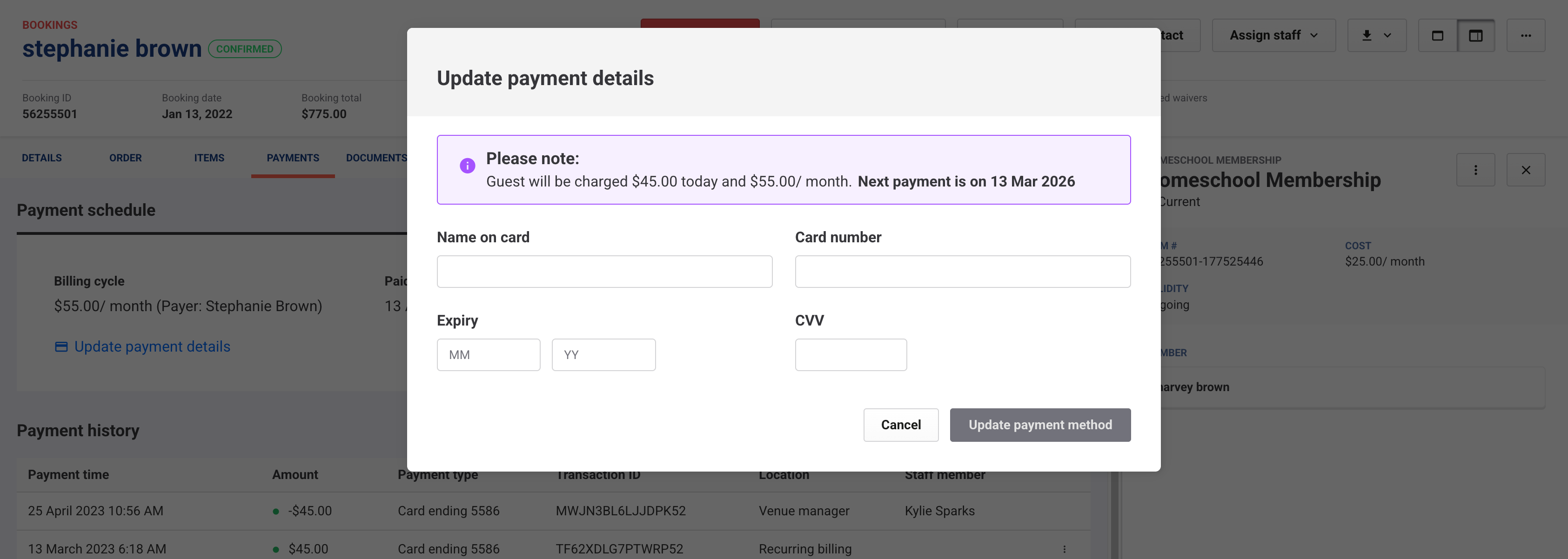
Venues using ROLLER Payments update card details by sending the member a secure link. The member enters their own card details, which meets PCI security standards and reduces your venue’s exposure to cardholder data. Venues using a third-party payment provider enter the card details manually instead.
To update payment details for recurring memberships:
From Venue Manager, use the search bar in the main menu to find the member (name, email, phone number or membership number).
Open the membership booking from the search results.
Select the Payments tab.
Select Update payment details.
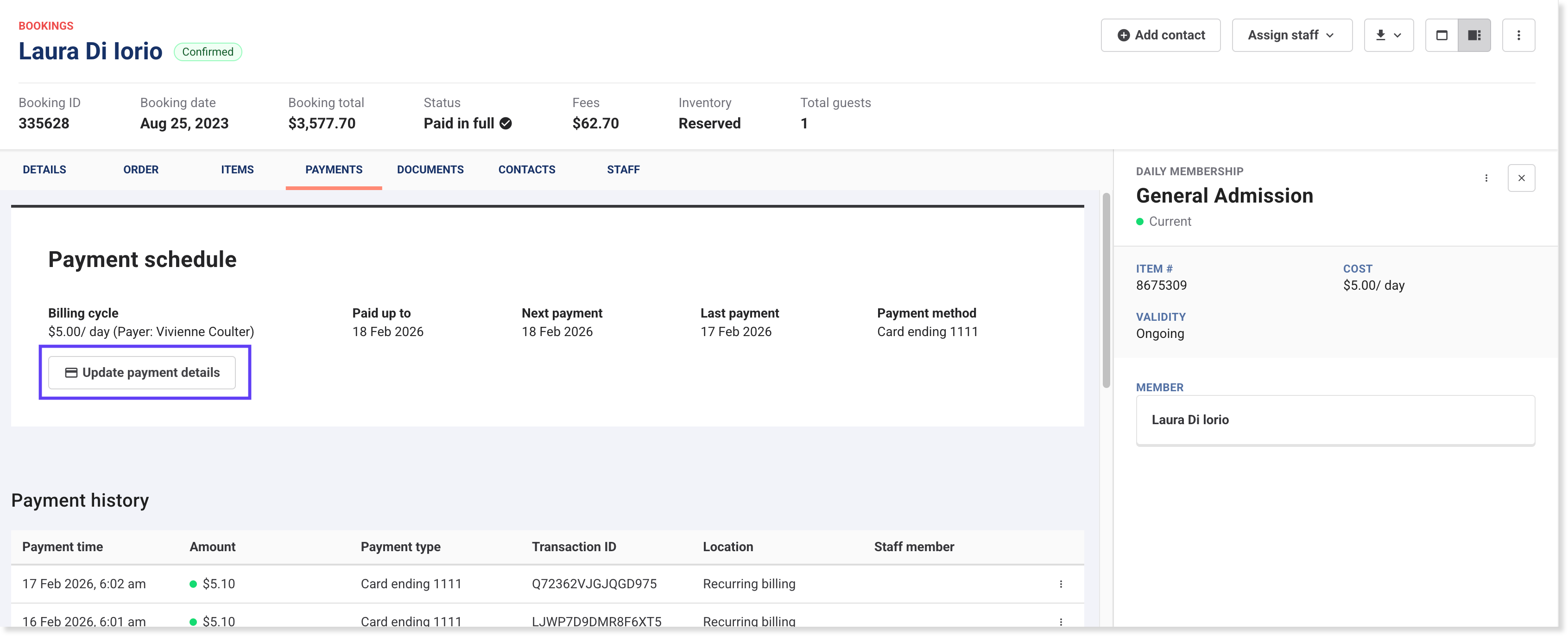
Follow the option shown on your screen.
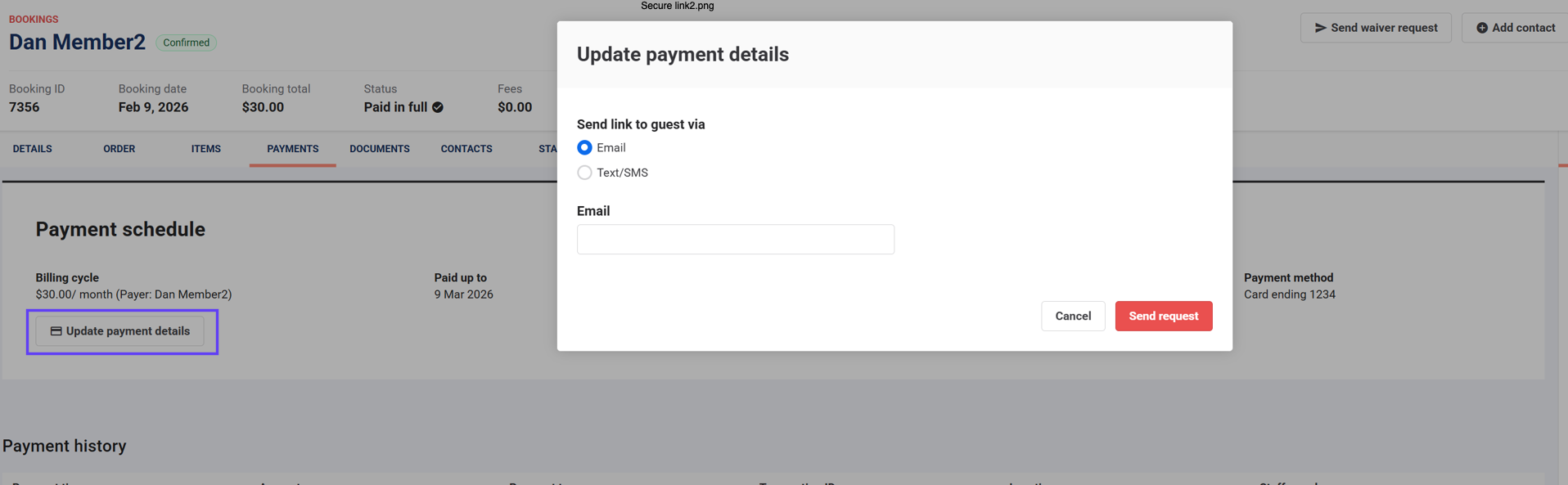
Send a secure update link
If you see options to send a secure link (Email or SMS), the member enters their own card details. Staff cannot enter or record card details on the member’s behalf.
Choose Email or SMS.
Confirm and enter the email address or phone number.
Select Send request.
Ask the member to open the link and update their card details on the secure payment page (while you stay on the call or later).
You can check the membership booking’s activity stream to track when the link is sent and when the member submits their update.
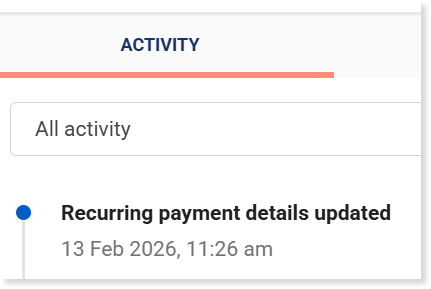
The payment method updates only after the member submits the form. No payment is taken during the update and the new card is used for the next scheduled payment.
Fees apply for payment links sent via SMS. The fee varies by venue country and billing currency. See the guide Text/SMS fees.
What happens after you send a secure update link
The member receives an email or SMS with a secure link. They open the link, enter their new card details on a secure payment page, then submit the form to save the new payment method.
Payment details update form
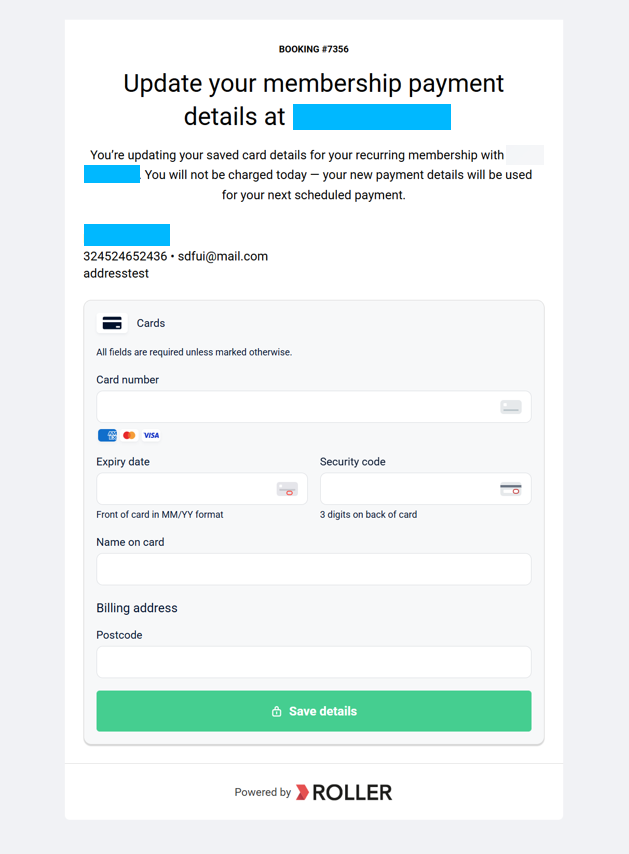
If the member can’t find the message, you can resend the link.
The payment method only updates after the member submits the form. No payment is taken.
You can customize the email template (eg branding, language and member instructions) in Venue Manager. Go to Settings > Design > Email templates. You cannot customize the SMS/Text message.
Help members update their card details
If you’re speaking to a member on the phone:
Let them know you’ll send a secure link so they can update their card details themselves.
Ask them to open the link while you stay on the call, if they can.
Confirm that the member must enter their own card details on the secure payment page. Staff cannot enter or record card details on their behalf.
Reassure them no payment is taken during the update. The new card is used for future recurring payments.
If they can’t complete it now, let them know they can use the link later at a time that suits them.
If online accounts are enabled for your venue, members can sign in and update their own payment details, including their saved payment method. This can help prevent failed recurring payments and reduce inbound calls. To learn more, see the guide Sign in and use online accounts.
If your venue uses a third-party payment provider
Payment links are not available with third-party payment providers.
Enter the new card details.
Select Update payment method to save.