ROLLER automatically handles the periodical payments for recurring memberships. This includes Smart Dunning, which is the process of recovering failed subscription payments to maximize revenue and prevent involuntary membership churn.
This article shows you how to manage payments for recurring memberships.
For ROLLER Payments customers, ROLLER offers Smart Dunning — an intelligent, data-driven solution for reattempting failed credit cards. Refer to the guide Maximize recurring membership revenue with Smart Dunning to find out more.
How it works
ROLLER's membership functionality allows you to sell recurring memberships in ROLLER POS or add the product to online checkouts for guests to purchase on their own.
Staff role permission
In order to manage recurring memberships, including application of credits and cancelling memberships, a staff member requires the Can manage memberships role permission. This permission is by default for administrator and manager roles. Find more information on staff roles and permissions
Membership payment
When a guest purchases a membership, two things happen:
A guest is sent two emails: Order confirmation and Membership details email.
Their guest Membership status is set to Current.
The payment schedule (weekly, monthly, yearly) for recurring memberships is defined in the membership product and payments are automatically charged. Guests can select the start date for their recurring membership when completing their purchase online or at POS.
Renewal process
Recurring memberships can run indefinitely or for a fixed period of time. After a guest's recurring membership has expired or been terminated, the guest can purchase a new recurring membership. This creates a new recurring membership payment schedule.
To learn how guests can self-manage membership upgrades and renewals from online accounts, see the guide Encourage guests to self-manage membership upgrades and renewals.
Update membership payment details in Venue Manager
From Venue Manager, find and open the booking with the recurring payment membership.
Select the Payments tab and select Update payment details.
From March 9, 2026 (AET), venues are gradually moving to a secure update link workflow.
Depending on your rollout stage, you will either:
Enter new card details manually in Venue Manager, or
Send a secure update link to the member so they can enter their own card details.
When using the secure link workflow, no payment is taken at the time of update. The updated card is used for the next scheduled recurring payment.
For more information on updating payment details, including updating in POS, see Update recurring membership credit cards from POS or Venue Manager.
Apply and manage credit for recurring memberships
You can add credit to a recurring membership to reward or retain valuable guests. Credit is applied as a discount and the future recurring payment is adjusted accordingly. You can also adjust or void credit up until the date the credit is applied.
View membership credit
You can view any credit issued to a guest from the booking details page, membership credit report or using our API's.
View credit in booking
From Venue Manager, find and open the booking with the recurring membership that has credit applied.
The Activity stream will display credit created, edited or voided.
Select the Payments tab and details of the credit applied to memberships in the booking will be displayed here.

View credit in Membership Credits Report
Refer to the How to use Guest reports article to learn more about the Membership Credits Report.
Data API
For information on accessing membership data via our API, refer to API Overview and Data API.
Update recurring membership credit card details
You can easily update recurring membership credit card details at POS and from Venue Manager. Refer to the guide Update recurring membership credit cards
Manage failed membership payments
If a member's recurring payment fails, ROLLER will attempt to collect the payment from the member by following an automatic 3-step Smart Dunning process described below and will send the member emails with notifications of failed payment.
Step 1 | Recurring payment fails - 1st attempt
|
Step 2 | First retry - 2nd attempt
|
Step 3+ | All subsequent retries within the payment recovery period
|
Smart Dunning is enabled for ROLLER Payments customers by default, but you can opt out at any time. To learn how, read the guide Maximize recurring membership revenue with Smart Dunning.
Reactivate suspended memberships
If the member visits your venue after the 2nd payment collection attempt has failed and their membership is suspended, staff can collect payment on the spot to end the dunning process and restore the recurring payment membership to an active state.
From ROLLER POS:
Find and open the booking with the recurring payment membership.
Select Update payment details on the bottom right corner of the screen.
Once updated, select Authorize.
From Venue Manager:
Find and open the booking with the recurring payment membership.
Select the Payments tab and then select Update payment details.
Update the card details then select Update payment method once complete.
Track failed payment attempts
Recurring payment memberships display retry information in Venue Manager.
Failed recurring payment notice in activity stream
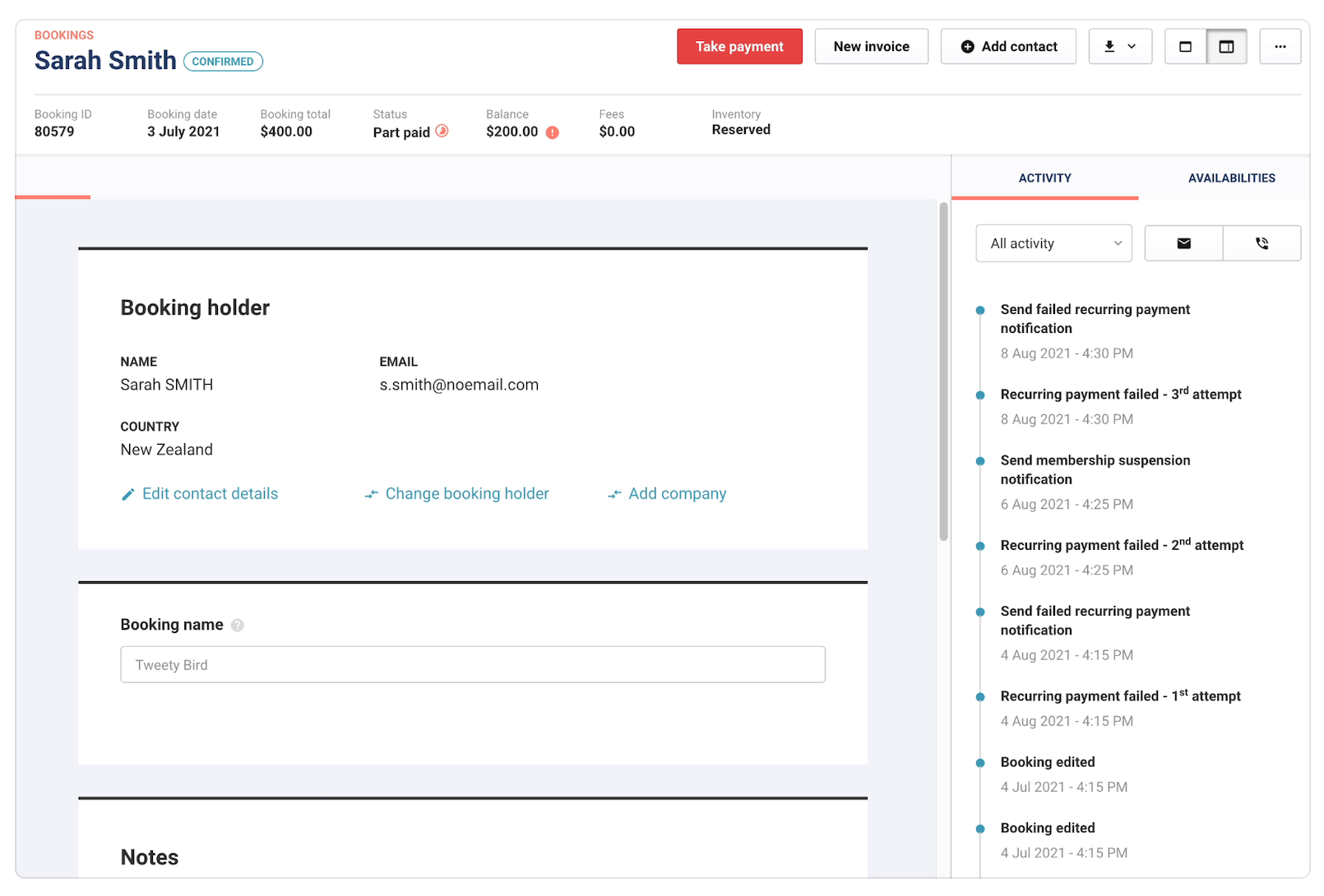
If a recurring payment membership is currently in the retry process, the membership will be marked as Payment Pending or Part Paid in the booking details screen and on the activity stream.
Membership status log
An overview of all membership status changes is available in the Membership Status Log report. The report lists the member status changes which can be filtered by previous and new membership status.
Recurring payment log
The Recurring Payment Log provides information on recurring payments processed, status and values. This allows you to see successful and failed recurring payment attempts across a given time period.
Recurring memberships FAQ
How is the next recurring payment date calculated after a successful payment retry?
When a failed payment retry is successful, the next payment date is calculated from the original scheduled payment.
For example, consider a monthly subscription membership purchased on the 1st of January:
If the automatic recurring payment fails on the 1st of February but is not successfully processed by the automatic retry system until the 3rd of February, the next payment date is calculated as the 1st of March, not the 3rd March.
This ensures the membership schedule is preserved even when payment is late.
Can guests update the payment details themselves?
Guests need to contact the venue to update their payment details. The emails sent to the guest notifying them of failed payments and scheduled retries also include a call to action to call the venue. These email templates can be modified.